

If you are trying to work out how to choose a WordPress theme, start with what your site needs to do. Then test each theme for mobile design, speed, editing flexibility, support, updates, and plugin compatibility. Do not choose a theme only because the demo looks polished. A good theme should fit your content, stay lightweight, work with your essential plugins, and be maintained by a developer you can trust.
Your WordPress theme controls much of what visitors see: layout, typography, colors, header style, footer style, templates, and how posts or pages are presented. WordPress explains that a theme shapes your website’s front-end design and displays the content WordPress stores in the browser through templates and styles. If you are still building your foundation, it helps to understand what WordPress is before you compare themes.
A theme is a long-term decision, but it is not a life sentence. You can change it later. The catch is that switching themes can affect layouts, menus, widgets, template settings, and custom design work. So the goal is not to find a perfect theme forever. The goal is to choose a theme that gives you a clean starting point and avoids avoidable problems.
Quick Answer: What Should You Look for in a WordPress Theme?
Choose a WordPress theme that matches your site type, loads quickly, works well on phones, supports the way you want to edit pages, receives regular updates, has clear documentation, and does not require a pile of extra plugins just to look like the demo.
Here is the simple version:
- Define the main purpose of your website.
- Choose between a block theme, classic theme, or builder-friendly workflow.
- Test the theme demo on mobile.
- Check speed with a tool such as Google PageSpeed Insights.
- Review update history, ratings, support, and documentation.
- Confirm compatibility with key plugins such as WooCommerce, SEO plugins, forms, caching, or page builders.
- Avoid bloated themes that are abandoned, hard to customize, or too dependent on bundled plugins.
That process gives you a much better result than scrolling through demos and picking the one with the prettiest homepage.
Start With Your Website’s Purpose
Before browsing the WordPress.org Theme Directory or premium marketplaces, write down what the site actually needs to publish, sell, collect, or explain.
A blog needs strong post readability, clean category pages, author information, and good typography. A business site needs service pages, trust signals, calls to action, contact options, and a homepage that explains the offer quickly. A portfolio needs visual galleries and project pages. An ecommerce store needs WooCommerce support, product layouts, checkout styling, and mobile-friendly product browsing.
This sounds basic, but it prevents one of the most common mistakes: choosing a theme because the demo content looks impressive. Demo content is staged. Your content may be shorter, longer, less visual, more technical, or more product-heavy. The right theme should make your real content easier to understand.
| Site Type | Prioritize | Be Careful With |
|---|---|---|
| Blog or content site | Readability, archives, typography, speed | Themes built around huge hero images but weak article layouts |
| Business website | Clear service pages, calls to action, contact flow | Portfolio themes that look stylish but hide the offer |
| Ecommerce store | WooCommerce support, product grids, checkout design | Themes that only style the homepage and ignore shop pages |
| Portfolio | Galleries, project pages, image handling | Heavy animation that slows down browsing |
| Membership or course site | Plugin compatibility, navigation, account pages | Themes with too many built-in features you cannot remove |
If you are still in the setup stage, connect this decision with your broader site plan. A guide like how to set up a WordPress website can help you think through domain, hosting, pages, and launch basics before you lock into a design system.
Decide How You Want to Edit Your Site
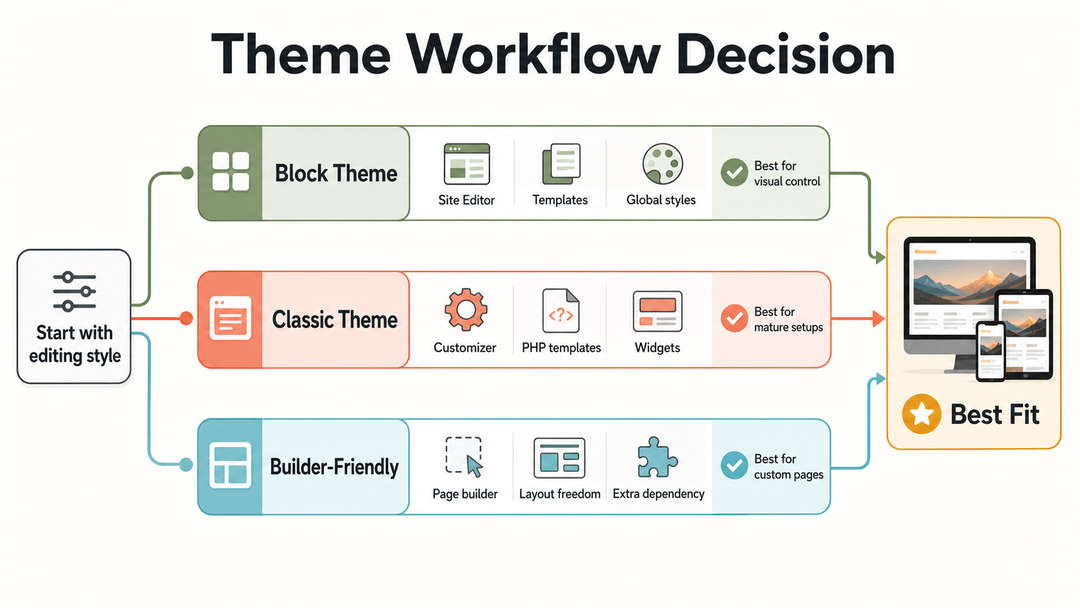
Before you compare individual designs, decide how you want to edit the site. WordPress themes are not all built the same way, and the editing workflow can shape your day-to-day experience more than the homepage demo does.
The official WordPress Theme Developer Handbook describes two primary theme types: block themes and classic themes. WordPress also recognizes hybrid approaches, where classic themes adopt some block-related features.
Block themes
A block theme is built for the modern WordPress Site Editor. WordPress.org documentation explains that block themes use blocks for all parts of the site, including navigation menus, headers, content areas, and footers. If a block theme is active, you can usually edit templates, global styles, and layout pieces through Appearance > Editor. For a step-by-step guide to making these changes across theme types, see how to customize a WordPress theme without coding.
Choose a block theme if you want:
- More visual control inside WordPress itself
- Global style options for colors and typography
- Template editing without touching PHP files
- A future-facing WordPress workflow
- Less dependence on a separate page builder
Block themes are a good fit for newer sites, content sites, small business sites, and users who like the block editor.
Classic themes
A classic theme uses PHP templates, stylesheets, functions, menus, widgets, and the Customizer. The WordPress Block Editor Handbook notes that classic themes define templates in traditional PHP files rather than full block templates.
Choose a classic theme if you want:
- A familiar Customizer-based workflow
- A mature theme ecosystem
- Strong compatibility with older plugins or layouts
- A theme designed around a specific page builder
- A workflow your developer already understands
Classic themes are still widely used and supported. They can be perfectly reasonable when well maintained.
Builder-friendly themes
Some users prefer a page builder such as Elementor, Divi, Beaver Builder, or Bricks. In that case, the theme often acts as a lightweight foundation while the builder controls individual page layouts.
This can be useful, but it adds another dependency. If you choose this path, make sure the theme is explicitly compatible with your builder, doesn’t fight the builder’s styling, and doesn’t require two separate systems to manage the same design elements.
For a deeper beginner explanation of how design and functionality fit together, read how WordPress themes and plugins work. It will help you avoid putting plugin-style functionality inside the theme, which can make future theme changes harder.
The WordPress Theme Checklist
Once you know your site’s purpose and editing workflow, use this checklist to compare themes. This is where theme selection becomes practical instead of visual guesswork.
1. Mobile design comes first
Your theme should feel natural on a phone, not just shrink the desktop layout. Open the live demo on your phone and use it as a visitor would.
Check:
- Is the menu easy to open and close?
- Are buttons large enough to tap?
- Is the text readable without zooming?
- Do images crop awkwardly?
- Are product cards, forms, or pricing tables usable?
- Does the footer become messy on smaller screens?
Do not rely only on a desktop preview. A theme can look excellent on a wide monitor and feel cramped on a phone.
2. Speed matters before you add content
A theme can affect site speed through scripts, stylesheets, font loading, layout choices, sliders, animations, and bundled features. Google describes Core Web Vitals as user-experience metrics for loading performance, responsiveness, and visual stability, so a theme that starts heavy makes optimization harder later.
To test a theme, copy the demo URL and run it through PageSpeed Insights. Do not obsess over one score, because demo sites vary and your hosting, plugins, images, and caching will also matter. Look for warning signs:
- Very poor mobile performance
- Huge page size before you add your own content
- Layout shifts while the page loads
- Heavy animations or video backgrounds
- Many scripts from features you will not use
If performance is already a concern on your site, connect theme choice with your broader speed work. A lightweight theme pairs naturally with the advice on how to speed up WordPress.
3. The design should fit your real content
A theme demo is usually filled with professional photography, carefully balanced headlines, and perfect sample pages. Your site may have ordinary team photos, shorter service descriptions, longer blog posts, or fewer visuals.
When you review a theme demo, mentally replace the demo content with yours:
- Will your homepage still make sense with your actual services?
- Will long blog posts be comfortable to read?
- Will your images match the theme’s crop style?
- Will your navigation fit without wrapping awkwardly?
- Will your logo work in the header?
- Will the theme still look good without every demo section?
The best theme is not always the most dramatic one. Often, it is the theme that lets your content breathe.
4. Customization should be flexible but not chaotic
A good theme gives you enough control to match your brand without making every small change feel like a technical project.
For block themes, look for:
- Global style variations
- Useful patterns
- Template editing
- Sensible spacing controls
- Typography and color settings
For classic themes, look for:
- Customizer controls
- Header and footer options
- Layout choices
- Clear widget areas
- Custom CSS support
Be cautious with themes that promise unlimited everything. Too many options can slow the site, confuse editors, and create inconsistent pages. You want useful control, not a control panel with hundreds of settings you will never understand.
5. Plugin compatibility should match your must-have tools
Themes should handle design. Plugins should handle major functionality. That separation makes WordPress easier to maintain.
Before choosing a theme, list your must-have plugins or features:
- WooCommerce for ecommerce
- SEO plugins such as Yoast SEO or Rank Math
- Contact form plugins
- Caching or performance plugins
- Security plugins
- Membership, LMS, booking, or multilingual plugins
- A page builder, if you use one
Then check the theme documentation, support notes, and demo pages. If you are building a store, do not accept vague claims that the theme is “WooCommerce compatible.” Check product pages, the cart, checkout, account pages, and mobile product filters.
6. Updates and support are not optional
WordPress changes over time. PHP versions change; WooCommerce changes. Browsers change. An unmaintained theme can become a liability.
Before installing a theme, check:
- Last update date
- Compatibility with the current WordPress version
- Support forum activity
- Documentation quality
- Changelog or release notes
- Developer reputation
- Review patterns, not just star ratings
One bad review does not make a theme bad. Repeated complaints about poor support, broken updates, or abandoned features are more serious.
7. Accessibility and SEO basics should be built in
A theme does not “do SEO” for you, but it can help or hurt the foundation. Look for clean heading structure, readable typography, responsive layouts, fast loading, schema compatibility, and support for common SEO plugins.
Accessibility matters too. In the WordPress.org Theme Directory, you can filter for accessibility-ready themes. That label does not guarantee your final site will be accessible, because your content and plugins also matter, but it is a useful signal.
At minimum, your theme should support:
- Clear keyboard navigation
- Visible focus states
- Readable contrast
- Logical heading use
- Responsive font sizes
- Form styles that are easy to use
These details affect real people, not just technical audits.
Free vs Premium WordPress Themes
You will also need to decide whether a free theme is enough or a premium theme is worth paying for.
Free themes from the official WordPress.org directory can be a safe choice because submitted themes go through WordPress.org review requirements. The directory also gives you filters, ratings, update information, active installations, and support links. The directory currently promotes thousands of free themes, with WordPress.org describing it as a place to browse more than 14,000 free themes.
Premium themes can be worth paying for when you need stronger support, more templates, polished starter sites, WooCommerce design, or faster setup for a business project.
| Factor | Free Theme | Premium Theme |
|---|---|---|
| Cost | No upfront theme cost | Usually paid annually or one-time, depending on license |
| Support | Often public forums or limited support | Usually ticket/email support during license period |
| Design options | Often simpler | Often more templates and layout controls |
| Risk | Safer when downloaded from WordPress.org | Depends heavily on vendor quality |
| Best for | Blogs, learning, simple sites, early projects | Business sites, ecommerce, client work, polished launches |
The better question is not “free or premium?” It is “does this theme fit the site, and is the developer maintaining it?”
A free, lightweight, actively updated theme can be better than a bloated premium theme. A well-supported premium theme can be better than a free theme that lacks the layout or help you need.
If budget is part of the decision, remember that WordPress costs include more than the theme. Hosting, domains, plugins, maintenance, backups, and support can all matter. For a fuller cost breakdown, see whether WordPress is free.
Where to Find Safe WordPress Themes
Use trusted sources. This is one of the simplest ways to avoid theme problems before they reach your website.
WordPress.org Theme Directory
The official directory is the best place to start for free themes. You can filter by layout, subject, and features such as block themes, accessibility-ready, custom logo, wide blocks, translation-ready, and ecommerce.
When reviewing a directory theme, check:
- Last updated
- Active installations
- Ratings and review quality
- Support forum activity
- Theme homepage
- Documentation
- Whether the theme supports your needed features
Reputable theme companies
Many respected theme developers sell free and premium themes directly. Buying direct can give you better documentation, clearer licensing, and a more direct support relationship.
Look for companies that publish changelogs, support policies, renewal terms, documentation, refund policies, and compatibility notes.
Premium marketplaces
Theme marketplaces offer many options, but quality varies by seller. Review each theme as its own product. Do not assume a marketplace listing means the theme is right for your site.
Check update history, sales count, support replies, comments, documentation, and whether the theme relies on bundled plugins that may become outdated.
Sources to avoid
Avoid “nulled” themes, random free downloads from unknown websites, forum uploads, and cracked premium themes. They can contain malware, hidden links, outdated code, or license problems. A free theme from WordPress.org is a much safer choice than a suspicious copy of a paid theme.
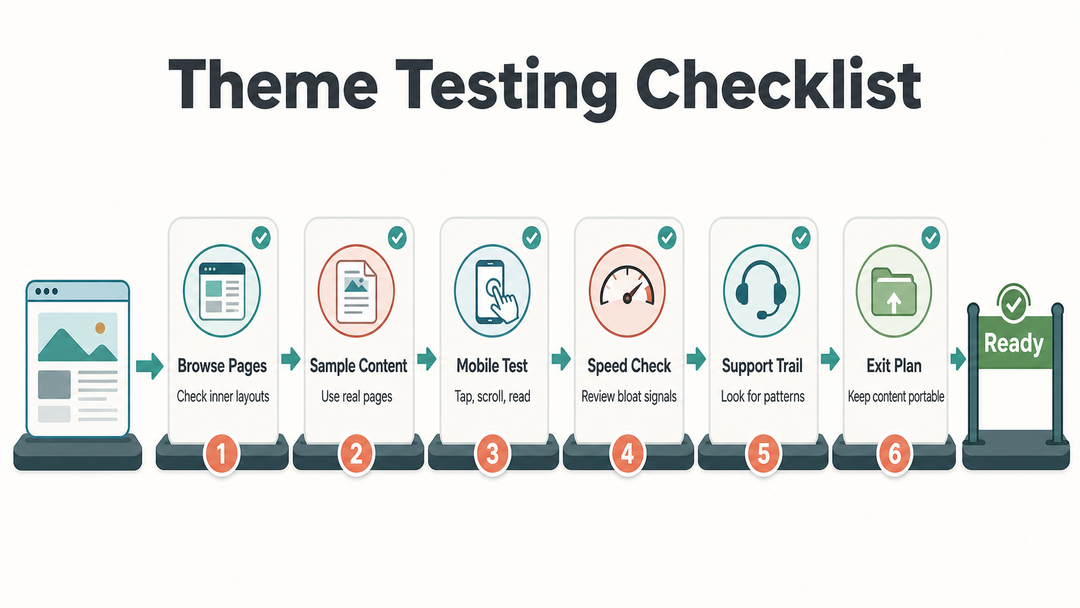
How to Test a Theme Before You Commit
You do not need to be a developer to test a theme carefully. You need a repeatable process.
Step 1: Browse more than the homepage
Open the demo and inspect:
- Blog post page
- Blog archive
- About page
- Contact page
- Search results
- 404 page
- Product page, if ecommerce
- Cart and checkout, if ecommerce
- Mobile menu
The homepage gets the most design attention. The inner pages reveal how the theme will actually feel day to day.
Step 2: Use your own content sample
If the theme has a free version, install it on a staging site or test install. Add one real blog post, one page, your logo, your brand colors, and a real menu.
If you are evaluating a premium theme and cannot install it first, compare the demo with your content plan. Ask whether your content would naturally fit the design or whether you would be forcing your site into the demo’s shape.
Step 3: Test mobile manually
Do not skip this. Open the demo or test site on your phone. Tap, scroll, read, and try forms. If you are building a business or store, test the main conversion path.
Step 4: Run a speed check
Use PageSpeed Insights or another performance tool to test the demo. Treat the result as a warning system, not a final verdict. A demo with many images may score lower than a clean install, but a very heavy demo can still reveal bloat.
Step 5: Check the support trail
Search the theme name plus words like “support,” “slow,” “WooCommerce issue,” “Elementor issue,” or “not updated.” You are not looking for perfection. You are looking for patterns.
Step 6: Confirm your exit plan
Ask what happens if you change themes later. Will your content remain in normal WordPress posts and pages? Or does the theme lock important content inside custom shortcodes, theme-only widgets, or proprietary blocks?
The less your content depends on the theme, the easier your future redesign will be.
Theme Red Flags to Avoid
Some themes look tempting but create maintenance problems. Watch for these red flags:
- No recent updates
- No clear documentation
- Many unanswered support requests
- Required plugins to make basic pages work
- Overloaded demos with sliders, animations, and effects everywhere
- Poor mobile menu behavior
- Hard-to-read typography
- Layouts that depend on perfect images
- No clear refund or support policy for premium themes
- No compatibility notes for WooCommerce or your page builder
- Theme-specific shortcodes used for core content
- Bad reviews that repeatedly mention broken updates or poor support
One red flag may be manageable. Several together are a sign to keep looking.
What to Do Before Changing Themes on an Existing Site
If you already have a live website, be more careful. Changing themes can affect design settings, menus, widget areas, template layouts, custom CSS, WooCommerce presentation, and page-builder styling.
Before switching:
- Create a full backup of your files and database.
- Test the new theme on a staging site if possible.
- Screenshot key pages before the change.
- Check menus, headers, footers, sidebars, forms, and shop pages.
- Review custom CSS and tracking scripts.
- Test mobile layouts.
- Check speed before and after.
- Keep the old theme available until you verify the new layout.
Do not change a live business site casually on a busy day. If the site matters, treat a theme switch like a small redesign project.
Backups are especially important before design or plugin changes. Use a WordPress backup checklist before you experiment with anything important.
A Simple WordPress Theme Scoring Framework
If you are comparing three or four themes, score each one from 1 to 5 in the categories below.
| Category | Question | Score |
|---|---|---|
| Purpose fit | Does it match the site type and content? | 1-5 |
| Mobile UX | Is it easy to use on a phone? | 1-5 |
| Speed | Does the demo look lightweight and stable? | 1-5 |
| Editing workflow | Does it match how you want to build pages? | 1-5 |
| Customization | Can you change key brand elements without chaos? | 1-5 |
| Plugin compatibility | Does it support your must-have tools? | 1-5 |
| Updates | Is it actively maintained? | 1-5 |
| Support | Can you get help if something breaks? | 1-5 |
| Portability | Can you switch later without losing core content? | 1-5 |
A theme does not need a perfect score. But if it scores poorly on purpose fit, mobile UX, updates, or plugin compatibility, do not ignore that because the homepage demo looks beautiful.
For most beginner sites, the safest choice is a theme that is:
- Lightweight
- Actively updated
- Easy to edit
- Not overloaded with required plugins
- Built around normal WordPress content
- Specific enough for your site type, but flexible enough to grow
That is the quiet sweet spot.
How This Fits Into WordPress Development
Choosing a theme is one part of the larger WordPress development process. The theme handles much of the front-end presentation, while plugins, hosting, content structure, performance work, and maintenance all shape the final site experience. When you choose a theme carefully, you make every later step easier: customization, SEO, speed optimization, redesigns, and long-term upkeep.
FAQs About How to Choose a WordPress Theme
How do I know if a WordPress theme is good?
A good WordPress theme fits your site purpose, works well on mobile, loads quickly, receives regular updates, has useful documentation, and supports the plugins you need. It should also make your real content look clear without requiring excessive customization.
Should I choose a block theme or a classic theme?
Choose a block theme if you want to edit templates, headers, footers, and global styles inside the modern WordPress Site Editor. Choose a classic theme if you prefer the Customizer, need a mature classic workflow, or rely on a page builder or plugin setup built around classic themes.
Are free WordPress themes safe?
Free WordPress themes are generally safest when you download them from the official WordPress.org Theme Directory. Avoid free copies of premium themes from unknown websites, because they may include malware, spam links, outdated code, or licensing problems.
Do WordPress themes affect SEO?
Yes, WordPress themes can affect SEO indirectly through page speed, mobile usability, heading structure, schema compatibility, and how cleanly the site renders content. A theme will not guarantee rankings, but a slow or poorly coded theme can make SEO work harder.
How many features should a theme include?
A theme should include design and layout features, not every possible business function. Use plugins for major functionality such as ecommerce, forms, SEO, security, backups, courses, or memberships. This keeps your content and features more portable if you change themes later.
Can I change my WordPress theme later?
Yes, you can change your WordPress theme later, but you may need to reconfigure menus, widgets, templates, custom CSS, page layouts, and some design settings. Always back up the site and test the new theme on staging before changing a live website.
Final Takeaway
The smartest theme choice starts with treating the theme like a working foundation, not a decoration. Start with your site purpose. Pick the editing workflow that fits you. Test mobile, speed, support, updates, and plugin compatibility. Then choose the theme that makes your real content easier to use.
A good theme should feel almost boring in the best way: stable, clear, flexible, and easy to maintain. That kind of choice will serve you far longer than a flashy demo.