
You click Edit with Elementor, see a gray canvas, and get the message “The preview could not be loaded.” The elementor the preview could not be loaded error usually means the editor cannot open or communicate with the page preview; it does not mean your page was deleted or that visitors necessarily see a broken site.
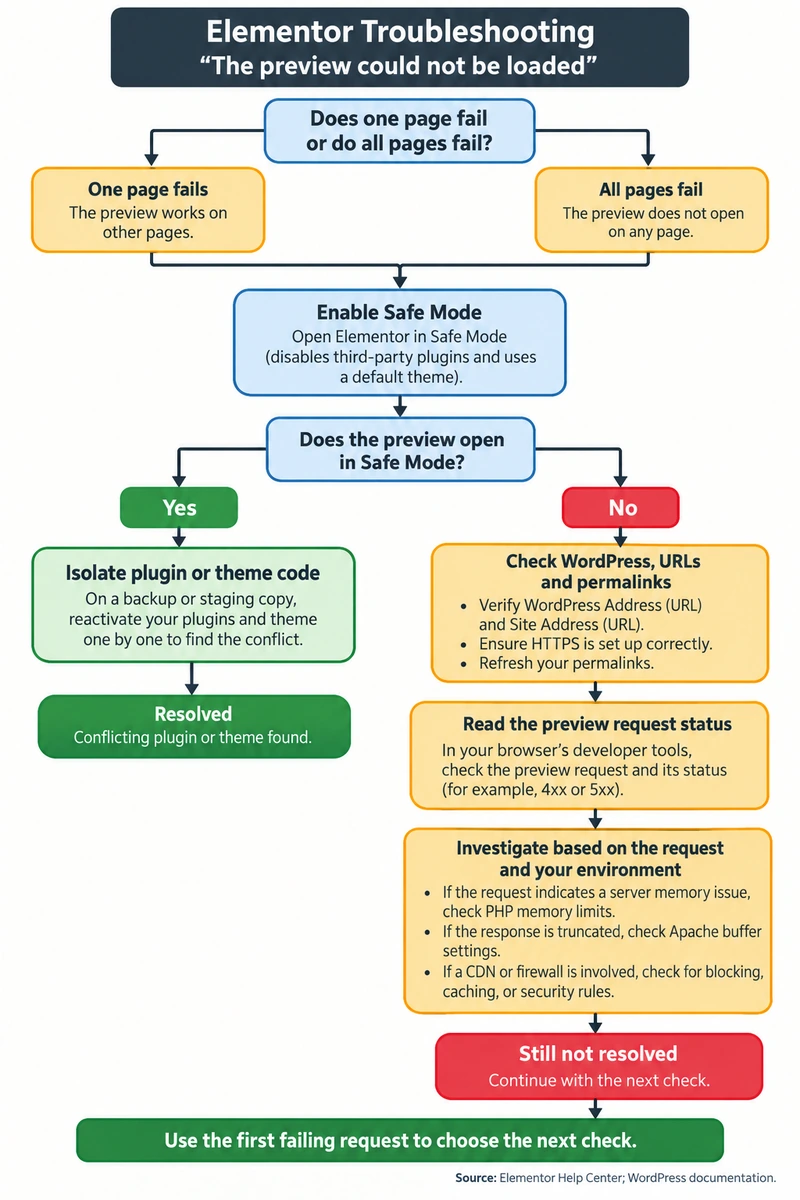
Start with a safe, reversible check, then follow the evidence: Safe Mode, URL and permalink consistency, server resources, and finally firewall or script settings. Avoid changing several things at once; you will know which fix worked.
Understanding Elementor’s “The Preview Could Not Be Loaded” Error
Quick answer (48 words): For this Elementor error, enable Safe Mode to test plugin conflicts; it affects only your administrator editor session. If it still fails, compare site URLs and HTTPS, then set
WP_MEMORY_LIMITto512Mon complex sites when hosting allows it. Try the alternative loader and inspect server logs next.
Elementor edits a page through two connected views. The outer editor shell lives in WordPress administration and contains the widget panel and controls. Inside it, an HTML iframe loads a preview of the page using a URL that can include ?elementor-preview=123, where the number identifies the content being edited. Think of the shell as a remote control and the iframe as the television: both must work, and the remote must be able to communicate with the screen. Elementor’s official preview troubleshooting guide covers its supported checks.
The shell and preview exchange information through browser messaging such as window.postMessage and contentWindow. WordPress REST API requests and admin-ajax.php calls also support editor operations. If the preview request is redirected repeatedly, blocked, or returns an error instead of the expected page, Elementor may show the preview error even while the front end appears normal.
| What you see | What it suggests | First check |
|---|---|---|
| One page fails, others open | A page widget, shortcode, or saved revision may be involved | Test another page and inspect custom HTML |
| Every page fails | A shared plugin, URL, memory, or server rule is more likely | Safe Mode, URLs, and System Info |
| Network request returns 403 | A firewall or security rule may block the preview | Ask the host to inspect the blocked request |
| Request returns 500 | PHP, memory, or a plugin may have failed | Hosting error log and debug.log |
| Preview request redirects or reports CORS | URL scheme, hostname, or redirect rules may disagree | Compare WordPress and Site URLs |
If the editor error appears alongside unrelated WordPress failures, use this guide to common WordPress errors and quick fixes to identify broader site symptoms.
The Dual-Window Architecture: Editor Shell vs. Preview Iframe
The editor asks WordPress for a front-end rendering of the selected post. The server must return a usable HTML page for the preview iframe, then the editor adds its controls and editing hooks. A clean HTTP 200 response is typical; a 403, 500, authentication page, or redirect loop can interrupt that process. The precise cause depends on the response, so inspect the preview request in your browser’s Network panel instead of assuming every gray canvas is a memory problem.
How Third-Party Scripts Break the Cross-Window Handshake
The preview also loads theme and plugin scripts. A third-party slider, form, optimization tool, or custom HTML widget can throw an uncaught JavaScript error before Elementor finishes starting. The iframe may appear blank even though the server returned HTML. Safe Mode and the browser Console help distinguish a script crash from a failed HTTP request.
Elementor Safe Mode: Test the Preview Error Without Breaking Your Live Site
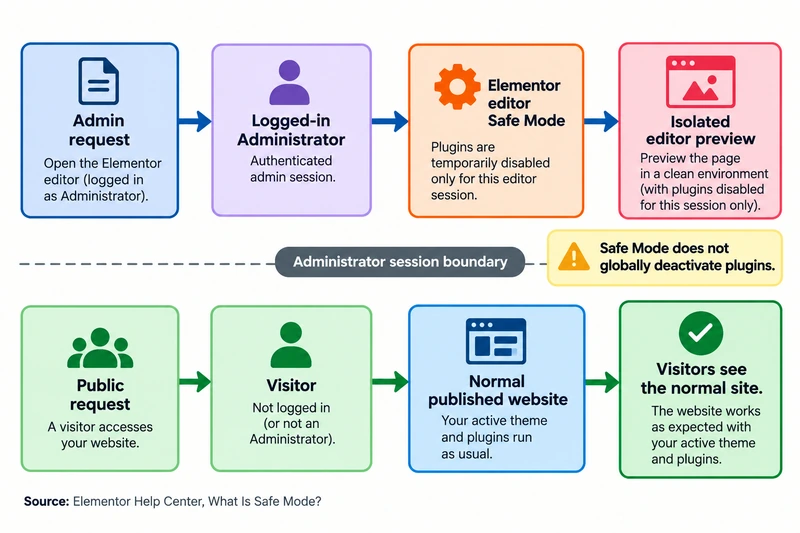
It is reasonable to worry that a setting called Safe Mode might disable plugins for customers. Elementor documents Safe Mode as an editor troubleshooting session for authenticated administrators. Public visitors continue to receive the normal site; Safe Mode does not globally deactivate plugins or rewrite the site database. It provides a cleaner editor environment so you can test whether third-party plugin or theme code is involved.
| Safe Mode session | Public visitor request |
|---|---|
| Authenticated administrator opens the Elementor editor | Visitor requests the normal published page |
| Elementor uses a cleaner editor environment for diagnosis | Active theme and site plugins continue to run normally |
| Changes help isolate an editor conflict | No site-wide plugin deactivation is made by the test |
How Safe Mode Works Behind the Scenes
Safe Mode is intended to isolate the Elementor editor from external code that could disrupt it. Elementor’s current help documentation says it loads a clean editor environment without third-party plugins or theme code. It is a diagnostic aid, not proof that a particular plugin is defective: settings, browser extensions, server rules, or resource limits can still prevent the preview from opening. Turn it off after testing so your normal editor features and experiments return.
Step-by-Step Guide to Enabling Safe Mode and Isolating the Culprit
- In WordPress, open Elementor > Editor > Tools (some installs expose Elementor > Tools > General).
- Set Safe Mode to Enable, then save.
- Reopen the affected page in Elementor. If the error dialog offers Enable Safe Mode, you can use that shortcut.
- If the canvas opens, test plugins and theme code in a staging copy when possible. Back up first, then deactivate nonessential plugins in small groups and test again. Restore the group and split it until you find the conflict. Check optimization and security plugins early.
- If Safe Mode also fails, move to URLs, memory, server rules, and the Network panel. A failure in Safe Mode makes a simple third-party editor conflict less likely, but does not prove the server is at fault.
When you identify the conflict, check for an update or contact its developer. Avoid leaving a business-critical plugin disabled on a live store while testing.
Increasing the PHP Memory Limit to Prevent Silent Crashes
The editor loads the page, theme, Elementor, and often several add-ons in the same PHP request. If PHP reaches its memory limit, the request can end with a fatal error; the browser may only show a failed preview or HTTP 500. Elementor lists 256 MB as a minimum and recommends 512 MB for complex sites. WooCommerce, Elementor Pro, dynamic content, and add-on packs can make the higher limit useful, but the hosting account must permit it.
| Setting | Baseline or observed value | Recommended check or target |
|---|---|---|
WP_MEMORY_LIMIT | Elementor minimum: 256 MB | For complex sites, request 512M if the host permits it |
WP_MAX_MEMORY_LIMIT | WordPress administration memory request; effective cap depends on PHP | Ask the host whether this cap is available |
PHP memory_limit | Server-level ceiling; value varies by host | Confirm in hosting PHP settings or Elementor System Info |
max_execution_time | Host-configured; there is no universal value for this error | Have the host adjust it only if logs show a request timeout |
The WordPress constant cannot override a lower server-enforced limit. Ask your host to confirm the effective PHP limit if the value in Elementor’s System Info does not change. See the WordPress memory configuration reference for how WordPress reads these settings.
define( 'WP_MEMORY_LIMIT', '512M' );Why 256MB Is No Longer Enough for Modern Elementor Sites
256 MB is Elementor’s documented minimum, not a guarantee that every site stack will fit comfortably. A complex shop or agency build can load Elementor Pro, WooCommerce, dynamic query widgets, custom templates, and several add-ons together. The relevant evidence is the PHP limit and error log, not a universal claim that every Elementor site requires 512 MB. Treat 512 MB as a practical target for complex sites and have the host raise the server cap if needed.
How to Edit wp-config.php to Allocate 512MB
Back up the site first. Use your host’s File Manager or SFTP to open the WordPress root wp-config.php, add the line above the stop-editing comment, and save. Do not add it twice if a memory constant already exists; update the existing value instead. Then check Elementor > System Info and retry the editor. If the host controls a lower cap, ask support to adjust it. For broader diagnosis of a fatal memory message, see fixing allowed memory size exhausted in WordPress. If the preview request returns HTTP 500, continue with WordPress 500 internal server error troubleshooting and match its timestamp to your PHP log.
Fixing URL Mismatches, Permalinks, and Cross-Origin Restrictions
An Elementor preview may fail when WordPress generates a preview URL with a different protocol or hostname from the editor. Common variations include http versus https, or www versus non-www. Redirects, SSL settings, reverse proxies, and security rules can also complicate the request. Browsers enforce origin boundaries, so compare the actual preview request and response rather than treating every mismatch as a CORS problem.
Synchronizing WordPress Address (URL) and Site Address (URL)
Open Settings > General and compare WordPress Address (URL) with Site Address (URL). Both should use the site’s intended HTTPS scheme and canonical hostname, subject to how your host configures WordPress. Do not change these values casually on a live site: an incorrect URL can lock you out. If the fields are locked or the site recently migrated, ask your host or developer to review WP_HOME, WP_SITEURL, proxy headers, and redirect rules. After a migration, use Elementor’s Replace URL tool carefully and regenerate files.
Flushing Permalinks and Regenerating the .htaccess File
Go to Settings > Permalinks and click Save Changes without changing the selected structure. WordPress refreshes its rewrite rules; on Apache this can update .htaccess. On Nginx, rewrite rules are managed by the server, so the button cannot rewrite the Nginx configuration. Then retry the preview URL. If it still redirects or drops its elementor-preview query parameter, ask the host to inspect redirects and rewrite rules.
If the site also reports loopback request timeouts, use the guide to resolve server cURL timeout errors to investigate that related network symptom.
Toggling the Switch Editor Loader Method
Elementor’s Switch Editor Loader Method setting is a compatibility option worth trying when the normal loader fails on a particular hosting setup. It changes how Elementor loads the editor; it does not repair a PHP fatal error, an invalid URL, or a firewall block. Try it after Safe Mode and basic URL checks, and record the original setting so you can reverse the change.
How to Enable the Alternative Loader in Elementor Settings
- In WordPress, open Elementor > Settings > Advanced (the exact tab label can vary by version).
- Set Switch Editor Loader Method to Enable.
- Save, clear relevant caches, and reopen the affected page.
- If there is no improvement, restore the prior setting and continue with the Network and server checks below.
If the setting is absent in your version, do not add code to imitate it. Check Elementor’s current help page or support guidance for your installed version.
Resolving Theme and Server Edge Cases: Astra, Apache, and Cloudflare
Some failures happen below WordPress. Apache modules, a web application firewall, or a CDN can change or block the preview response. These fixes depend on server configuration; take a backup and involve the host when you do not administer Apache or Cloudflare.
The Astra Theme Apache Buffer Fix: SubstituteMaxLineLength
The Astra troubleshooting guide describes an Apache mod_substitute response buffer issue that can affect Elementor editing. It suggests adding a SubstituteMaxLineLength directive in an <IfModule mod_substitute.c> block. The documented value is 10M; Astra warns this may not solve every case and recommends backing up and consulting your host before changing server configuration. Read the Apache mod_substitute directive reference and have the host confirm the module before applying the setting. The directive will not work on Nginx or when mod_substitute is unavailable.
<IfModule mod_substitute.c>
    SubstituteMaxLineLength 10M
</IfModule>
Back up .htaccess before editing. If Apache returns a 500 after the change, restore the backup immediately and ask the host to review the configuration. Astra’s Customizer article is an adjacent server diagnostic; it does not establish that every Elementor preview error needs this directive.
Configuring Cloudflare Rocket Loader and WAF Firewall Rules
Cloudflare’s Rocket Loader documentation explains how it changes JavaScript loading behavior. If the error began after enabling it, temporarily disable Rocket Loader for a controlled test or ask your administrator to exclude the relevant editor and preview requests. Also check Cloudflare events and host ModSecurity logs for a blocked request. Do not turn off the firewall globally as a routine fix. Ask the provider to allow only the specific legitimate request after confirming its path and rule ID. When a firewall specifically blocks a REST request, see the planned guide to WordPress REST API 403 Forbidden errors for related access-control checks.
Advanced Diagnostics: Decoding Browser DevTools and Server Error Logs
When quick checks do not work, collect one useful clue before changing more settings. The browser tells you whether the request failed or the script crashed; the PHP log can reveal errors that never reach the page.
| Console or Network finding | Likely direction | Next action |
|---|---|---|
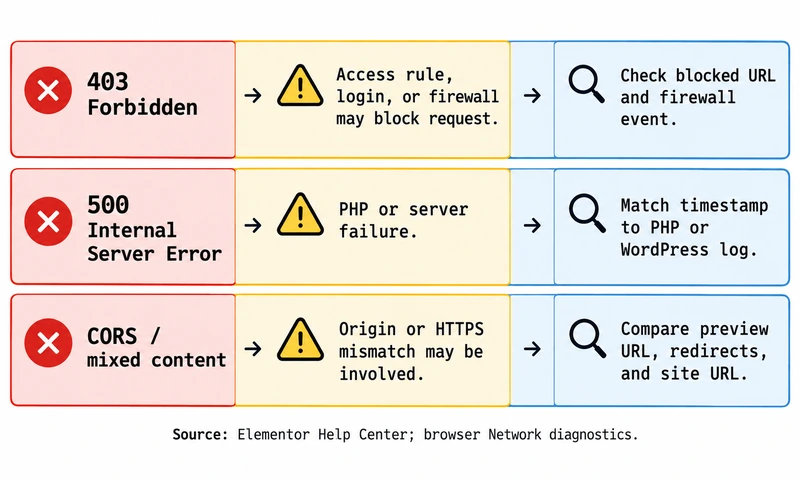
403 Forbidden | Access rule, login, WAF, or security plugin | Check the blocked URL and firewall event |
500 Internal Server Error | PHP fatal, memory limit, or server failure | Match the timestamp in the PHP or WordPress log |
| CORS or mixed-content warning | Origin, HTTPS, or proxy mismatch | Compare preview and site URLs and redirects |
Uncaught TypeError | Script conflict or incompatible code | Identify the script filename and test in Safe Mode |
admin-ajax.php or REST request fails | Permission, authentication, plugin, or server rule | Inspect response body and host logs |
Reading Chrome DevTools Console and Network Errors
- Open the failed editor page, right-click the blank canvas, and select Inspect.
- Select Network, enable Preserve log, then reload the editor. Filter for
elementor-preview,admin-ajax, or failed requests. - Open Console and note the first red error, the request URL, status code, and response message. Share those details with your developer or host; remove private tokens and customer data first.
The first failure often matters more than later errors, which may be consequences of the initial blocked request.
Enabling WP_DEBUG_LOG to Catch Hidden PHP Crashes
Use a staging site where possible. If you enable logging on production, do not display errors to visitors, and disable debugging after collecting the evidence. Add the following only if these constants are not already defined in wp-config.php:
define( 'WP_DEBUG', true );
define( 'WP_DEBUG_LOG', true );
define( 'WP_DEBUG_DISPLAY', false );
Reproduce the error, then inspect /wp-content/debug.log and the host’s PHP error log around that time. Do not publish the log: it can contain file paths, database details, or other sensitive information. Turn debugging off when finished.
Long-Term Editor Stability: Caching, DOM Health, and Modern Alternatives
Once the editor works, reduce the chance of a repeat. Keep WordPress, Elementor, themes, and add-ons updated; test updates on staging; and keep a recent backup. Large page structures can make editing harder, but DOM size alone does not prove the cause of a preview failure. If a single complex page fails, simplify or inspect its widgets and custom code. See the planned guide to reducing Elementor page complexity.
Best Practices for Caching Plugins and File Regeneration
After an Elementor or add-on update, open Elementor > Tools and use Regenerate Files & Data if the option is available. Clear the browser, page, CDN, and server caches in a controlled order. For diagnosis, exclude the editor and dynamic preview requests from optimization or caching according to the cache plugin’s current documentation; do not cache personalized editor responses. Elementor’s current troubleshooting guide specifically recommends checking cache layers and testing in an incognito window.
When to Consider Lightweight Builders (Breakdance vs. Bricks)
If your team repeatedly spends time resolving builder conflicts, compare alternatives against your actual needs: editing workflow, theme and plugin compatibility, accessibility, support, migration effort, and measured front-end output. Breakdance and Bricks Builder are options to evaluate, not guaranteed fixes for iframe or server errors. Test a representative page on staging before migrating. The planned comparison of modern, lightweight alternatives to Elementor can help frame that evaluation.
For a broader troubleshooting path after these checks, continue with the complete WordPress bug fix guide.
Frequently Asked Questions About Elementor Preview Loading Errors
Will enabling Safe Mode break my website for visitors?
No. Elementor says Safe Mode applies to authenticated administrators while they work in the Elementor Editor. Visitors continue to see the regular published site, and the diagnostic session does not globally deactivate plugins. Turn Safe Mode off after testing to return the editor to its normal environment.
Why does the preview error only happen on one specific page?
When only one page fails, inspect that page’s widgets, custom HTML, shortcodes, and recent revisions first. A page-specific script or content issue is plausible, but it is not the only explanation: a template condition, unusually heavy page, or request-specific redirect can also be involved. Compare the page with one that opens and inspect the failing Network request.
What is the minimum PHP memory limit required for Elementor Pro?
Elementor documents 256 MB as the minimum PHP memory and recommends 512 MB for complex websites. Pro, WooCommerce, and add-ons may increase demand, so check the effective server limit and logs before changing it. If the host enforces a lower cap, a WordPress constant alone may not raise it.
Why does Elementor show a blank preview canvas after migrating a website?
After a domain or SSL migration, old URLs or redirect rules can prevent the preview from loading. Compare the WordPress and Site URLs, confirm HTTPS and the preferred hostname, then inspect the preview request for redirects or CORS errors. Elementor’s Replace URL tool and file regeneration can help update migrated content; back up first.
The fastest path is to test Safe Mode, confirm the preview URL, and use the browser status or server log to choose the next fix. If you cannot safely edit server settings, send the request URL, error code, timestamp, and relevant log excerpt to your host.