
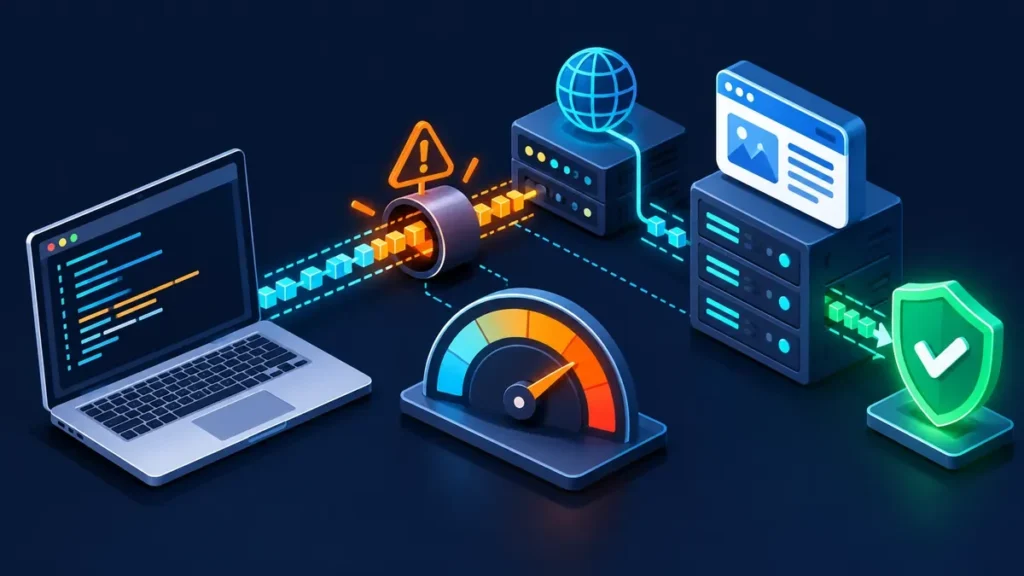
WordPress cURL error 28 means an HTTP operation exceeded its time limit; it does not identify the cause. Start at Tools > Site Health > Status and check whether the failed request is a loopback call to your own site or an outbound call to another service. That split points you toward local routing/security or DNS, TLS, firewall, and remote-service checks.
Warning: Back up the site or use staging before changing server settings or disabling protection. For payment issues, confirm transaction status with the gateway before retrying.
WordPress cURL Error 28: Why Connections Time Out
Error 28 means the transfer timed out. libcurl defines it as an operation timeout; the message may include elapsed milliseconds and bytes received, but cannot tell you whether DNS, connection setup, TLS, a firewall, or the remote service caused the delay. WordPress uses its HTTP API for loopback and external requests, and PHP may use cURL or another transport. The http_request_timeout filter documents a five-second default for that request option; individual requests can override it. A WordPress cURL error 28 is a timeout symptom, not a diagnosis.
For WordPress cURL error 28, record the complete error, URL, timestamp, triggering action, and whether bytes arrived. Remove tokens or private query parameters before sharing logs.
Common Scenarios Where cURL Error 28 Disrupts WordPress
- Site Health loopback or REST check fails: WordPress may not reach its own URL because of routing, proxy, authentication, or security rules.
- Editor save fails: inspect the exact
/wp-json/request; “not a valid JSON response” has causes besides cURL. For a 403, see WordPress REST API troubleshooting; for an Elementor-only preview, see fixing a preview that cannot load. - Updates, integrations, or webhooks fail: check outbound access, vendor logs, and event status. For payments, verify the order with the provider before retrying.
- Several unrelated checks fail: suspect a shared DNS, network, or PHP transport issue. For context, see common WordPress errors and the WordPress bug-fix guide.
The 30-Second Diagnostic Triage: Loopback Failure vs External Timeout
- In Tools > Site Health > Status, note whether loopback or REST API checks fail; see WordPress’s debugging and Site Health documentation.
- Loopback fails: inspect the site URL’s DNS route, CDN/reverse proxy, authentication, firewall, and security logs. Loopback passes but external calls fail: ask the host to check DNS resolution and outbound TCP 443.
- With server shell access, run this read-only connectivity test from the host (not your laptop):
curl -Iv https://api.wordpress.org --connect-timeout 5It tests this server-to-endpoint route, not WordPress’s exact PHP environment. A successful result does not rule out a WordPress cURL error 28 in PHP; it is only a point-in-time clue. Share timestamp and sanitized output with the host if it fails.
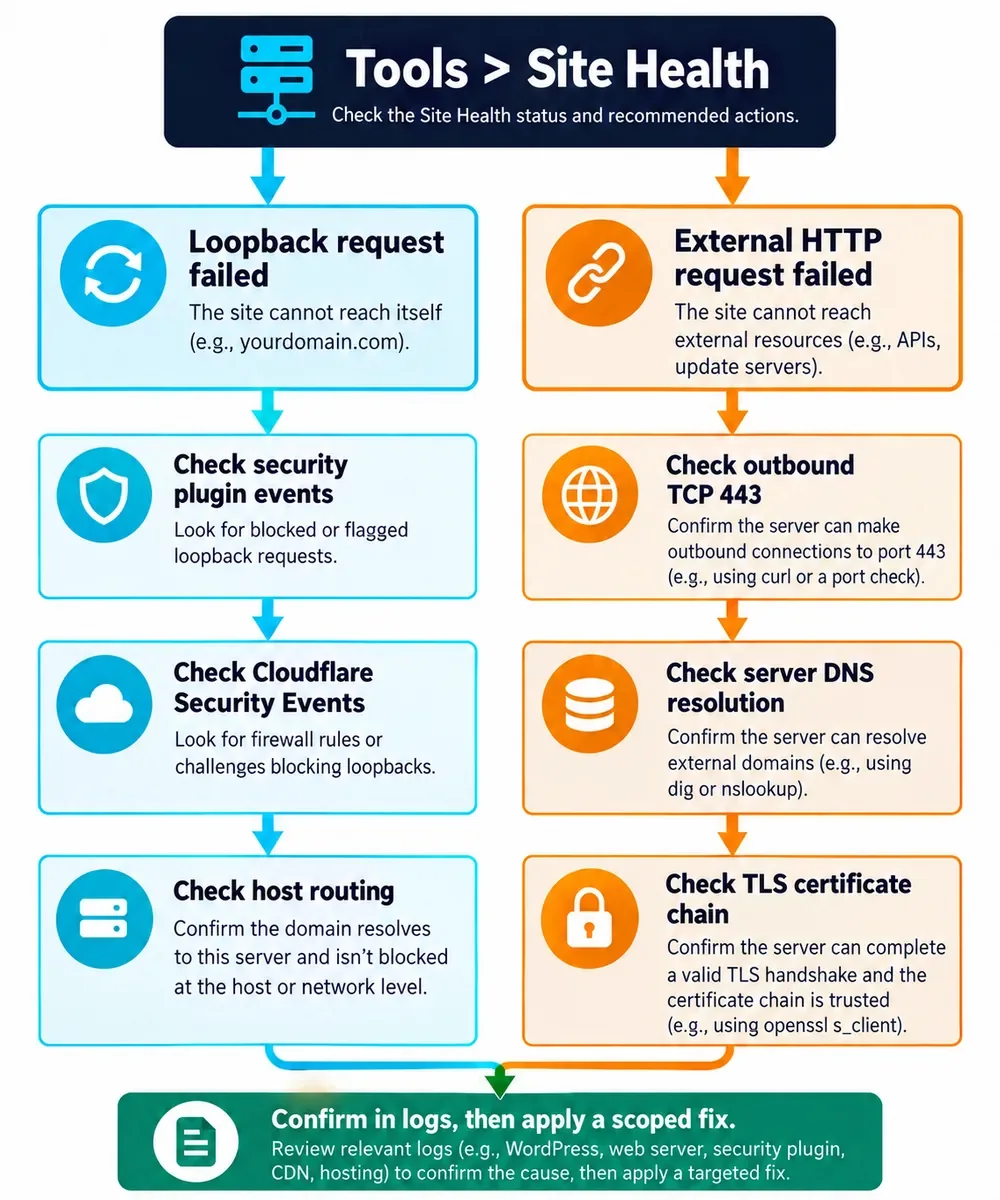
Use symptoms to choose what to inspect, not to assume a root cause:
| Observed Symptom | Diagnostic Tool | Likely Area to Check | Immediate Action |
|---|---|---|---|
| Loopback fails; external updates work | Site Health and security/proxy logs | Local route, proxy, or rule | Match the failed URL and timestamp to logs |
| Loopback passes; updates fail | Server-side cURL test and host DNS/network check | DNS, TCP 443, TLS, or remote service | Ask the host to verify outbound access |
| Editor REST request fails | Browser Network panel and server logs | REST response, authentication, rewrite, plugin, or firewall | Inspect the request path and status |
| Webhook fails | WooCommerce and provider event logs | Callback reachability or endpoint response | Match event IDs and confirm payment state |
Once you know which request is failing, use the matching first check below. Make a change only when logs or a repeatable test support it.
Choose a fix based on the failed check
| If triage points to | First check | Change only when |
|---|---|---|
| Security rule | Review plugin or firewall events for the request and timestamp | A logged rule matches; allow only the required request |
| Cloudflare | Check Security Events and identify the blocking feature | A confirmed false positive needs a narrowly scoped exception |
| Plugin conflict | Reproduce on staging and deactivate plugins in small groups | The failure stops when a specific plugin is disabled |
| TLS certificate | Ask the host to verify the certificate chain and CA bundle | The request reports a certificate or verification problem |
| DNS or routing | Ask the host to test resolution and outbound TCP 443 from PHP server | The failing hostname cannot resolve or the route is blocked |
Why Blindly Increasing the Timeout Limit Is a Dangerous Anti-Pattern
A longer timeout makes a request wait; it does not repair blocked ports, DNS, or routing. If WordPress cURL error 28 repeats for one trusted endpoint, confirm it genuinely needs more time before adjusting that request. A global change can occupy PHP workers longer and slow other requests. Avoid using this as a first fix:
add_filter( 'http_request_timeout', function () { return 60; } );Increase time only for a known trusted endpoint that genuinely needs it, preferably at the individual request level. Measure latency, preserve the original value for other requests, and remove the exception when the cause is fixed.
Temporarily Disable or Reconfigure Security Plugins and Web Application Firewalls
Check the security plugin’s event log for the failed timestamp, URL, and source IP. If a rule matches, test a narrow exception on staging; if a brief live test is necessary, keep it controlled and restore protection immediately. Allow only the required route or source when supported, and do not broadly exempt /wp-json/. A 403 or challenge is distinct from a network timeout, so use the recorded response and rule to guide the change.
Fix Cloudflare Web Application Firewall and Bot Fight Mode Blocks
A proxied hostname may send an origin loopback request through Cloudflare, where a security rule can block or challenge it. A WordPress cURL error 28 alone does not prove Cloudflare caused the timeout. Confirm the action in Security Events before editing rules. Cloudflare’s Skip options and feature interoperability guide distinguish WAF rules and Super Bot Fight Mode from standalone Bot Fight Mode: a WAF custom Skip rule cannot skip standalone Bot Fight Mode. Check Cloudflare’s false-positive guidance for plan-specific options.
For a confirmed WAF false positive, scope any exception to the verified origin IP, hostname, and needed path; never bypass protections globally. Example only—replace the documentation IP and confirm the rule against your plan and event:
(ip.src eq 203.0.113.10 and http.host eq "www.example.com" and starts_with(http.request.uri.path, "/wp-json/"))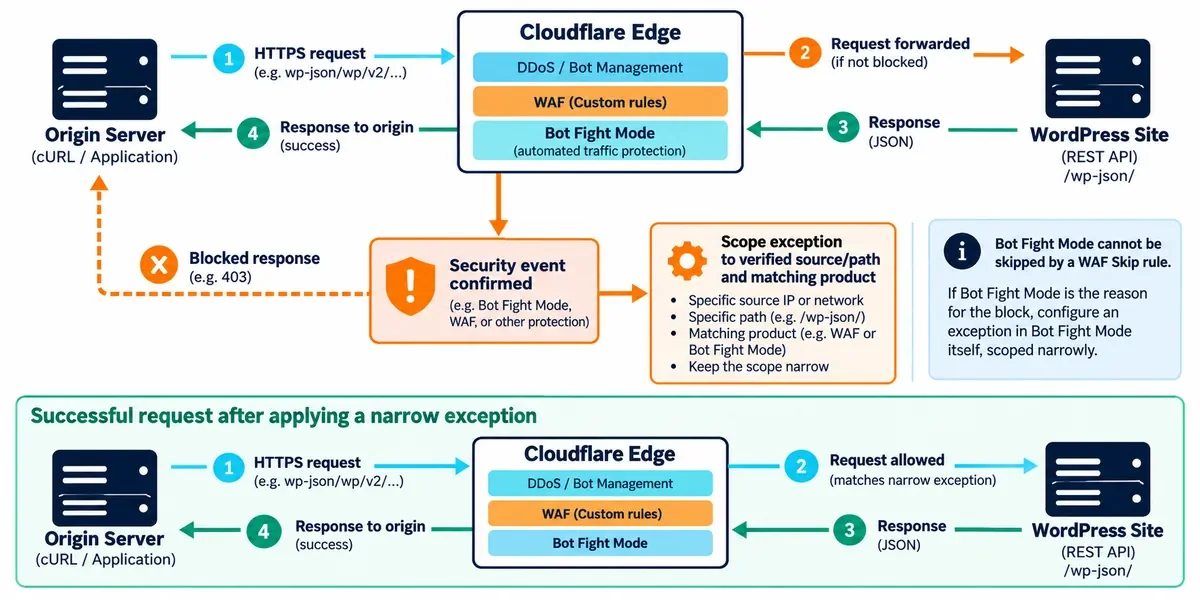
Isolate Malfunctioning Plugins and Infinite API Call Loops
If logs implicate a plugin or show repeated calls to one unreachable API, back up first using this WordPress backup guide, then test on staging. Deactivate plugins in small groups, repeat the failing action, and re-enable them one at a time to find the conflict. Do not delete plugin files as a diagnostic shortcut.
With WP-CLI, inspect active plugins and (on staging) deactivate them all:
wp plugin list --status=active
wp plugin deactivate --all
Run from the correct WordPress directory/site context; restore needed plugins after the test. On a live store, avoid bulk deactivation without a recovery plan.
Resolve SSL Certificate, OpenSSL, and Insecure Content Failures
If the error mentions certificate verification, inspect the exact HTTPS endpoint and ask the host to verify the certificate chain, system CA bundle, PHP cURL/OpenSSL versions, and server clock. Update certificates or CA packages through the host’s supported process, then retest. Do not disable TLS verification or switch to HTTP to silence the error; that removes security rather than fixing the chain. Mixed content in a browser is a separate issue and by itself does not establish cURL error 28.
Diagnose Server DNS Resolution and Network Routing Bottlenecks
For a WordPress cURL error 28, ask the host to resolve the failing hostname from the PHP server and check outbound firewall rules, route, proxy settings, and TCP 443. For loopback, confirm the site hostname resolves and routes correctly from the origin; a CDN or NAT can change the path. Do not edit production DNS or hosts files based on guesswork. Share the endpoint and timestamp so the host can compare resolver and firewall logs.
Verify Server Software Compatibility and PHP Execution Limits
For WordPress cURL error 28, ask which PHP version, cURL transport, OpenSSL build, and effective PHP-FPM limits the site uses. A PHP execution limit controls script runtime; it does not itself fix a stalled network connection. Change one host-supported value at a time and monitor. If the separate error is memory exhaustion, use this guide to address WordPress memory limits.
Exact Script for Contacting Web Hosting Support
Send a concise, reproducible report:
Subject: WordPress HTTP request timing out (cURL error 28) on
[domain]Time and timezone:[timestamp]Failing URL/feature:[sanitized URL; Site Health, update, REST request, or webhook]Exact error:[full message and timeout milliseconds]Checks:[loopback result; external test result; relevant security event ID]Please check PHP-worker DNS resolution, outbound TCP 443, loopback routing, firewall/proxy logs, and the active PHP cURL/OpenSSL environment at that time.
Include sanitized logs, never passwords, API secrets, or payment data. Ask the host to confirm whether the failure is local loopback or outbound connectivity.
When to Migrate to High-Performance Managed WordPress Hosting
Consider a move only if the host repeatedly confirms resource or network limits it cannot resolve, support cannot investigate logs, or the site has outgrown the current PHP/network environment. Compare staging, backups, outbound request policies, support response, and migration recovery—not speed claims alone. Review WordPress hosting selection criteria before deciding.
Frequently Asked Questions About WordPress cURL Errors
What does cURL error 28 mean in WordPress?
An HTTP transfer exceeded its configured time limit. The code alone does not distinguish DNS, connection, TLS, firewall, or remote-service delay; use the full error and Site Health to narrow it down.
Why does Gutenberg say “Updating failed” or “not a valid JSON response”?
The editor expects a valid REST API response. Inspect the failed /wp-json/ request and its status in browser developer tools, then correlate it with server and security logs; the message alone does not prove cURL is the cause.
Does cURL error 28 slow down a website for visitors?
It can if slow synchronous requests occupy PHP workers, but an admin-only update check may have little visitor impact. Check worker metrics and response times during the failure.
Should I increase the WordPress cURL timeout?
Only for a trusted request known to need more time. A global increase can make broken requests wait longer; identify and fix DNS, routing, firewall, or endpoint issues first.
Can Cloudflare cause a WordPress loopback timeout?
It can be part of the route, and a logged security action may block or challenge the request. Identify the Cloudflare feature in Security Events; a WAF Skip rule cannot bypass standalone Bot Fight Mode.
If you add FAQ structured data, validate the rendered schema separately; these headings do not create schema automatically.