
If the WordPress upload bar finishes and shows “HTTP error,” start with a small renamed test image and the Browser uploader. For an http error uploading images wordpress fix, use the request status to identify whether the file, PHP process, or server rules failed.
Quick verdict: The message usually means WordPress did not receive the response it expected while processing an image, often because PHP ran out of memory or an image editor failed while making thumbnails. For an immediate workaround, open Media > Add New and choose Browser uploader. For a lasting fix, inspect the failing request, then address the cause: image size or color profile, PHP limits, Imagick/GD, permissions, or a firewall rule.
Use quick checks before server changes.
The Root Mechanism: Why WordPress Triggers an “HTTP Error” on Image Uploads
The Media Library upload has two jobs. First, the browser sends the original file. Then WordPress reads it, creates image sizes used by themes and plugins, and saves attachment details. The generic message often appears when the second job stops before WordPress can return a usable response.
This upload failure is one case in a wider troubleshooting process. For the broader diagnostic framework, see the Complete WordPress bug fix and troubleshooting guide.
The Asynchronous Upload Pipeline and Silent PHP Failures
The typical upload follows four stages:
- The browser’s WordPress uploader sends the file in a background request to
async-upload.php. - PHP places the temporary upload in the site’s monthly uploads folder, such as
wp-content/uploads/2026/10/. - WordPress reads the image, extracts dimensions and metadata, and creates registered sub-sizes such as thumbnail, medium, and theme-specific crops.
- WordPress stores the attachment record and image metadata in the database, then returns a response to the browser.
The original file may arrive successfully, but the process can fail during stage three. A high-resolution photo must be decompressed into memory before it can be resized. The server may also create several sizes and run an optimization plugin in the same request. A memory limit, timeout, unsupported format, or image-library crash can stop that work, leaving an incomplete attachment.
WordPress uses its media upload handler and image editor APIs for this work. Image sizes can be registered by core, the active theme, and plugins, so the number of generated files varies by site. Check the upload folder before retrying repeatedly; duplicate or partial files can otherwise accumulate.
How WordPress’s Client-Side JavaScript Catches Server Dropouts
The browser expects JSON from the asynchronous request. If PHP exits unexpectedly, it may receive an empty body, an error, or HTML. The uploader cannot treat that as success, so it shows a generic “HTTP error.”
The message does not identify a status code. Inspect the Network panel and server logs before choosing a fix. The WordPress image editor hook documentation explains how WordPress selects image-processing engines.
The Critical Misconception: Network Glitch vs. Unhandled Server Execution Failure
“HTTP error” sounds like an internet connection problem, but the wording alone does not mean your Wi-Fi dropped or that WordPress returned a particular HTTP status. It is a generic uploader message for a failed background request or an unusable response. The browser may still have a healthy connection to the site while PHP fails during image processing.
| What you observe | What it suggests | Useful next check |
|---|---|---|
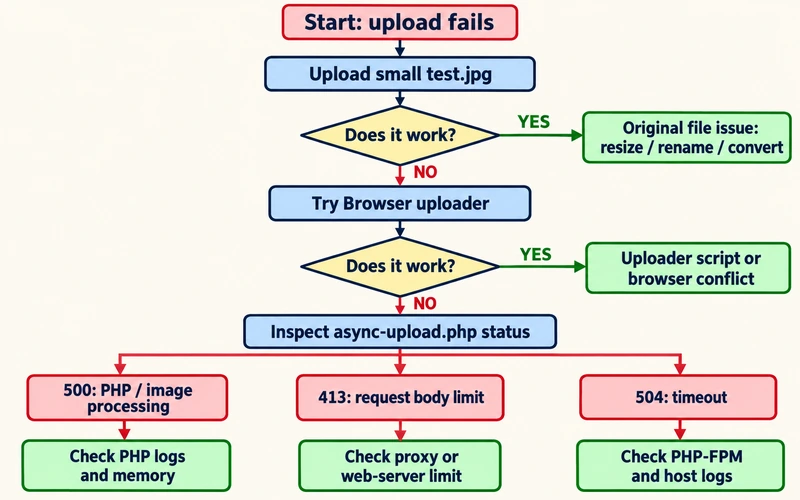
| The dashboard works, but one image fails at the end | Server-side image processing or a file-specific issue | Try test.jpg; inspect PHP logs |
| Only the drag-and-drop uploader fails | JavaScript uploader or browser-side conflict | Try Browser uploader |
| Network request returns 500 | PHP fatal error or application failure | Check PHP error log and memory |
| Network request returns 413 | Request body limit at a proxy or web server | Check Nginx/Apache and host limits |
| Network request returns 504 | A proxy or upstream process timed out | Check PHP-FPM and hosting logs |
Why the Media Library Error Is Not an Internet Connection Problem
If wp-admin pages load normally, the browser has an active connection to your site. When the upload reaches 100% and then fails, the file may already have crossed the network; WordPress can still fail while processing it. A router reboot will not repair a PHP process that has run out of memory. Use the request status to confirm where the failure occurred.
Identifying the Real Culprit: Memory Exhaustion, Timeouts, and Library Crashes
Most repeat failures fit one of three groups: resource exhaustion, graphics-library failure, or file and environment restrictions such as CMYK input, permissions, or a WAF rule.
The request status and logs reveal where the upload stopped. For other WordPress symptoms, see diagnosing common WordPress errors.
Systematic Triage for the WordPress Image Upload HTTP Error
Run these non-destructive tests before editing wp-config.php, .htaccess, or theme files. They distinguish a problem with one image from a browser uploader conflict or a server-wide limit.
First Checks for “http error uploading images wordpress”
Create or choose a known-good JPEG around 500 × 500 pixels and under 200 KB. Rename it test.jpg using lowercase letters and numbers only. Avoid spaces, apostrophes, accents, and symbols such as #, ?, and % for this test.
Upload it through Media > Add New. If it works, the original may be large, damaged, encoded in a troublesome color space, or named in a way that triggers a plugin or server rule. If it fails too, suspect the uploader, PHP, storage, or host configuration.
Testing the Native Browser Uploader Fallback
On Media > Add New, use the small Browser uploader link below the drag-and-drop area. You can also try /wp-admin/media-new.php?browser-uploader while logged in. This alternate form uses a standard multipart form submission rather than the usual JavaScript uploader path.
If the browser uploader works, the server can accept at least that file through a different request flow. Investigate browser scripts, Plupload, security challenges, and request timeouts. It is a workaround, not proof that the underlying processing issue is permanently fixed.
Inspecting Browser Network Payloads and Console Errors
In Chrome, press F12, open Network, and retry the upload. Select the failed async-upload.php request and review Status and Response. Preserve the response text or a screenshot for your host; it may expose a PHP message or a security-rule reference.
- 500: application or PHP failure; check PHP-FPM and WordPress logs, then follow steps to resolve 500 internal server errors.
- 413: request body too large for a proxy or web-server limit.
- 504: gateway timeout while an upstream process was still working. For a separate connection timeout symptom, see how to troubleshoot server communication timeouts.
These codes are leads, not final diagnoses. If no request appears, check Console errors and test a clean browser session. Do not disable a firewall or change permissions based on the generic banner alone.
Resolving Server Memory Bottlenecks During Multi-Size Thumbnail Generation
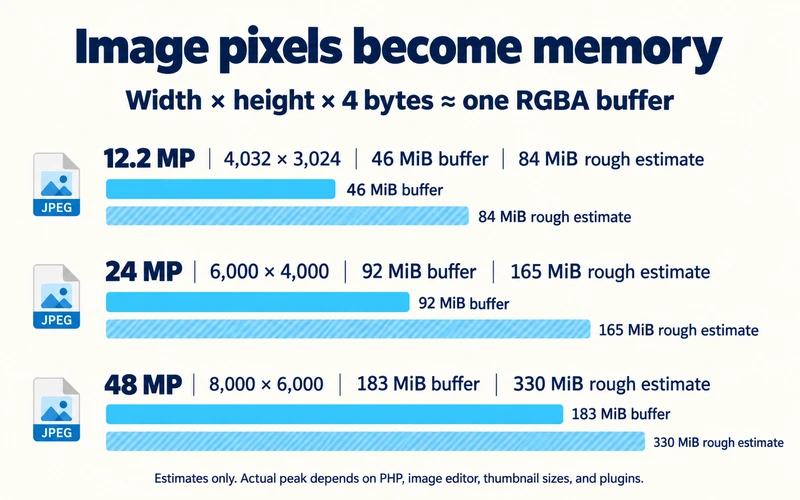
A compressed JPEG’s size on disk does not show how much PHP memory image processing needs. WordPress and its image library decode the pixels and then create sub-sizes. The full image buffer, PHP runtime, and intermediate copies all consume memory. Several simultaneous requests or an optimization plugin can raise the peak further.
Calculating True Memory Requirements for High-Resolution Photography
A rough estimate for one RGBA pixel buffer is width × height × 4 bytes. Actual processing needs more; the 1.8 multiplier is an estimate, not a universal WordPress formula.
For a 6,000 × 4,000 photo, the simple buffer is 6,000 × 4,000 × 4 = 96,000,000 bytes, or about 91.6 MiB. A rough 1.8 multiplier puts one working image near 165 MiB before PHP, plugins, or other thumbnail buffers. Even a small 3 MB JPEG can therefore trigger a large memory spike.
| Image dimensions | Pixel count | One RGBA buffer (approx.) | Rough 1.8× working estimate |
|---|---|---|---|
| 4,032 × 3,024 | 12.2 MP | 46.4 MiB | 83.6 MiB |
| 6,000 × 4,000 | 24 MP | 91.6 MiB | 164.8 MiB |
| 8,000 × 6,000 | 48 MP | 183.1 MiB | 329.6 MiB |
Those figures explain why 64M or 128M PHP settings can fail on large photos, but they do not establish a guaranteed minimum. The needed limit depends on the image, registered sizes, PHP version, plugins, and host. A 256M allocation is a reasonable starting request for many sites processing modern photos, subject to the host’s cap and actual measurements.
Increasing the Memory Limit in wp-config.php and php.ini
Back up the file first. Add this line to wp-config.php above /* That's all, stop editing! Happy publishing. */:
define( 'WP_MEMORY_LIMIT', '256M' );
define( 'WP_MAX_MEMORY_LIMIT', '512M' );
WP_MEMORY_LIMIT sets the frontend request target; WP_MAX_MEMORY_LIMIT requests more for administration tasks when allowed. WordPress documentation notes that PHP and the host control whether the limit can be raised. In php.ini, the corresponding PHP setting is:
memory_limit = 256MSome hosts provide a control panel such as cPanel’s MultiPHP INI Editor instead. Use one supported method, avoid duplicate constant definitions, and ask your host if the setting is managed centrally. See the WordPress memory configuration guide.
Understanding Server-Level Hard Memory Caps on Shared Hosting
Changing a WordPress constant cannot override a lower PHP or container limit that the host enforces. Check Tools > Site Health > Info > Server for the effective PHP memory limit, then compare it with the value you requested. If it remains unchanged, send your host the timestamp, failing request status, image dimensions, and relevant log entry, and ask whether they can raise the PHP and image-processing limits. For a related fatal memory message, see raising the WordPress PHP memory allocation.
Reconfiguring the Graphics Processing Engine: Imagick vs. GD Library
WordPress can use ImageMagick through WP_Image_Editor_Imagick or PHP’s GD extension through WP_Image_Editor_GD. WordPress can prefer Imagick when it is available. The right option depends on the host build and workload, so use a controlled test and retain a way to undo the change.
| Factor | Imagick | GD Library |
|---|---|---|
| WordPress editor class | WP_Image_Editor_Imagick | WP_Image_Editor_GD |
| Typical strengths | Broad format and color-management features | Lightweight, widely available processing |
| Resource behavior | Can use substantial memory; build and policy dependent | Often simpler, but large images still use significant RAM |
| Threading | May use ImageMagick/OpenMP threads depending on build | Does not use ImageMagick’s thread setting |
| Crash risk | Can fail when configured resource limits are exceeded | Can still fail when PHP memory or other limits are exceeded |
| Best diagnostic use | Keep if stable and required for format handling | Test when Imagick crashes or is resource constrained |
Why Imagick Frequently Crashes on Resource-Constrained Servers
Imagick is not inherently unstable; resource use depends on how ImageMagick was built and configured. On constrained servers, concurrent image processing can consume too much CPU or memory. A host may terminate the PHP worker, leaving WordPress without a valid response. Review logs before concluding Imagick is responsible.
Forcing WordPress to Prioritize GD Library via functions.php
Test on staging when possible. Add a snippet through a site-specific snippets plugin or child theme, not a parent theme that updates may replace:
add_filter( 'wp_image_editors', 'domflags_force_gd_editor' );
function domflags_force_gd_editor( $editors ) {
    return array( 'WP_Image_Editor_GD', 'WP_Image_Editor_Imagick' );
}
This asks WordPress to try GD first while retaining Imagick as a fallback. Confirm that GD is installed, upload a test image, and verify the generated sizes. If the issue does not improve, remove the snippet and inspect logs. See the official wp_image_editors hook.
Restricting Imagick Resource Limits and Thread Execution in .htaccess
On Apache or LiteSpeed, ImageMagick may honor this environment variable when the host configuration passes it through:
SetEnv MAGICK_THREAD_LIMIT 1Back up .htaccess and ask the host whether this directive is supported. It may be ignored under some PHP-FPM or server configurations, and a syntax error can affect site access. If the server does not recognize it, remove it and ask the host to tune ImageMagick’s resource policy. The ImageMagick resource documentation describes configurable resource limits.
Fixing Image Format and Color Space Incompatibilities
If only specific files fail while a small sRGB JPEG succeeds, inspect the image itself before changing server settings. Large dimensions, unusual encoding, metadata, or a print color profile can expose a limitation in the image library. Make a copy before converting or stripping metadata so the original remains available.
The Print-Ready CMYK Trap in Digital Image Processing
CMYK is designed for print inks; sRGB is common for screen images. Some PHP image-processing builds do not handle every CMYK JPEG reliably, so a print export can fail even when a smaller web image uploads. Open the image in an editor and export a copy as RGB/sRGB JPEG or PNG. In Photoshop, check the document’s color mode and use a web export workflow. On Windows, Properties > Details may show color-space information; on macOS, use Preview’s Inspector or an image editor because file metadata varies.
Do not assume every CMYK file fails or that every GD build rejects it. Test the converted copy, and check the PHP error log if the result is unchanged. Adobe explains the difference between CMYK and RGB color.
After the file uploads, best image optimization techniques can help prepare lighter web-ready versions.
Managing Heavy EXIF Metadata and Camera Raw Imports
Phone and camera files can contain EXIF information such as orientation, camera settings, GPS coordinates, and embedded previews. Metadata alone is not usually the first suspect, but a malformed or unusually large file can expose parser or memory problems. Export a web copy with orientation applied and unnecessary metadata removed, especially location data, then retry it.
Controlling the WordPress Big Image Scaling Threshold
WordPress applies a default 2,560-pixel threshold to many large uploaded images and uses a scaled version as the largest available size. The official hook reference confirms the default and that returning false disables scaling. Scaling is useful for delivery, so treat disabling it as a targeted diagnostic, not a routine optimization.
If logs point to the scaling pass and you have a backup, a developer can test:
add_filter( 'big_image_size_threshold', '__return_false' );Retest and remove the filter if it does not solve the failure. A smaller source image or more available memory may be the better long-term fix.
Auditing File Permissions and Server Security Restrictions
When the image and PHP image editor look healthy, check whether WordPress can write to its upload directory and whether a web server or firewall rejects the request. Ask the host to inspect logs before applying server-wide changes.
Setting Proper wp-content/uploads Directory and File Permissions
The wp-content/uploads directory must be writable by the account running PHP. A common starting point is 755 for directories and 644 for files, but ownership and host configuration matter. In FileZilla or cPanel File Manager, inspect the directory owner and permissions; if applying recursively, set directories and files separately. Do not blindly change ownership on a managed host.
Never set permissions to 777. That makes files writable by all local users and can create a security exposure. WordPress’s file-permissions guidance recommends starting with restrictive permissions and adjusting only as needed.
ModSecurity Rules and Web Application Firewall False Positives
ModSecurity or another WAF can block a multipart upload after a rule flags its content. Look for a 403 response, a security event ID, or a matching timestamp in the host’s WAF log. Avoid turning off the firewall globally. Ask the host to identify the rule and allow the specific legitimate request or adjust the rule narrowly. If the block affects the REST API too, see how to resolve REST API and firewall blocks.
Some older tutorials suggest adding SecFilterEngine Off and SecFilterScanPOST Off to .htaccess. These directives may be unsupported, vary by ModSecurity version, or disable important protections. Do not paste them into a live site as a permanent fix. If the host approves a short diagnostic test, follow its exact scope and restore protection immediately.
Configuring Nginx Client Body Size and Apache Request Limits
Nginx’s documented default for client_max_body_size is 1 MB; a larger request can receive 413. A server administrator may set an appropriate limit in the http, server, or location context:
client_max_body_size 64M;The web-server limit must align with PHP’s upload_max_filesize and post_max_size; raising only one may not help. Nginx configuration is usually managed by the host and requires a reload, so send the request status and target file size to support. See the Nginx core module documentation.
Eliminating Plugin, Theme, and PHP Runtime Conflicts
Plugins can run during upload and thumbnail generation. A plugin hooked into wp_handle_upload or wp_generate_attachment_metadata may compress, convert, watermark, scan, or send the file to an external service. A timeout there can look like a core Media Library problem.
Isolating Compression, Watermarking, and Optimization Plugins
Start with image optimization, WebP conversion, watermarking, and security plugins. Disable one relevant plugin at a time, upload a copy of the test image, and re-enable it before moving on. If you need to test several plugins together, use a staging site or the Health Check & Troubleshooting plugin’s troubleshooting mode so visitors are not affected. Preserve settings and record each change.
If the upload works with an image plugin disabled, check its logs and settings, update it, and review its support guidance. Avoid deactivating every plugin on a live store during peak traffic; payment, security, and caching behavior may change.
Upgrading and Standardizing PHP Runtime Configurations
An old or unsupported PHP version can cause compatibility and security problems. Check Tools > Site Health and your host’s PHP selector, then choose a PHP version still receiving security updates and supported by your WordPress release and plugins. As of October 2026, PHP 8.1 is end of life; PHP 8.2 is near the end of security support, while newer branches have longer support windows. Check the current PHP supported versions and test on staging before changing production. Do not upgrade based on a blanket speed claim.
Checking Temporary Directory and Disk Space Allocations
PHP first receives an uploaded file in a temporary directory, then WordPress moves it into the uploads folder. A full hosting quota, full temporary partition, or restrictive open_basedir setting can stop this process. Check available disk space and the PHP/server error log. If the log mentions a missing temporary path or permission denial, ask the host to correct the PHP upload temporary directory and filesystem access.
Frequently Asked Questions About WordPress HTTP Image Upload Errors
What is the fastest temporary workaround if I need to upload an image immediately?
Open Media > Add New and select the Browser uploader link beneath the upload box. It uses a standard multipart form submission rather than the usual asynchronous JavaScript uploader, which can bypass a browser-side uploader conflict. If it fails too, resize a copy and ask your host to inspect the request and PHP logs.
Why does the HTTP error only occur with certain images and not others?
Some images need far more memory than their compressed file size suggests because WordPress decodes the pixels and creates sub-sizes. A file may also have unusual encoding, a CMYK profile, or problematic metadata. Compare its dimensions and color profile with a small sRGB test image, then review the server log if only that file fails.
Is the GD library worse in image quality compared to Imagick?
Neither editor is always better. Imagick offers broader format and color-management features on many builds; GD can be a useful, lighter alternative for standard web images. The visible difference depends on source image, resizing settings, and output format. Test representative images on your site before choosing an editor globally.
How do I know if my hosting provider is hard-limiting my PHP memory?
Check Tools > Site Health > Info > Server for the effective PHP memory limit. If it stays at 64M or 128M after you request a higher WordPress limit, PHP or the hosting account may enforce a lower ceiling. Ask the host to confirm the actual limit for the PHP worker handling wp-admin uploads.
Can a CDN or Cloudflare cause the HTTP upload error in WordPress?
Yes. A proxy or web application firewall can reject or challenge a multipart upload, and body-size limits vary by service, plan, and configuration. Check the failed request’s status and the provider’s event log for async-upload.php. Ask the provider to scope any exception narrowly; do not assume one universal Cloudflare upload limit applies to every account.
| Symptom | Likely cause | First action | Escalation |
|---|---|---|---|
| Only the original image fails | Dimensions, encoding, color profile, or filename | Upload a small test.jpg; export a smaller sRGB copy | Inspect PHP image-editor error |
| Browser uploader works | JavaScript uploader or script conflict | Test a clean browser and review Console | Check plugin and WAF events |
| Status 500 | PHP fatal error, memory, or image editor | Check PHP error log and Site Health memory | Ask host for PHP-FPM log |
| Status 413 | Web-server or proxy body limit | Compare file size with server/PHP limits | Host adjusts Nginx/Apache limit |
| Status 504 | Upstream process took too long | Retry a smaller file and inspect logs | Host reviews execution timeout |
| Status 403 | WAF or permissions/security rule | Capture event ID and timestamp | Host identifies the specific rule |
Restore uploads without guesswork.
For a quick recovery, use Browser uploader and a small, sanitized test image. If that works, compare the failing file’s dimensions and color profile. If it does not, inspect async-upload.php in the Network panel and give the status code, timestamp, and image dimensions to your host.
Use a memory change only when evidence points to resource exhaustion, test GD when logs implicate Imagick, and have the host adjust Nginx or WAF rules when the request is rejected before PHP. Retest the upload and review the server log if the generic message returns.