

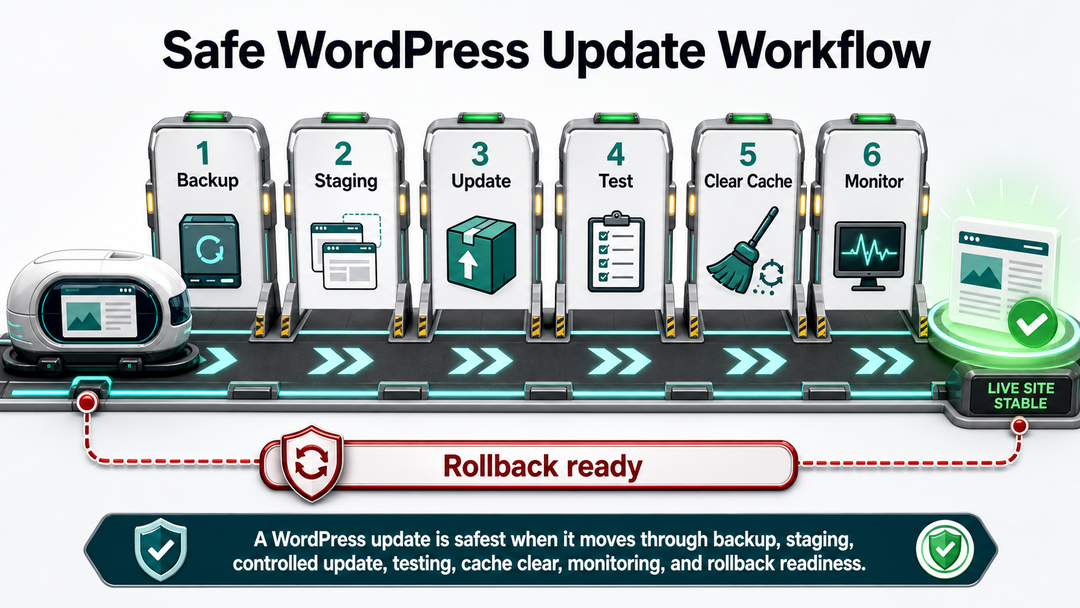
The safest way to update WordPress is to back up the site first, test risky updates on staging, update one layer at a time, and check the site before you move on. If you want to know how to update WordPress safely, that is the whole idea in one sentence. For a small brochure site, the process may take only a few minutes. For a WooCommerce store, membership site, or heavily customized website, it should be treated like a small deployment.
Do not ignore updates out of fear. WordPress core, plugins, themes, and translations are updated to fix bugs, close security issues, improve compatibility, and add features. The risk is not updating. The risk is updating without a recovery path.
This guide gives you a calm, repeatable process for how to update WordPress safely, including what to do before, during, and after the update.
Quick Answer: Safe WordPress Update Checklist
Before you click Update Now, use this checklist for how to update WordPress safely without guessing:
- Confirm you have administrator access to WordPress and hosting.
- Create a full backup that includes both files and the database.
- Confirm the backup finished and can be restored.
- Check your current WordPress, PHP, plugin, and theme versions.
- Read changelogs for major plugin, theme, or core updates.
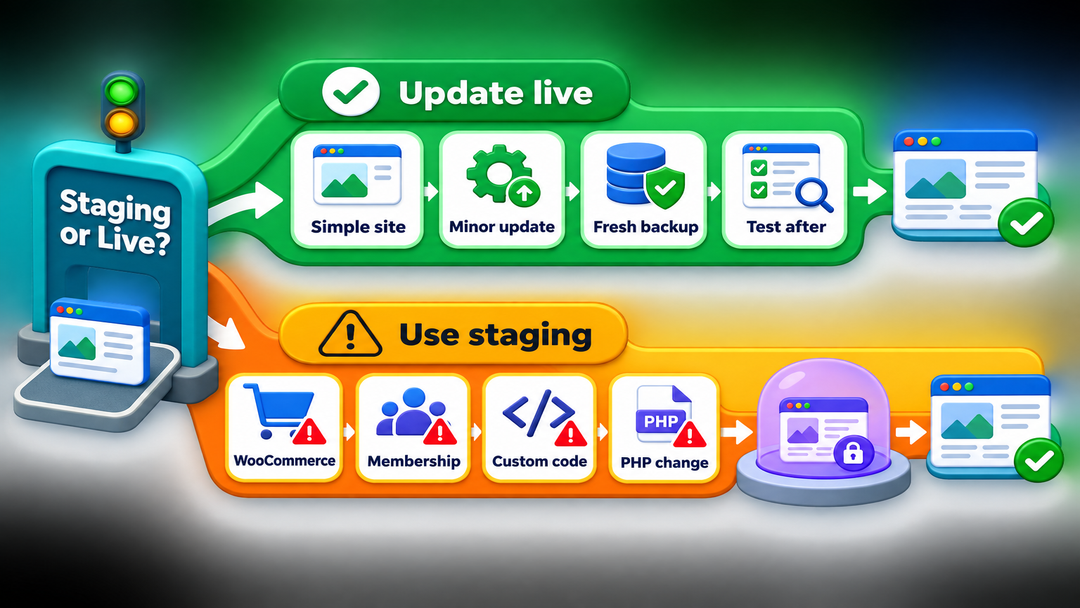
- Use a staging site for major updates, WooCommerce, membership sites, custom code, or many pending updates.
- Update plugins, themes, translations, and WordPress core in controlled batches.
- Test the homepage, key pages, forms, search, login, checkout, and admin screens.
- Clear caches only after the update is complete.
- Keep the backup until you are confident the site is stable.
If you remember only one thing, remember this: a safe WordPress update is not a button click. It is a short workflow with a backup, a test, and a rollback plan.
What Needs Updating in WordPress?
A WordPress site is not one single piece of software. It is a stack of parts that need to stay compatible with each other.
| Update Area | What It Affects | Typical Risk Level |
|---|---|---|
| WordPress core | The main WordPress software, admin area, editor, APIs, and database upgrade routines | Low for minor releases, higher for major version jumps |
| Plugins | Features such as forms, SEO, security, caching, ecommerce, page builders, and memberships | Varies widely by plugin and site complexity |
| Themes | Site templates, layout, design, and sometimes theme-specific functionality | Moderate if the theme is heavily customized |
| Translations | Language files used by WordPress, plugins, and themes | Usually low |
| PHP version | The server-side language WordPress runs on | Higher because it can affect every plugin and theme |
WordPress.org’s Updating WordPress documentation explains that core updates can be run from Dashboard > Updates, and that manual updates are available when one-click updates fail. It also warns that updating WordPress core affects the core files included in the WordPress installation.
That warning matters if someone edited WordPress core files directly. Those edits can be overwritten. The right fix is not to avoid updates forever; it is to move customizations into a child theme, custom plugin, or maintainable development workflow.
Why WordPress Updates Matter
Updates protect the site in four practical ways.
First, they patch security issues. WordPress.org’s security page notes that only the latest WordPress version is officially supported, while the security team may backport critical fixes to older versions as a courtesy. In other words, staying current is still the responsible baseline.
Second, updates fix bugs. A plugin update might repair a broken form integration, a theme update might fix a responsive layout issue, and a WordPress core maintenance release might solve editor or block problems.
Third, updates preserve compatibility. WordPress, PHP, themes, plugins, APIs, browsers, and payment gateways all move over time. A site that is left alone for a year can become harder to update because too many compatibility changes stack up.
Fourth, updates reduce emergency work. Small, regular updates are easier to test than one large catch-up session with 28 pending plugin updates and no recent backup.
Before You Update: Make the Site Recoverable
This is the part beginners are tempted to skip because it feels slower than clicking the update button. It is also the part that turns a scary update into a reversible one. Any serious guide on how to update WordPress safely should start here, because recovery matters more than speed.
Create a Full Backup
A proper WordPress backup includes both website files and the database. The WordPress Developer Handbook explains in its file backup documentation that backing up files alone usually does not back up the database. Its database backup documentation also recommends backing up the database regularly and before an upgrade.
Your files include themes, plugins, uploads, WordPress files, and configuration files such as wp-config.php. Your database includes posts, pages, users, comments, settings, menus, form entries, orders, and plugin data.
If you need a deeper walkthrough, DomFlags has a beginner guide to backing up a WordPress website. For update safety, the important point is simple: do not update until you have a backup you know how to restore.
Verify the Backup
A backup is not automatically useful just because a plugin says “complete.”
Check that:
- The backup has a recent timestamp.
- It includes files and database.
- It is stored off the live server or can be downloaded.
- There are no failed-job warnings.
- You know where the restore button, restore file, or hosting restore point is.
For important sites, test a restore on staging or a local copy at least occasionally. That sounds fussy until the day you need it.
Check Site Health, PHP, and Compatibility
Go to Tools > Site Health in WordPress and look for warnings that could affect updates. Then check your hosting dashboard for the current PHP version.
PHP changes deserve special care. Updating PHP can improve security and performance, but it can also expose old plugin or theme code that no longer works. If you are changing PHP and WordPress software in the same maintenance window, test in staging first.
Read Changelogs for Risky Updates
You do not need to read every line of every tiny patch. Still, look at changelogs when:
- A plugin jumps from one major version to another.
- A theme update mentions template, layout, or builder changes.
- WooCommerce, memberships, forms, SEO, caching, security, or payment plugins are involved.
- The plugin has not been updated in a long time.
- The update notes mention database changes, migrations, or compatibility requirements.
The goal is not to become a developer overnight. The goal is to notice when an update deserves staging instead of a blind production click.
When Should You Use a Staging Site?
A staging site is a private copy of your live site where you can test updates before visitors see them. Many managed WordPress hosts include one-click staging. If your host does not, staging plugins or a local development tool can help.
Use staging when:
- The site takes payments, bookings, donations, or orders.
- The site has memberships, courses, user dashboards, or gated content.
- You use WooCommerce or another ecommerce system.
- You have custom code, a custom theme, or a heavily modified child theme.
- You are updating many plugins at once.
- You are making a major WordPress, PHP, plugin, or theme version jump.
- You cannot afford even brief broken forms, login issues, or checkout problems.
Updating directly on the live site can be reasonable when the site is simple, the update is small, you have a verified backup, and you can test immediately afterward.
Here is a practical way to decide:
| Situation | Safer Choice | Why |
|---|---|---|
| Minor security update on a small brochure site | Backup, then update live | Low complexity and quick recovery |
| WooCommerce plugin update | Test on staging first | Checkout, payments, tax, shipping, and order data are business-critical |
| WordPress major version update | Test on staging first | Major releases can affect editor behavior, themes, plugins, and database routines |
| Plugin update for a contact form | Staging if lead flow is critical | A silent form failure can cost enquiries |
| PHP version update | Test on staging first | PHP affects the whole WordPress stack |
| Theme update on a customized site | Test on staging first | Layout and template changes can be visible immediately |
The Safest Order to Update WordPress
There is debate about whether to update WordPress core before plugins and themes, or the other way around. The safest answer is less rigid: read compatibility notes, back up first, and update in small controlled steps. That is how to update WordPress safely when the site has several moving parts.
For most beginner-managed sites, this order works well:
- Update translations.
- Update a few lower-risk plugins.
- Update important plugins one at a time.
- Update the active theme and parent theme if needed.
- Update WordPress core.
- Run a full site check.
- Clear caches.
If a plugin changelog says it requires the newest WordPress version, update core first on staging, then update that plugin. If a WordPress major release is brand new and your site relies on complex plugins, it can be reasonable to wait a short period while plugin developers publish compatibility updates, especially on business-critical sites.
The key is traceability. If you update 19 plugins, a theme, WordPress core, and PHP in one burst, you will not know what caused the problem if something breaks.
How to Update WordPress Safely From the Dashboard
Most beginners should use the WordPress dashboard update screen, not manual file replacement.
Step 1: Open the Updates Screen
Log in to WordPress and go to Dashboard > Updates. You may see updates for WordPress core, plugins, themes, and translations.
If your site asks for FTP credentials, WordPress may not have permission to write files directly. WordPress.org explains in its update documentation that file ownership and server permissions affect whether one-click updates can run without credentials. If you are unsure, ask your host before entering credentials or changing permissions.
Step 2: Update Translations
Translation updates are usually low risk. Run them first if they are available.
Step 3: Update Plugins in Small Batches
For low-risk plugins, update a few at a time. For important plugins, update one at a time.
Important plugins include:
- WooCommerce and payment extensions.
- Form plugins.
- Security plugins.
- SEO plugins.
- Caching and performance plugins.
- Membership, LMS, booking, or directory plugins.
- Page builders and builder add-ons.
After each important update, check the part of the site that plugin controls. If a form plugin updates, test a form. If a caching plugin updates, check logged-out pages and logged-in pages. If WooCommerce updates, test product pages, cart, checkout, payment options, emails, and order creation on staging.
Step 4: Update the Theme
If you use a child theme, update the parent theme when an update is available. A child theme helps protect customizations, but parent-theme changes can still affect layout or templates, so check important pages after updating.
If you edited a theme directly instead of using a child theme, pause before updating. A theme update can overwrite direct edits. Move custom CSS, templates, or functions into a child theme or ask a developer to help.
Step 5: Update WordPress Core
Return to Dashboard > Updates and update WordPress core. Minor maintenance and security releases are often applied automatically on many sites. Major updates may require clicking Update Now.
The WordPress Developer Handbook explains that automatic background updates include core, plugin, theme, and translation update types, and that core updates are divided into development, minor, and major releases. The exact automatic-update behavior can depend on WordPress version, site settings, constants such as WP_AUTO_UPDATE_CORE, host configuration, and whether version control is detected.
As of the official WordPress release archive checked on August 12, 2026, the latest release listed was WordPress 7.0.4, released on August 12, 2026. The WordPress versions documentation also listed WordPress 7.1 as planned for August 19, 2026. Verify the current version again before publishing or updating a real site, because release timing can change.
Step 6: Run Any Database Update Prompt
After a core or plugin update, WordPress may ask to update the database. Do not close the tab halfway through. Follow the prompt, then log back in if needed.
Database update steps are one reason backups matter. If a plugin changes database tables and the update fails halfway, a file-only rollback may not be enough.
What to Test After Updating
Do not assume the site is fine because the homepage loads. Test the pages and actions that matter.
Use this post-update checklist:
- Homepage loads normally.
- Main navigation and footer links work.
- Important pages display correctly on desktop and mobile.
- Blog posts and images load.
- Contact forms submit and send notifications.
- Search works if your site uses search.
- Login and logout work.
- Admin dashboard loads without errors.
- Editor opens for posts and pages.
- WooCommerce product, cart, checkout, payment, coupon, account, and order emails work if applicable.
- Membership, booking, LMS, directory, or donation flows work if applicable.
- Caching, CDN, analytics, cookie banners, and tracking scripts still behave correctly.
- Browser console and server error logs do not show new critical errors.
If you are also working on performance, this is a good time to retest. DomFlags has a separate guide on how to speed up WordPress if updates expose speed issues or caching problems.
Should You Enable Automatic Updates?
Automatic updates are useful, but they are not equally safe for every site and every plugin.
WordPress.org’s plugin and theme auto-updates documentation says administrators can opt in to automatic updates for plugins and themes individually, and that WordPress checks for plugin and theme auto-updates twice per day by default. It also recommends having regular automatic backups before enabling auto-updates so you can roll back if something goes wrong.
For many small sites, automatic updates make sense for:
- Minor WordPress security releases.
- Trusted, low-risk plugins.
- Simple themes without heavy customization.
- Translation files.
Use more caution with automatic updates for:
- WooCommerce and payment plugins.
- Membership and course plugins.
- Page builders.
- Caching and optimization plugins.
- Security plugins that affect login or firewall behavior.
- Custom or business-critical functionality.
A balanced setup is often best: enable automatic updates for low-risk items, keep backups running, and manually test high-risk updates on staging.
How to Update WordPress Manually
Manual updates are for cases where dashboard updates fail, server permissions get in the way, or a developer prefers file-level control.
WordPress.org’s manual update process includes downloading the latest WordPress package, replacing wp-admin and wp-includes, carefully copying files from the new wp-content folder into the existing one, visiting /wp-admin/upgrade.php if a database upgrade is needed, and clearing cache afterward.
Manual updates can fix a failed one-click update, but they also leave more room for mistakes. Be especially careful not to delete your existing wp-content folder, uploads, custom themes, plugins, or wp-config.php.
For most non-developers, ask your host or a WordPress professional to help with manual recovery instead of trying to repair a business site while stressed.
What to Do If a WordPress Update Breaks Your Site
First, do not keep clicking random buttons. A broken update is easier to recover when you know exactly what changed. Knowing how to update WordPress safely also means knowing when to stop, document the problem, and roll back.
Start with this order:
- Note the last update you ran.
- Take screenshots of errors if the admin area still loads.
- Check whether the front end, admin area, or both are broken.
- Clear cache only if the site appears stuck on stale files.
- Disable the last-updated plugin or switch to a default theme if you can access WordPress.
- Check hosting error logs for fatal PHP errors.
- Restore your backup if the issue affects key user flows or you cannot isolate it quickly.
If WordPress shows a failed update message, the official update documentation says removing the .maintenance file from the WordPress directory can clear the failed-update notice. Do this only if the update process has actually stopped.
WordPress 6.3 also introduced rollback for failed manual plugin and theme updates. The Make WordPress Core developer note explains that if a manual plugin or theme update fails, WordPress attempts to restore the previously installed version so the site remains available. That is helpful, but it does not replace backups. A rollback feature cannot protect every database change, hosting problem, custom-code conflict, or user mistake.
A Simple Maintenance Rhythm
Safe updating gets easier when you stop treating it as an emergency.
For a normal small business WordPress site, use this rhythm:
- Check updates weekly.
- Back up automatically.
- Keep at least a few recent restore points.
- Run plugin and theme updates in small batches.
- Review major updates before applying them.
- Test key forms and pages after every maintenance session.
- Do a deeper staging review before major WordPress, WooCommerce, PHP, or theme changes.
For ecommerce, membership, booking, or high-traffic sites, use a stricter rhythm:
- Use staging for meaningful updates.
- Schedule updates during low-traffic periods.
- Avoid updating right before major campaigns.
- Keep a written rollback plan.
- Monitor error logs and transactions after deployment.
- Assign one person to own update decisions.
WordPress maintenance does not need to be dramatic. Done regularly, it becomes a small routine that protects the site quietly.
FAQs About Updating WordPress Safely
Can updating WordPress break my site?
Yes, updating WordPress can break a site if a plugin, theme, custom code, PHP version, or database change is incompatible. That is why you should back up first, use staging for risky updates, and update in small steps instead of changing everything at once.
Should I update WordPress core first or plugins first?
For most beginner sites, update plugins and themes in controlled batches, then update WordPress core. If a plugin requires the newest WordPress version, test core first on staging and then update that plugin. Compatibility notes matter more than a rigid universal order.
Is it safe to click Update All in WordPress?
Clicking Update All is safest only on simple, low-risk sites with a recent verified backup. On business-critical, ecommerce, membership, or customized sites, update important plugins and themes one at a time so you can identify the cause if something breaks.
How often should I update WordPress?
Check WordPress updates at least weekly. To keep WordPress updates safe, apply security and maintenance updates promptly, and schedule larger core, plugin, theme, or PHP updates when you have time to back up, test, and verify the site afterward.
Do I need a backup if my host already makes backups?
Yes, you should still understand and verify the backup. Host backups are helpful, but you need to know what they include, how long they are kept, whether you can download them, and how quickly you can restore them. For important sites, keep an independent off-site backup too.
Are automatic WordPress updates safe?
Automatic updates can be safe for minor releases and low-risk plugins, especially when reliable backups are in place. Be more careful with automatic updates for ecommerce, memberships, payment systems, page builders, caching tools, and custom functionality.
Final Takeaway
The safe way to update WordPress is boring in the best possible way: backup, staging when needed, small update batches, careful testing, and a clear rollback path.
Skipping updates leaves your site exposed. Rushing updates without a backup makes recovery harder than it needs to be. Build the habit once, and future WordPress updates become routine maintenance instead of a small panic session.