
WordPress development covers a wide range of skills. It starts with simple, no code setups like picking themes and using drag and drop builders, and goes up to advanced work such as writing PHP, building plugins, using the REST API, and creating headless sites.
Most WordPress projects are somewhere in between. Knowing how the WordPress ecosystem works is important, whether you’re a business owner hiring help, a beginner thinking about learning, or an experienced coder looking for a refresher. The key is to pick the approach that fits your project’s needs.
What Is WordPress Development?
WordPress development is about building, customizing, or expanding websites with WordPress, the open source content management system. WordPress now powers a large portion of all websites online, far more than any other single competitor. According to W3Techs, WordPress is used on more sites than all other major CMS platforms combined.
This wide use means WordPress development is not a niche skill. It’s one of the most useful web skills you can learn, with a huge range of themes, plugins, tutorials, and job opportunities available.
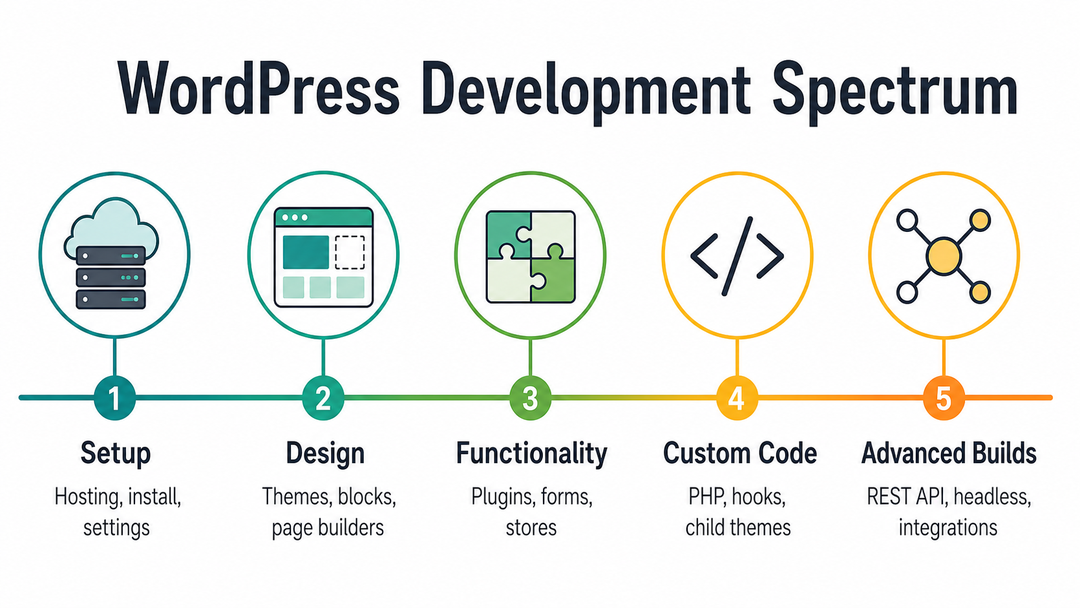
In practice, WordPress development covers five general activities:
- Installing and configuring WordPress on a hosting server
- Customizing the front end with themes, page builders, and the block editor
- Extending functionality with plugins, pre built or custom
- Writing custom code (PHP, hooks, custom post types, and increasingly JavaScript for block based development)
- Connecting WordPress to other systems, often through its REST API, for headless or hybrid setups
If you want the full picture of what WordPress is and how it works under the hood before going further, our guide on what WordPress actually is and how it works is a good place to start.
A Quick Note on Experience Level
You don’t need to know all five of the areas above to “do” WordPress development. Plenty of freelancers build a full time business around themes and plugins alone, never touching custom PHP. Others specialize almost entirely in custom back end work and rarely open the block editor. Knowing where you want to land helps you avoid the common beginner mistake of trying to learn everything at once.
WordPress.com vs. WordPress.org: Get This Straight First
This is one of the most common points of confusion for people just getting started, and it’s worth clearing up before anything else, because it changes what “development” even means for your project.
When most people talk about WordPress development, building custom themes, installing plugins freely, writing PHP, and connecting to a REST API, they usually mean the self-hosted WordPress.org version. If you are still deciding between the two, read our WordPress.com vs. WordPress.org comparison. That’s also the focus of this guide. WordPress.com is a legitimate option for simpler use cases, but it deliberately limits development flexibility to keep things manageable for non technical users.
Getting Started: Installation, Hosting & Setup
For most people, this is where WordPress development really starts. It may seem intimidating at first, but it gets much easier after you try it once.
1. Choose Hosting
Your hosting provider is the server that stores your WordPress files and serves your site to visitors. If you are comparing options, start with our guide to the best hosting for WordPress. Most beginners choose managed WordPress hosting (Bluehost, SiteGround, WP Engine, Kinsta, and similar providers), which handles server configuration, updates, and often caching automatically. Pricing typically starts around $3-$10/month for shared hosting and scales up from there; costs vary meaningfully by region and provider, so treat these as rough US-dollar benchmarks rather than fixed numbers.
2. Install WordPress
Most hosts offer one click WordPress installation through cPanel or a similar dashboard. For more control, developers often install WordPress manually via FTP/SFTP, uploading the WordPress core files directly to the server and connecting them to a MySQL database, where WordPress stores your content, settings, and user data.
3. Set Up a Local Development Environment (Optional but Recommended)
If you want to build or customize themes and plugins, it’s risky to work directly on a live server because even a small mistake can break your site. For a safe place to practice, check out our guide on installing WordPress on your own computer. Most developers use local development tools like Local, XAMPP, or DevKinsta to build and test changes before making them live.
4. Secure Your Site From Day One
Before you add content, install an SSL certificate (most hosts now include this for free via Let’s Encrypt) so your site loads over HTTPS. This affects both visitor trust and search rankings.
If you’ve ever opened a new WordPress install and weren’t sure where to start, you’re not alone. The wp-admin dashboard can be overwhelming at first. Our step-by-step installation guide covers the whole setup process, including connecting your domain and logging in for the first time.
Understanding Themes & Front-End Customization
Your theme controls how your WordPress site looks: layout, typography, colors, and (in modern WordPress) often the overall structure of your pages through Full Site Editing. For a beginner friendly explanation of the relationship between themes and plugins, see how WordPress themes and plugins work.
How Themes Work
WordPress themes are template files that determine how content is displayed. Since the introduction of the Gutenberg block editor, most modern themes are “block themes,” meaning you can edit layout, headers, footers, and templates visually, directly in the editor, not just page content. This is a major shift from older WordPress development, where layout changes almost always required editing PHP template files directly.
Page Builders
Tools like Elementor remain extremely popular for visual, drag and drop page design, particularly for landing pages and marketing sites that need pixel-level control without custom code. Page builders and the native block editor aren’t mutually exclusive; many sites use blocks for content pages and a page builder for a handful of highly designed landing pages.
Child Themes
If you want to change the code of an existing theme, don’t edit the parent theme’s files directly. Instead, use a child theme. A child theme keeps all the features and styles of the parent theme but lets you safely make your own changes. This way, your customizations stay in place even when the parent theme updates. If you edit the parent theme directly, your changes will be lost during updates.
For a full walkthrough on evaluating and selecting a theme for your specific project, see our guide on choosing the right WordPress theme.
Understanding Plugins & Functionality
If themes control how your site looks, plugins control what your site does. WordPress’s plugin ecosystem is one of its biggest competitive advantages; there are tens of thousands of free plugins in the official directory alone, covering everything from contact forms to full eCommerce platforms.
Some categories every WordPress developer should know:
- SEO plugins: Yoast SEO and Rank Math are the two dominant options, handling meta tags, sitemaps, and on-page SEO guidance.
- Security plugins: Wordfence is a widely used firewall and malware-scanning plugin (more on this below).
- Performance plugins: WP Rocket and similar caching plugins can dramatically improve load times with minimal configuration.
- eCommerce plugins: WooCommerce, which we’ll cover in more detail later, turns WordPress into a full online store.
- Widgets are smaller, modular content blocks (like a recent-posts list or a search bar) that can be placed in sidebars, footers, or block-theme template areas.
Here’s a tip many experienced developers learn the hard way: adding too many plugins, or using ones with bad code, often makes WordPress sites slow, unstable, or insecure. It’s better to focus on quality and only use plugins you really need.
Our guide on installing and managing plugins safely covers vetting criteria, update practices, and how to avoid plugin conflicts.
Custom WordPress Development: PHP, Hooks & Child Themes
At this stage, WordPress development shifts from just setting things up to real software development. This is what sets a WordPress user apart from a WordPress developer.
The Core Languages
WordPress itself is built primarily in PHP, with MySQL handling data storage and JavaScript (increasingly React, via Gutenberg) powering the modern block editor and admin interface. A working WordPress developer typically needs comfort with PHP and enough JavaScript/CSS to customize themes, plus a working understanding of MySQL for anything involving custom database queries.
WordPress Hooks: Actions and Filters
Hooks are the backbone of custom WordPress development. Conceptually, they let you “hook into” WordPress at specific points and run your own code without editing core files.
Actions let you add something at a specific point (for example, running a function every time a post is published).
Filters let you modify data as it passes through WordPress (for example, changing how an excerpt is generated before it’s displayed).
This system is what makes WordPress so flexible. Plugins and themes usually don’t need to change core files. Instead, they connect to events and data that WordPress already provides. If you want to learn more, the WordPress Developer Handbook is the best place to start.
functions.php and Custom Plugins
For small, site specific changes, you can add code to a theme’s functions.php file—ideally in a child theme so updates don’t remove your changes. For bigger features that should work no matter which theme you use, it’s better to create a custom plugin. This is a more reliable and professional solution.
Custom Post Types and the REST API
Beyond standard posts and pages, WordPress supports custom post types – think “Products,” “Case Studies,” or “Team Members” – each with its own fields and templates. Combined with the REST API, which lets external applications read and write WordPress data over HTTP, this enables headless WordPress: using WordPress purely as a content backend while a separate front-end framework (React, Next.js, etc.) handles the actual site your visitors see. This is a genuinely current, fast growing area of WordPress development that many older guides barely mention.
Keeping a WordPress Site Secure
Since WordPress is used by so many websites, it’s a common target for attacks. Security is not optional it’s a key part of professional WordPress development and should be handled from the start, not added later.
Baseline practices every WordPress site should follow:
- Keep core, themes, and plugins updated. Most successful attacks exploit known vulnerabilities in outdated software, not zero days.
- Use strong, unique credentials and limit the number of administrator accounts.
- Install a security plugin like Wordfence for firewall protection, malware scanning, and login attempt monitoring.
- Enforce HTTPS via a valid SSL certificate.
- Back up regularly, and store backups off server so a compromised site doesn’t take your backups down with it.
- Limit login attempts and consider two factor authentication for admin accounts.
You don’t need advanced coding skills for these steps. It’s mostly about being careful and choosing the right plugins. Skipping security is one of the most common and costly mistakes beginners make. For a full checklist, see our WordPress security guide.
Speed & Performance Best Practices
Page speed affects both user experience and search visibility, and it’s a common weak spot in WordPress sites built quickly without performance in mind.
Google’s Core Web Vitals, a set of metrics measuring loading performance, interactivity, and visual stability, are a useful benchmark here. You can check your own site’s scores directly with Google’s PageSpeed Insights tool.
Practical steps that move the needle most:
- Caching: Plugins like WP Rocket generate static versions of pages, so WordPress doesn’t have to rebuild them from the database on every visit.
- Image optimization: Compressing images and serving modern formats (like WebP) is often the single biggest speed win on content-heavy sites.
- Quality hosting: No amount of optimization fully compensates for underpowered shared hosting on a high traffic site.
- Minimal, well coded plugins: Every plugin adds some overhead; bloated or poorly written ones add a lot.
- A lightweight, well coded theme. Heavy page builders and template libraries can add unnecessary front end weight if not configured carefully.
For a deeper, more technical walkthrough, see how to speed up a WordPress website.
Ongoing Maintenance & Troubleshooting
WordPress development doesn’t stop once your site goes live. Your site needs regular care and updates. Many beginner guides don’t talk much about this, but ongoing maintenance is where much of your time and budget will go.
Ongoing maintenance typically includes:
- Updating WordPress core, themes, and plugins (ideally staged and tested, not applied unthinkingly to a live site)
- Monitoring uptime and performance
- Reviewing and clearing spam comments or form submissions
- Watching for plugin conflicts after updates
- Renewing SSL certificates and domain registrations
- Periodic full site backups, stored securely off site
For anything more than a simple change, professional developers use a staging environment a private copy of the live site to test updates first. This way, if something breaks, visitors never see it. Many managed hosts offer one click staging tools for this purpose.
When something does break, the most common culprits are a plugin/theme conflict, a PHP version mismatch, or a corrupted database table, in roughly that order of likelihood. Our guide to common WordPress errors and how to fix them covers the specific fixes for the errors you’re most likely to encounter.
WordPress vs. Other Platforms
WordPress is not always the best fit for every project, and it’s important to be honest about that. Here’s a realistic comparison:
WordPress tends to win on long term flexibility, ownership of your data and code, and the sheer size of its plugin and developer ecosystem. It tends to lose on out of the box simplicity compared to closed, all in one builders. If you’re actively weighing WordPress against a specific competitor, our detailed WordPress vs. Wix comparison breaks down the decision further.
Using WordPress for Business & eCommerce
For business owners evaluating WordPress development as an investment, this is usually the section that matters most.
WordPress scales comfortably from a five page brochure site to a large eCommerce operation. The key addition for online stores is WooCommerce. This open source eCommerce plugin turns a standard WordPress site into a full storefront, product catalogs, cart, checkout, shipping rules, and payment gateway integration.
A few things worth knowing before approving a business WordPress project:
- The total cost of a WordPress site is more than just the initial build. For a detailed breakdown, see our guide on whether WordPress is free. Hosting, premium themes and plugins, and ongoing maintenance are all recurring costs, not just one time expenses.
- Custom development adds real value for unique business logic, booking systems, membership gating, and custom pricing rules, but it also adds long term maintenance responsibility.
- A well built small business site usually takes several weeks to complete, not just a few days. This includes time for content, revisions, and testing. eCommerce sites or those with custom features often take even longer.
For a more complete walkthrough of building a business website specifically, see “How to Build a Business Website with WordPress.”
Essential Tools & Resources
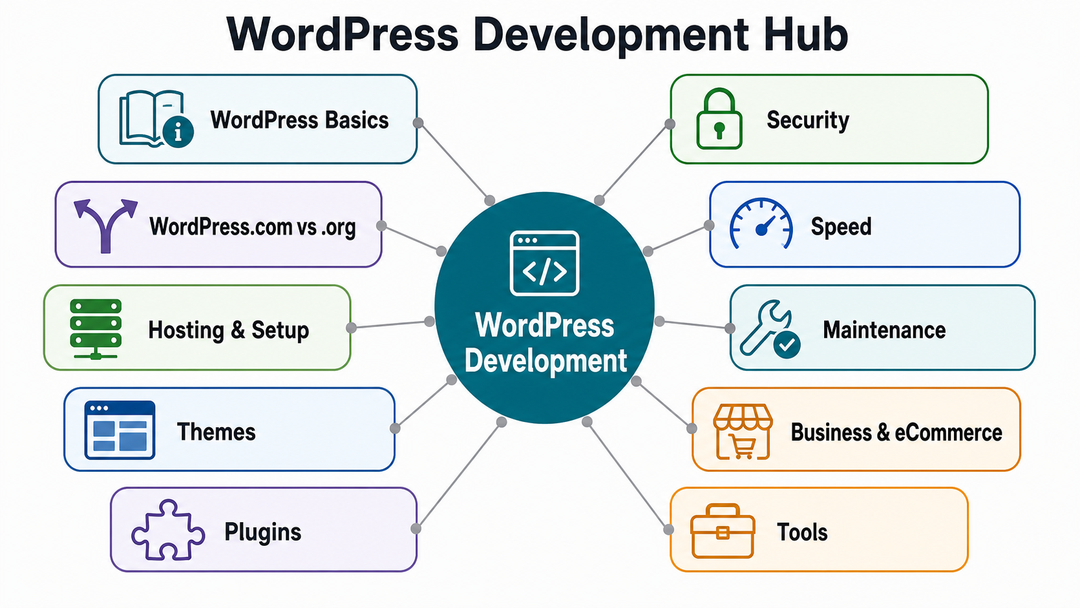
A short, practical toolkit that covers most of what’s referenced throughout this guide:
- Local development: Local, XAMPP, or DevKinsta for building safely before going live
- Version control: Git, for tracking code changes, essential once you’re writing any custom PHP or working with a team
- WP CLI: A command line tool for managing WordPress installs, plugins, and updates without touching the dashboard, a major time saver for developers managing multiple sites
- SEO: Yoast SEO or Rank Math
- Security: Wordfence
- Performance: WP Rocket, plus Google’s PageSpeed Insights for measurement
- Documentation: The WordPress Developer Handbook for anything code-related
If you’re starting to learn and want a curated, no cost path through these tools, we’ve put together a free resources guide for learning WordPress development.
Should You Learn WordPress or Hire a Developer?
Most readers of this guide are deciding whether to learn WordPress themselves or hire a developer. This is a common question, so here’s a direct answer instead of just saying “it depends.”
Learning it yourself makes sense if you have an ongoing need to manage content, a budget conscious project, curiosity about development as a skill, and realistic time to invest. If you are deciding whether the skill is worth your time, read is WordPress development worth learning?. Expect a genuine learning curve of weeks to a few months before you’re comfortable with themes, plugins, and basic troubleshooting.
Hiring a developer makes sense if: you need custom functionality beyond what plugins offer, your timeline is tight, the site is business critical (meaning downtime or bugs have real cost), or you’d rather spend your time running the business than debugging a plugin conflict at 11 p.m.
There’s no single right answer. Many successful site owners do both: they learn enough to handle daily content updates and hire a developer for bigger, custom changes. If you decide to hire, DomFlags helps businesses with custom WordPress development, from building new sites to ongoing support. It’s a good option if you’d rather not do it yourself.
Key Takeaways
- WordPress development spans a spectrum, from installing themes and plugins to writing custom PHP and building headless front ends with the REST API.
- WordPress.org (self hosted) is the version most people mean by “development”; WordPress.com trades flexibility for simplicity.
- Themes control appearance, plugins control functionality, and child themes protect custom styling from being erased by updates.
- Hooks (actions and filters) are the foundation of custom development, letting code extend WordPress without editing core files.
- Security and speed aren’t optional extras; they’re core, ongoing parts of running a WordPress site responsibly.
- WordPress isn’t automatically the right platform for every project; it wins on flexibility and ownership, and trades off some out-of-the-box simplicity.
- The learn-vs-hire decision comes down to your timeline, budget, and the site’s business criticality.
Frequently Asked Questions
Is WordPress development hard to learn?
The basics, installing WordPress, choosing a theme, adding plugins, publishing content are approachable for a total beginner within days. Custom development involving PHP, hooks, and the REST API has a real learning curve that typically takes weeks to months of consistent practice to become comfortable with.
Do I need to know how to code to use WordPress?
No. You can build and manage a fully functional WordPress site using themes, plugins, and the block editor without writing any code. Coding becomes necessary only when you need custom functionality that existing plugins and themes don’t already provide.
What programming languages are used in WordPress development?
Primarily PHP for core functionality and back end logic, MySQL for the database, and HTML/CSS/JavaScript for front end structure, styling, and interactivity, with JavaScript (particularly React) playing an increasingly large role through the Gutenberg block editor.
How long does it take to build a WordPress website?
A simple brochure site using an existing theme and standard plugins can often be built in one to two weeks. Business sites with custom design or functionality typically take several weeks to a couple of months to build. eCommerce builds with WooCommerce and custom integrations often run longer, depending on complexity.
Is WordPress good for business websites?
Yes, for most business use cases. It scales from a simple portfolio to a full eCommerce operation, offers extensive customization, and gives you full ownership of your content and code, an important factor if you ever want to switch hosts or developers later.
How much does WordPress development cost?
Costs vary widely by scope and region. A simple DIY site might cost only hosting fees (roughly $5-$15/month) plus a premium theme (often $30-$100 one-time). A professionally developed business site commonly ranges from a few thousand dollars to five figures depending on custom functionality, design complexity, and ongoing support needs.
What’s the difference between a theme and a plugin?
A theme controls how your site looks: layout, colors, typography. A plugin adds or changes what your site does, functionality like forms, SEO tools, security, or eCommerce. They work independently, so changing your theme generally won’t affect your plugins, and vice versa.
Can WordPress handle high-traffic or enterprise sites?
Yes. With appropriate hosting infrastructure, caching, and often a headless or hybrid architecture using the REST API, WordPress powers several major, high-traffic publications and enterprise sites; it’s not limited to small blogs or brochure sites.
Conclusion
WordPress development is not just one skill. It includes many layers, from picking the right theme to writing custom code that connects with other systems. The good news is you don’t need to learn everything to benefit from WordPress. You can go as deep as your project or your interest requires.
If you want to get started, check out our step-by-step WordPress installation guide. You’ll be looking at a live WordPress dashboard in no time. If you’d rather let someone else handle the technical side, that’s perfectly fine too. That’s the kind of work a WordPress development partner like DomFlags can take care of for you.