
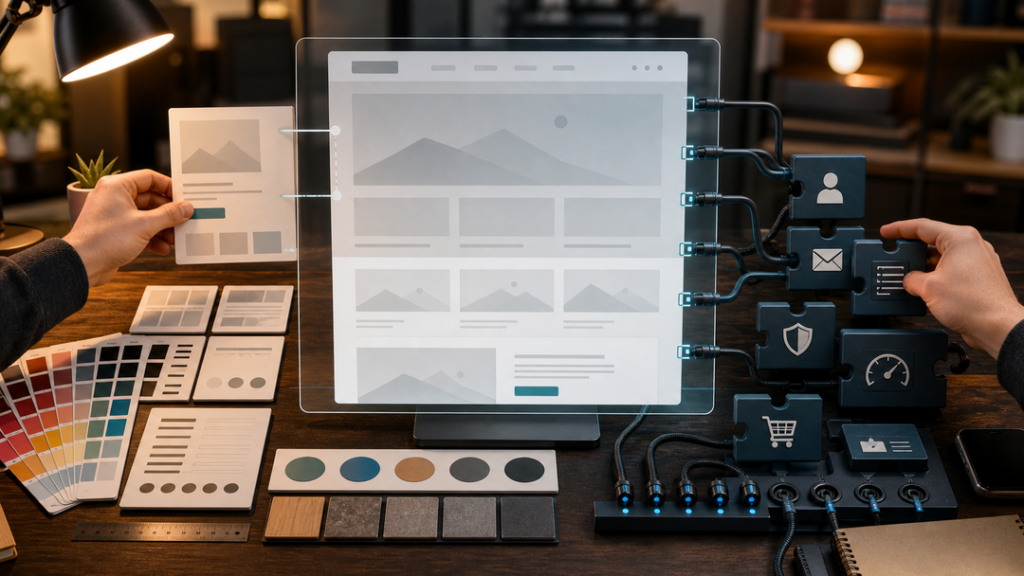
WordPress themes and plugins work by extending the same WordPress site in different ways. A theme controls how your content looks and is displayed, while plugins add or change what your site can do. WordPress core provides the main publishing system, the theme presents the pages visitors see, and plugins add features such as forms, SEO settings, security tools, ecommerce, caching, memberships, and more.
That is the simple version. The useful version is knowing where the line is between design and functionality, because that line affects what happens when you redesign your site, install a plugin, troubleshoot an error, or ask a developer for help.
If you are still getting comfortable with the platform, start with our beginner’s guide to WordPress. This guide assumes you already know WordPress is a website platform and now want to understand the moving parts behind themes and plugins.
The Three Main Parts: WordPress Core, Themes, and Plugins
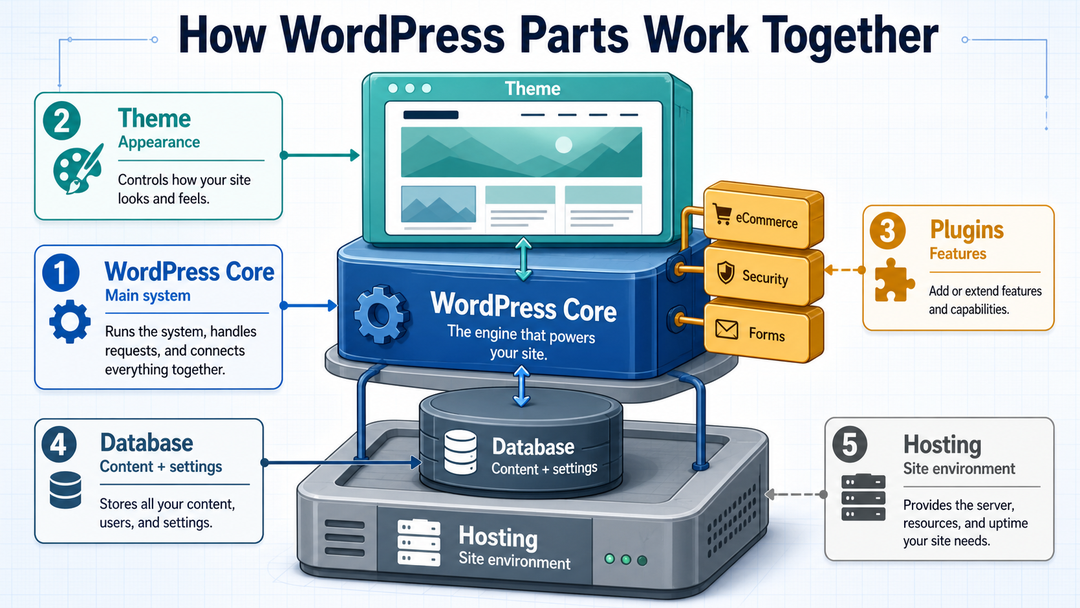
A WordPress website is not just one thing. It is a system made of several layers.
| Part | What It Does | Beginner Example |
|---|---|---|
| WordPress core | Runs the main website software | Dashboard, posts, pages, users, settings |
| Database | Stores your content and settings | Blog posts, page text, menu settings, user accounts |
| Theme | Controls presentation | Layout, templates, typography, colors, header, footer |
| Plugins | Add features and behavior | Contact forms, SEO fields, ecommerce, backups, caching |
| Hosting | Makes the site available online | Server, PHP, database, storage, domain connection |
WordPress core is the foundation. It handles the admin dashboard, login system, content editing, media library, user roles, menus, settings, and the basic process of turning stored content into web pages.
Your theme tells WordPress how content should be presented on the site’s front end. Your plugins add extra abilities that WordPress core does not include by default.
Think of a restaurant website. WordPress core stores the pages, menu items, images, users, and settings. The theme controls whether the homepage feels clean and modern or warm and traditional. Plugins might add reservation forms, SEO controls, spam protection, analytics, caching, or online ordering.
What a WordPress Theme Does
A WordPress theme is the design and presentation layer of your site. The official WordPress Theme Handbook explains that a theme defines a website’s design and can control colors, fonts, layout, and what visitors see on the front end.
In practical terms, your theme affects:
- Page layouts.
- Header and footer design.
- Blog post templates.
- Archive pages, such as category and tag pages.
- Typography and color settings.
- Spacing, columns, sidebars, and navigation.
- How featured images, comments, and metadata appear.
- Some editor options, patterns, and style controls.
The official WordPress theme documentation describes a theme as a collection of files that work together to produce a website’s visual interface. Those files can include templates, stylesheets, scripts, images, PHP files, and other theme assets.
Themes Display Content Without Changing the Content Itself
This is one of the most important beginner concepts.
Your pages and posts are stored by WordPress, usually in the database. The theme does not normally “own” the words inside your blog post or the title of your About page. Instead, the theme decides how that content appears.
For example, a blog post titled “How to Care for Indoor Plants” might be shown in several different ways:
- A minimalist theme may feature a large title, a narrow text column, and a simple featured image.
- A magazine theme may show the post with author info, related articles, sidebar widgets, and category labels.
- A block theme may let you edit the single-post template visually inside the Site Editor.
The post is still the same post. The theme changes the presentation.
Block Themes, Classic Themes, and Hybrid Themes
Modern WordPress themes usually fall into three broad categories.
| Theme Type | How It Usually Works | Good to Know |
|---|---|---|
| Block theme | Uses blocks and site editing features for templates and global styles | More visual control inside WordPress |
| Classic theme | Uses PHP template files and the Customizer or theme options | Common on older and many established sites |
| Hybrid theme | A classic theme that supports some block-era features | Can bridge older theme structure with newer editing tools |
The WordPress Theme Handbook notes that block themes, classic themes, and hybrid themes can have different file structures and editing experiences. For beginners, the main point is simple: the theme type affects how you customize the site, but the theme’s main job is still presentation.
What a WordPress Plugin Does
A WordPress plugin is add-on software that extends WordPress. WordPress.org’s plugin documentation describes plugins as PHP scripts that extend WordPress functionality, either by enhancing existing features or adding new ones.
Plugins can be small or large. A simple plugin might add a table of contents to blog posts. A larger plugin such as WooCommerce can turn a WordPress site into an online store.
Common plugin categories include:
- Contact forms.
- SEO tools.
- Security tools.
- Backup systems.
- Caching and performance tools.
- Ecommerce.
- Analytics integrations.
- Memberships.
- Learning management systems.
- Custom post types and custom fields.
- Accessibility helpers.
- Spam protection.
Plugins are one reason WordPress can stay flexible. WordPress core does not need to include every possible feature for every possible website. Instead, site owners add the features they need.
If you are still deciding between the hosted and self-hosted paths, read our guide to WordPress.com vs WordPress.org, because plugin access and control can depend heavily on the platform and plan you choose.
Plugins Can Affect the Front End, Admin Area, or Both
Not every plugin adds something visitors can see.
Some plugins mostly affect the front end of your website. A gallery plugin may display image galleries on a page. A form plugin may show a contact form. An ecommerce plugin may create product pages, carts, and checkout screens.
Other plugins mostly affect the admin area. A backup plugin may add settings in the dashboard. An SEO plugin may add fields below the editor. A security plugin may add scan reports, login protection, or alerts.
Many plugins affect both. For example, an SEO plugin might add admin settings and also output structured metadata on public pages.
How Hooks Let Plugins Work With WordPress
WordPress plugins usually work by connecting to WordPress at specific points in the loading process. These connection points are called hooks.
The official WordPress Plugin Handbook explains that hooks allow one piece of code to interact with or modify another at predefined points. WordPress uses two main types:
- Actions let code run at a specific moment.
- Filters let code change data before WordPress uses or displays it.
A plugin does not need to rewrite WordPress core to add a feature. It can say, in effect: “When WordPress reaches this point, run my function too” or “Before this title/content/value is displayed, let me adjust it.”
That hook system is a big reason WordPress is extendable. It lets core, themes, and plugins cooperate without every customization being hard-coded into the main software.
Themes vs Plugins: The Practical Difference
The clean rule is this:
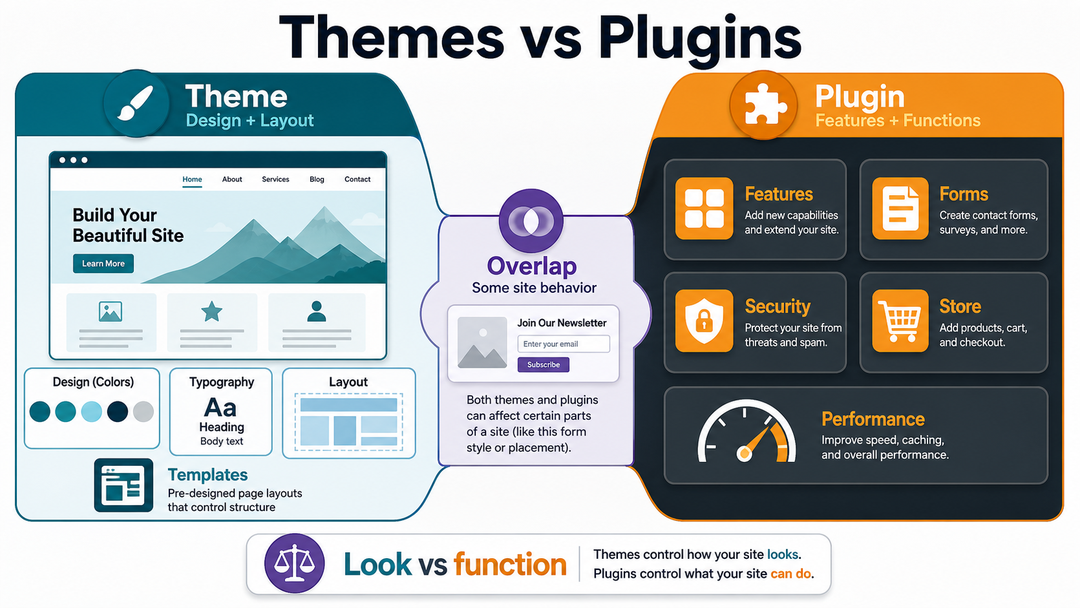
Themes should control presentation. Plugins should control functionality.
The WordPress Theme Handbook gives the same best-practice distinction: themes control how content is presented, while plugins control site behavior and features.
| Question | Usually a Theme Job | Usually a Plugin Job |
|---|---|---|
| How should the homepage look? | Yes | Sometimes, if using a page builder |
| What fonts and colors should the site use? | Yes | Rarely |
| Where should the header, footer, and sidebar appear? | Yes | Rarely |
| Should the site have a contact form? | No | Yes |
| Should the site have ecommerce checkout? | No | Yes |
| Should the site create custom content types? | Usually no | Yes |
| Should the site add SEO metadata fields? | No | Yes |
| Should the site improve caching or backups? | No | Yes |
There is overlap in real life. Some themes include extra features. Some plugins include design controls. Page builders can blur the line even further because they act like design tools but are installed as plugins.
Still, the best-practice rule matters because it protects your site from avoidable problems.
Why Site-Critical Features Should Usually Be Plugins
If a feature is important to how your website works, it should usually live in a plugin rather than in your theme.
Imagine you run a photographer portfolio and your theme includes a custom “Portfolio” feature. You add 80 portfolio items through that theme. Later, you switch to a different theme. If the portfolio feature belonged only to the old theme, those portfolio screens may disappear from the dashboard or stop displaying properly.
That is why site-critical features often belong in plugins:
- Contact form submissions.
- Ecommerce products and orders.
- Membership rules.
- Course content.
- Custom post types.
- SEO metadata.
- Redirects.
- Analytics setup.
- Backup schedules.
Your design can change. Your important site data should not vanish just because you changed the design.
How Themes and Plugins Work Together When a Page Loads
You do not need to know every technical detail to use WordPress well, but a simple page-load model helps.
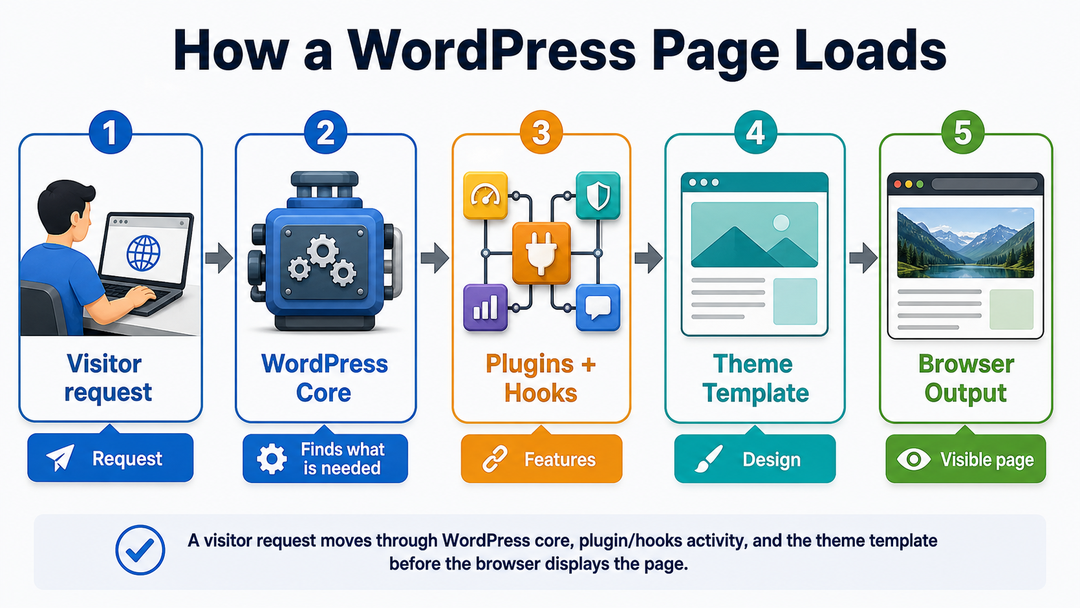
When someone visits a WordPress page, the process looks roughly like this:
- The visitor requests a URL in the browser.
- The web server sends the request to WordPress.
- WordPress core loads the site environment, settings, active theme, and active plugins.
- Plugins can run code through hooks, load settings, register features, or modify data.
- WordPress figures out what content the visitor requested.
- The active theme provides the template and visual structure for that content.
- Plugins may add visible output, such as forms, SEO metadata, product boxes, or scripts.
- WordPress sends the finished HTML, CSS, JavaScript, and media to the visitor’s browser.
Here is a simple way to picture it:
| Layer | Role During a Page Request |
|---|---|
| WordPress core | Coordinates the request and retrieves the right content |
| Plugins | Add features, modify behavior, or attach extra output |
| Theme | Decides the page structure and visual presentation |
| Browser | Displays the final page to the visitor |
This is why a theme and plugin can both affect the same page. The theme may control the blog post layout, while a plugin adds an email signup form below the post, another plugin adds SEO metadata, and another plugin handles caching.
Where Themes and Plugins Live in WordPress
On a self-hosted WordPress site, themes and plugins are stored inside the wp-content folder.
| Item | Typical Folder |
|---|---|
| Themes | wp-content/themes/ |
| Plugins | wp-content/plugins/ |
| Uploads | wp-content/uploads/ |
Most beginners do not need to edit these folders directly. You usually install, activate, update, and delete themes and plugins from the WordPress dashboard.
For themes, you usually go to Appearance > Themes.
For plugins, you usually go to Plugins > Installed Plugins or Plugins > Add New.
Manual file access through SFTP or a hosting file manager is sometimes useful for troubleshooting, but it is not the normal starting point for beginners.
What Happens When You Change a Theme?
When you change your WordPress theme, you change the site’s design layer. Your posts, pages, media files, users, and most settings usually remain in WordPress, but how they appear can change significantly.
Changing a theme may affect:
- Header and footer layout.
- Navigation menu locations.
- Widget areas.
- Template designs.
- Typography and color styles.
- Homepage layout.
- Block patterns and theme-specific styles.
- Customizer settings from the old theme.
- Theme-specific shortcodes or features.
Changing a theme should not delete your blog posts or pages. The content still belongs to WordPress. But if the old theme included special design settings or built-in functionality, some parts of the site may need to be rebuilt or reconfigured.
Before changing themes on a live site, it is wise to:
- Make a backup.
- Test the new theme on a staging site if possible.
- Check menus, headers, footers, forms, templates, and mobile layouts.
- Review important pages manually.
- Keep the old theme available until the new version is confirmed.
What Happens When You Deactivate a Plugin?
When you deactivate a plugin, the feature it provides may stop working.
The exact result depends on the plugin. A caching plugin may simply stop caching. A contact form plugin may stop displaying forms. An ecommerce plugin may remove store screens from the public site until it is reactivated.
Plugin deactivation can affect:
- Shortcodes.
- Forms.
- Product pages.
- SEO metadata output.
- Redirects.
- Security rules.
- Performance features.
- Analytics scripts.
- Custom post types.
- Widgets or blocks provided by the plugin.
Deactivating a plugin does not always delete its data. Many plugins keep settings and data in the database in case you reactivate them later. Deleting a plugin may remove more, depending on how the plugin is built and what uninstall options it provides.
This is one reason to be careful with plugins that manage important business data.
Can Themes Add Features and Plugins Change Design?
Yes. This is where beginners often get confused.
A theme can add features. A plugin can change design. But that does not mean every feature belongs in a theme or every design choice belongs in a plugin.
Some overlap is normal:
- A theme may include custom templates, patterns, editor styles, or layout controls.
- A theme’s
functions.phpfile may add theme support for menus, featured images, or editor features. - A plugin may add front-end design, such as a form layout, popup, gallery, product grid, or page-builder section.
- A page builder plugin may control large parts of the visual layout.
The question is not “Can it do this?” The better question is: What happens if I switch themes or deactivate this plugin later?
If losing the feature would damage your site, customer journey, SEO data, orders, forms, or content structure, it probably should not be trapped inside a theme.
How to Choose a WordPress Theme
A good theme should provide the design foundation you need without forcing your site to include features you do not use.
Before choosing a theme, check:
- Is it compatible with your current version of WordPress?
- Has it been updated recently?
- Does it support the editor experience you want?
- Is the design flexible enough without being bloated?
- Are the templates mobile-friendly?
- Does it work with the plugins you plan to use?
- Is there documentation or support?
- Can you switch away later without losing important content?
Beginners often choose themes by demo appearance alone. That is understandable, but demos can be misleading. A polished demo may rely on specific images, layout settings, premium add-ons, or a page builder you may not want.
Choose the theme for structure and maintainability, not just the screenshot.
How to Choose WordPress Plugins
Plugins are powerful, but every plugin adds another piece of software to maintain.
Before installing a plugin, ask:
- Do I truly need this feature?
- Does WordPress already do this?
- Is the plugin actively maintained?
- Is it compatible with my WordPress version?
- Does it have clear documentation?
- Does it come from a trustworthy source?
- Does it duplicate another plugin already installed?
- Will removing it later create problems?
The official WordPress plugin documentation notes that plugin quality can vary, even in the directory. That does not mean you should avoid plugins. It means you should install them intentionally.
Also, avoid judging a site by plugin count alone. Ten well-built, necessary plugins can be healthier than three heavy, overlapping plugins. What matters is quality, maintenance, compatibility, and whether the plugin is doing useful work.
For a broader look at setup costs, including premium themes and plugins, see our guide to whether WordPress is free.
Common Mistakes to Avoid
Installing Plugins for Tiny Problems
If you install a plugin for every small preference, your site can become harder to maintain. Sometimes a built-in WordPress setting, a theme option, or a small developer change is cleaner.
Choosing a Theme That Locks In Your Content
Avoid themes that make important content depend on theme-only features. If you change the theme later, you may have to rebuild more than the design.
Editing Theme Files Directly
Directly editing a theme can cause your changes to disappear during updates. Developers often use child themes or custom plugins for safer customization, depending on the task.
Ignoring Updates
WordPress core, themes, and plugins need updates for compatibility, bug fixes, and security improvements. Updates should be handled carefully, especially on business sites, but ignoring them for long periods creates avoidable risk.
Using Overlapping Plugins
Two plugins trying to do the same job can cause conflicts or unnecessary weight. For example, using multiple caching plugins or multiple plugins that control the same SEO metadata can create confusing results.
How This Fits Into WordPress Development
Themes and plugins are central to WordPress development. A basic site owner may choose existing themes and plugins from the dashboard. A developer may go further by creating custom theme templates, building custom plugins, using hooks, working with PHP and JavaScript, improving performance, or creating safer maintenance workflows.
Understanding the theme-plugin relationship helps you talk more clearly with a developer. Instead of saying “change the website,” you can describe whether you need a design change, a feature change, a content change, or a bigger technical change.
That one distinction saves a lot of confusion.
Quick Beginner Checklist
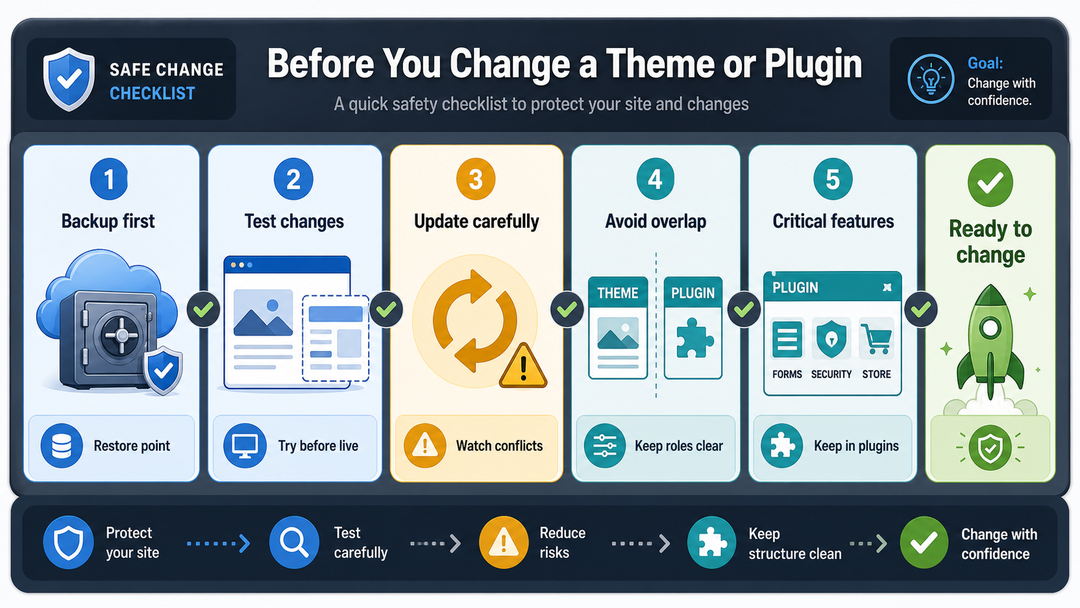
Use this checklist before changing a theme or installing a new plugin:
- Back up the site first.
- Update in a safe order, especially on business sites.
- Check whether the change affects design, functionality, or both.
- Avoid putting critical features inside a theme.
- Avoid installing two plugins for the same job.
- Test important pages after any major change.
- Keep only themes and plugins you actually use.
- Choose maintained tools from reputable sources.
- Use staging for redesigns, ecommerce sites, and high-traffic sites.
FAQs About WordPress Themes and Plugins
How do WordPress themes and plugins work together?
WordPress themes and plugins work together by extending WordPress core in different ways. The theme controls the site’s visual presentation, while plugins add features or change behavior. When a page loads, WordPress runs core, loads active plugins, applies the active theme, and outputs the final page.
What is the main difference between a theme and a plugin?
The main difference is that a theme controls how a WordPress site looks, while a plugin controls what the site can do. Themes handle presentation. Plugins handle functionality.
Can I use WordPress without plugins?
Yes, you can use WordPress without extra plugins, but your site will have fewer features. Many simple sites can start with WordPress core and a good theme, then add plugins only when a real need appears.
Can I use WordPress without a theme?
No, a normal WordPress site needs an active theme to display the front end properly. WordPress includes default themes, and you can install another theme if you want a different design or editing experience.
Do plugins slow down WordPress?
Plugins can slow down WordPress if they are poorly built, heavy, misconfigured, duplicated, or doing expensive work on every page load. A well-built plugin that performs a needed task is not automatically a problem. Quality matters more than the raw number of plugins.
What happens if I delete a theme?
If you delete an inactive theme, your current site usually continues to work as long as another active theme is installed. If you delete a theme that contains custom settings, templates, or theme-specific features you still need, you may lose access to those design elements.
Should I update themes and plugins automatically?
Automatic updates can be useful for some low-risk sites and trusted tools, but business-critical sites should be more careful. Use backups, staging, and post-update checks when updates could affect checkout, forms, design, security, or important integrations.
Final Thoughts
WordPress themes and plugins work best when each one has a clear job.
Use your theme to shape the visitor’s visual experience. Use plugins to add the features your site needs. Let WordPress core handle the foundation. When those roles stay clean, your site is easier to redesign, troubleshoot, maintain, and grow.
The beginner rule is simple: design belongs in the theme, important functionality belongs in plugins, and every new add-on should earn its place.