

Delay JavaScript in WordPress without breaking forms by identifying which scripts initialize the form, popup, menu, and spam check. Exclude only those dependencies from interaction delay, keep nonessential scripts delayed, and test a real submission. A fast lab score cannot confirm that a form works.
This guide explains the mechanics, DevTools diagnosis, plugin settings, CAPTCHA dependencies, and first-interaction slowdown. It also fits into a broader Core Web Vitals guide for WordPress and practical WordPress speed optimization techniques.
The Mechanics of Script Delay and Why It Breaks Interactive Elements
Quick answer: To delay JavaScript in WordPress without breaking form submissions and popups, keep the scripts that initialize those elements available before interaction. Exclude only the required plugin files and inline dependencies in your optimization tool, then test a real submission. Leave nonessential scripts delayed and recheck performance after change.
| Tool | Where to begin | First identifiers to investigate | Important check |
|---|---|---|---|
| WP Rocket | File Optimization → Delay JavaScript Execution | Form plugin path, dependency, inline initializer | One-click exclusions and exact file matching |
| Perfmatters | JavaScript → Delay | Selective delay list or Delay Script Exclusions | Timeout is optional and off by default in current docs |
| LiteSpeed Cache | Page Optimization → JS Settings, then Tuning | JS Deferred / Delayed Excludes | Purge optimized assets after edits |
| FlyingPress | JavaScript → Delay JavaScript | Plugin file paths and integration exclusions | Verify the current dashboard labels and behavior |
There is no universal exclusion list. Confirm each candidate in your Network panel because plugin versions and integrations change script URLs.
How Performance Plugins Intercept and Postpone Script Execution
An external script can pause HTML parsing while it downloads and runs. A defer script runs after parsing; a delay feature waits for activity or a timeout.
Optimization plugins can rewrite output HTML so the browser does not execute a script immediately. WordPress also exposes script tag customization through script_loader_tag. An illustrative transformed tag might look like this:
<script type="text/perfmatters-delayed"
        data-src="/wp-content/plugins/example/form.js"></script>
Common interaction triggers include scroll, mousemove, mousedown, keydown, touchstart, and wheel; each plugin’s exact set varies. WP Rocket, Perfmatters, and other tools use their own markup and trigger logic. The browser ignores the custom type until the plugin loader executes it.
This can remove noncritical work from initial load, but also postpone submit handlers, validation, modal triggers, or anti-spam requests. The MDN JavaScript event loop guide explains how tasks share the main thread; delay changes when work enters that queue.
The Anatomy of a Form and Popup Failure: Event Listeners and Race Conditions
A form may be visible before its JavaScript is ready. Its script often binds a submit listener, validates fields, sends an AJAX request, and renders a success or error response. If the visitor tabs straight to the form or taps Submit before the delayed script runs, the listener may not exist. The browser can perform a regular form POST instead, or client-side validation may be missing.
Popups, menu buttons, and CAPTCHA widgets can also appear without their timers, click handlers, or provider API ready.
Find the first failure: a ReferenceError can indicate a missing dependency; no request can mean the handler never ran; a 400 or 403 may indicate a rejected nonce or token. Each needs a different fix. For persistent issues beyond script timing, follow a systematic WordPress bug-fixing workflow.
The Universal Delay Trap: Why “Delay All Scripts” Is a Dangerous Optimization Myth
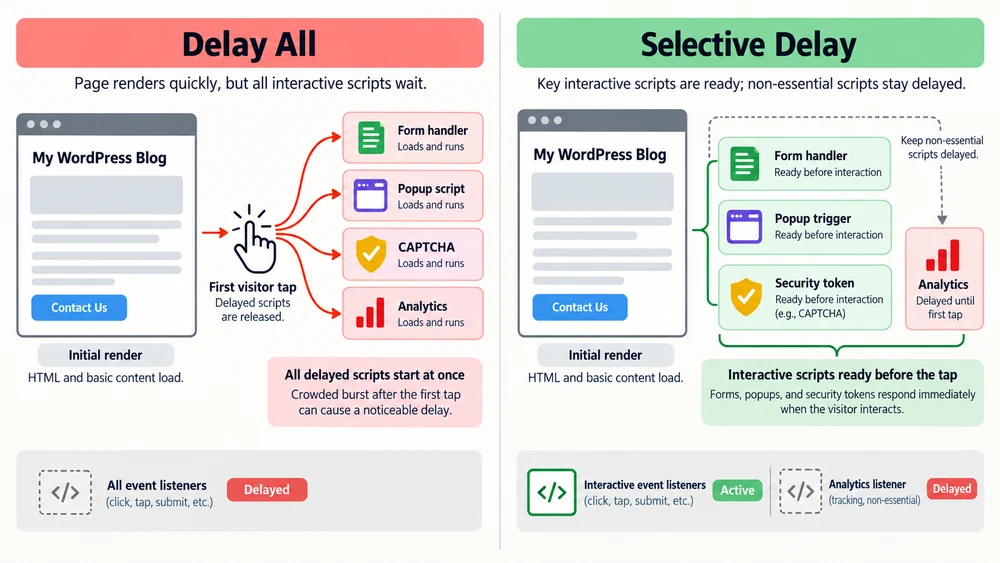
“Delay All” is an aggressive setting, not a set-and-forget guarantee. It can help reduce initial JavaScript work, but it can also postpone essential user-interface code. Keep the optimization where it helps, then make the interactive path explicit: identify dependencies, exclude the smallest necessary set, and retest.
Visual summary: Comparison of blanket JavaScript delay and selective delay that keeps form, popup, and security scripts ready before interaction.
| Myth | What actually happens | Safer response |
|---|---|---|
| A green Lighthouse score proves the page works | A lab run measures a scripted scenario; it may not complete your form’s validation, CAPTCHA, and AJAX flow | Pair lab diagnostics with real interaction tests and field data |
| Every form break means the plugin is bad | Delayed dependencies or execution order can prevent handlers from initializing | Isolate delay first, then trace the specific asset |
| Excluding every plugin script is safest | Broad exclusions can undo performance gains and hide the culprit | Add one narrow path or identifier at a time |
| A timeout guarantees correct behavior | A timeout can reduce the wait for passive visitors, but a busy or background tab may execute later | Test timing, visibility, and interaction behavior on real devices |
The Lighthouse Mirage: When Perfect Lab Scores Mask Broken Business Metrics
Lab tools such as Lighthouse and PageSpeed Insights can reveal render-blocking work and opportunities to reduce Total Blocking Time (TBT). A high lab score is not a conversion test and does not prove that visitors can complete forms or that leads are stored correctly.
Google’s Lighthouse Total Blocking Time documentation describes the lab metric. Chrome User Experience Report (CrUX) field data reflects eligible real-user experiences, but neither metric proves a lead reached your CRM. Submit a test lead and verify its destination.
Treat “100/100 scores mask 0% conversions” as a risk illustration, not a measured rate. Include test submissions in your release checklist.
The Three Critical Failure Modes: Missing Nonces, Blank Popups, and Silent AJAX Drops
Missing security values. WordPress nonces and anti-spam tokens are generated and checked through different application flows. If a token is absent, expired, or tied to a cached response, the server may reject a request. A 400 or 403 response is a clue, not proof that delay alone caused it. Inspect the response body, request payload, and plugin logs.
Dead or late popups. Exit-intent and timed triggers rely on code that registers listeners or starts timers. When that code waits for interaction, a popup may appear late, never appear, or only work after a second visit to the trigger.
AJAX submission falls back or disappears. If the submit handler is missing, the browser may navigate to a response page. If the handler runs but its request fails, the page can stay put while the form shows an error or nothing at all. Inspect the Network tab to distinguish no handler, failed request, and rejected response. Fix the observed stage rather than guessing from the page’s appearance.
A 4-Step Chrome DevTools Diagnostic Protocol to Isolate Conflicting Scripts
Use a clean session and change one variable at a time. Test on staging when submissions trigger real workflows.
Visual summary: Four-step DevTools flow for delaying JavaScript in WordPress without breaking forms: reproduce, trace, exclude, and retest.
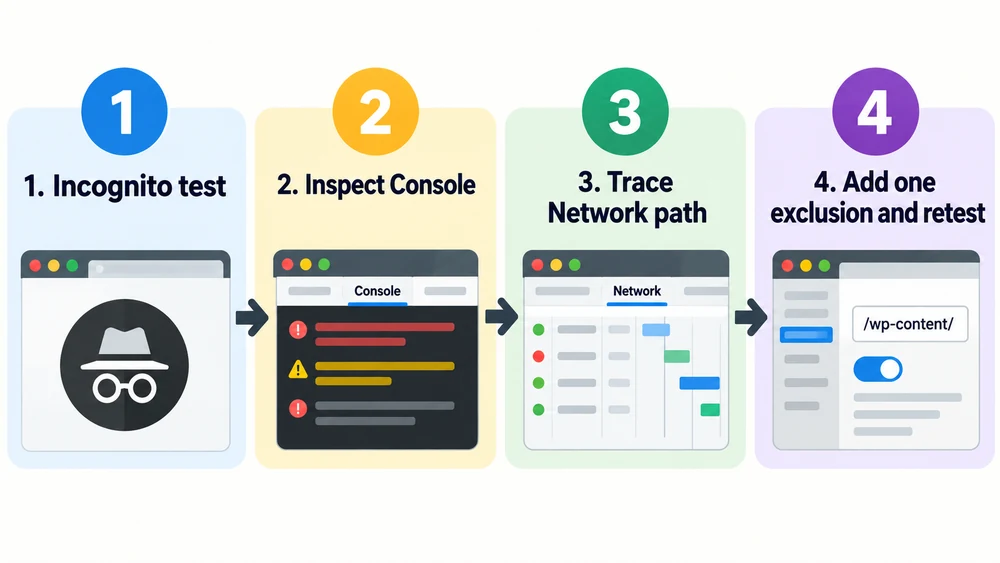
Step 1: Reproduce the Breakage in a Clean Incognito Profile
Open Chrome Incognito or another clean profile. Extensions can add errors, and administrators may bypass visitor caching. Use a test form and address.
Open DevTools before reloading. In the Network panel, enable Disable cache while DevTools is open. Confirm that the page is served with the optimization feature enabled, then reproduce the exact sequence that fails: load the page, immediately focus the form, enter valid data, and submit. Also test after waiting and after scrolling. Record whether the visible result changes.
Compare with delay disabled while leaving other settings unchanged. If the failure persists, investigate another cache, validation, server, or integration issue.
Step 2: Inspect Console Errors to Catch Uncaught Reference and Type Errors
Select Console, clear prior messages, reload, and repeat the failing interaction. Note the first error and click its source link. Errors such as jQuery is not defined, wpforms is not defined, or wpcf7 is not defined can indicate a missing dependency or initializer order problem. A later error may only be a consequence of the first one.
Ignore unrelated extension and analytics errors. Compare with delay disabled; if an error persists, it is likely unrelated. Save the script filename, not just the plugin name.
Step 3: Trace Network Enqueued Assets to Identify Script Paths and Dependencies
In Network, select the JS filter, reload, and inspect script requests. Search for the form plugin name or the filename found in the Console. Select the request and copy its full URL from Headers. A useful filter query for matching responses can be status-code:200 in current Chrome DevTools; filter syntax changes, so use the UI’s status and resource-type filters if a typed query is not recognized.
Check whether the request happens during initial load, after interaction, or not at all. Compare the URL and request timing with delay disabled. The Initiator column or request details can reveal what caused a script to load. If needed, open More tools → Coverage, start recording, reload, then exercise the form. Coverage shows which loaded code ranges were used; it does not prove a file is safe to delay, but it can help identify bundles and page-specific code.
Map the observed URL to a narrow match such as /wp-content/plugins/contact-form-7/includes/js/index.js. For inline code, inspect the surrounding source and use a distinctive, stable identifier supported by your optimizer. Avoid pasting a domain-wide wildcard without confirming its matching rules.
Step 4: Validate the Fix and Verify Zero Console Errors on Interaction
Add one exclusion, purge optimization and CDN caches, and retest privately. Test immediate and delayed submission, validation, keyboard navigation, and CAPTCHA.
Confirm the Network request reaches the expected endpoint and returns the expected response. Confirm the lead appears in the form plugin, inbox, or CRM. Check the Console for new errors, then run the performance test again. If it fails, remove the exclusion and test the next evidenced dependency.
Configuration Blueprints: Implementing Safe Delay Across Major Performance Plugins
Match syntax and defaults differ by tool and version. Check current documentation before configuration.
WP Rocket: Navigating File Optimization and the Excluded JavaScript Files Box
In WordPress, open Settings → WP Rocket → File Optimization and find Delay JavaScript Execution. First try the relevant one-click compatibility exclusion, if your installed release offers one. For a custom rule, add a path or keyword in Excluded JavaScript Files, one entry per line. WP Rocket’s exclusion guide explains matching; use the actual path from DevTools and avoid a full domain URL when a path is sufficient.
Example starting point:
/wp-content/plugins/contact-form-7/includes/js/index.js
wpforms
elementor-pro/assets/js/popup.min.js
Do not paste all three unless your site uses those products and the traces support them. Purge WP Rocket’s cache, then repeat the test. WP Rocket’s current troubleshooting documentation recommends first confirming that Delay JavaScript Execution is the feature responsible and that other file-optimization settings are not confounding the test.
Perfmatters: Configuring Selective Delay, Fallback Timeouts, and Script Exclusions
Open Settings → Perfmatters → JavaScript and review the Delay behavior. Perfmatters offers specified-script and delay-all modes. Prefer specified scripts when you can identify noncritical third-party code; this avoids delaying the first-party interface.
If you use Delay All, add only confirmed form, CAPTCHA, popup, and menu dependencies under the exclusion field. Perfmatters’ current docs describe an optional timeout that is off by default and a default automatic load after 15 seconds when enabled; controls may differ by version. Do not treat a 5-second value as a guarantee. For a deeper comparison, see how to compare Perfmatters and WP Rocket delay engines. Test the effect and confirm your interface supports the intended value.
For per-page control, use the Script Manager when your license and version include it. Keep the interactive scripts enabled on pages that contain forms, then test the page with no mouse movement and with immediate keyboard or touch interaction.
LiteSpeed Cache (LSCWP): Tuning Tab Exclusions and Server-Level JS Rules
Go to LiteSpeed Cache → Page Optimization → JS Settings and choose the JavaScript loading mode. LiteSpeed distinguishes Deferred execution after HTML parsing from Delayed execution after activity. To exclude a dependency from deferred or delayed loading, open Tuning and add its path or identifier to JS Deferred / Delayed Excludes. LiteSpeed’s official documentation also exposes a developer filter for exclusion patterns.
Do not assume that excluding jquery.min.js is always necessary. Add jQuery only if the Console or request sequence shows that a required initializer runs before it. An overbroad dependency exclusion can restore functionality but also reintroduce main-thread work. Save, purge LiteSpeed’s optimized files and page cache, purge upstream cache if relevant, then retest in a guest session.
FlyingPress: Managing Interaction Heuristics and Custom Exclusions
In the FlyingPress dashboard, open JavaScript and review the Delay JavaScript setting and its exclusion controls. Enter a verified plugin file path or stable keyword for scripts that must initialize with the page. FlyingPress documents interaction-based loading; confirm the current matching rules in your dashboard.
Test a form from a fresh private session before and after adding each rule. Test with no prior pointer movement, then with touch and keyboard interaction on a mobile device. If a feature still appears late but works after interaction, decide whether the user experience justifies excluding its initializer. Keep analytics and other noncritical third-party tags delayed where possible.
Master Exclusion Matrix: Safe Strings for the Top WordPress Form Plugins
The table is a diagnostic starting point, not a verified universal allowlist. File names move between plugin versions, and integrations can load different scripts depending on enabled features. Confirm every candidate in DevTools Network or Sources and check the matching rules in your optimization plugin before deploying it.
| Form system | Candidate file or identifier to search | Inline or dependency clue | Test after exclusion |
|---|---|---|---|
| WPForms | wpforms.min.js, wpforms-validation.min.js, /wpforms/ | wpforms_settings; jQuery if the page’s error names it | Required fields, conditional logic, AJAX success, CAPTCHA |
| Contact Form 7 | /contact-form-7/includes/js/index.js, wpcf7 | REST request to contact-form-7/v1; reCAPTCHA integration if active | Invalid input, sent confirmation, mail delivery, spam check |
| Gravity Forms | /gravityforms/js/, gform | gform_* initialization; conditional logic or multipage handlers | Multi-page navigation, calculations, AJAX confirmation |
| Fluent Forms | /fluentform/, fluentform | Form-specific initialization and validation bundle | Validation, AJAX response, conditional fields, CAPTCHA |
| Formidable Forms | /formidable/, frm_form | frm initializer and calculation scripts | Conditional fields, calculations, multi-page submit |
| Elementor Forms | /elementor-pro/assets/js/, elementorProFrontend | Elementor frontend initialization; provider scripts | AJAX response, actions after submit, CAPTCHA, popup trigger |
WPForms: Script Handles, Inline Settings, and reCAPTCHA Identifiers
Search for wpforms.min.js, wpforms-validation.min.js, and wpforms_settings. Treat them as clues; add only identifiers your page loads and the failure trace implicates.
Test validation, conditional logic, AJAX submission, and CAPTCHA. Confirm any entry and notification reaches WPForms and the configured destination.
Contact Form 7: Bypassing Delayed AJAX Submissions and REST API Calls
Contact Form 7 commonly uses contact-form-7/includes/js/ and submits through the WordPress REST API. Inspect for the script and a route resembling /wp-json/contact-form-7/v1/contact-forms/.../feedback.
If clicking Submit reloads the page, check whether the Contact Form 7 handler loaded and whether the REST request was sent. Exclude the observed script or dependency, then test invalid and valid data, the sent message, spam controls, and actual email delivery. A REST API error can have other causes, including security rules or permissions; use the response status and body to distinguish those from a missing JavaScript handler. If the request reaches WordPress but returns 403, follow this guide to diagnose REST API and webhook communication failures.
Gravity Forms, Fluent Forms, and Formidable Forms: Multi-Step & Calculation Exclusions
These builders often load extra code only when a form uses a feature such as conditional logic, calculations, multi-page navigation, or AJAX. A basic text form passing once does not verify those features. Search for the plugin path and inspect the initiator and request order. Add a narrow matching path for the script actually involved, not a guessed global plugin exclusion.
Test invalid data, conditional branches, calculations, and multi-page navigation. Retest after plugin updates because bundles can change.
Elementor Forms: Protecting Native Pro Form Submission Handlers
Elementor Pro form behavior depends on its front-end initialization and the actions configured after submission. Search for the Elementor Pro assets and elementorProFrontend, then correlate them with Console errors and the Network request. Excluding a broad /elementor-pro/ path may restore multiple widgets but can also bring unrelated code into the initial load; narrow it when DevTools identifies a specific dependency.
Test the form’s configured actions, including email, redirect, webhook, and any CAPTCHA. Verify the result at the destination, not just in the page. If the form is inside a popup, test both the popup trigger and the form after it opens because those may be separate scripts.
Preserving Dynamic Popups, Modals, and Interactive Mobile Navigation
Visible controls can depend on separate scripts for timers, overlays, or navigation. Trace them in Console and Network, then exclude only the dependency that restores behavior.
Elementor Popups: Fixing Exit-Intent, Timed Triggers, and Modal Buttons
For Elementor Pro popups, inspect for a path such as elementor-pro/assets/js/popup.min.js and the elementor-popup-modal behavior. Confirm that those exact names appear on your page before adding exclusions. A timer-triggered popup should be tested after a clean page load; an exit-intent popup should be tested with a real pointer path on desktop and an appropriate equivalent on touch devices.
Check Elementor trigger rules and frequency limits too. Confirm close behavior and any form inside the modal after the change.
Mobile Hamburger Menus: Preventing the Unresponsive Double-Tap Glitch
Many themes register the mobile menu toggle through a navigation script. A delayed handler can make the first tap load JavaScript and the second tap open the menu, creating a confusing double-tap effect. Inspect the theme’s actual request path and look for the toggle’s error in Console. A file name like navigation.js is only a clue; themes use different names.
At a narrow viewport, test the first tap, submenu controls, keyboard focus, and close action. If DevTools identifies a theme initializer, exclude that file rather than disabling all optimization. If the menu remains unreliable, see the troubleshooting guide for mobile navigation menu toggle failures.
Security and Anti-Spam Tokens: Safeguarding Cloudflare Turnstile and Google reCAPTCHA
Security widgets introduce another dependency layer. The browser may load a provider API, render a widget, request a token, and attach it to a form submission. A delayed provider script can leave a token field empty at submit time, but token errors can also arise from hostname configuration, expired challenges, server verification, or cached markup. Trace both the browser request and the server response before changing settings.
| Provider | Browser identifier to verify | Failure clue | Validation step |
|---|---|---|---|
| Cloudflare Turnstile | challenges.cloudflare.com/turnstile/v0/api.js | Missing or empty cf-turnstile-response | Check token field and server-side Siteverify result |
| Google reCAPTCHA v2/v3 | google.com/recaptcha/api.js or gstatic.com/recaptcha/ | Missing g-recaptcha-response or rejected score/action | Verify site/secret keys, hostname, action, and backend check |
| hCaptcha | js.hcaptcha.com/1/api.js | Missing h-captcha-response | Confirm widget callback and server verification |
The provider URL can vary by language, render mode, or integration. These identifiers help you search; confirm the actual request on your site. The Cloudflare Turnstile documentation describes client integration and server-side token validation. A browser-generated token is not a substitute for server verification.
Why Cryptographic Handshakes Fail Under Interaction Delay
An anti-spam widget is a client-server flow, not merely a badge on the page. The browser loads provider code, that code renders or executes a challenge, and a response token is added to the form. The server then validates that token with the provider. If the provider library or integration initializes only after the visitor submits, the request can arrive without the required value.
Tokens can also expire or be consumed, depending on provider behavior. Reusing a cached page does not make a token valid indefinitely. For that reason, a failure message alone does not show whether delay, caching, a domain mismatch, or a backend verification error is responsible. Inspect the form payload, browser console, and server-side verification response where available.
Exact Exclusions for Cloudflare Turnstile, reCAPTCHA v2/v3, and hCaptcha
In the optimizer’s exclusion field, use the smallest provider path or integration file confirmed in DevTools. Candidate search strings include:
challenges.cloudflare.com/turnstile/v0/api.js
google.com/recaptcha/api.js
gstatic.com/recaptcha/
js.hcaptcha.com/1/api.js
Some integrations load these scripts through a plugin wrapper or dynamically after the page begins. Excluding a provider URL may not be enough if the form’s own initialization script is delayed. Check for the hidden response field and verify it has a value immediately before submission. Test successful and rejected challenge cases on the public hostname, then confirm server verification. Never disable server-side token validation to make a front-end test pass.
Core Web Vitals Calibration: Balancing TBT Reduction with Interaction to Next Paint (INP)
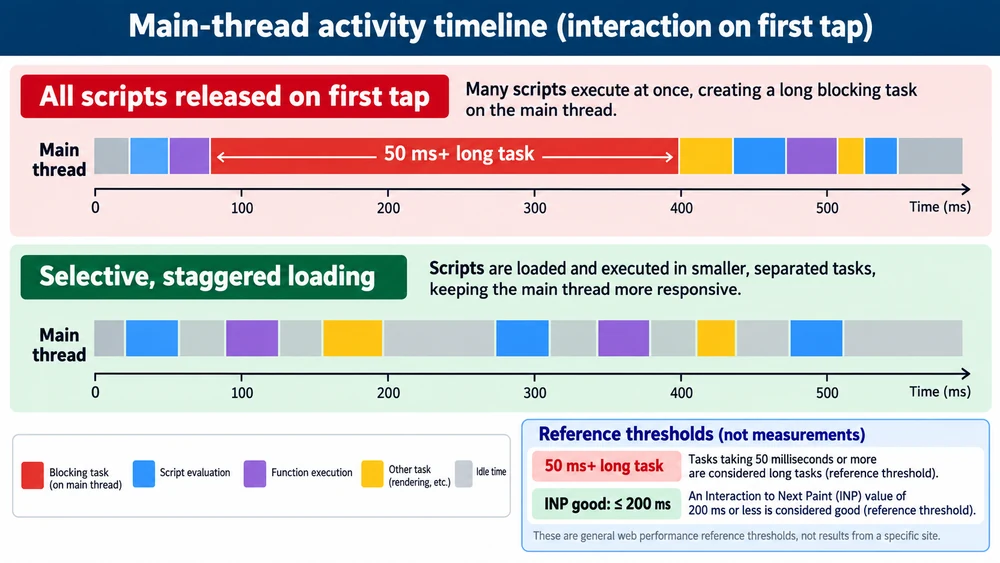
JavaScript delay can reduce work during initial rendering, but speed optimization is not complete when the scripts all run at the first click. A large group of delayed files can create a burst of download, parsing, compilation, and execution while the visitor is trying to interact. The web.dev INP guide explains that interaction responsiveness includes input delay, event processing, and presentation delay; long tasks can make each part worse.
Use lab tests to compare controlled changes and field data to understand real-user experience. Current Core Web Vitals guidance considers INP “good” at 200 ms or less at the 75th percentile, subject to device and network conditions. The old fixed claims that every site will see a 60–90% TBT reduction or that a particular bundle size always causes an INP failure are not reliable universal rules. Measure your own page.
Visual summary: Main-thread timeline comparing a burst of delayed scripts on first interaction with selective loading and the 200 millisecond INP reference threshold.
The Post-Interaction Main-Thread Avalanche: Why INP Spikes After the First Tap
When one tap releases analytics, chat, advertising, popup, and form bundles, the browser must fetch and process them. The main thread may be busy before it can paint, especially on slower phones, making a button seem unresponsive.
In Chrome Performance, record the first interaction and inspect long tasks and event timing. A task above 50 ms is considered a long task for responsiveness diagnostics, but that does not mean it automatically produces a 50 ms INP value. INP records the latency of interactions across the visit and reports a high percentile. Evaluate the full interaction, not a single threshold in isolation.
Setting Fallback Timeouts and Deploying Selective Delay to Stagger Execution
Use two practical controls. First, delay only scripts that do not need to initialize the visible interface: analytics, advertising pixels, heatmaps, and some chat widgets. Keep the form handler, menu toggle, modal trigger, and security integration available before a visitor needs them. For first-party code that can safely run after parsing, defer may be a better fit than waiting for user activity.
Second, consider an automatic timeout when your tool supports it. A 5–10 second fallback is a reasonable test range, not a guaranteed optimal value. Perfmatters’ current documentation describes an optional timeout that is off by default and a 15-second automatic load when enabled; confirm whether your installed version permits a different setting. Browsers may throttle timers in background tabs, so still test passive visitors and return-to-tab behavior.
After each change, compare the first interaction, full form submission, TBT, and INP where data is available. Do not optimize only the initial score. The aim is a page that renders promptly and responds when a person tries to use it. For builder-specific tuning, continue with this guide to improving INP in Elementor.
Frequently Asked Questions About Delaying JavaScript in WordPress
Can I delay jQuery in WordPress without breaking everything?
Sometimes, but first check whether a page’s inline or plugin code requires jQuery before it runs. If the Console reports jQuery is not defined, exclude the appropriate jQuery dependency or fix the execution order. Do not exclude it sitewide based on a general rule. Test the form, menu, and other jQuery-dependent components after changing the setting.
Why does my form submit and reload the page instead of showing an AJAX message?
The AJAX submit handler may not have initialized, so the browser is using the form’s normal submission behavior. Inspect Console for a missing initializer and Network for a request to the form endpoint. If no request fires, trace the handler script; if the request returns an error, inspect its response and server-side logs before adding exclusions.
Does delaying JavaScript hurt my Google SEO rankings?
Delay itself is not a direct ranking penalty, but a broken interface or content that never becomes available can harm usability and may affect how a page is rendered. Keep essential content accessible, test important interactions, and measure field Core Web Vitals. Do not assume Googlebot behaves exactly like a human visitor or rely on an unverified “high timeout” claim.
What is the best fallback timeout for delayed JavaScript in WordPress?
A 5–10 second timeout is a test range, not a universal best value. Perfmatters documents an optional timeout that is off by default and loads after 15 seconds when enabled. Test passive reading and first interaction.
Safe delay JavaScript checklist:
Start with the real failure. Reproduce it in a clean session, identify the first Console error or missing request, and match that evidence to a script URL. Add the narrowest exclusion, purge generated assets, then verify the actual form entry, email or CRM action, CAPTCHA, popup, and mobile menu.
Keep essential interface scripts ready: WP Rocket compatibility exclusions, Perfmatters selective delay, LiteSpeed Cache tuning exclusions, or FlyingPress delay controls. As of October 7, 2026, entry pricing is Perfmatters Personal $29.95/year, WP Rocket Single $59.95/year, and FlyingPress Starter $59/year; LiteSpeed Cache for WordPress is free. Verify prices before purchase.
Finish by comparing real user interactions and field performance, not just one lab score. Keep a record of the script you excluded and retest it after plugin updates.