

If you want to know how to speed up WordPress, the fastest path is to measure the slow page first, then fix the biggest bottlenecks in order: hosting response time, caching, images, plugins, theme weight, scripts, database cleanup, and CDN delivery. Do not start by installing five speed plugins. Start with one baseline test, one change at a time, and one retest.
A slow WordPress site usually has more than one cause. A huge hero image can hurt loading speed. A cheap hosting plan can slow down the first response. A heavy theme can load files the page does not need. Too many plugins can add database queries, JavaScript, CSS, or third-party requests.
This guide gives you a safe order of operations. Some steps are beginner-friendly. Your host or a developer handles others better. Either way, the goal is the same: make the site feel faster for real visitors, not just chase a perfect test score.
Quick Answer: The Best Order to Speed Up WordPress
If your WordPress site feels slow, use this order:
- Test the site with PageSpeed Insights and record mobile and desktop results.
- Check Time to First Byte, or TTFB, to see whether hosting or server response is slow.
- Enable page caching through your host or one trusted caching plugin.
- Compress images and use modern formats such as WebP where appropriate.
- Reduce heavy plugins, themes, popups, sliders, embeds, and third-party scripts.
- Optimize CSS and JavaScript carefully, then test for broken layouts or forms.
- Clean the database after making a backup.
- Use a CDN if visitors are spread across multiple locations.
- Keep WordPress core, PHP, themes, and plugins updated.
- Monitor speed monthly so the site does not slowly become heavy again.
Google’s Core Web Vitals documentation explains three user-experience metrics that matter most: Largest Contentful Paint, Interaction to Next Paint, and Cumulative Layout Shift. For a good experience, Google recommends LCP within 2.5 seconds, INP below 200 milliseconds, and CLS below 0.1.
Those numbers are useful, but they are not the whole story. A site can score well in one test and still feel clunky on a busy mobile connection. Treat speed optimization as a workflow, not a one-click trick.
Measure Your WordPress Speed Before Changing Anything
Before you optimize, capture a baseline. Otherwise, you will not know whether a plugin, host setting, or image change actually helped.
Start with these checks:
| What to Check | Tool or Place to Check | What It Tells You |
|---|---|---|
| PageSpeed and Core Web Vitals | PageSpeed Insights | Lab and field signals for mobile and desktop performance |
| Slow files and requests | Browser DevTools Network tab | Which images, scripts, fonts, or external requests are heavy |
| Server response | Hosting dashboard, PageSpeed Insights, or WebPageTest | Whether the server is slow before the page even renders |
| WordPress health | WordPress Site Health | PHP version, persistent object cache suggestions, and configuration issues |
| Plugin impact | Staging-site plugin audit | Whether a plugin is adding heavy front-end or database work |
Run tests on the pages that matter most: your homepage, a blog article, a landing page, and any WooCommerce product or checkout page if you run a store. Speed problems are often template-specific. A homepage may be fine while product pages crawl because of filters, reviews, tracking scripts, or dynamic cart fragments.
When you test, write down:
- Mobile score and desktop score.
- LCP, INP, CLS, and TTFB where available.
- The largest image or content element on the page.
- The heaviest JavaScript files.
- The number of requests.
- Any warnings about render-blocking resources, unused CSS, image sizing, or slow server response.
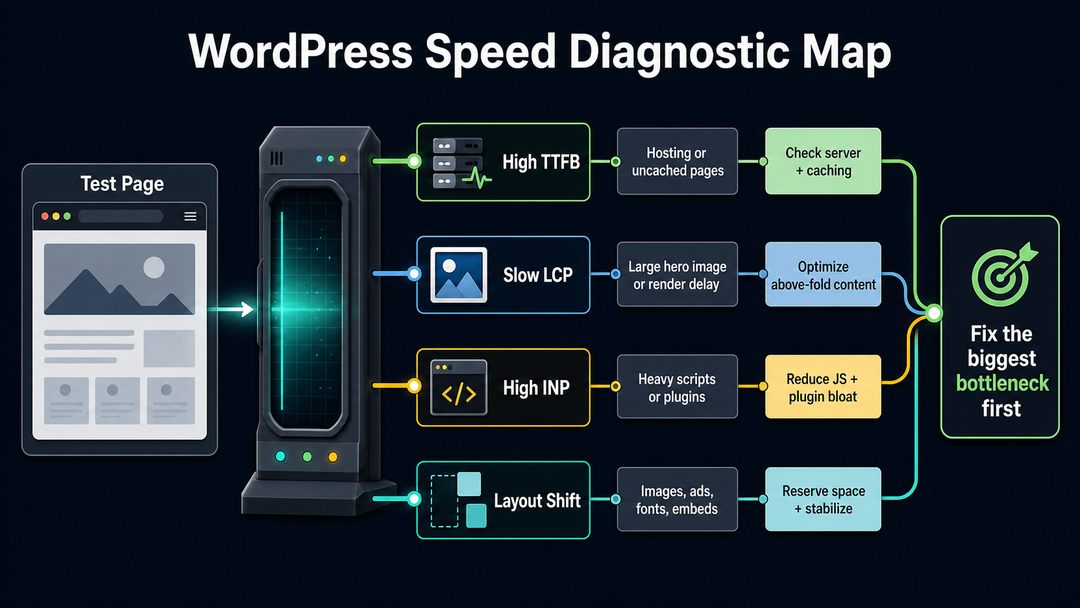
This baseline protects you from busywork. If your TTFB is high, compressing one image may not solve the real problem. If the LCP image is 2 MB, changing hosts may not fix that page until the image is handled.
Fix Hosting and Server Response Time First
Hosting affects how quickly WordPress can begin sending a page to the visitor’s browser. If the server is slow to respond, every other optimization starts late.
The official WordPress optimization handbook lists hosting environment, server load, software versions, WordPress configuration, images, themes, and plugins as major performance factors. In plain English: WordPress speed is partly your website and partly the machine serving it.
Look closely at TTFB. TTFB is the time between the browser requesting a page and receiving the first byte of response. A consistently slow TTFB can point to underpowered hosting, uncached pages, overloaded shared hosting, slow database queries, or traffic spikes. For server-side checks on LiteSpeed, see our focused guide to reducing TTFB on LiteSpeed WordPress.
Hosting is likely part of the problem when:
- Every page is slow, even simple pages with few images.
- The WordPress admin area is slow, not only the public site.
- TTFB is high even after caching is enabled.
- Performance gets worse during traffic peaks.
- Your hosting account regularly hits CPU, RAM, I/O, or process limits.
Before upgrading, ask your host whether server-side caching, OPcache, Brotli or Gzip compression, a current PHP version, HTTP/2 or HTTP/3, and a CDN are available. Some managed WordPress hosts include these by default. On lower-cost shared hosting, you may need to enable some features manually or move to a stronger plan.
If you are still choosing a host, compare resource limits and performance features carefully. DomFlags has a full guide to choosing the best hosting for WordPress if you want help reading hosting plans without getting buried in sales language.
Set Up Caching Without Stacking Too Many Plugins
Caching is often the highest-impact beginner fix because it reduces how much work WordPress must do for repeat page views.
Without caching, WordPress may need to run PHP, query the database, assemble the theme, load plugin output, and generate the page for each visitor. With page caching, the server can often serve a saved HTML version of the page instead.
Use one caching strategy, not several overlapping caching plugins. Too many cache layers can create stale content, broken layouts, login issues, cart problems, or impossible troubleshooting.
Common caching layers include:
| Cache Type | What It Does | Best For | Watch Out For |
|---|---|---|---|
| Page cache | Stores generated HTML pages | Blogs, service pages, landing pages | Dynamic pages may need exclusions |
| Browser cache | Lets visitors reuse static files | Images, CSS, JavaScript, fonts | Needs sensible expiration rules |
| Object cache | Stores database query results in memory | Busy sites, WooCommerce, membership sites | Usually needs Redis, Memcached, or host support |
| CDN or edge cache | Serves assets or pages from locations closer to visitors | Sites with visitors in different regions | Logged-in and cart pages need care |
| OPcache | Caches compiled PHP bytecode | Almost all PHP sites | Usually controlled by hosting |
WordPress also has an object cache system. The WP_Object_Cache documentation explains that the default object cache is not persistent across page loads unless a persistent caching plugin or backend is installed. For a small brochure site, page caching may be enough. For a busy WooCommerce or membership site, persistent object caching can be a meaningful server-side improvement.
After enabling caching, test these pages manually:
- Homepage.
- A blog post.
- Contact form.
- Login page.
- Cart and checkout pages if you use WooCommerce.
- Any page with personalized or membership-only content.
Caching should make the site faster without hiding fresh content or breaking user actions.
Optimize Images, Especially the LCP Image
Images are often the biggest files on a WordPress page. They also frequently control Largest Contentful Paint because the largest visible element is often a hero image, featured image, banner, or large content image.
The web.dev image performance guide notes that images are often among the heaviest resources on the web, and that properly sized images and modern formats can reduce load time. WordPress has supported WebP uploads since WordPress 5.8, according to the Make WordPress Core announcement.
Start with the images that appear above the fold. A compressed gallery image halfway down the page is useful, but a bloated hero image can slow the first impression for everyone.
Use this image checklist:
- Resize images to the largest size they actually need to display.
- Compress images before or during upload.
- Use WebP or another modern format when your workflow and browser support make sense.
- Avoid uploading full camera-resolution images for normal page sections.
- Use descriptive alt text for accessibility and context.
- Keep lazy loading for below-the-fold images, but do not lazy load the main LCP image if it delays the most important content.
- Avoid image sliders when one strong static image would do the job.
- Replace decorative images with CSS or text when possible.
A common beginner mistake is uploading a 4000-pixel-wide image because it looks sharp on a laptop. WordPress may create smaller versions, but the theme still needs to request the right size. Check the actual file loaded in your browser’s Network tab. If the rendered image is 900 pixels wide but the browser downloads a huge original file, you have found a practical fix.
Remove Plugin, Theme, and Script Bloat
Plugins are not bad. Bad plugin choices are bad.
A small site with 25 well-coded, lightweight plugins can outperform a site with 8 heavy plugins that load scripts on every page. The question is not just “how many plugins do I have?” It is “what does each plugin load, query, or call?”
If you are new to WordPress, it helps to understand the basic difference between themes and plugins. Themes control design and templates. Plugins add functionality. DomFlags explains that relationship in How Do WordPress Themes and Plugins Work?.
Audit plugins this way:
- Make a full backup first.
- Use a staging site if possible.
- List every active plugin and what business purpose it serves.
- Remove plugins that duplicate another plugin’s job.
- Replace heavy all-in-one plugins when you only need one small feature.
- Test the page before and after each meaningful change.
- Keep security, backup, ecommerce, forms, and SEO plugins only if they are actively needed and maintained.
Pay special attention to plugins that add:
- Popups.
- Sliders.
- Chat widgets.
- Social sharing bars.
- Ad scripts.
- Analytics tags.
- Related post widgets.
- Page builder assets.
- WooCommerce extensions.
- External API calls.
Themes deserve the same scrutiny. A visually impressive theme may ship with animations, sliders, icon packs, fonts, layout libraries, and scripts you never use. If a default block theme or lightweight theme is much faster on staging, the theme may be the bottleneck.
Clean Up CSS, JavaScript, Fonts, and Third-Party Code
CSS and JavaScript can delay rendering and interaction. This is where speed optimization gets powerful, but also where careless settings can break a site.
Beginner-safe actions include:
- Remove scripts you no longer use.
- Limit tracking and marketing tags.
- Replace heavy embeds with click-to-load previews.
- Use fewer font families and weights.
- Disable page builder modules you do not use if your theme or builder supports it.
- Turn off animations that add little value.
More advanced actions include:
- Minifying CSS and JavaScript.
- Deferring non-critical JavaScript.
- Delaying third-party scripts until user interaction.
- Removing unused CSS.
- Loading critical CSS earlier.
- Preloading important fonts or the LCP image.
These settings can improve performance, but they can also break menus, sliders, forms, checkout pages, cookie banners, or analytics. Turn them on one at a time. After each change, check the site in a private browser window and test the key user paths.
Do not optimize a broken page. A slightly slower working checkout is better than a fast checkout button that does nothing.
Optimize the WordPress Database Safely
WordPress stores posts, pages, settings, comments, users, plugin data, theme data, transients, and options in the database. Over time, that database can collect clutter.
Common cleanup targets include:
- Old post revisions.
- Trashed posts and pages.
- Spam comments.
- Expired transients.
- Unused plugin tables.
- Large autoloaded options.
- Old logs created by plugins.
Before cleaning the database, make a fresh backup. This is not optional. A database optimization plugin can be useful, but a careless cleanup can remove data you still need.
DomFlags has a beginner guide to backing up a WordPress website that is worth doing before any deeper performance work. Backup first, optimize second.
For smaller sites, simple cleanup may be enough. For larger stores, membership sites, or long-running blogs, ask a developer or host to inspect slow queries, autoloaded options, cron jobs, and object caching. The database is not the place to click random cleanup buttons and hope for the best.
Use a CDN and Browser Caching for Static Files
A Content Delivery Network, or CDN, stores copies of static files such as images, CSS, JavaScript, and fonts on servers closer to visitors. This can reduce latency and take load away from your origin server.
The official WordPress optimization handbook recommends content offloading and CDN use as part of a broader performance strategy, especially when static assets are adding load to the main server.
A CDN is most useful when:
- Your visitors come from multiple countries or regions.
- Images and static files are a major part of page weight.
- Your host’s built-in CDN is easy to enable.
- Traffic spikes strain your origin server.
Browser caching works differently. It tells a returning visitor’s browser that certain files can be reused instead of downloaded again. This is especially useful for static files that do not change often, such as theme CSS, JavaScript bundles, logos, and fonts.
If your host or caching plugin offers browser caching, enable it and retest. If you use a CDN, clear both WordPress cache and CDN cache when making design or script changes, so visitors see the updated version.
Keep WordPress, PHP, Themes, and Plugins Updated
Updates are not only about new features. They can include security fixes, compatibility improvements, and performance improvements.
Keep these current:
- WordPress core.
- PHP version supported by your host and site.
- Active theme.
- Active plugins.
- Server software managed by your host.
Do not update unthinkingly on a live business site without a rollback plan. The safer workflow is:
- Back up files and database.
- Update on staging if available.
- Check the homepage, key pages, forms, login, and checkout.
- Update production during a low-traffic window.
- Clear cache and retest performance.
If your site was built years ago and depends on an outdated theme or abandoned plugins, performance work may uncover a deeper maintenance problem. In that case, a rebuild or theme replacement may be cleaner than endless patching.
Check Security Problems That Can Slow a Site
Security and performance overlap more than many beginners realize.
Brute-force login attempts, malware, spam, hotlinked images, suspicious bots, and vulnerable plugins can all increase server load. The WordPress optimization handbook notes that abusive traffic, such as login brute-force attacks, hotlinking, and denial-of-service attacks, can affect server load.
Check for:
- Sudden traffic spikes from strange sources.
- Many failed login attempts.
- Unknown admin users.
- Unexpected redirects.
- Unfamiliar plugins or files.
- Hosting warnings about CPU or processes.
- Search Console security notices.
Basic hardening can reduce wasted server work. Use strong passwords, remove unused admin accounts, keep plugins updated, protect login forms, and run reputable malware scans when something feels off. DomFlags has a deeper WordPress security checklist if you want a separate hardening pass.
Speed work is much easier when the site is clean, stable, and not fighting suspicious traffic.
Try the WordPress Performance Lab Carefully
The official Performance Lab plugin is maintained by the WordPress Performance Team. It acts as a collection of performance-focused feature plugins, many of which are intended to inform future WordPress core improvements.
That makes it interesting, but it does not mean every site should enable every module on production. Treat it like any performance tool:
- Test on staging first when possible.
- Enable one feature at a time.
- Check your layout, forms, embeds, and analytics.
- Retest speed after each change.
- Turn off a feature if it creates a visual or functional issue.
For site owners who want to stay close to WordPress core performance work, Performance Lab can be useful. For a beginner who needs a faster business site, hosting cache, image optimization, and plugin cleanup usually come first.
WordPress Speed Optimization Checklist
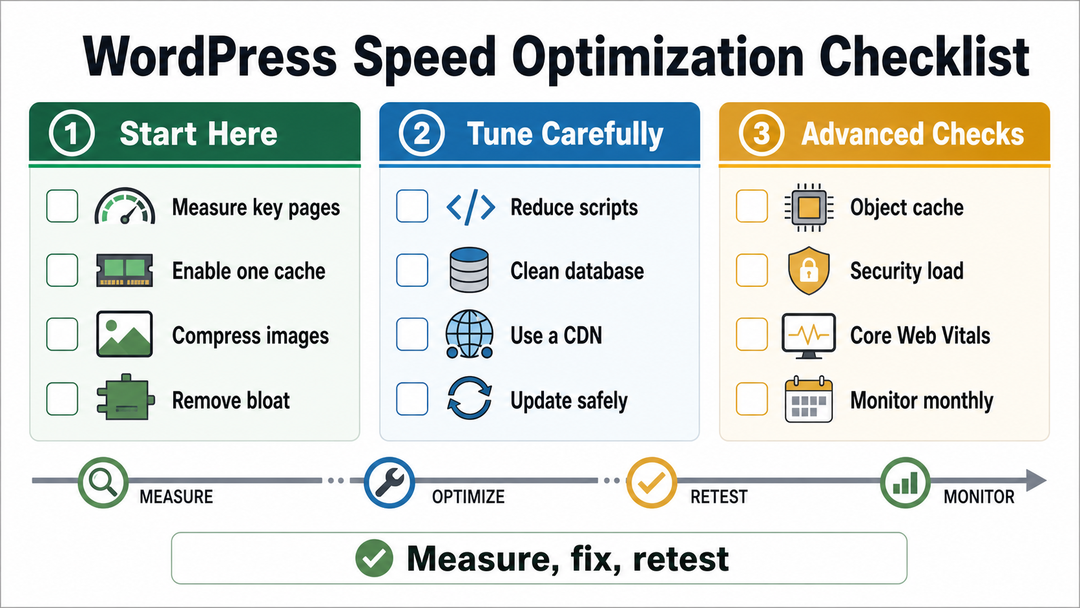
Use this checklist when you want a clean, practical sequence.
| Priority | Action | Skill Level | Risk | Main Metric Helped |
|---|---|---|---|---|
| 1 | Run a baseline test on key pages | Beginner | Low | All |
| 2 | Enable one page caching solution | Beginner | Medium | TTFB, LCP |
| 3 | Compress and resize large images | Beginner | Low | LCP, page weight |
| 4 | Replace or remove heavy plugins | Beginner to intermediate | Medium | INP, TTFB, page weight |
| 5 | Switch away from a bloated theme if needed | Intermediate | Medium | LCP, INP, page weight |
| 6 | Reduce popups, embeds, ads, and third-party scripts | Beginner to intermediate | Medium | INP, LCP |
| 7 | Use a CDN for static assets | Beginner to intermediate | Low | LCP, global latency |
| 8 | Clean the database after backup | Intermediate | Medium | TTFB, admin speed |
| 9 | Add persistent object caching where supported | Intermediate to advanced | Medium | TTFB, database load |
| 10 | Optimize CSS and JavaScript | Intermediate to advanced | Medium to high | LCP, INP |
| 11 | Review security and bot traffic | Intermediate | Medium | Server load |
| 12 | Monitor monthly | Beginner | Low | Regression prevention |
What Not to Do When Speeding Up WordPress
Some speed advice creates more trouble than progress. Avoid these mistakes:
- Installing multiple caching plugins that fight each other.
- Deleting database tables without a backup.
- Optimizing the live site during peak traffic.
- Minifying or delaying every script at once.
- Lazy loading the main hero image without testing LCP.
- Removing security, backup, or ecommerce plugins to reduce plugin count.
- Judging success by one desktop score when most users are on mobile.
- Chasing a perfect PageSpeed score while ignoring broken forms or poor content.
A faster site should also be a better site. If an optimization makes the page harder to use, harder to read, or less reliable, it is not a win.
When You Need a Developer or Better Hosting
Many WordPress speed fixes are beginner-friendly, but not all of them should be done casually.
Ask for help when:
- TTFB stays high after page caching.
- The admin dashboard is slow.
- WooCommerce cart or checkout pages are slow.
- Database tables are huge or full of unknown plugin data.
- You see frequent CPU, RAM, or process limit warnings.
- JavaScript optimization breaks menus, forms, tracking, or checkout.
- You suspect malware, bot traffic, or a hacked site.
- Your theme is old, abandoned, or heavily customized.
If you are still early in the build, performance is easier to protect from the beginning. A clean setup, suitable hosting, lean theme, and careful plugin choices matter. DomFlags covers the broader build sequence in How to Set Up a WordPress Website and the bigger technical picture in WordPress development.
For an existing slow site, a performance audit can identify whether you need quick cleanup, hosting changes, theme work, database tuning, or a deeper rebuild.
FAQs About Speeding Up WordPress
What is the easiest way to speed up WordPress?
The easiest way to speed up WordPress is to enable one reliable page caching solution, compress large images, and remove plugins or scripts you do not need. Measure before and after so you know which change actually improved the site.
Do more plugins always make WordPress slower?
No, more plugins do not always make WordPress slower. A few poorly coded or heavy plugins can hurt performance more than many lightweight plugins. Judge plugins by what they load, query, and add to the page, not only by the total count.
Does a caching plugin fix every slow WordPress site?
No, a caching plugin does not fix every slow WordPress site. Caching helps many public pages, but it will not fully solve oversized images, slow third-party scripts, weak hosting, malware, bloated themes, or dynamic pages that cannot be cached normally.
Should I use a CDN for WordPress?
Use a CDN for WordPress if visitors are spread across different regions, your pages use many static assets, or your host includes CDN support. A CDN is less urgent for a tiny local site with visitors near the hosting server, but it can still help with static file delivery.
Can image optimization improve Core Web Vitals?
Yes, image optimization can improve Core Web Vitals, especially Largest Contentful Paint. If the largest visible element is a hero or featured image, resizing, compressing, and loading that image correctly can make the page feel faster.
Is WordPress itself slow?
WordPress is not automatically slow. A WordPress site becomes slow because of hosting limits, uncached pages, heavy themes, unoptimized images, excessive scripts, database clutter, plugin behavior, or poor maintenance. A well-built WordPress site can be fast.
Final Takeaway
Speeding up WordPress is mostly about order and restraint. Measure first. Fix the biggest bottleneck. Test again. Keep the changes that help and roll back the ones that break things.
Start with caching, hosting response time, images, plugin cleanup, and third-party scripts. Then move into database work, CDN delivery, object caching, and deeper CSS or JavaScript optimization if the site still needs it.
A fast WordPress site is not the one with the most optimization plugins. It is the one with fewer wasted files, cleaner decisions, reliable hosting, and a maintenance rhythm that keeps performance from drifting.