

A WordPress 500 internal server error means the server encountered a problem it couldn’t recover from while trying to load your site. The browser may show “500 Internal Server Error,” “HTTP ERROR 500,” “currently unable to handle this request,” or a plain blank error page. The message is generic, so the real cause is usually in your WordPress debug log, PHP error log, or hosting server log.
If your site is down right now, do not delete WordPress files, change random database settings, or restore an old backup before checking what changed. Most WordPress 500 errors are fixable, but rushed edits can make the recovery harder.
Quick Answer: How to Fix a WordPress 500 Internal Server Error
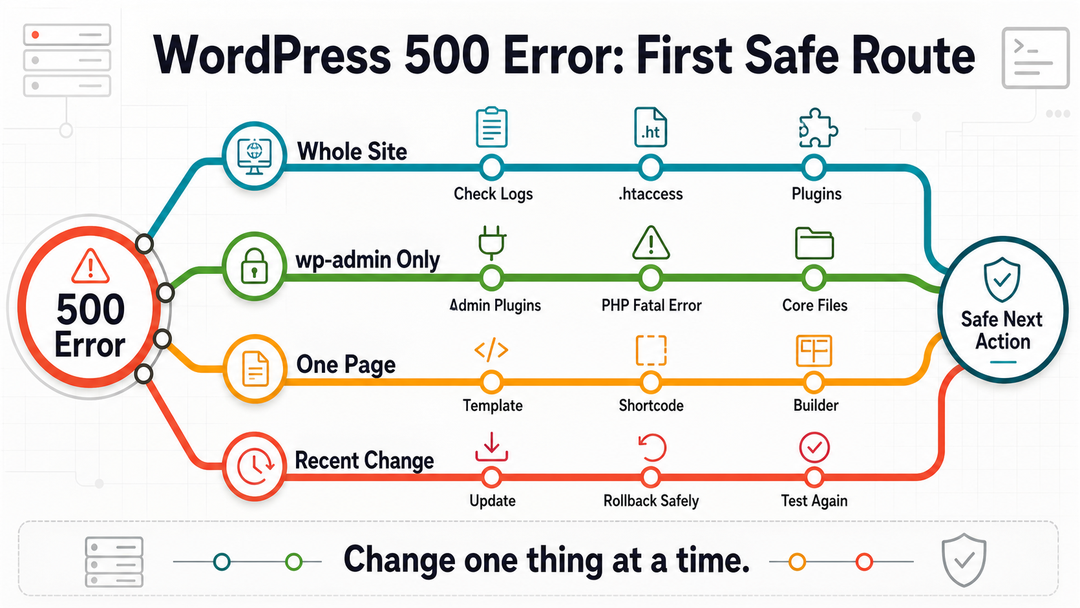
Start with the safest checks first. Keep every change reversible until you know which layer is failing:
- Refresh the page once, then test another browser or a private window.
- Confirm whether the error affects the whole site, only wp-admin, only one page, or only a specific action.
- Back up the site if your hosting panel still lets you create a backup.
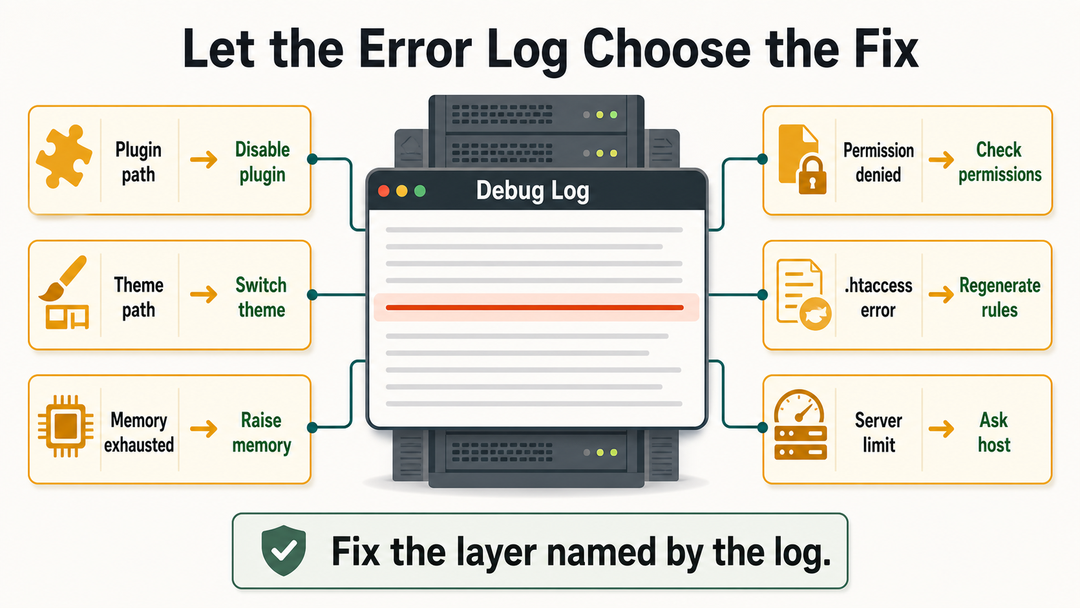
- Check your hosting error logs and enable WordPress debug logging.
- Rename the
.htaccessfile and regenerate permalinks if the site uses Apache-style rewrite rules. - Disable plugins safely, then reactivate them one at a time.
- Switch to a default WordPress theme if plugins are not the cause.
- Increase PHP memory only if the log shows a memory exhaustion error.
- Check PHP version, file permissions, WordPress core files, cache/CDN layers, database health, and hosting limits.
- Contact your host with the exact log message if the issue points to server configuration or the logs are inaccessible.
| What You See | Best First Move | Why |
|---|---|---|
| Whole site shows 500 | Check logs, then test .htaccess and plugins | The failure may happen before WordPress renders anything |
| wp-admin shows 500, frontend works | Disable admin-facing plugins or check dashboard-specific fatal errors | The broken code may load only in the admin area |
| One page shows 500 | Check the page template, shortcode, form, builder, or plugin used on that page | A local feature may be failing |
| Error appeared after a plugin update | Disable that plugin first | The timing gives you a useful clue |
Error appeared after editing .htaccess | Rename .htaccess and regenerate permalinks | Bad rewrite rules can trigger server errors |
| Error appears during imports or heavy tasks | Check PHP memory, execution time, and server logs | The request may exceed hosting resources |
| Error comes and goes | Ask the host to check PHP workers, CPU, memory, and server logs | Intermittent 500 errors often need server-side evidence |
What a WordPress 500 Internal Server Error Means
The HTTP 500 status code is a server-side error. MDN describes it as a generic response employed when the server encountered an unexpected condition and cannot offer a more specific 5xx error. In WordPress, that usually means something failed while PHP, the web server, WordPress core, a plugin, a theme, or a server configuration was trying to build the page.
WordPress.org lists Internal Server Error among common WordPress errors in its advanced administration handbook. The important thing to understand is that the 500 page is not the diagnosis. It is only the symptom.
In plain English: your browser asked the server for a WordPress page, but the server failed before it could send a normal response.
Common causes include:
- A corrupted or malformed
.htaccessfile - A plugin conflict or plugin PHP fatal error
- A theme or child theme error
- Exhausted PHP memory
- Incompatible PHP version
- Incorrect file or folder permissions
- Corrupted WordPress core files
- Broken custom code in
functions.phpor a code snippets plugin - Cache, CDN, or security rule conflicts
- Database or server resource problems
- Hosting configuration issues
If you are still learning how WordPress fits together, it helps to understand the relationship between the software, themes, plugins, and hosting. Our guide to what WordPress is gives that foundation, and our explanation of how WordPress themes and plugins work makes plugin and theme troubleshooting less mysterious.
Before You Start: Protect the Site
A 500 error can make a site owner feel boxed in. The dashboard may be unavailable, the browser gives almost no detail, and every tutorial seems to suggest a different first fix. Slow down for five minutes. Those five minutes can save hours.
> Safety note: If the site handles orders, memberships, bookings, form submissions, or user accounts, avoid restoring an old database until you know what recent data might be overwritten.
Before editing anything:
- Confirm a backup exists. Use your host’s backup tool if WordPress itself is unavailable.
- Write down what changed recently. Plugin update, theme update, WordPress core update, PHP version change, migration, restore,
.htaccessedit, cache rule, security rule, or custom code snippet. - Choose the right access method. You may need wp-admin, SFTP, FTP, SSH, WP-CLI, cPanel, your host’s file manager, or managed hosting support.
- Change one thing at a time. If you turn off plugins, switch themes, edit
.htaccess, and change PHP memory all at once, you will not know which change helped. - Be careful with ecommerce and membership sites. Restoring an old backup can remove recent orders, form submissions, bookings, comments, or user records.
If the site is business-critical and you do not have file access, contact your host early. A good support request with the exact URL, time of failure, and recent changes is better than guessing inside a broken site.
Step 1: Refresh, Check Scope, and Clear Cache
Start simple, but don’t stop there if the error returns.
Refresh the page once and wait a minute. Sometimes a temporary overload resolves itself. Next, test the site in a private browser window or a different browser. If you use a CDN such as Cloudflare, a host-level cache, or a WordPress caching plugin, clear the cache after making a fix; otherwise, you might be seeing an old error page instead of the current state.
Next, identify the scope of the error:
| Error Scope | What It Suggests | Next Step |
|---|---|---|
| Entire site and wp-admin fail | Server, .htaccess, plugin, theme, PHP, or core issue | Check logs and use file access |
| Frontend fails but wp-admin works | Theme, cache, frontend plugin, page builder, or rewrite issue | Disable recent frontend plugins, clear cache, test theme |
| wp-admin fails but frontend works | Admin plugin, security plugin, PHP fatal error, or core/admin file issue | Check logs, disable admin-related plugins |
| One page fails | Template, shortcode, form, block, builder widget, custom query, or memory spike | Edit that page if possible and check logs |
| Only a form, checkout, import, or save action fails | Resource limit, plugin conflict, security rule, or timeout | Check logs and host limits |
This step prevents you from applying a site-wide fix to what might be only a page-specific problem. A single broken shortcode should not send you into a full plugin purge if the rest of the site is healthy.
Step 2: Check Error Logs and Enable WordPress Debug Logging
The browser displays a generic 500 error page because exposing raw server errors to visitors can be confusing and unsafe. The real details you need are usually found in a log file.
Check your hosting panel for:
- PHP error log
- Apache or Nginx error log
- Recent errors in cPanel or the host dashboard
- Application logs in managed WordPress hosting
- Security or firewall logs, if the error happens only on certain requests
WordPress also has built-in debugging constants. The official Debugging in WordPress documentation explains that WP_DEBUG_LOG saves debug messages to debug.log in the content directory when debugging is enabled.
To enable logging, open wp-config.php and add or update these lines above the line that says “That’s all, stop editing”:
define( 'WP_DEBUG', true );
define( 'WP_DEBUG_LOG', true );
define( 'WP_DEBUG_DISPLAY', false );
Then reload the page that triggers the 500 error and check:
wp-content/debug.logLook for messages such as:
PHP Fatal errorAllowed memory size exhaustedUncaught ErrorCall to undefined functionFailed opening requiredPermission denied- A plugin path inside
wp-content/plugins/ - A theme path inside
wp-content/themes/
After troubleshooting, turn public debugging back off:
define( 'WP_DEBUG', false );
define( 'WP_DEBUG_DISPLAY', false );
If you are not comfortable editing wp-config.php, let your developer or host handle logging decisions. The key is to let the log message guide your fix whenever possible.
> Publishing-safe reminder: Do not leave detailed PHP errors visible to visitors. Use logging for diagnosis, then turn public debug display off.
Step 3: Regenerate the .htaccess File
On many Apache-based WordPress hosts, .htaccess controls rewrite rules for pretty permalinks, redirects, security rules, and sometimes plugin behavior. A bad rule can trigger a WordPress 500 internal server error before WordPress has a chance to load normally.
WordPress.org’s permalink documentation explains that permalink settings live under Settings > Permalinks in the dashboard. Saving that screen can regenerate WordPress rewrite rules when the server setup supports it.
If You Can Access wp-admin
- Go to Settings > Permalinks.
- Do not change the permalink structure unless you mean to.
- Click Save Changes.
- Clear cache and test the site.
If You Cannot Access wp-admin
Use SFTP, FTP, SSH, or your host’s file manager.
- Open the WordPress root folder. This is usually the folder that contains
wp-config.php,wp-admin, andwp-content. - Find
.htaccess. You may need to enable “show hidden files” in your file manager. - Rename it to something like
.htaccess-old. - Test the site.
If the site loads, the old .htaccess file or one of its rules was likely involved. Log in to WordPress, go to Settings > Permalinks, and click Save Changes to create a fresh file.
Do not paste a random .htaccess file from another website into yours. Redirects, security rules, multisite rules, cache rules, and host-specific directives can differ.
Also note that not every server uses .htaccess. Nginx-based setups, some managed hosts, and container-based environments may handle rewrites differently. If your site has no .htaccess file and your host says that is normal, move to the next step.
Step 4: Disable Plugins Safely
Plugins are a common source of WordPress 500 errors because they run PHP code, load dependencies, create database queries, modify URLs, add security rules, and interact with themes and other plugins.
If the error started after installing or updating a plugin, start there.
If You Can Access wp-admin
- Go to Plugins > Installed Plugins.
- Deactivate the plugin that changed most recently.
- Test the affected page.
- If the fault remains, temporarily deactivate all plugins.
- Reactivate plugins one by one, testing after each activation.
When the error returns, the last plugin you activated is involved. It may be faulty, outdated, incompatible with your PHP version, incompatible with another plugin, or conflicting with your theme.
If You Cannot Access wp-admin
Use SFTP, FTP, SSH, or your host’s file manager:
- Open
wp-content. - Rename the
pluginsfolder toplugins-disabled. - Test the site.
- If the site loads, create a new folder named
plugins. - Move plugin folders back one at a time, testing after each move.
You can also rename only the likely plugin folder if your debug log points to a specific plugin path.
After you identify the plugin:
- Check whether an update is available.
- Roll back only if you have a safe backup or staging environment.
- Contact the plugin developer with the exact fatal error.
- Replace the plugin if it is abandoned or incompatible.
- Keep it disabled until you understand the risk.
The safest plugin test is boring by design: disable, test, reactivate, test again. That slower rhythm is what protects you from blaming the wrong plugin.
If you want the deeper mental model behind this step, read our guide to how WordPress themes and plugins work. A plugin is not simply a dashboard feature. It is code that WordPress loads during requests so that a fatal plugin error can stop the whole page.
Step 5: Switch to a Default Theme
If plugins are not the cause, test the theme. Themes can trigger 500 errors through functions.php, template files, child theme edits, page builder integrations, custom post types, outdated bundled libraries, or PHP compatibility problems.
If You Can Access wp-admin
- Go to Appearance > Themes.
- Activate a default theme such as a current Twenty theme.
- Test the site.
If the error disappears, the active theme or child theme needs attention.
If You Cannot Access wp-admin
Use file access:
- Open
wp-content/themes. - Rename the active theme folder.
- Make sure a default WordPress theme is installed.
- Test the site.
If no default theme exists, you may need to upload one from a clean WordPress package or ask your host/developer to do it.
Be careful with business sites that rely on theme-specific page builders or custom templates. Switching themes can make the site look broken even if it clears the 500 error. That result is still useful: it tells you the theme layer is involved.
Step 6: Increase PHP Memory Only When the Error Points There
Low PHP memory can cause a 500 error, especially during heavy admin actions, imports, backups, WooCommerce operations, page builder saves, or requests that load many plugins.
But memory is not the fix for every 500 error. Use it when the log says something like:
Allowed memory size of 134217728 bytes exhaustedYou can try increasing WordPress memory in wp-config.php:
define( 'WP_MEMORY_LIMIT', '256M' );
define( 'WP_MAX_MEMORY_LIMIT', '256M' );
Place those lines above the “stop editing” line.
If your host enforces a lower server-level limit, this change may not work. In that case, use the hosting control panel or ask support whether the plan allows a higher PHP memory limit.
Treat memory errors as evidence, not a permanent solution. If a normal page needs excessive memory, the deeper issue may be a heavy plugin, inefficient database query, bloated autoloaded options, a failing import, or a hosting plan that is too limited for your site.
For hosting context, see our guide to choosing the best hosting for WordPress. A good host is not simply about speed; troubleshooting tools, backups, PHP controls, staging, and support quality matter when something breaks.
Step 7: Check PHP Version, File Permissions, and Core Files
If .htaccess, plugins, themes, and memory do not explain the error, widen the investigation.
PHP Version
A plugin, theme, or custom snippet may fail after a PHP version change. This often happens after a host upgrades PHP or after a migration to a new server.
Check:
- Current PHP version in your hosting panel
- Recent PHP upgrade notices
- Plugin and theme compatibility notes
- Fatal errors mentioning deprecated functions, missing functions, or syntax issues
Avoid switching PHP versions randomly on a live business site. Test on a staging site first if possible. If you do not have a staging site, ask your host which PHP version is compatible with your current WordPress, plugins, and themes.
File and Folder Permissions
Incorrect permissions can prevent PHP from reading files or writing where needed. Logs may show Permission denied.
Common baseline permissions on many Linux WordPress hosts are:
- Folders:
755 - Files:
644
Host configurations vary, so treat those as common defaults, not a universal law. Do not set files or folders to 777 as a quick fix. It can create a security risk and may still fail depending on server ownership rules.
WordPress Core Files
A failed update, interrupted upload, malware cleanup, or migration can damage core files. If logs point to missing or damaged files inside wp-admin or wp-includes, you may need to replace WordPress core files from a clean WordPress download.
Important cautions:
- Do not overwrite
wp-config.php. - Do not overwrite
wp-content. - Do not delete uploads, themes, plugins, or custom files unless you know exactly why.
- Use the same major WordPress version when possible, or follow the official manual update process.
If you installed WordPress recently, our guide on how to install WordPress can help you understand the normal file structure. If the issue happened in a local test site, the install WordPress on localhost guide may help you compare local and live setup differences.
Step 8: Check Database, Server, CDN, and Hosting Issues
A WordPress 500 internal server error does not always mean WordPress code is broken. Sometimes the server around WordPress is failing.
Check these areas:
Database Problems
If the site sometimes shows a database error and sometimes shows 500, investigate the database connection separately. Wrong credentials, overloaded MySQL or MariaDB, corrupted tables, or missing database permissions can create confusing symptoms.
For the dedicated database path, use our guide to fixing error establishing a database connection in WordPress.
CDN, Firewall, and Security Rules
A CDN, web application firewall, bot protection tool, or security plugin can block certain requests. This is more likely if:
- Only wp-admin fails.
- Only AJAX requests fail.
- Only form submissions fail.
- The error appears after changing security rules.
- The site works when bypassing the CDN.
Temporarily bypassing a CDN or asking the host to review firewall logs can reveal whether the request is blocked outside WordPress.
Server Resource Limits
Intermittent 500 errors can point to server resource pressure:
- CPU limits
- RAM limits
- PHP worker limits
- Process limits
- Disk space
- Database connection limits
- Long-running imports or backups
These are hard to confirm from WordPress alone. Ask your host to check the server logs around the exact time of the error.
A Support Message You Can Send Your Host
Use this as a starting point:
Hello,

My WordPress site is showing a 500 Internal Server Error.

Affected URL:
Time the error started:
Recent changes:
Does wp-admin work?:
Does the frontend work?:
Steps previously tried:

Would you please check the PHP error log, web server error log, resource limits, file ownership/permissions, and any firewall/CDN blocks around the time the failure occurred? Please send the exact log message causing the 500 response.

Thank you.
Particular details help support prevent generic answers. They also give your host a narrow time window for checking logs.
What Not to Do
Some “quick fixes” create more risk than the first 500 error.
Avoid these unless a qualified developer or host confirms they are needed:
- Do not delete
wp-content. - Do not delete the database.
- Do not overwrite
wp-config.php. - Do not set permissions to
777. - Do not restore an old backup before checking whether recent orders, form entries, or user records would be lost.
- Do not keep
WP_DEBUG_DISPLAYenabled on a public site. - Do not paste database passwords, salts, or full
wp-config.phpcontents into public forums or unsecured chats. - Do not edit live theme/plugin PHP files without a backup.
- Do not assume a plugin is safe just because the site loads after reactivating it once.
If your symptom is a blank white page rather than a browser 500 message, the cause may overlap, but the troubleshooting path can differ. See our guide to the WordPress white screen of death for that specific failure mode.
How to Prevent Future WordPress 500 Errors
You cannot prevent every server error, but you can make the next one less painful.
Use this maintenance checklist:
- Keep WordPress core, themes, and plugins updated.
- Remove abandoned plugins and themes you do not use.
- Use a staging site for major updates.
- Take backups before updates, migrations, imports, and code changes.
- Confirm backups can actually be restored.
- Keep SFTP or hosting file manager access available.
- Document custom code snippets and who added them.
- Avoid editing parent theme files directly.
- Use a child theme or site-specific plugin for custom code when appropriate.
- Monitor PHP errors after updates.
- Keep PHP on a supported version that is compatible with your stack.
- Use a host that gives access to logs, backups, staging, and useful support.
Troubleshooting is part of owning a site, especially as it grows. Our WordPress development guide gives the wider map of how WordPress sites are built, maintained, and improved over time. If you are still putting a site together, the more secure path starts with setting up a WordPress website with backups, hosting, updates, and launch checks in mind.
FAQs About WordPress 500 Internal Server Errors
Does a WordPress 500 internal server error mean my content is gone?
No, a WordPress 500 internal server error does not automatically mean your content is gone. It usually means the server failed while trying to load the site. Your posts, pages, users, and settings may still be intact in the database, but you should avoid risky restores or database edits until you know the cause.
Can a plugin cause HTTP ERROR 500 in WordPress?
Yes, a plugin can cause HTTP ERROR 500 in WordPress if it triggers a PHP fatal error, conflicts with another plugin or theme, exceeds memory, changes rewrite rules, or runs code incompatible with your PHP version. Turn off the likely plugin first if the error started after a plugin install or update.
How do I fix a WordPress 500 error without wp-admin access?
Use SFTP, FTP, SSH, or your host’s file manager. Check logs, rename .htaccess, rename wp-content/plugins to turn off plugins, rename the active theme if needed, and ask your host for PHP/server logs. Do not delete folders; rename them so you can reverse the change.
Is .htaccess always the cause of a WordPress 500 error?
No. A broken .htaccess file is a common cause on Apache-based setups. Still, plugins, themes, PHP memory, PHP version, file permissions, corrupted core files, databases, cache, security rules, and hosting issues can also cause 500 errors.
Should I increase PHP memory right away?
Increase PHP memory when logs show memory exhaustion or the error happens during resource-heavy tasks. If the log points to a syntax error, missing function, permission problem, or broken plugin file, memory is probably not the real fix.
Why does only wp-admin show a 500 error?
Only wp-admin may show a 500 error when an admin-only plugin, dashboard widget, security rule, PHP fatal error, or corrupted admin file fails during dashboard loading. Check logs, turn off admin-related plugins, and review recent changes.
Should I restore a backup immediately?
Restore a backup only after considering what data may be lost. For simple brochure sites, a clean recent backup may be fine. For ecommerce, membership, booking, or form-heavy sites, restoring an old database can remove recent activity. Check logs and ask your host before restoring.
When should I contact hosting support?
Contact hosting support when you cannot access logs, the error is intermittent, the logs point to server configuration, resource limits, file ownership, firewall rules, PHP handler problems, database server issues, or you are unsure how to make file-level changes safely.
Final Takeaway
A WordPress 500 internal server error is frustrating because it hides the real clue. The best fix is not to try every tutorial step at once. Protect the site, check logs, test the likely causes in a safe order, and keep each change reversible.
Most cases come down to a small set of suspects: .htaccess, plugins, themes, PHP memory, permissions, core files, cache, database/server pressure, or hosting configuration. Once you know which layer failed, the repair becomes much less scary.