

Common WordPress errors happen because of a plugin conflict, a theme conflict, server resource limits, database connection problems, or a configuration issue. To fix them safely, start by backing up your site, figure out what changed, check the error message or log, and try the simplest fix first. If a failed request reports cURL error 28, see our guide to diagnosing WordPress cURL error 28 timeouts.
The order you follow is important. When your WordPress site breaks, it’s easy to feel stressed, especially if the homepage is blank or you can’t access wp-admin. Trying random fixes can make things worse. This guide offers a clear troubleshooting process and explains the most common WordPress errors with first steps to try.
If you are building your knowledge from the ground up, DomFlags’ broader guide to WordPress development explains how WordPress core, themes, plugins, hosting, and databases fit together. That context makes troubleshooting less mysterious because most errors are really a broken connection between those parts.
Before You Fix Anything, Do These Safety Steps
Before you change files, delete plugins, or edit the database, take a moment to protect your site first.
- Create a fresh backup of the files and database if your host or backup plugin still lets you do it.
- Write down what changed recently, such as a plugin update, theme change, PHP version change, migration, SSL change, or permalink edit.
- Check whether the problem affects the whole site or one area: front end, wp-admin, one page, checkout, forms, images, or only mobile.
- Use a staging site when possible so you are not testing fixes on a live business website.
- Avoid editing WordPress core files. Most fixes belong in settings, plugins, themes,
.htaccess,wp-config.php, hosting tools, or the database.
WordPress.org’s official troubleshooting documentation also points users toward plugin isolation, database repair, update cleanup, and support forums when a specific problem needs deeper help.
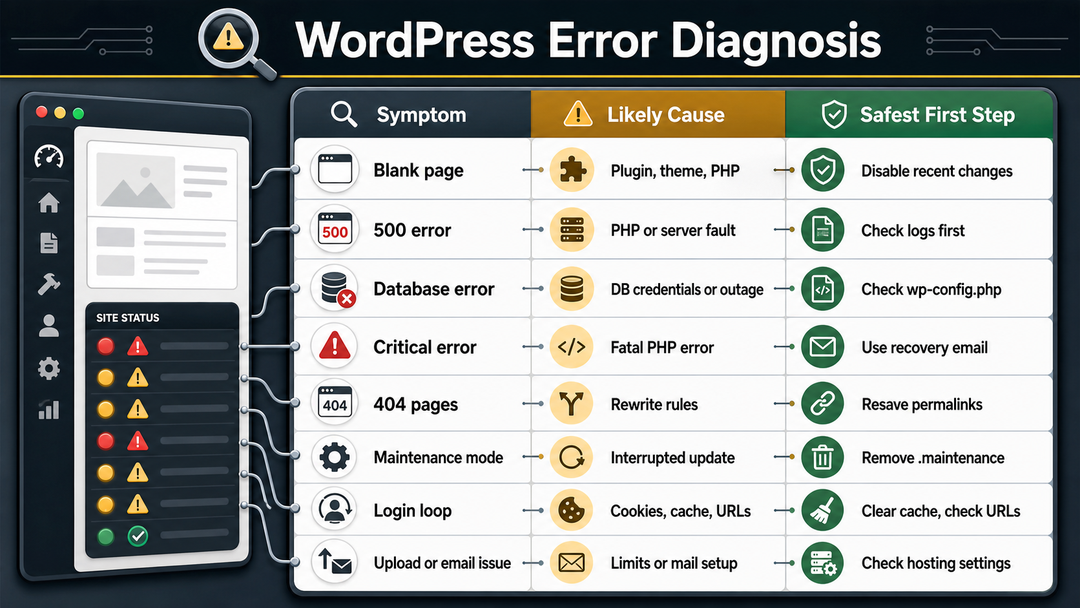
Quick Diagnosis Table
Use this table to help you decide your first step. It’s not a substitute for checking error logs, but it can help you avoid starting in the wrong place.
| What You See | Likely Cause | Safest First Step |
|---|---|---|
| Blank white page | Plugin, theme, PHP fatal error, or memory limit | Disable recent plugins or switch to a default theme |
| 500 internal server error | PHP error, .htaccess, plugin conflict, server issue | Check error logs, then test plugins and .htaccess |
| Error establishing a database connection | Wrong database credentials, database outage, corrupted tables | Check wp-config.php and ask host if MySQL/MariaDB is running |
| Critical error message | PHP fatal error from plugin, theme, or custom code | Check recovery email and error logs |
| 404 errors after permalink changes | Rewrite rules or permalink structure issue | Resave permalinks and check .htaccess |
| Stuck in maintenance mode | Interrupted update | Remove the .maintenance file from the WordPress root |
| Login redirect loop | Cookies, cache, URL mismatch, plugin conflict | Clear cookies/cache and check site URLs |
| Images will not upload | Permissions, disk space, PHP upload limits, temp folder issue | Check media settings and hosting limits |
| Emails not sending | PHP mail limitations or SMTP configuration | Use authenticated SMTP through a reputable provider |
| Mixed content warning | HTTP assets on an HTTPS page | Update URLs and replace insecure asset links |
Common WordPress Errors and How to Fix Them
The errors below are grouped by what beginners usually see on their screens. If your error message looks different, write down the exact text before you begin. Sometimes, just one word can change what’s causing the problem.
1. WordPress White Screen of Death
The WordPress white screen of death is a blank page with no useful error message. It may affect the whole site, wp-admin, or only part of the site. WordPress Developer Resources notes that PHP errors and database errors can both appear as a white screen, and plugin or theme conflicts are common causes.
Start with the least destructive checks:
- Clear any page cache if you can access your hosting panel or caching plugin.
- If you can access wp-admin, deactivate the most recently changed plugin.
- If you cannot access wp-admin, use FTP/SFTP or your host’s file manager to rename the plugin folder for the likely plugin.
- Switch temporarily to a default WordPress theme if the issue began after a theme update or theme edit.
- Enable debug logging if the problem remains.
Don’t delete plugin or theme folders right away. Renaming a folder is easy to undo, but deleting it can remove settings, custom files, or assets you might still need.
For a deeper walkthrough, use the DomFlags draft guide on the WordPress white screen of death.
2. 500 Internal Server Error
A 500 internal server error means the server failed to complete the request, but the browser does not know the exact reason. In WordPress, common causes include plugin conflicts, PHP fatal errors, memory limits, corrupted .htaccess rules, or hosting-level problems.
Try this order:
- Check your hosting error logs for a recent PHP fatal error.
- Deactivate recently updated plugins.
- Rename
.htaccessto something like.htaccess-old, then resave permalinks if the site loads. - Switch to a default theme if the error began after a theme change.
- Ask your host whether PHP memory, file permissions, ModSecurity, or server logs point to the cause.
Be careful with the .htaccess file. It manages rewrite rules and sometimes affects security or caching. Always save a copy before you make any changes.
DomFlags has a dedicated troubleshooting draft for the WordPress 500 internal server error if this is the exact error you are seeing.
3. Error Establishing a Database Connection
“Error establishing a database connection” means WordPress cannot connect to its database. WordPress stores posts, pages, users, settings, product data, and many plugin settings in MySQL or MariaDB. If that connection breaks, the site cannot assemble the page.
Common causes include:
- Wrong database name, username, password, or host in
wp-config.php - Database server downtime
- Corrupted database tables
- Too many database connections
- A compromised or overloaded site
Open wp-config.php and check these values against your hosting panel:
define( 'DB_NAME', 'database_name_here' );
define( 'DB_USER', 'username_here' );
define( 'DB_PASSWORD', 'password_here' );
define( 'DB_HOST', 'localhost' );
If the details match, contact your hosting provider before running database repairs. A database server outage or account limit is not something you can fix from the WordPress dashboard.
4. “There Has Been a Critical Error on This Website”
The WordPress critical error message usually points to a PHP fatal error. It often appears after a plugin update, theme update, custom code snippet, or PHP version change.
First, check the admin email address connected to the site. WordPress may send a recovery mode link that lets you log in and deactivate the failing plugin or theme. If you do not receive the email, check the hosting error logs or enable debug logging.
For safer logging, use:
define( 'WP_DEBUG', true );
define( 'WP_DEBUG_LOG', true );
define( 'WP_DEBUG_DISPLAY', false );
Add those lines above the “stop editing” comment in wp-config.php, then reproduce the error and check wp-content/debug.log. Turn public debugging back off when you are done. WordPress Site Health warns that displaying errors to visitors can expose sensitive information, so logging is safer than showing errors on the front end.
5. 404 Errors After Changing Permalinks
If posts or pages suddenly return 404 errors after a permalink change, WordPress may need to refresh its rewrite rules. This is common after migrations, domain changes, new custom post types, or edits to permalink settings.
Try this first:
- Go to Settings > Permalinks.
- Do not change anything yet.
- Click Save Changes.
- Test the broken URLs again.
If wp-admin is not available, check whether .htaccess is writable on Apache-based hosting. On Nginx hosting, rewrite rules are usually controlled by the server configuration, so your host may need to help.
6. “Briefly Unavailable for Scheduled Maintenance”
During updates, WordPress temporarily creates a .maintenance file. If an update is interrupted, that file can remain in place and lock visitors and admins out with the “briefly unavailable for scheduled maintenance” message.
The official WordPress updating documentation says the fix for a failed update notice is to delete the .maintenance file from the WordPress directory using FTP or your host’s file manager.
After removing it, check the failed update. Do not assume everything completed correctly. Update one item at a time if the site is fragile.
7. Connection Timed Out, 502, 503, or 504 Errors
Timeout and gateway errors often sit between WordPress and the server. They may be caused by heavy traffic, slow PHP scripts, overloaded hosting, firewall rules, CDN issues, or a plugin that makes long external requests.
The safest first checks are:
- Wait a few minutes and test again from another network.
- Check your host’s status page.
- Temporarily pause CDN or firewall features if the error began after a change there.
- Disable the newest plugin if the issue started after an update.
- Ask your host to check PHP workers, memory, CPU, and server logs.
If your site is a store, membership site, booking site, or collects leads, avoid refreshing and testing the checkout over and over on your live site. Use a staging site or contact your host for help as soon as possible.
8. Login Redirect Loop or wp-admin Lockout
A login loop happens when WordPress accepts your login and then sends you back to the login screen. It can come from cookies, cache, incorrect site URLs, SSL changes, security plugins, or domain migration issues.
Start simple:
- Clear browser cookies for the domain.
- Try a private browser window.
- Clear server and plugin cache.
- Check that WordPress Address and Site Address match the correct HTTPS domain.
- Temporarily disable security or redirect plugins if the issue began after a change.
If you recently moved from HTTP to HTTPS, check for mixed old URLs in the database and redirects at the hosting or CDN level. Too many redirect rules can trap wp-admin in a loop.
9. Image Upload Errors
Image upload problems can show up as HTTP errors, “failed to write file to disk,” missing thumbnails, or file type warnings. The cause may be server permissions, disk space, PHP upload limits, image processing libraries, security rules, or an unsupported file type. For a focused checklist, read our guide to fixing the WordPress media library “HTTP error” during image uploads.
Check these items:
- Is the file type allowed by WordPress?
- Is the file extremely large?
- Does the hosting account have enough disk space?
- Are
wp-content/uploadspermissions correct? - Did a security plugin or firewall begin blocking uploads?
- Did the problem start after a PHP version or hosting change?
For one image, try resizing and re-exporting it before changing server settings. If every upload fails, it is more likely a server or permissions issue.
10. WordPress Not Sending Emails
WordPress can generate password reset emails, form notifications, order emails, and admin alerts, but many hosts limit or block unauthenticated PHP mail. The result is frustrating: WordPress says the email was sent, but the inbox never receives it.
The usual fix is to send WordPress mail through authenticated SMTP. That means using a real mail provider or transactional email service rather than relying on the server’s default mail function.
After setup, send test emails and check:
- SPF, DKIM, and DMARC records for the sending domain
- Spam or quarantine folders
- Contact form notification settings
- WooCommerce or membership email settings, if relevant
Email delivery is not only a WordPress issue. DNS and mail-provider configuration matter too.
11. Mixed Content and SSL Errors
Mixed content happens when an HTTPS page loads some assets over HTTP. Browsers may show a warning, block scripts, or display a “not secure” message even though an SSL certificate exists.
Common causes include old image URLs, hard-coded theme assets, plugin scripts, page builder content, or a migration that changed the domain but left old links behind.
Fix it by:
- Confirming the SSL certificate is valid.
- Updating WordPress Address and Site Address to HTTPS.
- Replacing old HTTP URLs in content and settings.
- Clearing cache and CDN cache.
- Checking browser developer tools for the exact insecure asset.
Don’t replace every http:// in your database without making a backup first. If you change serialized data the wrong way, it can break your site.
12. Syntax Errors, PHP Errors, and “Headers Already Sent”
Syntax errors usually appear after editing PHP files such as functions.php, wp-config.php, or a custom plugin. A missing semicolon, curly quote, bracket, or dollar sign can break the site.
The “headers already sent” warning often means output was sent too early, commonly because of whitespace or unexpected characters before an opening PHP tag or after a closing tag. WordPress.org’s troubleshooting FAQ explains that the error message often names both the affected file and the file that caused the early output.
If this happens right after an edit:
- Restore the file from a known-good backup.
- If you must edit, use a plain text code editor.
- Check the exact file and line named in the error.
- Remove extra whitespace outside PHP tags.
- Avoid closing
?>tags in pure PHP files unless there is a specific reason.
If you’re not comfortable editing PHP, it’s best to stop and ask a developer for help. Even a small typo can take your whole site offline.
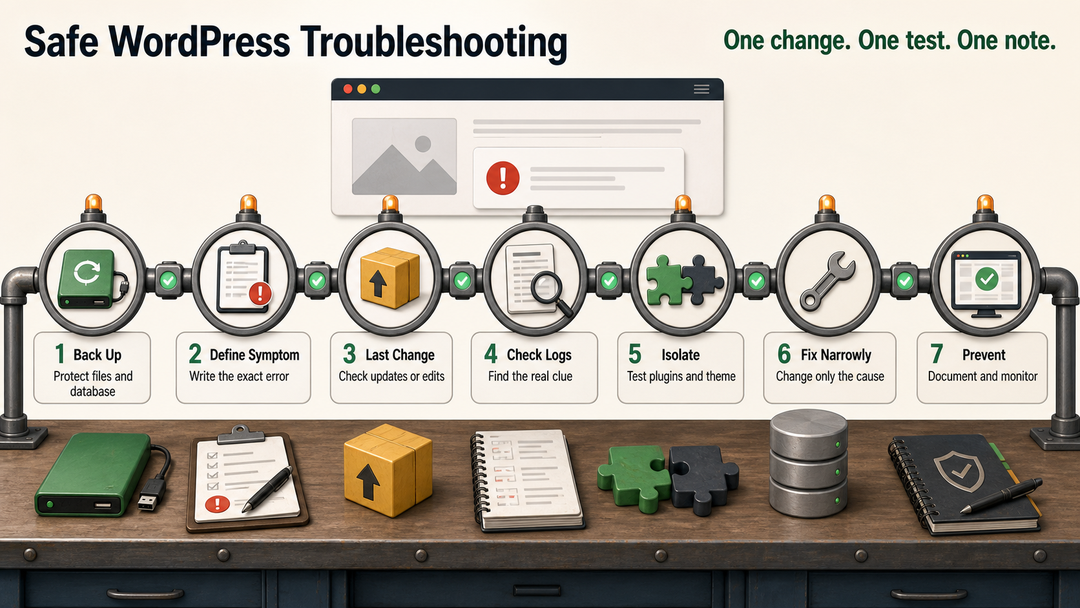
A Beginner Friendly WordPress Troubleshooting Process
When the error is unclear, use the same process every time.
Step 1: Define the Symptom
Write down exactly what you see. “Site broken” is too broad. Better notes sound like this:
- The homepage loads, but all blog posts show 404.
- wp-admin redirects back to the login screen.
- The checkout page shows a 500 error after a payment plugin update.
- Images upload, but thumbnails do not generate.
Clear symptoms point to clearer causes.
Step 2: Identify the Last Change
Most WordPress errors follow a recent change. Look for:
- Plugin activation or update
- Theme update
- WordPress core update
- PHP version change
- Hosting migration
- SSL setup
- Domain or DNS change
- Custom code edit
- Cache, CDN, or firewall rule change
If the error started after a plugin update, test plugins first. If it started after a migration, check URLs, database settings, SSL, and file paths.
Step 3: Check Site Health and Logs
If wp-admin is available, go to Tools > Site Health. WordPress Site Health can flag critical issues, recommended improvements, server information, database details, filesystem permissions, and debug-related warnings.
Then check hosting logs. Error logs are often more useful than the front-end message because they can name the failing plugin, theme file, PHP function, memory limit, or database problem.
Step 4: Isolate Plugins and Themes
Plugin and theme conflicts are common because WordPress sites combine code from many sources. To isolate safely:
- Deactivate all plugins on staging.
- Reactivate them one by one.
- Test after each activation.
- Switch to a default theme if plugins are not the cause.
- Replace custom snippets only after the site is stable.
If wp-admin is unavailable, rename the plugin folder through FTP/SFTP. WordPress.org documents this as a way to deactivate plugins when you cannot access the administrative menus.
Step 5: Fix the Smallest Confirmed Cause
Once you find the likely cause, avoid broad changes. If one plugin update caused the error, roll back or replace that plugin. If permalinks broke, refresh rewrite rules. If the database server is down, contact the host. If a custom PHP edit caused a syntax error, restore that file.
The best troubleshooting is simple and steady: make one change, test it, and take notes as you go.
How to Prevent Repeat WordPress Errors
You cannot prevent every WordPress error, but you can make errors less frequent and easier to recover from.
- Keep reliable backups stored away from your hosting account.
- Update in batches, not all at once, especially on important sites.
- Use a staging site for plugin, theme, PHP, and WordPress core updates.
- Delete unused plugins and themes instead of letting old code sit around.
- Choose maintained plugins with clear update history and support.
- Monitor Site Health after major changes.
- Keep PHP supported by your host and compatible with your plugins.
- Use strong hosting for business-critical sites, especially stores and membership platforms.
- Document important settings such as DNS, SMTP, CDN, caching, and security rules.
- Review error logs after updates instead of waiting for visitors to report problems.
Maintenance might not be exciting, but it’s what keeps small problems from turning into big emergencies.
When to Contact Your Host or a Developer
Some problems are safe for a beginner to troubleshoot. Others are better handed off quickly.
Contact your host when:
- The database server appears down.
- Server logs show memory, CPU, PHP worker, or permission issues.
- 502, 503, or 504 errors affect the whole site.
- You need to change PHP limits but do not control the server.
- SSL certificate installation or DNS routing looks wrong.
Contact a developer when:
- A PHP syntax error came from custom code.
- A theme or plugin conflict affects revenue-critical features.
- You need database search-and-replace work.
- You suspect malware or a compromised site.
- The same error keeps returning after basic fixes.
Asking for help isn’t a failure. In fact, it’s often the smartest and most affordable way to protect an important site.
FAQs About Common WordPress Errors
What are the most common WordPress errors?
The most common WordPress errors include the white screen of death, 500 internal server errors, database connection errors, critical error messages, 404 permalink errors, maintenance mode issues, login loops, image upload errors, email delivery problems, mixed content warnings, and PHP syntax errors.
What causes most WordPress errors?
Plugin conflicts, theme conflicts, server limits, database problems, caching issues, or incorrect configuration cause most WordPress errors. The exact cause depends on what changed recently and what the error log shows.
Should I disable all plugins to fix a WordPress error?
Disable all plugins only when plugin conflict is likely or you cannot identify the failing plugin. On a live site, it is safer to test on staging first. If you cannot access wp-admin, you can deactivate plugins by renaming the plugins folder through FTP/SFTP or your host’s file manager.
Is WP_DEBUG safe to use?
WP_DEBUG is useful for troubleshooting, but public error display is risky on a live site. Use debug logging with WP_DEBUG_LOG and keep WP_DEBUG_DISPLAY set to false so sensitive errors are not shown to visitors.
Can a WordPress error fix itself?
Some hosting or network errors can disappear when temporary server load, CDN issues, or update locks clear. But repeated errors should be investigated. If the same issue returns, check logs, recent changes, plugin conflicts, and hosting limits.
Final Takeaway
The best way to fix WordPress errors is to stay calm and use evidence. Back up your site, figure out the symptom, see what changed, check the logs, isolate plugins and themes, and try one fix at a time.
If the error involves the database, server settings, payments, custom PHP, or an important business page, contact your host or a developer early. Taking your time with a careful fix is usually faster than fixing mistakes from a rushed job.