
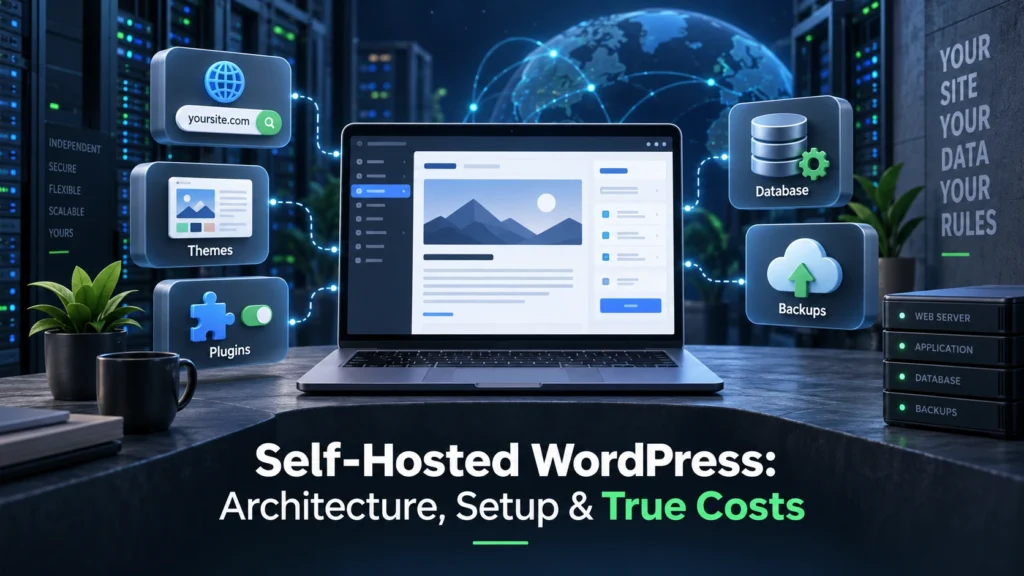
Self hosted WordPress is the open-source WordPress software you install on independent web hosting that you choose and control. It gives you ownership of your files, database, design, plugins, and monetization, while leaving you responsible for hosting, updates, security, and backups.
WordPress powers more than 40% of all websites, yet “self-hosted” still sounds harder than it is. You do not need a server room, a spare laptop, or advanced Linux skills. You can start with a managed host and a one-click installer, then move to a virtual private server or Docker when your technical needs grow.
This guide explains the architecture, the WordPress.org versus WordPress.com distinction, realistic three-year costs, deployment paths, security controls, troubleshooting, and the decision criteria that matter in 2026.
What Exactly Is Self-Hosted WordPress?
Quick verdict: Self-hosted WordPress is the free, open-source WordPress.org software installed on independent hosting you choose. It gives you control of your files, database, design, plugins, and monetization, while you manage or outsource hosting, updates, security, backups, and recovery, and supports publishing that can move between providers.
| Component | What it does | Who controls it? |
|---|---|---|
| WordPress core | Publishes and manages site content | You |
| Web hosting | Stores files and runs the application | You choose the provider |
| Domain | Gives visitors a memorable address | You lease it from a registrar |
| Database | Stores posts, users, settings, and metadata | You or your host |
| Themes and plugins | Add design and functionality | You |
WordPress is an open-source CMS distributed under the GNU GPLv2 license. That license gives you the right to run, study, modify, and redistribute the software. The software is free; the infrastructure that runs it usually is not. Your host supplies server capacity, networking, storage, SSL tools, and often a control panel.
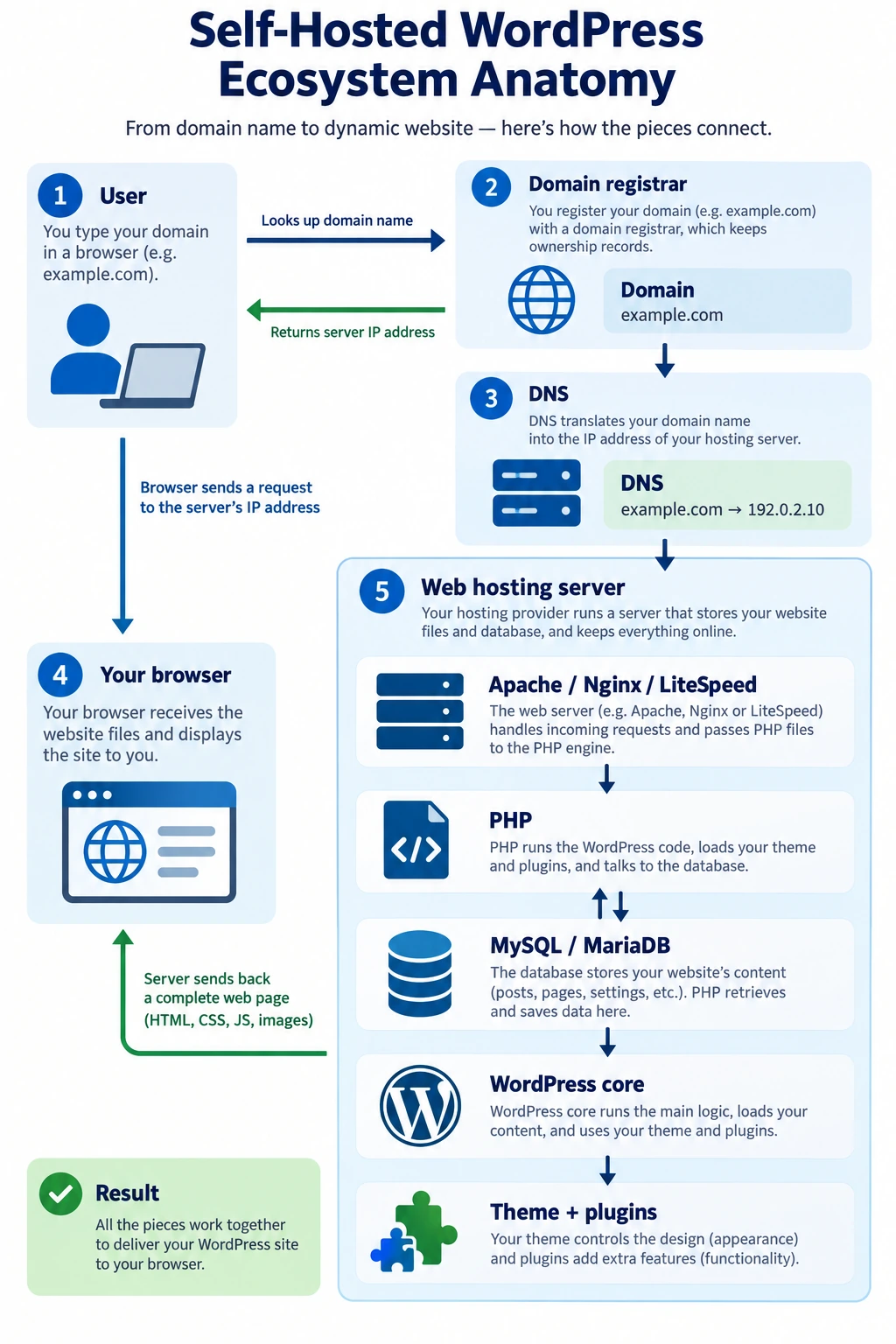
The normal stack includes a domain, DNS records, a web server such as Apache, Nginx, or LiteSpeed, PHP, and a MySQL or MariaDB database. When a visitor requests a page, the server runs PHP, WordPress reads the relevant data, and the application returns HTML to the browser. Themes shape the presentation, while plugins extend the application.
W3Techs reports that WordPress powers 40.3% of all websites and 58.8% of websites whose CMS is known. That scale matters because it creates a large ecosystem of documentation, hosting options, themes, plugins, and developers. It also makes disciplined maintenance important: a popular platform attracts both useful extensions and attackers looking for neglected sites.
The Core Architectural Components: How the Stack Fits Together
Think of a website as a house. The domain is the street address. Hosting is the land you lease. WordPress is the structural frame. Themes and plugins are the furnishings.
- Domain name: You register a readable address through an ICANN-accredited registrar.
- DNS: DNS records direct that address to the server’s IP address. The A or AAAA record commonly points the domain to the host, while CNAME records can route subdomains.
- Web hosting server: The host provides storage, CPU, memory, networking, and a web server. In most cases this is rented cloud infrastructure in a professional data center.
- Database and PHP core: MariaDB or MySQL stores content and settings. PHP assembles that data with WordPress core, the theme, and plugins into each response.
The layers are separate but connected. A DNS error can make a healthy site appear offline. A database credential error can stop PHP from loading pages. A plugin can consume available memory even when the server itself is online.
This separation also makes planning easier. You can change registrars without changing hosting, move hosts without changing the domain, or replace a theme without moving the database. Keep an inventory of the domain account, DNS records, hosting account, database credentials, administrator accounts, scheduled jobs, and backup destinations. That simple map turns a confusing collection of services into an architecture you can explain and recover.
Sovereign Data Ownership: Why Complete Control Matters
Self-hosting gives you database portability and a clear exit path. You can export the SQL database, copy the /wp-content/ directory, update configuration values, and migrate to another provider. The move may require planning, but you are not asking one SaaS vendor to approve your export or preserve a proprietary format.
That control helps with platform risk. A hosted platform can change its pricing, remove a feature, suspend an account, or alter its acceptable-use rules. Self-hosting does not eliminate legal or operational risk, but it lets you choose your provider and retain your site’s underlying assets.
The Crucial Distinction: Self-Hosted WordPress.org vs. Hosted WordPress.com
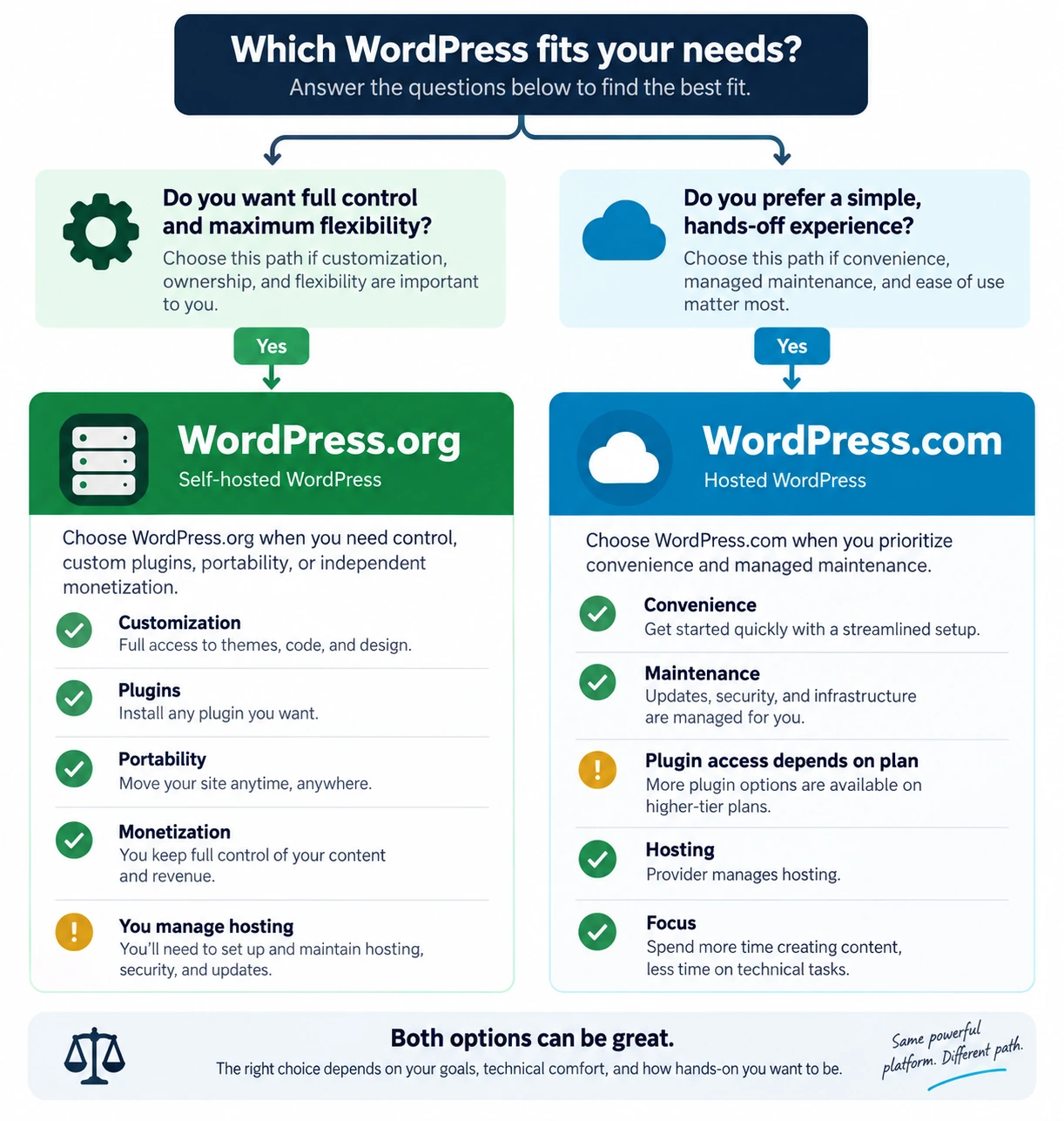
Myth: “WordPress” always means the same hosted product. Fact: WordPress.org is the home of the free open-source software; WordPress.com is a commercial hosted service built around WordPress.
The distinction matters because the products solve different problems. WordPress.org gives you software to install. WordPress.com gives you an account and hosted environment; its official pricing documents the plan boundaries. Automattic, the commercial company associated with WordPress.com and co-founded by Matt Mullenweg, operates that hosted service. WordPress.com can be convenient for people who do not want to manage infrastructure, but plan restrictions and subscription pricing can affect advanced customization.
The Root Causes of Confusion: The Name, the Foundation, and Automattic
The WordPress project and WordPress.com share a name because they grew from the same open-source ecosystem. The WordPress Foundation protects the open-source project and trademark interests, while Automattic operates WordPress.com as a commercial service. The branding is familiar, but the ownership and operating model are different.
The safest mental shortcut is simple: .org is software; .com is a hosted service. Always check the URL before purchasing a plan or assuming that a plugin, custom theme, or external advertising network is available.
Side-by-Side Architectural and Feature Comparison
| Decision factor | WordPress.org self-hosted | WordPress.com hosted |
|---|---|---|
| Software cost | Free open-source core | Plans and paid add-ons may apply |
| Hosting | You select and pay for it | Included in the service |
| Plugins | Install compatible plugins directly | Availability depends on plan; the report identifies the Business tier at $25/month billed annually for third-party plugins |
| Themes | Broad theme choice and custom code | Theme access depends on plan and service rules |
| Ecommerce | WooCommerce or another compatible stack; provider costs still apply | Hosted commerce features and plan rules apply |
| Monetization | You choose ads, affiliates, memberships, and payment tools | Service and plan rules may limit options; lower tiers may include transaction or advertising constraints |
| Maintenance | Your responsibility or your host’s managed service | Mostly handled by the provider |
| Data portability | Export files and database directly | Export is available, but the hosted environment controls the workflow |
The practical conclusion is not that one platform is universally better. Choose WordPress.com when convenience and reduced maintenance outweigh infrastructure control. On lower WordPress.com tiers, the service may insert advertising or apply transaction fees of up to 3%; confirm the current plan terms before checkout. Choose self-hosted WordPress when you need custom code, broad plugin access, independent monetization, or a portable architecture.
Dispelling the Physical Hardware Myth: What “Self-Hosted” Really Means
Self-hosting does not mean operating a noisy computer under your desk. Most site owners lease a small slice of a professionally managed data center through shared hosting, managed WordPress hosting, or a cloud VPS. The provider handles physical power, cooling, connectivity, and hardware replacement.
You become responsible for the software and configuration layer. On shared hosting, the provider may handle operating-system maintenance and server security. On a VPS, you may also need to patch the operating system, configure a firewall, monitor services, and manage recovery procedures.
The True Cost of Self-Hosting: 3-Year Total Cost of Ownership (TCO)
WordPress core is free, but a live website has an operating budget. A realistic model includes the domain, hosting, renewals, backups, email, premium extensions, and your time.
The Anatomy of Hosting Invoices: Teaser Rates vs. Renewal Reality
Introductory hosting prices near $2.99 per month can be attractive, but they commonly apply only to the first term. The report’s provider research shows renewal rates that can reach roughly $7.99–$17.99 per month, depending on the host and package. Compare the full commitment, not only the promotional headline.
For example, a $2.99 monthly introductory price is $35.88 for a year. A $11.99 renewal price is $143.88 for a year. The second number is more relevant to a three-year plan. Hostinger and SiteGround illustrate why renewal terms deserve attention. Also check whether the price requires annual prepayment, whether a free domain renews at the normal rate, and whether backups or email are limited.
Essential Ongoing Costs Often Left Out of Beginner Guides
- A
.comdomain commonly costs about $10–$14 per year. The report cites Cloudflare Registrar’s $9.77 wholesale-style price as a reference point. - Managed hosting may cost $20–$35 per month but can reduce the time you spend on updates, caching, and recovery.
- A VPS can cost less in infrastructure terms, but administration becomes part of the total cost. Low-end examples include Hetzner cloud instances around €4–€6 per month and DigitalOcean droplets around $6 per month; verify current pricing and included resources before purchase.
- Premium themes often cost $49–$79 per year or as a one-time license. Commercial plugins can add more.
- Transactional email, offsite backup storage, monitoring, and a CDN may range from free to $15 or more per month.
- Your own labor is a cost. A cheap server is not cheap if an outage consumes a weekend.
3-Year Total Cost of Ownership (TCO) Model by Use Case
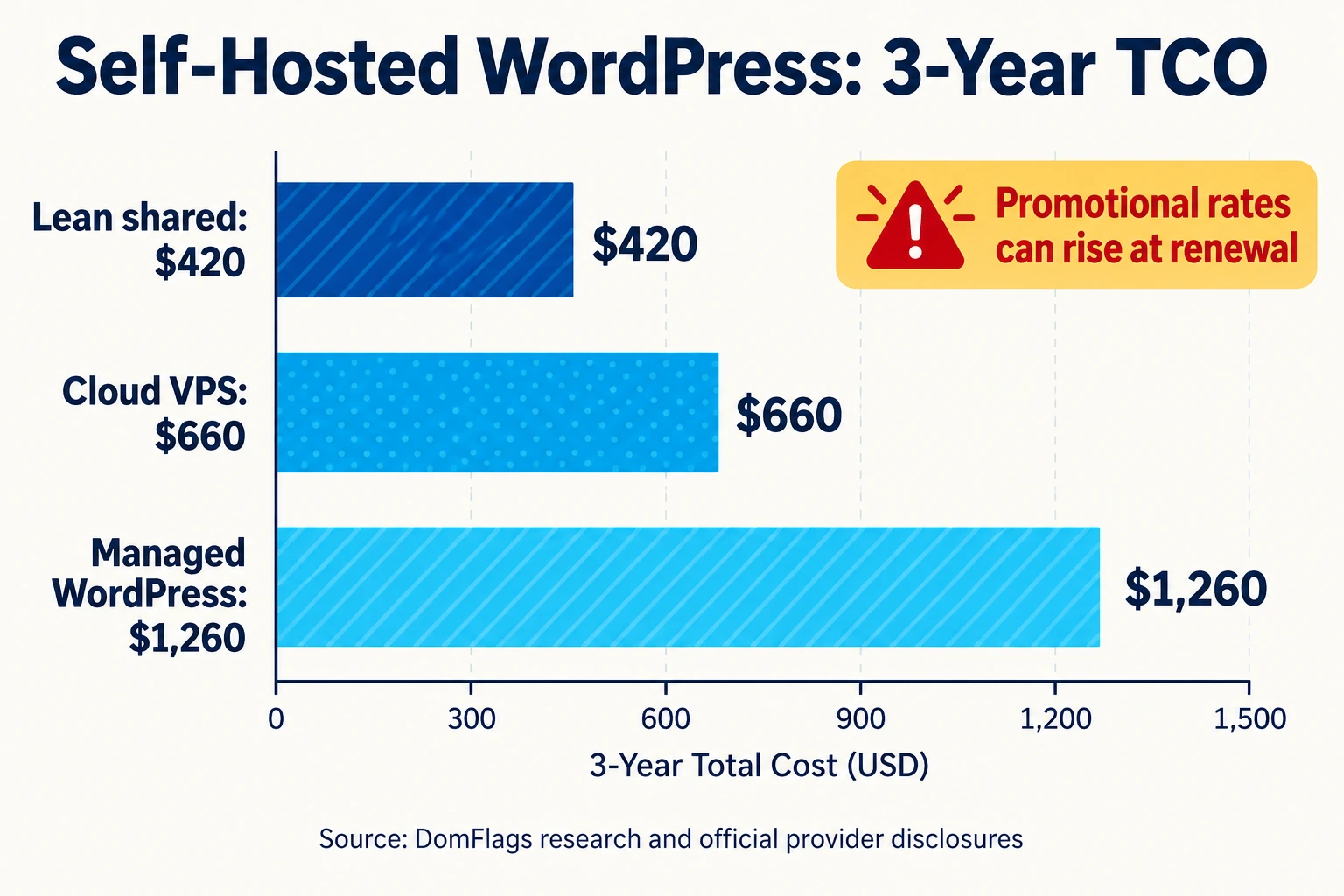
The following model uses rounded planning figures, not a quote. Hosting promotions and renewals change, so verify the provider’s current terms before purchase.
| Use case | Year 1 | Year 2 | Year 3 | Three-year estimate | Best fit |
|---|---|---|---|---|---|
| Lean shared hosting | $70 | $175 | $175 | $420 | Personal blog or small brochure site |
| Managed WordPress | $420 | $420 | $420 | $1,260 | Owner who values support and less maintenance |
| Cloud VPS | $220 | $220 | $220 | $660 | Technical owner comfortable with administration |
The figures include a domain and a modest allowance for backup and email, but exclude professional development and premium ecommerce extensions. The cheapest row is not automatically the best value. Choose the tier that matches the cost of downtime, the site’s growth, and your ability to recover it.
Use the table as a budgeting framework rather than a promise. Hosting companies package storage, bandwidth, email, support, staging, and backups differently. A low headline price can become expensive when you add a separate backup service, a premium security layer, or developer time. Conversely, a managed plan can be economical when it prevents a costly outage or makes routine updates safe. Recalculate the model each time your site adds traffic, commerce, memberships, or customer data.
Strategic Advantages: Why Choose Self-Hosted WordPress?
Infinite Extensibility via 72,000+ Plugins and Themes
The official plugin repository lists more than 72,000 plugins and the theme repository lists over 15,000 themes. That does not mean you should install everything. It means you can assemble a site for publishing, memberships, learning, directories, stores, or custom applications without waiting for a platform vendor to add each feature.
The freedom is strongest when you treat plugins as production dependencies. Check update history, author reputation, compatibility, support quality, and whether the plugin does one job well. Remove unused extensions instead of leaving them dormant and exposed.
Unconstrained Monetization and Zero Platform Transaction Cuts
Self-hosted WordPress lets you choose advertising, affiliate links, memberships, donations, subscriptions, and payment processors. The host still charges for infrastructure, and payment providers still charge their own fees, but a website platform does not have to take a separate cut simply because you used its editor.
That flexibility helps businesses test offers and change providers. It also creates compliance responsibilities: disclose affiliate relationships, protect customer data, follow tax rules, and use a payment processor that meets the relevant security requirements.
Advanced Technical SEO and Performance Autonomy
You can control permalinks, redirects, XML sitemaps, structured data, caching, image formats, headers, CDN behavior, and server resources. You can also stage changes, inspect logs, and tune database queries when the site grows.
Autonomy is not the same as automatic performance. A badly configured plugin stack can be slower than a hosted builder. Performance comes from a light theme, efficient queries, compressed images, page caching, a CDN, and monitoring.
Honest Drawbacks: The Real Operational Burden of Self-Hosting
Maintenance Fatigue: The Continuous Update and Compatibility Cycle
WordPress core, themes, plugins, PHP, and the operating system all evolve. Updates can fix security issues but introduce compatibility problems. Use staging for important sites, maintain backups before major changes, and update in a controlled order.
Security Responsibility: Defending Against Brute Force and Vulnerabilities
Security begins with unique administrator passwords, two-factor authentication, least privilege, automatic updates where appropriate, login rate limiting, HTTPS, backups, and reputable extensions. The report’s Wordfence security source attributes more than 90% of reported WordPress vulnerabilities to outdated, abandoned, or poorly coded third-party plugins and themes rather than core itself; treat that figure as a source-led risk signal, not a guarantee for every site.
Self-hosting also means you must know how to recover. A firewall cannot replace a tested backup, and a backup that has never been restored is only an assumption.
How to Set Up Self-Hosted WordPress: Step-by-Step Deployment Roadmap
| Track | Complexity | Launch time | Best for | Main responsibility |
|---|---|---|---|---|
| One-click shared hosting | Low | 30–60 minutes | Beginners | WordPress settings, updates, content |
| Managed WordPress | Low–medium | Same day | Businesses | Content and configuration; host handles more infrastructure |
| Docker on VPS | Medium–high | Several hours | Developers and sysadmins | Containers, backups, OS, networking, WordPress |
Milestone 1: Domain Registration and DNS Configuration
Register a short, memorable domain and enable registrar security controls. In your hosting dashboard, identify the required nameservers or server IP. Change DNS deliberately and allow time for propagation. Keep the registrar account protected with two-factor authentication because control of DNS can control the site.
Milestone 2: Selecting the Optimal Hosting Architecture (Shared vs. Managed vs. VPS)
Choose shared hosting when cost and simplicity matter most. Choose managed WordPress when you want support, staging, caching, and fewer infrastructure tasks. Choose a VPS when you need root access, custom services, predictable resources, or a Docker workflow and you can operate the server safely.
Ask every provider about renewal prices, backups, restore points, staging, support boundaries, resource limits, migration help, and exit procedures.
Before you commit, estimate peak rather than average demand. A campaign, product launch, or seasonal event can create a short traffic spike that exposes memory and CPU limits. Also check the provider’s recovery service-level expectations: “daily backups” is not the same as “a tested restore available within an hour.” The best host is the one whose failure modes and support boundaries you understand.
Milestone 3: Executing the 1-Click Installer (Softaculous / cPanel / hPanel)
Create the site in the hosting panel, select the correct domain, set a strong administrator username, and choose HTTPS if the installer offers it. Do not use “admin” as the username. Remove sample content, verify the site URL, and confirm that the dashboard loads over HTTPS.
Milestone 4: Enforcing SSL/TLS Security Protocols
Activate a trusted certificate, redirect HTTP to HTTPS, and check the front end and dashboard. If images, scripts, or styles still load over HTTP, browsers may show mixed-content warnings. Fix URLs in settings and database content, then clear caches.
Milestone 5 (Advanced Track): Containerized Deployment with Docker Compose
The official WordPress Docker image is commonly paired with MariaDB. A Compose project should define separate WordPress and database services, environment variables, persistent volumes, a private application network, and a reverse proxy or TLS terminator. Keep secrets outside public repositories and pin image versions instead of relying on an unreviewed “latest” tag.
A container is not a backup. Back up the database and persistent volumes, document the Compose file, test restores, and monitor disk space. Docker makes deployment repeatable; it does not remove operational responsibility.
Essential Post-Installation Hardening and Optimization Checklist
Configuring SEO-Friendly Permalinks and Core Settings
Use readable post slugs, set the site title and timezone, remove unused users, and configure a single preferred URL format. Review search visibility before launch. Add redirects when changing existing URLs.
Hardening Access: Two-Factor Authentication and Login Lockdown
Protect every administrator account with two-factor authentication. Use editor or author roles instead of administrator access when possible. Add login throttling, disable unused XML-RPC features when they are not needed, and review account activity.
Implementing Automated Offsite Cloud Backups
Keep at least one backup outside the hosting account. Schedule database and file backups at a frequency that matches publishing volume. Retain multiple restore points and run a restoration test before you need one.
Performance Tuning: Caching, Image Compression, and CDN Integration
Start with page caching, WebP images, lazy loading, a lightweight theme, and a CDN when it helps your audience. Measure before and after. Avoid stacking several plugins that perform the same caching or optimization task.
Configuring Reliable Transactional Email via SMTP
Configure authenticated SMTP or a transactional email provider for password resets, forms, and order messages. Test delivery, SPF, DKIM, and DMARC. Do not rely on a server’s default PHP mail function for important notifications.
Operational Maintenance & Troubleshooting Common Self-Hosting Errors
| Symptom | Likely cause | Rapid recovery |
|---|---|---|
| Error establishing a database connection | Wrong credentials, unavailable database, or exhausted resources | Verify configuration, database service, and host logs; restore if corruption is confirmed |
| Mixed-content warning | Some assets still use HTTP | Update URLs, replace hard-coded links, purge caches |
| White Screen of Death | Plugin/theme conflict or PHP memory exhaustion | Enable logging, disable the latest extension, raise memory within host limits, restore if needed |
Remediation Protocol 1: “Error Establishing a Database Connection”
Check the database name, username, password, and host in wp-config.php. Confirm that the database service is running and that the account has permissions. Review resource limits and logs. Do not repeatedly change credentials without recording the known-good values.
Remediation Protocol 2: Mixed Content Warnings After SSL Activation
Find the HTTP asset in browser developer tools, settings, or database content. Correct the URL, replace hard-coded links, and clear the page, plugin, and CDN caches. Confirm that admin pages, forms, images, and third-party scripts all load over HTTPS.
Remediation Protocol 3: The “White Screen of Death” (WSOD) & PHP Memory Exhaustion
Enable WordPress debugging in a protected environment, inspect the log, and disable the most recently changed plugin or theme. If the dashboard is unavailable, rename the plugin directory through the file manager or SFTP. Raise PHP memory only when the host and application genuinely need it; do not treat memory as a substitute for fixing a runaway extension.
Is Self-Hosted WordPress Still Worth It in 2026? Modern Architecture & AI Integration
The Modern Block Renaissance: Full Site Editing and Performance Gains
Block themes and Full Site Editing reduce the need for custom template files for many sites. They let owners edit headers, footers, templates, and patterns in a more visual workflow while keeping the underlying platform portable. A carefully selected block theme can also reduce front-end weight.
For a 2026 deployment, check the current WordPress release information and use a supported PHP 8.2 or PHP 8.3 runtime when the host and plugins support it. WordPress 6.8-era sites benefit from current core, theme, and plugin updates, but version compatibility still requires testing on staging.
AI Orchestration in 2026: Can ChatGPT Build a WordPress Site?
AI can draft copy, generate a custom block, explain an error, create a migration checklist, and help write a small PHP function. It cannot safely replace backups, testing, security review, or human approval. Treat generated code as untrusted until you understand what it does and test it in staging.
The Self-Hosted Decision Framework: Who Should Choose It (and Who Shouldn’t)?
You Should Choose Self-Hosted WordPress If…
- You want ownership of code, content, and database exports.
- You need custom plugins, themes, integrations, or WooCommerce.
- You expect to change hosts or infrastructure over time.
- You can budget for maintenance or pay for managed support.
- You value flexible monetization and technical SEO control.
You Should Consider SaaS Alternatives (Squarespace / Shopify / Hosted WP) If…
- You need a simple brochure site with minimal maintenance.
- You do not want to manage updates, backups, or security decisions.
- Your business fits a provider’s templates, commerce workflow, and pricing.
- A predictable subscription matters more than server-level control.
For the broader platform decision, compare this guide with Squarespace vs. WordPress. For implementation, see what WordPress is, WordPress pricing and real costs, WordPress.com vs. WordPress.org, the best hosting for WordPress, how to install WordPress, local WordPress development, the WordPress security checklist, and recovering a database connection error.
Frequently Asked Questions About Self-Hosted WordPress
Can I host WordPress for free?
You can run WordPress locally with tools such as LocalWP or Docker Desktop without paying for hosting or a domain. A public production site normally needs hosting and a domain, although free hosts exist with serious limits and should not be trusted for important business data.
Is self-hosted WordPress too difficult for a complete beginner?
Not if you start with managed or shared hosting and a one-click installer. The learning curve appears when you add custom server administration, Docker, security automation, or performance tuning. Start simple, use staging, and document every change.
What is the consensus on self-hosted WordPress on Reddit?
Discussion tends to divide along use case. Technical users value ownership, extensibility, and portability; beginners often warn about plugin quality, backups, and maintenance. Use community discussions for practical experience, then verify pricing, security, and technical claims against primary documentation.
Can I migrate an existing site from WordPress.com to self-hosted WordPress?
Usually, yes. Export the WordPress.com content, prepare the new hosting environment, import content, recreate or replace unsupported features, move media, update DNS, and verify redirects. The exact process depends on the plan, theme, plugins, and whether the source site uses features that do not have direct self-hosted equivalents.
Self-hosted WordPress is best understood as a trade: you exchange some convenience for control. For publishers, developers, and businesses that need portability, customization, and independent monetization, that trade can be worthwhile. The reliable path is to choose the simplest architecture that meets today’s needs, then invest in backups, updates, and a documented recovery plan before growth makes them urgent.
That principle keeps the platform manageable. Begin with a stable host, a clean theme, a short plugin list, and a staging copy. Add complexity only when a real requirement justifies it, and review the site after every major change. With that discipline, self-hosted WordPress is not a hardware project; it is a flexible publishing architecture that you can own, improve, and move.