

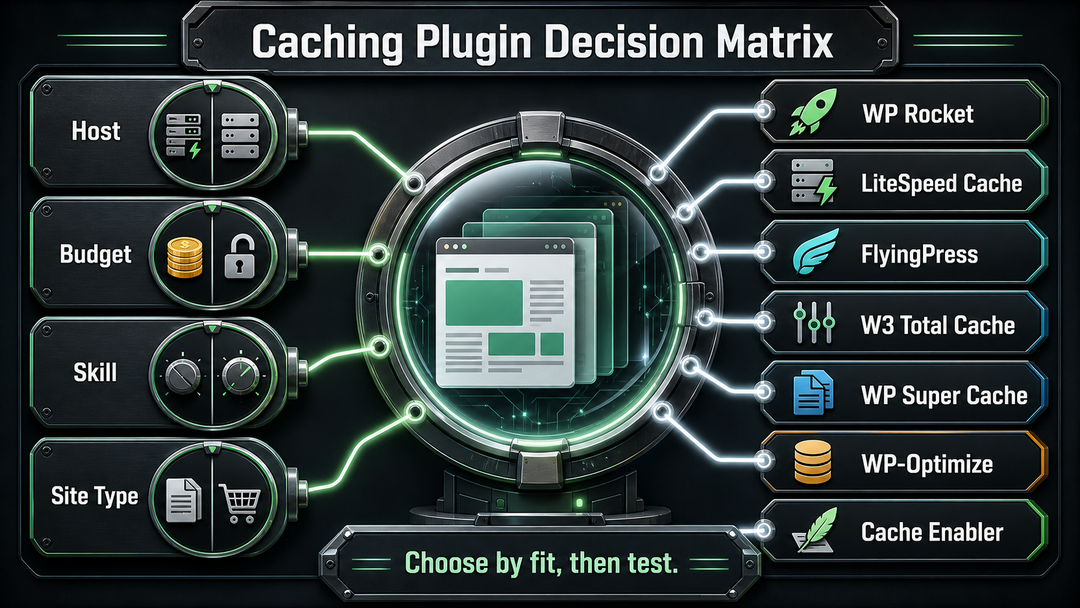
The best WordPress caching plugins are WP Rocket for most paid setups, LiteSpeed Cache for sites hosted on LiteSpeed or OpenLiteSpeed servers, FlyingPress for Core Web Vitals-focused optimization, W3 Total Cache for technical control, WP Super Cache for simple free page caching, WP-Optimize for cache plus database cleanup, and Cache Enabler for a lightweight free option.
No single caching plugin is perfect for every WordPress site. For example, a small blog on shared hosting has different needs than a WooCommerce store, a membership site, or a busy business site using Cloudflare and Redis. The best plugin depends on your hosting, budget, technical skills, and whether your site is mostly static or personalized.
A caching plugin should help your WordPress site load pages faster, but it should not break carts, forms, logins, filters, page builders, analytics, ads, or design files. Speed is important, but not if it causes problems like a broken checkout.
Quick Answer: Best WordPress Caching Plugins by Use Case
| Plugin | Best For | Free Version? | Starting Price | Main Strength | Main Trade-Off |
|---|---|---|---|---|---|
| WP Rocket | Most beginners and business sites that want paid simplicity | No | $59/year for 1 site, according to the official WP Rocket pricing page | Strong defaults, cache preloading, file optimization, WooCommerce awareness | Paid only |
| LiteSpeed Cache | Sites on LiteSpeed, OpenLiteSpeed, LiteSpeed WebADC, or QUIC.cloud | Yes | Free plugin | Server-level LSCache integration | Full caching advantage depends on LiteSpeed-compatible infrastructure |
| FlyingPress | Core Web Vitals-focused optimization with fewer manual settings | No | $59/year for 1 site, according to FlyingPress pricing | Cloud-based optimization, smart lazy loading, JS delay, image features | Paid only |
| W3 Total Cache | Developers and advanced users who want granular control | Yes | Free + Pro | Page, browser, object, database, CDN, and advanced cache controls | Configuration can feel heavy for beginners |
| WP Super Cache | Simple free page caching from a WordPress veteran | Yes | Free | Easy static HTML page cache | Fewer all-in-one optimization features |
| WP-Optimize | Sites that want cache, database cleanup, image compression, and minification in one plugin | Yes | Free + Premium | Combines several maintenance and speed tools | Not as specialized as premium performance plugins |
| Cache Enabler | Lightweight free caching with minimal settings | Yes | Free | Simple static file cache | Limited advanced optimization features |
If you want a safe paid option, go with WP Rocket. For sites on LiteSpeed Web Server or OpenLiteSpeed, LiteSpeed Cache is the top choice. If you prefer a free plugin and are comfortable with settings, try W3 Total Cache. For a free and simple solution, pick WP Super Cache or Cache Enabler.
What a WordPress Caching Plugin Actually Does
A WordPress caching plugin saves ready-made versions of your pages, so the server does not have to rebuild them from PHP and the database each time someone visits. This way, your site can deliver cached HTML and files much faster.
Most caching plugins combine several performance features:
- Page caching stores static HTML versions of posts and pages.
- Browser caching tells visitors’ browsers to reuse files such as CSS, JavaScript, fonts, and images.
- Cache preloading builds the cache before visitors arrive.
- GZIP or Brotli compression reduces file transfer size when supported by the server or CDN.
- Minification removes unnecessary characters from CSS, JavaScript, or HTML files.
- Lazy loading delays images, videos, or iframes until they are needed.
- Object caching stores database query results, usually with Redis or Memcached, which can help dynamic sites.
Caching can help with Largest Contentful Paint (LCP) because the main page content often appears sooner. It can also reduce server response time, which helps the page start loading faster. But caching alone does not automatically fix every Core Web Vitals problem. Google defines Core Web Vitals around loading performance, responsiveness, and visual stability, including LCP, Interaction to Next Paint (INP), and Cumulative Layout Shift (CLS) in its Search Central documentation.
This difference is important. A caching plugin can speed up your WordPress site, but things like large images, heavy page builders, third-party scripts, slow ads, poor hosting, and unstable layouts can still harm the user experience.
Think about your overall WordPress development plan when choosing a caching plugin. This is especially important if your site also needs theme cleanup, hosting changes, or custom development.
How to Choose the Right WordPress Caching Plugin
Before comparing plugin names, answer these five questions.
1. What server does your host use?
If your host uses LiteSpeed Web Server or OpenLiteSpeed, LiteSpeed Cache deserves serious attention because its page cache talks directly to the LiteSpeed server cache. The LiteSpeed Cache WordPress.org listing explains that its core cache features require LiteSpeed Server, OpenLiteSpeed, LiteSpeed WebADC, or QUIC.cloud, while general optimization features can work on other servers.
Suppose your host uses Apache or Nginx without LiteSpeed or QUIC.cloud, LiteSpeed Cache may still provide useful optimization tools, but its biggest caching advantage is not the same. In that case, WP Rocket, FlyingPress, W3 Total Cache, WP Super Cache, WP-Optimize, or Cache Enabler may be a cleaner fit.
2. Do you want simple defaults or advanced control?
Choose WP Rocket, FlyingPress, WP Super Cache, or Cache Enabler if you want fewer settings.
Choose W3 Total Cache if you want detailed control over page cache, browser cache, CDN settings, object cache, database cache, minification, and advanced environments. That control is useful, but it also creates more room for mistakes.
3. Is your site mostly static or highly dynamic?
A blog, brochure site, documentation site, or simple service business website is usually cache-friendly. A WooCommerce store, LMS, membership site, forum, booking site, or logged-in portal needs more care.
Do not unthinkingly cache:
- Cart pages
- Checkout pages
- My account pages
- User dashboards
- Personalized content
- Search and filter results that create many URL variations
Some plugins automatically exclude common WooCommerce pages, but you should still test. If a customer sees another customer’s cart, or a logged-in user sees stale account data, the cache setup is wrong. Our guide to excluding cart, checkout, and account pages in LiteSpeed Cache covers the checks to run.
4. Are you already using host-level caching or Cloudflare?
Many managed WordPress hosts already provide server-level caching. Cloudflare, Varnish, Nginx FastCGI cache, Redis, and host dashboards can also be part of the stack.
You usually do not want several tools fighting to control the same cache layer. WordPress.org’s plugin documentation notes that plugin conflicts can happen and recommends deactivating plugins one at a time when troubleshooting, as explained in its Manage Plugins guide. With caching, the cleaner rule is: use one main page-cache controller, then add a CDN or object cache only when you understand how purging works.
5. How will you measure success?
Use before-and-after tests. Good tools include:
- PageSpeed Insights for lab and field data where available
- Google Search Console Core Web Vitals report for URL-group field data from CrUX
- WebPageTest for waterfall diagnostics
- GTmetrix for repeatable lab checks
- Your host or CDN logs for cache-hit behavior
Google’s Core Web Vitals report help page explains that Search Console groups similar URLs and evaluates the slowest Core Web Vitals status for a URL group. That means one fast homepage test is not enough. Test key templates: homepage, blog post, product page, category page, checkout flow, and any important landing pages.
1. WP Rocket: Best Paid Caching Plugin for Most WordPress Sites
WP Rocket is the best overall paid caching plugin for many WordPress users because it combines strong defaults with enough advanced features for real business sites. It is especially useful when you do not want to spend hours learning cache rules before seeing improvement.
According to WP Rocket’s own features page, the plugin includes page caching, cache preloading, browser caching, GZIP compression, media optimization, database cleanup, CDN settings, add-ons, and eCommerce-aware behavior. Its documentation also says several features are automatic, including page cache, mobile cache, browser caching, GZIP compression, and WooCommerce refresh cart fragments cache handling in its what WP Rocket does article.
That is the appeal: you install it, activate it, and get a sensible starting configuration without becoming a performance engineer overnight.
Best Fit
WP Rocket is a strong fit for:
- Business websites that need reliable defaults
- Blogs and publishing sites
- WooCommerce stores that want careful cache exclusions
- Site owners who prefer support and documentation over trial-and-error settings
- Agencies managing several non-LiteSpeed client sites
Where WP Rocket Is Less Ideal
The biggest drawback is simple: WP Rocket is paid only. As of August 7, 2026, the official pricing page lists the Single license at $59/year for one website, Plus at $119/year for three websites, and Multi starting at $299/year for 50 websites. Pricing can change, so verify the vendor page before purchase.
WP Rocket is also not magic. If your theme loads huge JavaScript bundles, your hero image is oversized, or your hosting is overloaded, WP Rocket can help but may not solve everything by itself.
2. LiteSpeed Cache: Best for LiteSpeed Hosting
LiteSpeed Cache is the best WordPress caching plugin when your site runs on LiteSpeed Web Server, OpenLiteSpeed, LiteSpeed WebADC, or QUIC.cloud. In that environment, it can use server-level caching through LSCache, which is different from a plugin that only writes static files from PHP.
The official WordPress.org listing for LiteSpeed Cache explains the key limitation clearly: the plugin’s cache features require a compatible LiteSpeed cache layer, while general optimization features can be used on other web servers.
Best Fit
LiteSpeed Cache is a strong fit for:
- Hosts using LiteSpeed or OpenLiteSpeed
- Budget-conscious site owners on LiteSpeed hosting
- Sites that want QUIC.cloud integration
- Users who want image optimization, CDN settings, database cleanup, object cache options, and page optimization in one free plugin
Where LiteSpeed Cache Is Less Ideal
LiteSpeed Cache can feel dense for beginners. It also has a common trap: people install it on Apache or Nginx hosting and expect the same server-level cache benefits. The optimization features may still help, but the full LSCache advantage depends on the compatible server layer.
If your host already provides a custom LiteSpeed setup, check the host’s recommended settings before changing every option. Cache plugins are powerful enough to help, and powerful enough to break layouts when CSS, JavaScript, or exclusions are too aggressive.
3. FlyingPress: Best for Core Web Vitals-Focused Optimization
FlyingPress is a premium performance plugin built for users who want speed optimization without endless settings. It is not just a basic page-cache plugin. Its modern pitch is Core Web Vitals-friendly automation.
FlyingPress describes itself as a lightweight WordPress speed optimization plugin, and its v5 release notes describe cloud-based features such as Remove Unused CSS, automatic lazy loading and above-the-fold detection, background image preloading, JavaScript execution delay, third-party script detection, font preloading, smart lazy rendering, and separate optimizations for mobile and desktop.
Best Fit
FlyingPress is a strong fit for:
- Site owners focused on LCP, INP, and CLS improvements
- WordPress sites using modern themes or page builders
- Users who want fewer settings than W3 Total Cache
- Agencies that want a repeatable optimization workflow
- Sites that can benefit from cloud-based CSS, image, and JavaScript optimization
Where FlyingPress Is Less Ideal
FlyingPress is paid only. As of August 7, 2026, the FlyingPress pricing page lists Starter at $59/year for one website, Pro at $109/year for three websites, Business at $229/year for 25 websites, and Unlimited at $279/year.
It is also more performance-suite than a simple cache switch. That is good if you need the features, but unnecessary if your site only needs a basic static HTML cache.
4. W3 Total Cache: Best Free Plugin for Advanced Control
W3 Total Cache is the best free choice for advanced users who want detailed performance controls. It has been around for years and remains one of the most flexible caching frameworks in the WordPress ecosystem.
The W3 Total Cache WordPress.org listing describes support for page caching, browser caching, CDN management, minification, object caching, database caching, fragment caching, Redis, Memcached, reverse proxy integration, WP-CLI cache purging, and more.
That is a lot of power for a free plugin.
Best Fit
W3 Total Cache is a strong fit for:
- Developers and technically comfortable site owners
- Sites with Redis or Memcached available
- Publishers using a CDN and wanting granular controls
- More complex hosting environments
- Users willing to test settings carefully
Where W3 Total Cache Is Less Ideal
W3 Total Cache is not the friendliest plugin for beginners. It can work beautifully when configured well, but too many switches can create confusion. Minification, object cache, database cache, and CDN options should be tested one at a time.
If your goal is “make my site faster this afternoon without learning caching architecture,” WP Rocket, FlyingPress, WP Super Cache, Cache Enabler, or your host’s built-in caching may be less stressful.
5. WP Super Cache: Best Simple Free Page Cache
WP Super Cache is a simple, free caching plugin that focuses on creating static HTML files for WordPress pages. It is a good choice when you want a cleaner, more beginner-friendly free plugin and do not need a full optimization suite.
The WP Super Cache WordPress.org listing shows it remains actively maintained, with a 2026 changelog and over 1 million active installations listed at the time of research.
Best Fit
WP Super Cache is a strong fit for:
- Blogs
- Simple business sites
- Beginners who want free caching
- Sites that do not need aggressive JavaScript or CSS optimization
- Users who prefer a focused plugin from a long-running WordPress ecosystem project
Where WP Super Cache Is Less Ideal
WP Super Cache is not the most feature-rich option. If you want built-in unused CSS removal, image optimization, database cleanup, or deep CDN controls, another plugin may fit better.
That is not always a weakness. A focused cache plugin can be exactly right for a simple site. Fewer features often means fewer ways to break things.
6. WP-Optimize: Best Cache Plugin with Database Cleanup
WP-Optimize is best when you want caching plus database cleanup, image compression, and minification in one plugin. It is especially appealing for site owners who want to tidy WordPress while improving speed.
The WP-Optimize WordPress.org listing describes four core areas: caching, image compression, database cleanup, and minification. It also notes cache preloading, GZIP compression where needed, device-specific cache, logged-in-user cache options, and eCommerce compatibility considerations.
Best Fit
WP-Optimize is a strong fit for:
- Sites with bloated databases from revisions, transients, or old content
- Beginners who want several maintenance tools in one dashboard
- Owners already familiar with the Updraft ecosystem
- Sites that need page caching but also routine cleanup
Where WP-Optimize Is Less Ideal
All-in-one plugins are convenient, but they can overlap with tools you already use. If you already have an image optimization plugin, a database maintenance process, host-level caching, and Cloudflare, adding every WP-Optimize feature may duplicate work.
Use the parts you need. Turn off the parts that overlap.
7. Cache Enabler: Best Lightweight Free Caching Plugin
Cache Enabler is a lightweight free caching plugin from KeyCDN. It is a good option when you want a simple static file cache without a heavy settings interface.
The Cache Enabler WordPress.org listing shows a straightforward plugin with active installations, WordPress.org support, and a focus on caching, GZIP, performance, and WebP-related support.
Best Fit
Cache Enabler is a strong fit for:
- Simple WordPress sites
- Users who want lightweight free caching
- Sites already using separate tools for images, CDN, and database cleanup
- Owners who dislike crowded plugin dashboards
Where Cache Enabler Is Less Ideal
Cache Enabler is intentionally simple. If you want advanced Core Web Vitals optimization, JavaScript delay, unused CSS handling, object caching, database cleanup, or deep CDN controls in the same plugin, it will not be your most complete option.
For many small sites, though, a lightweight page cache is enough to make a noticeable difference.
Comparison: Which WordPress Caching Plugin Should You Pick?
| Situation | Best Pick | Why |
|---|---|---|
| You want the easiest paid recommendation | WP Rocket | Strong defaults and broad compatibility make it beginner-safe. |
| Your host uses LiteSpeed or OpenLiteSpeed | LiteSpeed Cache | It can connect to LiteSpeed’s server-level cache layer. |
| You care most about modern Core Web Vitals tuning | FlyingPress | Strong focus on unused CSS, JS delay, image handling, and above-the-fold optimization. |
| You want the most advanced free controls | W3 Total Cache | It provides granular cache, CDN, object cache, and minification options. |
| You want a simple free cache plugin | WP Super Cache | Focused static page caching with a long WordPress history. |
| You want caching plus cleanup tools | WP-Optimize | Combines page cache, database cleanup, image compression, and minification. |
| You want lightweight and minimal | Cache Enabler | Simple static caching without a crowded feature set. |
For most beginners, the decision is easier than the plugin lists make it look:
- If you can pay and want simplicity, choose WP Rocket.
- If your host runs LiteSpeed, choose LiteSpeed Cache.
- If you want free and advanced, choose W3 Total Cache.
- If you want free and simple, choose WP Super Cache or Cache Enabler.
- If your site needs cleanup as much as caching, choose WP-Optimize.
What to Check Before Installing Any Caching Plugin
You should test caching instead of guessing. Before installing a plugin, create a quick baseline for your site’s performance.
Baseline Checklist
- Run PageSpeed Insights on your homepage and one important internal page.
- Check Search Console Core Web Vitals if your site has enough field data.
- Note your hosting type: Apache, Nginx, LiteSpeed, managed WordPress, or unknown.
- Check whether your host already has caching enabled.
- List active performance plugins so you avoid overlap.
- Confirm whether your site uses WooCommerce, memberships, LMS tools, forums, booking forms, or user dashboards.
- Take a backup before changing performance settings.
If you are still setting up the site foundation, your host matters too. A good cache plugin can help, but weak hosting can still hold back WordPress performance. For that earlier decision, see DomFlags’ guide to best hosting for WordPress.
Avoid These Common Cache Plugin Mistakes
The most common mistake is installing multiple caching plugins at once. Do not run WP Rocket, W3 Total Cache, WP Super Cache, and WP-Optimize page cache together. Pick one main page cache.
Also be careful with:
- CSS minification**** if your layout changes after activation
- JavaScript delay if menus, sliders, forms, analytics, or checkout scripts stop working
- Lazy loading for above-the-fold hero images that should load immediately
- Database cache on shared hosting where it can sometimes add overhead
- Logged-in caching on sites with personalized content
- Query-string caching on filter-heavy stores or directories
Enable features one at a time. Test your site after each important change.
How to Test Whether Your Caching Plugin Is Working
A caching plugin should make your actual pages faster, not just improve your dashboard scores.
Use this testing process:
- Test before activation. Record PageSpeed Insights, WebPageTest, or GTmetrix results for key templates.
- Install one caching plugin. Avoid stacking multiple page-cache plugins.
- Enable page caching first. Do not turn on every optimization switch immediately.
- Clear and preload cache. If the plugin supports preloading, build the cache before testing.
- Test as a logged-out visitor. Use an incognito window or a browser where you are not logged into WordPress.
- Check source or headers. Many plugins add a cache comment or response header, though CDNs and minifiers may remove comments.
- Test important flows. Menus, forms, checkout, login, search, filters, embedded videos, and analytics should still work.
- Compare field data later. Core Web Vitals field data changes over time, not instantly.
For Core Web Vitals, watch the actual metrics. A plugin that improves LCP but worsens INP by delaying the wrong scripts is not a clean win. A plugin that improves desktop but breaks mobile layout is also not a win.
Do You Always Need a WordPress Caching Plugin?
No. Some managed WordPress hosts provide excellent server-level caching, and adding a plugin may be unnecessary or even discouraged by the host.
You probably need a caching plugin if:
- Your host does not provide page caching.
- Your WordPress pages are slow because PHP and database work happen on every visit.
- You want cache preloading, file optimization, or browser cache controls from WordPress.
- You need a beginner-accessible dashboard for clearing and managing cache.
You may not need one if:
- Your managed host already handles page cache, CDN, and object cache well.
- Your site is mostly static and already served through an optimized edge cache.
- Your host specifically asks you not to install third-party cache plugins.
- You have a developer-managed caching stack using Nginx, Varnish, Redis, Cloudflare, or custom deployment rules.
The best setup is one you can understand, keep an eye on, and manage safely.
Best WordPress Caching Plugins: Final Recommendation
For most WordPress site owners, WP Rocket is the best paid caching plugin because it gives strong defaults without demanding advanced technical knowledge. For sites on LiteSpeed hosting, LiteSpeed Cache is the first plugin to test because it can connect to the server-level LSCache layer. For free advanced control, W3 Total Cache is the strongest pick. For free simplicity, start with WP Super Cache or Cache Enabler.
If your site is important for your business, do not pick a plugin just because of speed-test screenshots. Choose one that matches your hosting, content, and how much maintenance you can handle. A good cache setup should speed up your site, protect dynamic pages, and let you measure improvements easily.
FAQs About WordPress Caching Plugins
What is the best WordPress caching plugin overall?
WP Rocket is the best overall WordPress caching plugin for many paid setups, especially for beginners and business sites that want strong defaults. LiteSpeed Cache is usually better when the site is hosted on LiteSpeed or OpenLiteSpeed.
What is the best free WordPress caching plugin?
LiteSpeed Cache is the best free option for LiteSpeed hosting, while W3 Total Cache is the best free option for advanced control on many hosting types. WP Super Cache and Cache Enabler are better if you want a simpler free page cache.
Can I use two WordPress caching plugins together?
Usually, no. You should normally use one main page caching plugin. Multiple cache plugins can conflict because they may try to control the same cache files, rewrite rules, minification, or page output.
Is LiteSpeed Cache good without LiteSpeed hosting?
LiteSpeed Cache can still provide optimization features without LiteSpeed hosting, but its main server-level caching advantage requires LiteSpeed Server, OpenLiteSpeed, LiteSpeed WebADC, or QUIC.cloud. If your host uses Apache or Nginx without those layers, compare it with WP Rocket, FlyingPress, W3 Total Cache, WP Super Cache, WP-Optimize, or Cache Enabler.
Will a caching plugin improve Core Web Vitals?
A caching plugin can improve Core Web Vitals, especially LCP, by reducing server work and helping pages start faster. It may not fix INP or CLS if the problems come from heavy JavaScript, unstable layouts, ads, fonts, or oversized media.
Which caching plugin is best for WooCommerce?
WP Rocket, LiteSpeed Cache, FlyingPress, W3 Total Cache, and WP-Optimize can all be used with WooCommerce when configured carefully. The key is to exclude cart, checkout, account, and user-specific pages from unsafe caching.
Should I use a cache plugin if my host already has caching?
Maybe. If your host already provides page caching, object caching, and CDN integration, you may only need a plugin for file optimization or cache purging. Ask your host which cache plugins are compatible before adding another page-cache layer.