

What is a WordPress child theme? A WordPress child theme is a separate theme that inherits the design and functionality of another theme, called the parent theme, while keeping your custom code changes in separate files. You use one when you want to customize a theme’s files without editing the parent theme directly, so parent-theme updates are less likely to wipe out your work.
That is the quick answer. The more useful answer is knowing when a child theme helps, when it is unnecessary, and what kind of changes it actually protects.
If you are still learning the wider WordPress system, start with our guide to what WordPress is and our explainer on how WordPress themes and plugins work. A child theme only makes sense once you understand that the theme is your site’s design layer.
Quick Definition: What Is a WordPress Child Theme?
A WordPress child theme depends on a parent theme. The parent theme provides the main templates, styles, features, and design foundation. The child theme adds your customizations on top.
The official WordPress Theme Developer Handbook explains that child themes extend parent themes and let you modify an existing theme without directly editing the parent theme’s code. That separation is the whole point.
Think of it like this:
- The parent theme is the original theme you installed.
- The child theme is your customization layer.
- WordPress loads the parent theme’s files, then lets the child theme override or add specific pieces.
If you edit the parent theme directly, a future parent-theme update can replace your edits. If you put the right customizations in a child theme, your changes live separately.
Parent Theme vs Child Theme
Every child theme needs a parent theme. A child theme is not meant to stand alone.
| Item | Parent Theme | Child Theme |
|---|---|---|
| Main role | Provides the complete theme foundation | Extends or overrides the parent theme |
| Required to work alone | Yes | No |
| Typical contents | Templates, styles, scripts, patterns, theme settings, PHP files | Only the files needed for customization |
| Update behavior | Can be updated by the theme author | Usually preserved when the parent updates |
| Best use | Running the site design | Safely storing code-level customizations |
The Learn WordPress child themes lesson describes a child theme as an extension of its parent theme. That wording helps prevent a common misunderstanding: a child theme doesn’t replace the parent theme completely. It builds on it.
For example, if your parent theme controls the header, footer, blog layout, typography, and archive pages, a child theme might only change the footer template and add a few custom styles. Everything else can still come from the parent theme.
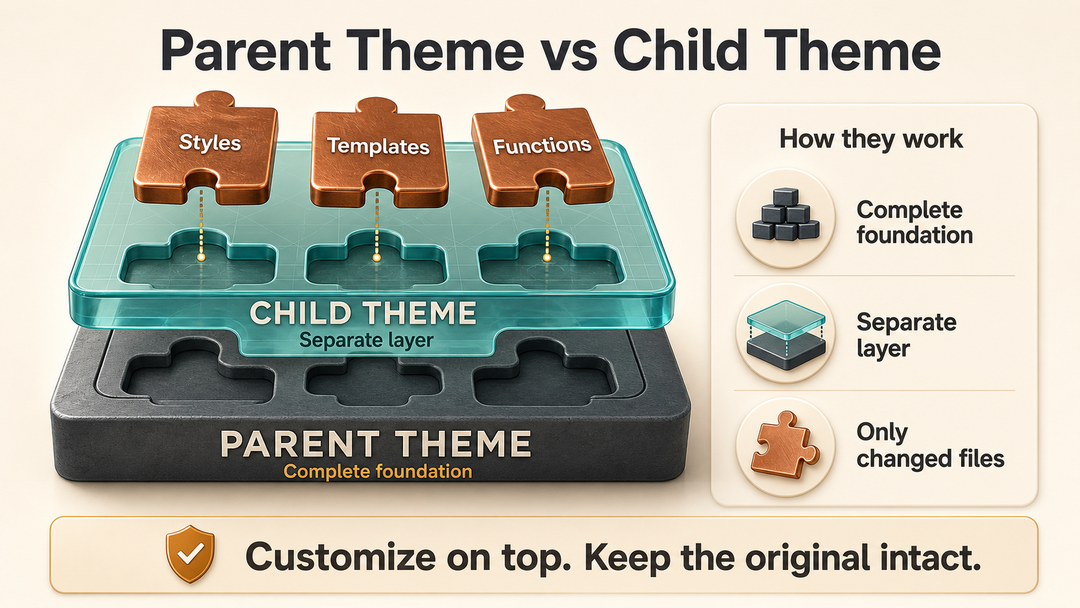
How a WordPress Child Theme Works
A WordPress child theme works through inheritance. WordPress recognizes the child theme, reads which parent theme it belongs to, and uses the parent theme as a fallback for files the child theme doesn’t provide.
Here is the beginner version:
- WordPress sees that the active theme is a child theme.
- The child theme tells WordPress which parent theme it depends on.
- WordPress uses the parent theme for the complete design foundation.
- If the child theme includes an override file, WordPress can use that child file instead.
- If the child theme does not include a file, WordPress falls back to the parent theme’s version.
That fallback is why child themes can be small. You do not need to copy the whole parent theme. In fact, copying too much is one way beginners make child themes harder to maintain.
A Simple Example
Imagine your parent theme has this file:
wp-content/themes/example-theme/footer.phpIf you want to customize the footer in a classic theme, you could create this file in the child theme:
wp-content/themes/example-child/footer.phpWordPress can use the child theme’s footer.php for that part of the site while still using the parent theme for everything else.
That is cleaner than editing the parent theme’s original footer.php, because the parent theme can still receive updates.
What a Child Theme Protects
A child theme protects file-level theme customizations that would otherwise be overwritten when the parent theme updates.
It is useful for changes such as:
- Custom CSS stored in the child theme.
- Classic theme template overrides.
- Custom template parts.
- Custom patterns, when registered correctly.
- Theme-specific PHP additions in the child theme’s
functions.php. - Selected block-theme file customizations, depending on the theme structure.
The key phrase is theme files. A child theme is not a magic backup system for your whole WordPress site.
It does not replace:
- Full-site backups.
- A staging site.
- Plugin update testing.
- Security maintenance.
- Version control for developer projects.
- Careful review before changing theme code.
Before making code-level changes on a live site, read our guide on how to backup a WordPress website and our checklist for how to update WordPress safely. A child theme reduces one specific risk, but it does not remove the need for basic maintenance safety.
When You Need a WordPress Child Theme
You usually need a WordPress child theme when you plan to customize a theme’s code files and still want to keep the parent theme updatable.
Good reasons to use one include:
- You want to edit a classic theme template.
- You need custom CSS that belongs with the theme, not in a temporary dashboard field.
- You want to add theme-specific PHP code.
- You are modifying template parts, patterns, or theme files.
- You are building a client site on top of a parent theme.
- You need a repeatable customization layer you can move between development, staging, and production.
A child theme is especially useful for classic themes, because classic themes often rely heavily on PHP templates and theme files. If you edit those files directly in the parent theme, updates can overwrite your edits.
Practical Example: Customizing a Blog Post Template
Suppose you like your theme but want single blog posts to show a custom author box under the content. If the parent theme does not offer that option, you might override the single-post template in a child theme.
That is a child-theme-friendly change because:
- It is part of the theme’s presentation.
- It changes how content is displayed.
- It may require editing a template file.
- It should survive parent-theme updates.
If the author box needs complex profile fields, permissions, or reusable data, a plugin might be a better home for the functionality. The theme can display it, but the data and logic may belong outside the theme.
When You Do Not Need a Child Theme
You do not need a child theme for every WordPress customization. In many beginner situations, creating one adds complexity without much benefit.
You may not need a child theme if:
- You only changed colors, fonts, or layouts through the Site Editor.
- You only used theme settings in the Customizer.
- You only added a small amount of CSS through the Additional CSS field.
- You use a page builder and haven’t edited theme files.
- You changed plugin settings, not theme files.
- You are not comfortable editing files yet.
- The change should live in a plugin, not the theme.
This is where modern WordPress can be confusing. Some customizations are saved in the database, not inside the parent theme’s files. For example, many Site Editor changes in block themes are stored as user customizations. Updating the theme files is not the same as deleting those database-stored settings.
That doesn’t mean updates can’t affect your layout. It means the risk is different from editing parent-theme files directly.
Use This Quick Decision Checklist
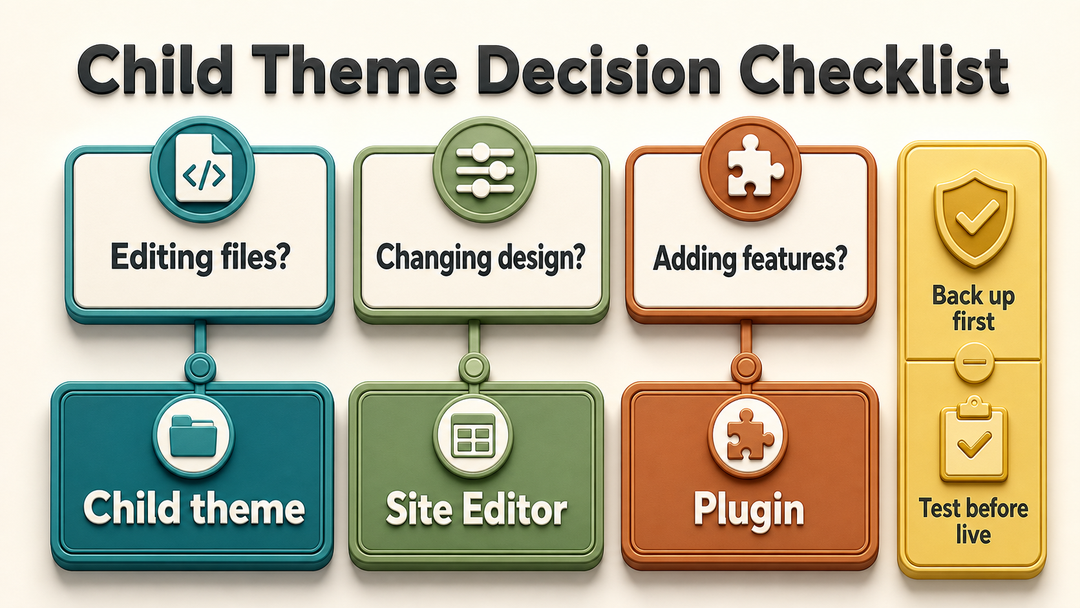
Ask these questions before creating a child theme:
| Question | If Yes | If No |
|---|---|---|
| Am I editing theme files directly? | Use a child theme or developer workflow | A child theme may not be needed |
| Is the change only visual? | Child theme, Site Editor, Customizer, or CSS may fit | Consider whether this is really theme-related |
| Is the change site functionality? | Consider a plugin instead | Theme customization may be fine |
| Do I need the change to survive parent-theme updates? | Child theme is often useful | Built-in settings may be enough |
| Am I comfortable with code? | Child theme can be practical | Use dashboard tools or ask a developer |
If the answer is “I just want to change a button color,” do not rush into child themes. If the answer is “I need to override template files and add theme-specific code,” a child theme is much more appropriate.
Child Themes, Block Themes, and the Site Editor
Child themes still exist in modern WordPress, but block themes changed the decision.
The WordPress Theme Handbook notes that block themes can involve several layers: WordPress defaults, parent theme, child theme, and user customizations. The important beginner detail is that user customizations in the Site Editor are stored differently from theme files.
That means a block-theme user may be safe without a child theme when making changes through:
- The Site Editor.
- Global Styles.
- Template editing inside the WordPress dashboard.
- Pattern changes saved by WordPress.
- Built-in theme style variations.
You are more likely to need a child theme for a block theme if you are editing or adding files such as:
theme.json- block templates
- template parts
- patterns
- custom CSS or scripts in theme files
The safest rule is simple: dashboard settings usually do not require a child theme; file edits usually do.
What Files Does a WordPress Child Theme Need?
At minimum, a WordPress child theme needs a folder and a style.css file with the correct theme header. The official WordPress child theme documentation says the Template header must match the parent theme’s folder name exactly.
A very small child theme might look like this:
wp-content/
  themes/
    twentytwentyfour/
    grand-sunrise/
      style.css
Inside style.css, the header might look like this:
/*
Theme Name: Grand Sunrise
Template: twentytwentyfour
*/
In that example:
Grand Sunriseis the child theme name.twentytwentyfouris the parent theme folder name.- The
Templatevalue must match the parent theme directory, not just the parent theme’s display name.
Many child themes also include functions.php, but be careful with how you think about that file.
Child Theme functions.php Does Not Replace the Parent functions.php
In classic themes, you can often override template files by placing a matching file in the child theme. But functions.php behaves differently.
The child theme’s functions.php does not replace the parent theme’s functions.php. It loads in addition to it. That is useful, but it also means bad code in the child theme can still break your site.
Use functions.php for theme-specific additions, not as a dumping ground for every snippet you find online. If a snippet controls site functionality that should survive a future theme change, a small custom plugin or code snippets plugin may be a better choice.
How to Create a Basic WordPress Child Theme
If you are not comfortable with files, SFTP, hosting file managers, or code, ask a developer or use a reputable child-theme generator recommended by your theme author. The steps below explain the concept, not to pressure beginners into editing live sites.
For a basic manual child theme:
- Back up the site first.
- Work on a staging site or local development copy when possible.
- Find the parent theme folder name in
wp-content/themes/. - Create a new child theme folder.
- Add a
style.cssfile with a valid theme header. - Add a
functions.phpfile only if you need to enqueue files or add theme-specific PHP. - Install the child theme on the site.
- Activate the child theme under Appearance > Themes.
- Check key pages, menus, headers, footers, forms, and mobile layouts.
For many classic themes, you may need to enqueue parent and child styles properly. The exact code can depend on the parent theme, so use your theme’s documentation when available.
Here is a simplified example:
<?php
add_action( 'wp_enqueue_scripts', 'grand_sunrise_enqueue_styles' );

function grand_sunrise_enqueue_styles() {
    wp_enqueue_style(
        'grand-sunrise-parent-style',
        get_parent_theme_file_uri( 'style.css' )
    );
}
Do not paste code blindly into a live site. A missing character in PHP can cause a visible error. Use staging, keep file access available, and make sure you can reverse the change.
Pros and Cons of WordPress Child Themes
Child themes are useful, but they are not automatically the right answer for every site.
| Pros | Cons |
|---|---|
| Keeps custom code separate from the parent theme | Adds another layer to maintain |
| Helps preserve theme-file customizations during parent updates | Requires basic file and code knowledge |
| Lets you override only the files you need | Can break if the parent theme changes heavily |
| Makes customizations more portable | Can become messy if used for plugin-like functionality |
| Supports safer development on top of an existing theme | Not always necessary for Site Editor or dashboard changes |
The biggest advantage is update safety for code-level theme changes. The biggest downside is complexity. A poorly managed child theme can become confusing, especially if it contains copied parent files that are never reviewed after parent-theme updates.
Child Theme vs Plugin: Where Should Custom Code Go?
Not every snippet belongs in a child theme.
Use a child theme when the code is about presentation:
- Template layout.
- Theme-specific design.
- Theme-specific styles.
- Theme-specific template parts.
Use a plugin when the code is about functionality:
- Custom post types.
- Shortcodes.
- Forms.
- SEO metadata.
- Redirects.
- Analytics scripts.
- Business logic.
- Features you still need after changing themes.
This distinction matters because a child theme depends on the parent theme. If you switch to a new theme later, you may not keep that child theme. Any important functionality trapped inside it can disappear with the redesign.
For a wider explanation of this boundary, read how WordPress themes and plugins work.
Common Child Theme Mistakes to Avoid
Editing the Parent Theme After Creating the Child Theme
Creating a child theme does not help if you keep editing the parent theme anyway. Put your customizations in the child theme.
Copying the Entire Parent Theme
A child theme should usually contain only the files you need to customize. Copying everything makes future maintenance harder because you may miss important parent-theme updates.
Using a Child Theme Instead of a Backup
A child theme is not a backup. It does not protect your database, media files, plugin settings, users, orders, or content. Keep real backups.
Putting Plugin Functionality in the Theme
If a feature should survive a theme switch, avoid putting it in the child theme. Store it in a plugin or another theme-independent system.
Ignoring Parent Theme Updates
A child theme lets you update the parent theme more safely, but that doesn’t mean every update is risk-free. If your child theme overrides a template file and the parent theme changes that template significantly, you may need to review your override.
How This Fits Into WordPress Development
Child themes fit into the customization part of WordPress development. They are not the whole development process, but they are a useful bridge between beginner dashboard customization and fully custom theme development.
For site owners, the main value is knowing when to ask for a child theme. For developers, the value is cleaner separation: the parent theme for the foundation, the child theme for project-specific presentation changes, and plugins for portable functionality.
If you are choosing a theme now, our guide on how to choose a WordPress theme will help you pick a foundation that needs fewer risky customizations later.
FAQs About WordPress Child Themes
What is a WordPress child theme in simple terms?
A WordPress child theme is a customization layer that inherits from a parent theme. It lets you change selected theme files without editing the parent theme directly.
Do I need a child theme in WordPress?
You need a child theme if you plan to edit theme files and want those changes separated from parent-theme updates. You probably do not need one for ordinary Site Editor, Customizer, plugin, or page-builder settings.
Does a child theme make WordPress safer?
A child theme makes theme-file customization safer, but it does not secure the whole site. You still need backups, updates, good hosting, secure passwords, and careful plugin management.
Can a child theme work without a parent theme?
No. A child theme depends on its parent theme. If the parent theme is missing, WordPress cannot use the child theme properly.
Will a child theme slow down my site?
A simple child theme shouldn’t noticeably slow down a WordPress site on its own. Performance problems are more likely to come from heavy code, unoptimized assets, excessive scripts, poor hosting, or plugin/theme conflicts.
Can I create a child theme after customizing my site?
Yes, but be careful. If you saved your previous changes in the Site Editor or Customizer, they may not automatically become child-theme files. If you edited parent theme files directly, you may need to move those edits into the child theme manually.
Should I use a child theme with a block theme?
Use a child theme with a block theme when you need file-level customizations. If you only use the Site Editor and global style controls, you may not need a child theme.
What is the difference between a child theme and a starter theme?
A child theme depends on an existing parent theme. A starter theme is usually a foundation for building a new standalone theme. They solve different problems.
Final Thoughts
A WordPress child theme is most useful when you want to customize theme files without touching the parent theme directly. It gives your custom presentation changes a separate home, which makes parent-theme updates less risky.
But the best choice depends on the change. Use dashboard settings for simple visual edits. Use a child theme for theme-file customizations. Use a plugin for portable functionality. And before editing anything important, back up the site and test the change somewhere safe.
The clean rule is this: if you are changing how the theme displays the site, a child theme may be right; if you are changing what the site does, look at plugins first.