

Core Web Vitals WordPress optimization starts with the performance signals that show whether your site feels fast, responsive, and stable for real visitors. To pass them, your WordPress pages should load the main visible content quickly, respond to taps and clicks without long delays, and avoid unexpected layout jumps while the page is loading.
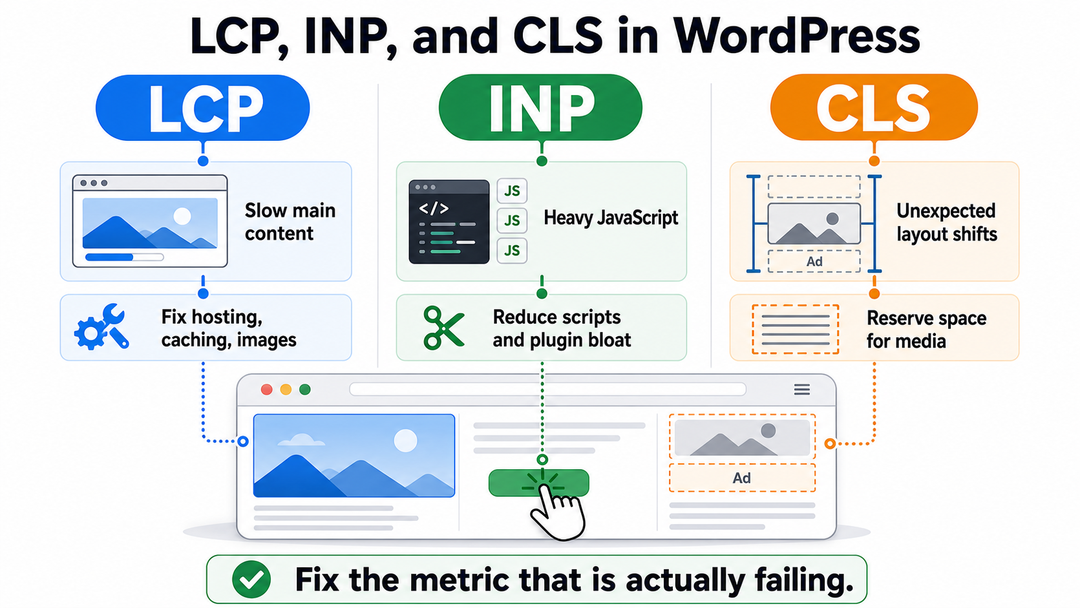
For most WordPress sites, the fix is not one magic speed plugin. It is a sequence: measure the right data, find which metric is failing, then repair the WordPress-specific cause behind it. Usually that means improving hosting and caching for LCP, reducing heavy JavaScript for INP, and reserving space for images, ads, embeds, and fonts for CLS.
Google’s current Core Web Vitals are:
| Metric | What it measures | Good target |
|---|---|---|
| Largest Contentful Paint (LCP) | How quickly the main above-the-fold content appears | 2.5 seconds or less |
| Interaction to Next Paint (INP) | How quickly the page responds after user interaction | 200 milliseconds or less |
| Cumulative Layout Shift (CLS) | How much the visible layout unexpectedly moves | 0.1 or less |
These targets are based on the 75th percentile of real user visits, not only a one-time test from your laptop. That detail matters. A WordPress page can look quick in a lab test and still feel slow to real mobile visitors on weaker devices or networks.
What Core Web Vitals Mean for WordPress
Core Web Vitals are just one part of Google’s overall page experience advice. Google uses these metrics in its rankings, but reminds site owners that perfect scores do not guarantee top spots. Good content, relevance, trust, and usefulness are still more important than just having a green report.
In plain English, Core Web Vitals answer three questions a visitor silently asks:
- LCP: “Can I see the main thing I came for?”
- INP: “Did the site react when I clicked or tapped?”
- CLS: “Why did that button, image, or paragraph jump?”
WordPress sites can do well on these metrics, but there are common problems. Themes might load extra CSS, page builders can add big JavaScript files, and plugins often load assets on every page even if they are only needed in one place. Images are also often uploaded without being compressed first.
This means fixing Core Web Vitals in WordPress is both a technical and editorial task. You are not just adjusting code—you are also choosing what content should load first on your page.
If you are still learning how WordPress fits into the larger site-building process, DomFlags has a beginner-friendly guide to WordPress development that explains the platform, themes, plugins, hosting, and maintenance in one place.
Measure Before You Change Anything
If you install several optimization plugins before knowing which metric is failing, you can waste a lot of time. Always start by measuring your site first.
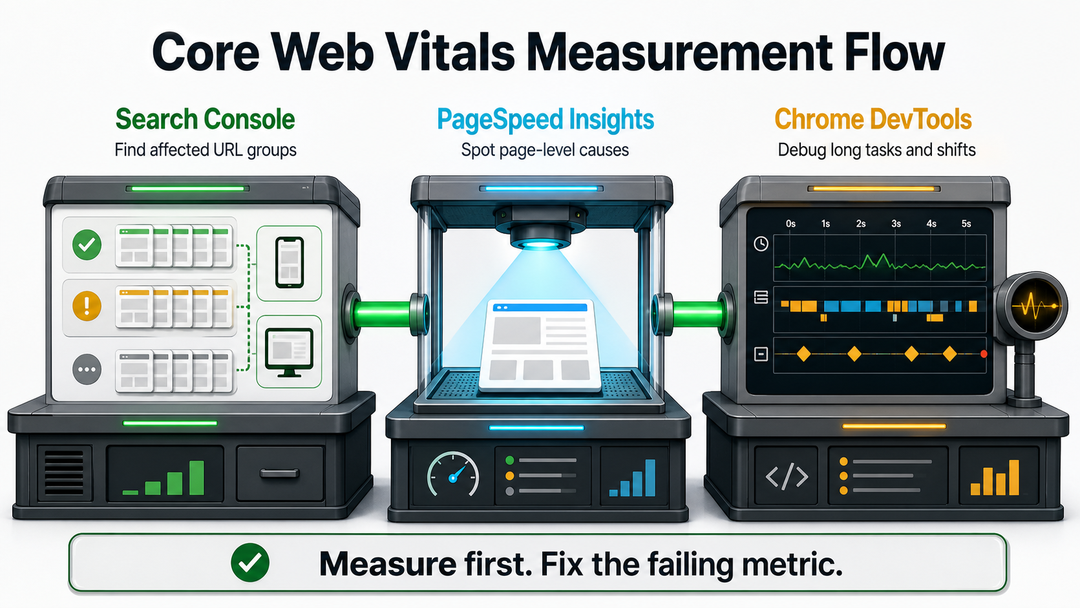
Use Search Console for Field Data
The Google Search Console Core Web Vitals report groups URLs by mobile and desktop status. It uses Chrome User Experience Report data, also called CrUX, which is based on real-world visits.
This report is best for answering:
- Which groups of URLs are poor or need improvement?
- Is the problem mostly mobile, desktop, or both?
- Which metric is pulling the group down?
- Did a fix improve real-user data after enough time passed?
Search Console is not the best tool for diagnosing one exact page element. It groups similar URLs, and its data can lag because it reflects real user visits over time.
Use PageSpeed Insights for Page-Level Clues
PageSpeed Insights is useful because it combines field data, when available, with lab diagnostics. The lab section can point you toward render-blocking resources, large images, unused JavaScript, third-party code, font issues, and the actual LCP element. For the Astra and LiteSpeed-specific steps, see our guide to eliminating render-blocking resources.
Do not worry if your lab score changes from test to test. Use it as a tool to find issues, not as a final judgment.
Use Chrome DevTools When the Cause Is Not Obvious
For stubborn issues, use Chrome DevTools Performance recordings. This helps you see long tasks, main-thread blocking, layout shifts, network waterfalls, and the exact timing of images, fonts, scripts, and user interactions.
If you are not a developer, this might seem complicated. You do not need to be a browser expert, but it helps to know when a problem cannot be fixed just by changing plugin settings.
The WordPress Core Web Vitals Fix Order
Use this order before touching advanced settings:
- Confirm the failing metric in Search Console or PageSpeed Insights.
- Test the affected page on mobile.
- Identify the LCP element, slow scripts, or shifting element.
- Fix hosting, caching, and image delivery before tiny CSS tweaks.
- Remove or delay unnecessary scripts.
- Reserve layout space for media, ads, banners, and embeds.
- Retest in lab tools.
- Wait for field data to update before judging the final result.
The order of fixes is important because WordPress performance problems often build on each other. For example, if your server is slow, LCP will still be a problem even after you compress images. If a page builder adds heavy JavaScript, caching might help but INP could still be slow. If ads load late, CLS can fail even if the page loads fast.
How to Fix LCP in WordPress
Largest Contentful Paint measures when the largest visible content element finishes rendering in the viewport. On WordPress sites, that element is often a featured image, hero image, large heading, video poster, or first content block.
The LCP target is 2.5 seconds or less. A page between 2.5 and 4 seconds needs improvement. Above 4 seconds is poor.
Improve Hosting and Server Response First
A slow server makes every front-end fix harder. WordPress pages are built from PHP, database queries, theme files, plugins, and media. If the first response is delayed, the browser cannot start rendering the page early enough. If your site runs LiteSpeed, see our practical guide to reducing server response time and TTFB.
Start with:
- Full-page caching for public pages.
- Object caching where the host supports it.
- A recent PHP version supported by your host and WordPress setup.
- A host that can handle your traffic without frequent CPU throttling.
- A CDN when your visitors are spread across regions.
WordPress.org’s optimization documentation points out that your hosting, WordPress setup, software versions, images, and file sizes all affect performance. This is a good reminder that LCP is rarely fixed with a single setting.
If your site is on weak hosting and you are choosing a new provider, the DomFlags guide to best hosting for WordPress explains the hosting features that matter before you buy.
Optimize the LCP Image
If PageSpeed Insights identifies a featured image or hero image as the LCP element, give that image special treatment.
Do this:
- Resize the image to the largest size the layout actually needs.
- Compress it before upload or through a trusted image optimization plugin.
- Serve modern formats such as WebP or AVIF when your setup supports them.
- Make sure
widthandheightattributes are present. - Avoid lazy loading the above-the-fold LCP image.
- Use proper
srcsetandsizesso mobile visitors do not download a desktop-sized image.
WordPress has improved its default image handling over time. In WordPress 6.3, core added automatic fetchpriority="high" handling for the image it determines is likely to be the LCP image, and improved lazy-loading behavior for in-viewport images. That does not mean every theme or custom layout gets it right, especially when images are output by page builders, sliders, custom fields, or background-image CSS.
Remove Render-Blocking CSS and JavaScript
Render-blocking files delay the browser from painting the useful part of the page. In WordPress, these often come from:
- Page builders.
- Slider plugins.
- Animation libraries.
- Icon libraries loaded across the whole site.
- Theme CSS for features you do not use.
- Plugin CSS loaded on pages where the plugin has no visible output.
Be cautious with “remove unused CSS” options. They can help, but might also break menus, forms, checkout pages, or responsive layouts. Always test your important pages after turning these settings on.
Do Not Lazy Load the Main Above-the-Fold Image
Lazy loading is useful for images below the fold. It is a mistake for the main image the visitor should see immediately.
If your LCP element is lazy-loaded, the browser waits too long to request it. In PageSpeed Insights, this may appear as a warning about the LCP image being lazy-loaded or delayed. Fix it in the theme, image plugin, performance plugin, or page builder settings.
Keep the Above-the-Fold Design Calm
LCP becomes harder when the first screen is packed with a slider, video background, large decorative images, animation libraries, cookie banners, ad scripts, and several fonts.
For many WordPress sites, a faster design is also a clearer one. Use a single helpful headline, a well-sized image if needed, short supporting text, and only the scripts needed for the first screen.
How to Fix INP in WordPress
Interaction to Next Paint measures responsiveness. It replaced First Input Delay as a Core Web Vitals metric in March 2024. INP looks beyond the first interaction and evaluates how the page responds across the user’s session.
The INP target is 200 milliseconds or less. Between 200 and 500 milliseconds needs improvement. Above 500 milliseconds is poor.
For WordPress, poor INP is usually a JavaScript problem.
Reduce Plugin JavaScript
Every plugin is not bad. The problem is when plugins load JavaScript everywhere, whether the page needs it or not.
Common INP offenders include:
- Sliders and carousels.
- Chat widgets.
- Popup builders.
- Social sharing widgets.
- Ad and tracking scripts.
- Heavy form plugins.
- Page builder add-on packs.
- WooCommerce scripts on non-commerce pages.
Audit plugins with a simple question: does this page need this script before the visitor can use the content? If not, delay it, unload it from that page, replace it with a lighter feature, or remove it.
Delay Non-Essential Scripts Carefully
Script delay can improve INP because the browser has less work competing with the user’s tap, click, or typing. Many caching and performance plugins can delay JavaScript until interaction.
Use this carefully. Delaying the wrong script can break menus, consent banners, forms, analytics, product filters, or checkout behavior.
A practical approach:
- Enable delay for obvious third-party scripts first.
- Test menus, search, forms, cart, checkout, login, and comment forms.
- Exclude any script that breaks essential interaction.
- Retest INP diagnostics after changes.
Cut Main-Thread Work
The browser’s main thread handles user input, rendering, JavaScript, layout, and painting. When a long JavaScript task blocks the main thread, the page feels frozen.
To reduce main-thread pressure:
- Remove unused plugins.
- Replace heavy sliders with static sections.
- Limit animation libraries.
- Load embeds only after the user clicks.
- Avoid stacking multiple analytics, heatmap, and ad scripts.
- Use a lighter theme when the current theme ships too much front-end code.
At this point, improving WordPress performance means making real choices. Sometimes, the solution is not adding another plugin, but removing the feature that is slowing down your page.
Watch Page Builders and Add-On Packs
Page builders can be useful, especially for non-developers, but they often add front-end weight. The issue grows when a site uses a builder, a builder theme, several add-on packs, animation effects, template libraries, and widgets that load assets globally.
You do not always need to rebuild the site. Start by simplifying the worst pages:
- Remove unused widgets.
- Disable animations that do not help comprehension.
- Replace sliders with one static hero.
- Use native WordPress blocks where practical.
- Turn off builder assets on pages that do not need them, if the tool supports it.
For background on how themes and plugins shape a WordPress site, see DomFlags’ guide to how WordPress themes and plugins work.
How to Fix CLS in WordPress
Cumulative Layout Shift measures unexpected movement of visible content. A low CLS score means the page stays visually stable while loading.
The CLS target is 0.1 or less. Between 0.1 and 0.25 needs improvement. Above 0.25 is poor.
CLS is frustrating because the page may look fine after it finishes loading. The problem happens while the visitor is trying to read, tap, or scroll.
Add Image and Video Dimensions
Images without dimensions are one of the simplest causes of layout shift. The browser does not know how much space to reserve, so text and buttons move when the image finally loads.
For WordPress:
- Use images inserted through the media library when possible.
- Avoid hand-coded images without
widthandheight. - Check custom theme templates and page builder HTML.
- Reserve space for video embeds and iframe content.
Modern WordPress usually handles dimensions for normal media library images, but custom layouts can still bypass that protection.
Reserve Space for Ads, Embeds, and Banners
Ads, cookie notices, newsletter bars, related-post widgets, maps, videos, and social embeds can push content down after the first render.
Fix this by reserving a stable container size before the content loads. If an ad slot may appear above the fold, give the slot predictable dimensions. If an embed loads late, use an aspect-ratio wrapper so the page does not jump.
Fix Font Shifts
Web fonts can cause layout movement if the fallback font and final font have different dimensions. The user sees text, then the font swaps, and the line breaks shift.
You can reduce this by:
- Using fewer font families and weights.
- Hosting fonts efficiently.
- Preloading the most important font file when appropriate.
- Choosing fallback fonts with similar proportions.
- Using
font-display: swapor another strategy deliberately, not accidentally.
Fonts are smaller than images and scripts, but font shifts are easy to notice. They can make your site feel less polished, even if your speed score is good.
Avoid Injecting Content Above Existing Content
Do not insert late-loading content above the article, product title, form, or primary CTA unless you reserve the space from the beginning.
Common WordPress examples include:
- Announcement bars.
- Consent banners.
- Sticky headers that change height.
- Email opt-in bars.
- Dynamic notices.
- Related product blocks.
If the content must appear, make it part of the initial layout or reserve the space before it loads.
Plugin Settings That Commonly Help
The exact plugin names matter less than the functions you need. A good performance setup usually covers:
| Function | Helps most with | What to watch |
|---|---|---|
| Full-page caching | LCP | Exclude cart, checkout, account, and dynamic pages where needed |
| Browser caching | LCP | Confirm cache headers are actually being served |
| Image compression | LCP | Avoid over-compression that damages important visuals |
| WebP or AVIF delivery | LCP | Test CDN and fallback behavior |
| CSS optimization | LCP | Check above-the-fold design after changes |
| JavaScript delay/defer | INP | Test menus, forms, checkout, and tracking |
| Asset unloading | INP and LCP | Unload only scripts/styles you understand |
| Font optimization | CLS and LCP | Check typography shifts on mobile |
| Database cleanup | Indirect | Useful for admin and some dynamic queries, not a direct Core Web Vitals cure |
Avoid using multiple plugins that do the same thing. If two tools both try to minify, delay, cache, or change assets, you can get unpredictable results.
A Beginner-Friendly Fix Checklist
If your WordPress Core Web Vitals are poor and you are not sure where to begin, use this checklist.
First 30 Minutes
- Open the Core Web Vitals report in Search Console.
- Identify whether mobile or desktop is failing.
- Find the failing metric: LCP, INP, CLS, or more than one.
- Run one affected URL through PageSpeed Insights.
- Note the LCP element, top JavaScript warnings, and layout shift clues.
First Round of Fixes
- Turn on full-page caching.
- Compress and resize the LCP image.
- Make sure the LCP image is not lazy-loaded.
- Remove unused plugins.
- Delay non-critical third-party scripts.
- Reserve space for images, videos, ads, and embeds.
- Reduce font families and weights.
- Test your most important pages again.
Second Round of Fixes
- Audit scripts loaded by the theme, plugins, and page builder.
- Unload plugin assets on pages where they are not needed.
- Replace heavy above-the-fold sliders or video backgrounds.
- Review hosting performance if TTFB remains slow.
- Use DevTools Performance recordings for hard INP or CLS problems.
- Compare mobile and desktop separately.
After the Fixes
Lab tools can show improvements right away, but field data takes longer to update. Search Console uses real visitor data, so you will not see same-day results as you do with lab tests. Keep an eye on your affected URL groups and look for progress over the next few weeks.
Common Mistakes That Keep WordPress Sites Failing
The biggest mistake is focusing on the score instead of the visitor. A page might get a better lab score but still feel worse if important features break or the content is harder to use.
Other mistakes include:
- Installing multiple cache plugins at once.
- Lazy-loading the hero or featured image.
- Ignoring mobile because desktop scores look good.
- Delaying every script without testing forms and menus.
- Chasing a perfect score on pages with ads or complex commerce features.
- Compressing images so heavily that product or portfolio visuals look poor.
- Forgetting that Search Console field data updates over time.
- Treating Core Web Vitals as a replacement for helpful content.
Google’s page experience guide makes it clear that Core Web Vitals are important, but a green report does not guarantee top rankings. Think of Core Web Vitals as a quality baseline. They help make good pages smoother, but they cannot fix weak content.
When You Need a Developer
Many fixes are beginner-friendly. Caching, image compression, basic script delay, and simpler page layouts can move a site a long way.
Bring in a developer when:
- The LCP element is output by a custom theme template.
- A plugin or theme is adding scripts globally and cannot be controlled safely.
- INP remains poor after obvious third-party scripts are delayed.
- CLS comes from dynamic components, ads, or custom JavaScript.
- WooCommerce checkout, membership pages, or forms break after optimization.
- Your host blames WordPress, and your performance plugin blames the host.
A developer can check your templates, load scripts the right way, separate important and less important assets, debug long tasks, and fix layout shifts directly. This is usually better than adding more plugins to an already fragile setup.
WordPress Core Web Vitals FAQ
Do Core Web Vitals affect WordPress SEO?
Yes. Google says Core Web Vitals are used by its ranking systems, but they are not the only ranking factor, and they do not guarantee higher rankings. They are best understood as part of page experience: useful content still needs to be relevant, trustworthy, and easy to use.
What is a good Core Web Vitals score?
A page should meet all three good thresholds at the 75th percentile of real user visits: LCP at 2.5 seconds or less, INP at 200 milliseconds or less, and CLS at 0.1 or less. These thresholds apply across mobile and desktop, though you should review each device type separately.
Which Core Web Vitals is hardest to fix in WordPress?
INP is often the hardest because it depends on JavaScript, main-thread work, plugins, third-party scripts, and user interactions across the whole session. LCP and CLS can be complex too, but their causes are often easier to see: a slow main image, weak hosting, missing image dimensions, or late-loading page elements.
Can a caching plugin fix Core Web Vitals?
A caching plugin can help, especially with LCP, but it cannot fix everything. It will not automatically remove heavy third-party scripts, redesign an overloaded hero section, reserve space for ads, or repair poorly written theme JavaScript. Use caching as a foundation, not the whole plan.
How long does it take for Search Console to show Core Web Vitals improvements?
Lab tools can show changes immediately, but Search Console relies on field data from real users over time. Expect to monitor changes over days or weeks rather than minutes. Use PageSpeed Insights and DevTools to confirm the technical fix, then use Search Console to confirm real-world improvement.
Final Takeaway
Core Web Vitals in WordPress are easier to understand when you stop thinking of them as just a single speed score. LCP checks if the main content loads quickly, INP checks if the page responds fast, and CLS checks if the layout stays stable.
Fix the metric that is actually failing. Start with the most common WordPress causes: hosting, caching, images, unnecessary scripts, page builder weight, fonts, ads, embeds, and unstable layout containers. Then retest patiently with both lab and field data.
A faster WordPress site is not just better for search engines. It is easier to read, builds more trust, and is less frustrating for visitors. That is what people notice before they ever see a speed score.