

If you are wondering how to backup a WordPress website safely, start by creating a complete copy of both parts of the site: the WordPress files and the WordPress database. For most beginners, the easiest path is a trusted backup plugin or your hosting account’s backup tool, with a copy stored somewhere away from your web server.
A backup is only useful if it can bring your site back. That means you should know what is inside it, where it is stored, how often it runs, and whether it can actually restore your site.
This guide walks through the simple route first, then shows the hosting and manual methods in case your site, host, or situation needs a different approach.
Quick Answer: The Best Way to Back Up WordPress
For most WordPress site owners, the best backup setup is:
- Install a reputable WordPress backup plugin.
- Create a full backup that includes your database and files.
- Send a copy to off-site storage such as Google Drive, Dropbox, Amazon S3, or another cloud location.
- Schedule automatic backups.
- Keep more than one recent backup.
- Test a restore on a staging or local site before fully trusting the system.
That gives you a practical safety net for plugin updates, theme changes, malware cleanup, accidental deletion, hosting problems, and site migrations.
If your host already includes automatic backups, that is helpful. Still, do not rely on hosting backups as your only copy unless you understand the retention period, restore limits, and whether you can download a full independent backup. A backup you cannot access during a hosting outage is not much comfort.
What a Complete WordPress Backup Must Include
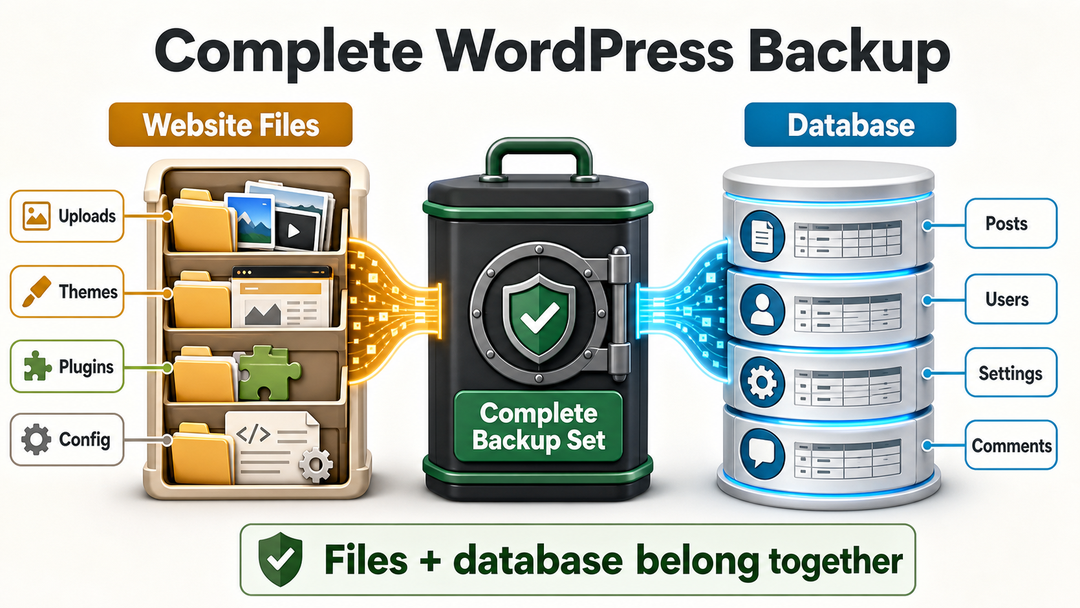
A WordPress website has two main parts.
| Backup Part | What It Contains | Why It Matters |
|---|---|---|
| WordPress files | Themes, plugins, uploads, WordPress core files, and configuration files such as wp-config.php | Restores the visible design, media library files, plugin code, theme code, and site configuration |
| WordPress database | Posts, pages, comments, users, menus, settings, product data, form entries, and plugin settings | Restores the actual content and settings that make your site yours |
The official WordPress Developer Handbook explains in its WordPress backup documentation that a full backup needs both the database and the files. Its file-backup documentation also warns that backing up files alone does not back up the database. That point is easy to miss, and it is the reason many first-time backups are incomplete.
Think of it this way: your files are the house structure, furniture, and photos. Your database is the memory of where everything belongs, what every page says, who has an account, and how your settings are arranged. You need both.
Before You Back Up: A Simple Safety Checklist
Before you create your first backup, check these basics:
- Confirm you can log in to your WordPress dashboard.
- Confirm you can log in to your hosting account.
- Make sure your admin email address is current.
- Update weak hosting or WordPress passwords before connecting backup storage.
- Decide where the backup will be stored off-site.
- Avoid running a major backup during your busiest traffic window if your site is large.
- If the site is already broken or hacked, avoid overwriting your last clean backup.
If you are backing up before a risky change, such as updating many plugins at once, changing theme files, or editing code, create a fresh backup first and wait until it finishes. For broader hardening, pair your backup routine with a practical WordPress security checklist, because backups help recovery but do not replace prevention.
Which WordPress Backup Method Should You Use?
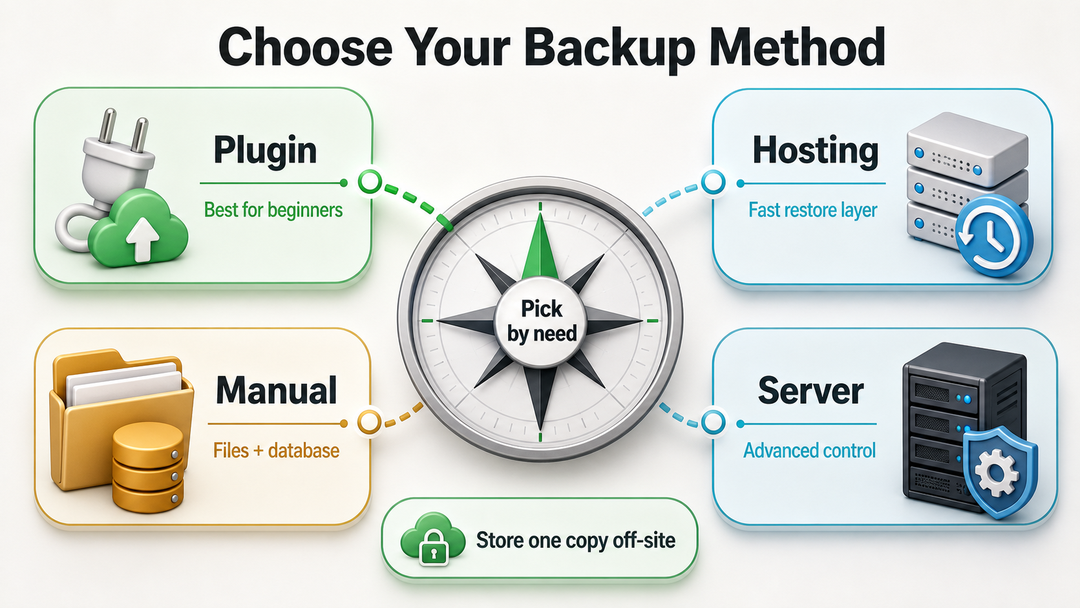
There is no single backup method that fits every site. Choose based on your comfort level, hosting setup, and how quickly you need to recover.
| Method | Best For | Difficulty | Main Advantage | Main Limitation |
|---|---|---|---|---|
| Backup plugin | Most beginners and small business sites | Easy | Can automate full backups and send them off-site | Plugin quality, storage setup, and restore testing still matter |
| Hosting backup tool | Sites with reliable managed hosting or cPanel backups | Easy to moderate | Often fast and built into the hosting account | May be host-specific or limited by retention rules |
| Manual backup | Developers, migrations, emergency copies, or sites without backup tools | Moderate | Gives direct control over files and database | Easy to miss a step if you are new |
| Server-level backup | Larger or custom server environments | Advanced | Can cover full server state | Usually needs developer or sysadmin oversight |
For a normal WordPress blog, portfolio, company site, or starter WooCommerce site, use a plugin plus off-site storage. For mission-critical stores, membership sites, and busy publications, consider managed hosting backups, real-time or high-frequency plugin backups, and a tested restore process.
If you are still building your site foundation, our guide on how to set up a WordPress website can help you place backups alongside hosting, HTTPS, themes, plugins, and launch tasks.
Method 1: Back Up WordPress With a Backup Plugin
A backup plugin is usually the easiest way to back up a WordPress website because you can run the backup from inside the WordPress dashboard.
Popular examples include UpdraftPlus, Duplicator, Jetpack VaultPress Backup, BlogVault, and similar tools. Do not choose only by popularity. Check whether the plugin supports full-site backups, scheduled backups, off-site storage, restore options, recent updates, compatibility with your WordPress version, and an active support history.
Step 1: Install a Backup Plugin
In your WordPress dashboard:
- Go to Plugins > Add New.
- Search for the backup plugin you want to use.
- Review the plugin listing, update history, ratings, and compatibility notes.
- Click Install Now.
- Click Activate.
If your site is already unstable, avoid installing new plugins until you have a hosting-level or manual backup. Installing a plugin changes the site, and on a fragile site even a small change can make troubleshooting harder.
Step 2: Choose a Full Backup
Open the plugin’s backup settings and choose a full backup. The wording varies by plugin, but you are looking for both:
- Database backup
- Files backup
Files should include your uploads, themes, plugins, and relevant WordPress files. The database should include your posts, pages, comments, users, settings, and plugin data.
Some plugins let you exclude folders to reduce backup size. Be careful with exclusions. Excluding cache folders is often reasonable, but excluding uploads, themes, plugins, or database tables can create a backup that does not restore the site properly.
Step 3: Connect Off-Site Storage
Do not keep your only backup inside the same WordPress installation. If your server fails, your account is suspended, malware damages files, or you lose access to the hosting account, a local-only backup may disappear with the site.
Good off-site options include:
- Google Drive
- Dropbox
- OneDrive
- Amazon S3
- Backblaze B2
- SFTP storage on a separate server
- A secure local copy downloaded to your computer
Use strong passwords and two-factor authentication on the storage account. Backups can contain sensitive data: admin emails, user records, customer details, form submissions, and private content. Treat them like keys to the site.
Step 4: Run the First Backup
Start the backup and wait until the plugin says it is complete. Large sites can take time, especially if the media library is heavy or the host has limited server resources.
After the backup finishes, check that:
- The backup includes files and the database.
- The backup has a recent timestamp.
- The off-site copy uploaded successfully.
- The file size looks realistic for your site.
- The plugin does not show warnings or failed jobs.
If the backup fails, do not ignore it. Check plugin logs, storage permissions, server disk space, PHP memory limits, and timeout settings. On a small site, a failed backup is usually fixable. On a large site, you may need incremental backups, host-level backups, or a premium backup service.
Step 5: Schedule Automatic Backups
Manual backups are easy to forget. Set a schedule that matches how often your site changes.
| Site Type | Suggested Database Backup | Suggested Files Backup |
|---|---|---|
| Static brochure site | Weekly or monthly | Weekly or monthly |
| Blog with occasional posts | Weekly | Weekly |
| Active blog or content site | Daily or several times per week | Weekly |
| WooCommerce store | Real-time, hourly, or at least daily | Daily or several times per week |
| Membership or course site | Real-time, hourly, or at least daily | Daily or several times per week |
| Before major updates | Immediately before the change | Immediately before the change |
The database usually changes more often than files. A blog post, order, comment, form entry, or new user updates the database. Files change when you upload media, install or update plugins, switch themes, or edit code.
Method 2: Back Up WordPress Through Your Hosting Account
Many hosting companies include backups in the hosting dashboard. Managed WordPress hosts may create automatic daily backups. cPanel hosts may provide Backup, Backup Wizard, File Manager, phpMyAdmin, or WP Toolkit options.
Host backups are useful because they often run outside WordPress. That means they can still work when your WordPress dashboard is broken. They are especially helpful before updates, migrations, support requests, and troubleshooting.
What to Check Before Trusting Host Backups
Before you rely on a host backup system, answer these questions:
- Does it back up both files and database?
- How often does it run?
- How long are backups kept?
- Can you download your own copy?
- Can you restore to staging first?
- Can you restore only files, only database, or both?
- Is backup access included in your plan?
- What happens if your hosting account is suspended or canceled?
If the answer to several of those questions is unclear, use host backups as one layer, not your only layer.
General Hosting Backup Steps
The exact labels vary, but the general process is:
- Log in to your hosting account.
- Open the backup, website, or WordPress management area.
- Choose the WordPress site you want to back up.
- Create a new backup or download the latest automatic backup.
- Confirm whether the backup includes files and the database.
- Download a copy if the host allows it.
- Store that copy in a secure off-site location.
Some hosts provide one-click restore points. That is convenient, but do not confuse convenience with independence. If the backup exists only inside the host account, you still depend on that host being available.
Backing Up Through cPanel
If your host uses cPanel, you may see several paths:
- Backup or Backup Wizard for account-level backups.
- File Manager for compressing and downloading site files.
- phpMyAdmin for exporting the WordPress database.
- WP Toolkit if your host enables WordPress management tools.
cPanel’s support documentation explains how to generate site backups through File Manager and how to export MySQL databases through phpMyAdmin. For a WordPress site, make sure you collect both parts: the site files and the database export.
If you do not know which database belongs to your site, open wp-config.php in your WordPress files and look for the DB_NAME value. Be careful not to edit the file unless you know what you are changing.
Method 3: Manually Back Up WordPress Files and Database
Manual backup is not the easiest route, but it is valuable. It helps when the WordPress dashboard is unavailable, when a plugin backup fails, when you are migrating a site, or when you want a direct emergency copy.
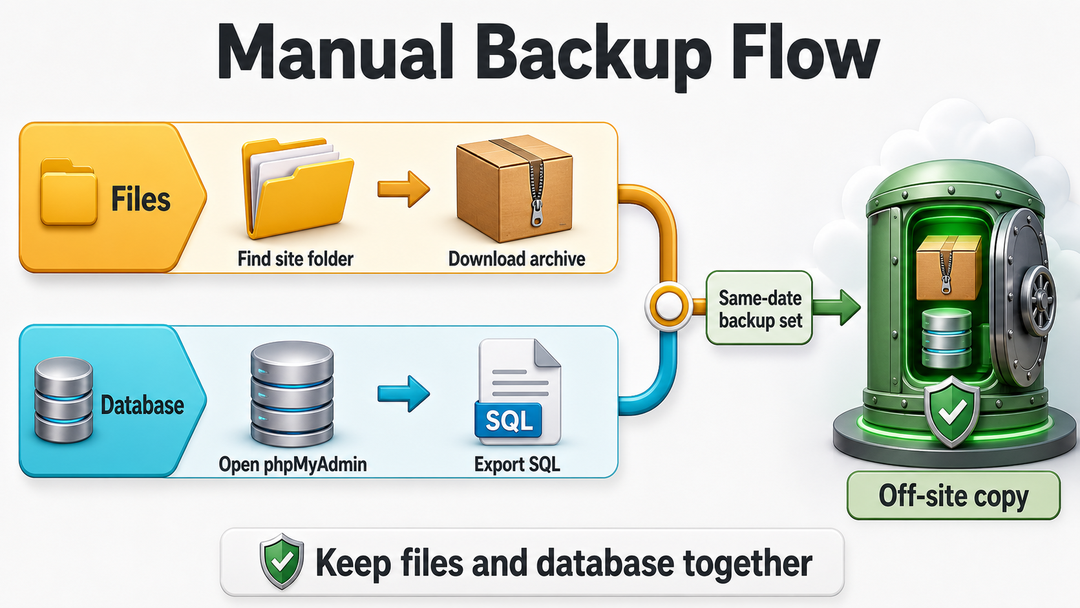
Manual backup has two jobs:
- Download the WordPress files.
- Export the WordPress database.
Do both before you consider the backup complete.
Part A: Back Up WordPress Files
You can download WordPress files through cPanel File Manager, your hosting file manager, FTP, or SFTP.
The most important file areas are:
wp-content/uploads/for media files.wp-content/themes/for theme files.wp-content/plugins/for plugin files.wp-config.phpfor database connection and configuration details.- Any custom files added to the site root or other directories.
If you are using cPanel File Manager:
- Log in to cPanel.
- Open File Manager.
- Find the folder for your WordPress site, often
public_htmlfor the main domain. - Select the WordPress site files.
- Compress them into a
.zipor.tar.gzarchive. - Download the archive to your computer.
- Move a copy to secure off-site storage.
If you use SFTP:
- Open an SFTP client such as FileZilla or your preferred tool.
- Connect with credentials from your host.
- Find the WordPress site directory.
- Download the site files to a folder on your computer.
- Keep the folder name and date clear, such as
example-site-files-2026-08-07.
SFTP is preferable to plain FTP because it uses an encrypted connection. If your host still suggests plain FTP, ask whether SFTP or SSH access is available.
Part B: Back Up the WordPress Database
The database is where WordPress stores content and settings that aren’t plain files.
The WordPress Developer Handbook’s database backup documentation includes phpMyAdmin as one database backup route. A typical phpMyAdmin export looks like this:
- Log in to your hosting account or cPanel.
- Open phpMyAdmin.
- Select the database used by your WordPress site.
- Click Export.
- Choose a SQL export. For most beginners, the default or quick export is usually enough.
- Download the
.sqlfile. - Store it with the file backup from the same date.
If your hosting account has several databases, confirm the right one through wp-config.php. Look for:
define( 'DB_NAME', 'database_name_here' );Do not share this file publicly. It can include sensitive database connection details.
Part C: Label the Backup Clearly
Manual backups become messy quickly if you do not label them.
A simple naming pattern is:
site-name_full-backup_YYYY-MM-DD/
  files.zip
  database.sql
  notes.txt
In notes.txt, record:
- Site URL
- Backup date
- WordPress version, if known
- PHP version, if known
- Backup method used
- Any warnings or unusual steps
That little note can save time later, especially if you are restoring under pressure.
Where to Store WordPress Backups
A backup should not live only on the same server as the site. If the server fails or malware damages the account, the backup can be lost with everything else.
Use the 3-2-1 idea as a practical model:
- Keep at least 3 copies of important data.
- Use 2 different storage types or locations.
- Keep at least 1 copy off-site.
For a small WordPress site, that might mean:
- One backup inside your hosting account.
- One backup in cloud storage.
- One occasional copy downloaded to your computer or external drive.
For a business-critical site, use a stronger system with automated off-site storage, retention rules, restricted access, and restore testing.
Also think about privacy. A WordPress backup may include personal data, order records, user emails, contact form entries, private posts, and configuration secrets. Limit who can access backups, use strong storage-account security, and delete old backups you no longer need.
How Often Should You Back Up WordPress?
Your backup schedule should match how often the site changes.
If you publish once a month, weekly backups may be enough. If you run an online store, a daily backup can still lose orders from the same day. If your site collects payments, registrations, bookings, course progress, or community activity, use higher-frequency or real-time backups.
Use this simple rule:
Ask yourself how much work or data you can afford to lose. Then schedule backups more often than that.
If losing one week of posts would be painful, back up more than weekly. If losing one hour of orders would be painful, daily backups are not enough.
Create extra backups before:
- Updating WordPress core.
- Updating many plugins at once.
- Changing themes.
- Editing theme or plugin code.
- Migrating hosts.
- Cleaning malware.
- Importing large amounts of content.
- Running search-and-replace operations in the database.
If an update goes wrong, our guide to common WordPress errors can help you troubleshoot the symptom, but a clean backup is often the fastest path back to normal.
How to Check Whether a Backup Will Actually Restore
A backup file sitting in cloud storage is reassuring. A tested backup is better.
You do not need to restore over your live site to test it. Safer options include:
- Restore the backup to a staging site if your host provides staging.
- Restore it to a local WordPress environment.
- Ask your host or developer to perform a test restore.
- Use the backup plugin’s restore preview or migration feature if available.
After a test restore, check:
- The homepage loads.
- Important pages load.
- Images appear.
- Menus and widgets are intact.
- Forms work.
- The dashboard is accessible.
- Plugins and theme settings are present.
- WooCommerce orders or membership data appear if relevant.
If the restore fails, do not wait until an emergency to investigate. Fix the backup method, adjust storage, or choose a more reliable backup tool.
This is also where a local test site can be useful. If you want a private place to test backups, updates, and plugin changes, see our guide to install WordPress on localhost.
Common WordPress Backup Mistakes
Most backup problems come from one of these mistakes.
Mistake 1: Backing Up Only the Files
Files alone do not include your posts, pages, settings, comments, users, or many plugin records. A files-only backup can help recover themes, plugins, and uploads, but it is not a complete site backup.
Mistake 2: Backing Up Only the Database
The database does not include uploaded images, theme files, plugin files, or custom code files. A database-only backup can restore content and settings, but the site may still be missing media and code.
Mistake 3: Keeping Backups Only on the Server
If the server is unavailable, hacked, suspended, or deleted, server-only backups may be unavailable too. Keep at least one independent off-site copy.
Mistake 4: Never Testing a Restore
The worst time to discover a broken backup is during a site outage. Test at least one restore before you trust a new backup system.
Mistake 5: Letting Backups Grow Forever
Old backups take space and may contain outdated sensitive data. Keep enough restore points to be safe, but use a retention policy. For example, you might keep daily backups for 14 days, weekly backups for two months, and monthly backups for longer-term recovery.
Mistake 6: Overwriting the Last Clean Backup
If your site is hacked, broken, or infected, do not immediately replace all old backups with new ones. You may need an earlier clean version. For recovery steps, see our guide on how to fix a hacked WordPress site.
WordPress Export vs Full Backup
WordPress has an export tool under Tools > Export. It can export content such as posts, pages, and some custom post types into an XML file.
That is useful for moving content, but it is not the same as a full website backup.
| Tool | What It Is Good For | What It Does Not Fully Cover |
|---|---|---|
| WordPress export | Moving posts, pages, and content records | Full database, media files, theme files, plugin files, settings, and server configuration |
| Full WordPress backup | Restoring the whole website | Requires larger storage and a reliable restore method |
Use the export tool when you only need content portability. Use a full backup when you want disaster recovery.
How Backups Fit Into WordPress Maintenance
Backups are part of basic WordPress maintenance, along with updates, security, hosting quality, and careful plugin management.
Themes and plugins can change how your site looks and behaves, so backup timing matters. If you are still learning the difference, our guide to how WordPress themes and plugins work explains why plugin updates, theme changes, and custom code can affect your backup and restore strategy.
For a broader view of building, maintaining, and improving a WordPress site over time, our WordPress development pillar guide connects backups to setup, performance, security, troubleshooting, and long-term site ownership.
WordPress Backup FAQ
What is the easiest way to backup a WordPress website?
The easiest way to backup a WordPress website is to use a backup plugin that creates a full-site backup and sends it to off-site storage. For many beginners, this is simpler than manually downloading files and exporting the database.
Does a WordPress backup include images?
A complete WordPress backup should include images because images are stored as files, usually inside wp-content/uploads/. A database-only backup does not include the actual image files.
Does the WordPress export tool create a full backup?
No. The WordPress export tool is useful for exporting content, but it is not a complete website backup. A full backup should include both the WordPress files and the database.
Can I backup WordPress without a plugin?
Yes. You can backup WordPress without a plugin by downloading the site files through cPanel, a hosting file manager, FTP, or SFTP, then exporting the database through phpMyAdmin or another database tool.
How many WordPress backups should I keep?
Keep enough backups to recover from recent mistakes and delayed problems. A simple site might keep several weekly backups. A business site may need daily, weekly, and monthly restore points. The right number depends on how often the site changes and how much data you can afford to lose.
Where should I store WordPress backups?
Store WordPress backups somewhere separate from the website server. Cloud storage, secure external storage, and a separate backup service are common options. Keeping your only backup on the same server creates a single point of failure.
Should I back up before updating WordPress?
Yes. Create a fresh backup before major WordPress core updates, theme changes, plugin updates, migrations, and database edits. If something breaks, the backup gives you a safer recovery point.
What should I do if my backup fails?
Check the backup plugin or host logs first. Common causes include storage permission errors, server timeouts, low disk space, large media libraries, blocked cloud connections, or PHP limits. If the backup keeps failing, try a host-level backup or manual backup before making major site changes.
Final Takeaway
The safest WordPress backup is not just a file you create once. It is a small recovery system: full-site backups, off-site storage, an automatic schedule, more than one restore point, and at least one successful restore test.
If you remember only one thing, make it this: a complete WordPress backup needs both files and database. Once you have that, store a copy away from your server and test it before the day you desperately need it.