

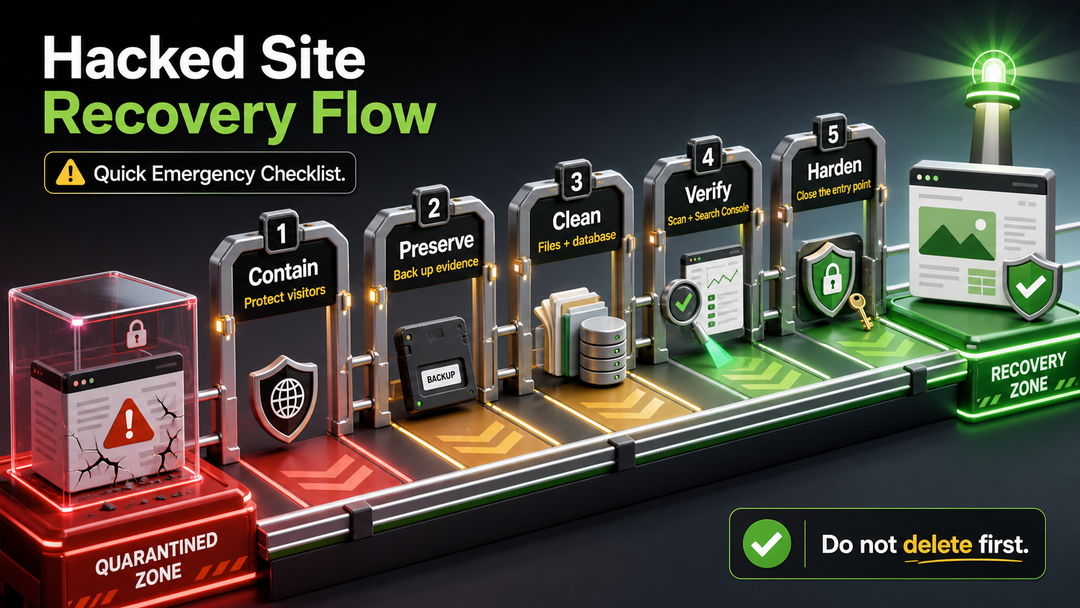
If you need to fix a hacked WordPress site, start by protecting visitors, preserving a full backup of the infected site, changing every important password, scanning files and the database, removing malicious code and users, then closing the entry point that allowed the hack. Do not delete files at random, and do not assume a backup restore has solved the problem until you know the vulnerability is gone.
A hacked site is stressful because it rarely looks the same twice. One owner sees spam pages in Google. Another sees a pharmacy redirect only on mobile. Someone else is locked out of the dashboard while the homepage still looks normal. The recovery process is the same basic job: regain control, clean the infection, prove the site is safe, and reduce the chance of reinfection.
This guide focuses on self-hosted WordPress sites, meaning WordPress installations on your own hosting account. If your site is on WordPress.com, start with the official WordPress.com hacked-site support guide, because account access, backups, scans, and support options work differently there.
Quick Emergency Checklist
Use this checklist before you begin deeper cleanup:
- Put the site in maintenance mode or temporarily restrict public access if visitors are at risk.
- Contact your hosting provider and ask for malware findings, server logs, backups, and any suspension details.
- Save a copy of the infected site files and database before cleanup.
- Change passwords for WordPress admins, hosting, SFTP/FTP, database, email, CDN, and any connected service.
- Remove unknown admin users and revoke access you do not recognize.
- Scan WordPress core, plugins, themes, uploads, database tables, and server configuration files.
- Replace WordPress core, plugins, and themes with clean copies from trusted sources.
- Remove malicious redirects, spam pages, backdoors, and database injections.
- Update WordPress, PHP, plugins, themes, and security keys.
- Run follow-up scans, check Google Search Console, and request a review if Google shows a warning.
Signs Your WordPress Site Has Been Hacked
WordPress.org recommends starting with the symptoms, or indicators of compromise, because “hacked” can mean several different things. The official WordPress.org hacked-site FAQ lists examples such as search-engine blacklisting, host suspension, malware warnings, unauthorized users, visible defacement, or complaints from visitors.
Common warning signs include:
- Visitors are redirected to spam, gambling, adult, fake support, or malware pages.
- Google search results show strange pages under your domain.
- Search Console reports hacked content, malware, unwanted software, or social engineering.
- Your host suspends the account or sends a malware notice.
- You find new admin users you did not create.
- Files in
wp-admin,wp-includes, plugins, themes, or uploads changed unexpectedly. - The homepage is replaced, hidden links appear, or code appears in the header or footer.
- The site sends spam emails or triggers antivirus warnings.
- You cannot log in, or your admin role has changed.
- The site becomes unusually slow, crashes, or consumes abnormal hosting resources.
Not every broken WordPress site is hacked. A fatal PHP error, failed update, plugin conflict, or theme issue can look frightening without being a security incident. WordPress Recovery Mode, described in the official WordPress.org Recovery Mode documentation, can sometimes help you regain dashboard access after a fatal error. But if you see unknown users, spam content, redirects, malware warnings, or modified files you did not change, treat the site as compromised until proven otherwise.
Before You Clean Anything: Preserve Evidence and Access
Your first instinct may be to delete suspicious files. Slow down for a minute. A rushed cleanup can remove evidence, break the site, or hide the entry point that will let the attacker return.
Start a simple incident note. Record what you saw, when you saw it, which URLs were affected, who had admin access, and what changed recently. Include plugin installs, theme edits, hosting changes, new users, agency access, and suspicious emails. This record helps your host or security professional find the source faster.
Then make a full backup of the infected site:
- WordPress files
- Database
- Uploads folder
wp-config.php.htaccessor NGINX configuration- Server logs, if available
This backup is not for restoring directly to production. It is a safety copy and evidence snapshot. If you delete the wrong file, need to compare changes, or must prove what happened, you will be glad you kept it.
If your host has suspended the site, ask them for the infected-file list and a safe way to regain access. If they can provide recent access logs or malware scan results, save those too.
Step-by-Step: How to Fix a Hacked WordPress Site
The safest way to fix a hacked WordPress site is to work in layers: access, files, database, users, configuration, search warnings, then prevention. Skipping layers is why many hacked WordPress sites get cleaned and then infected again a few days later.
1. Protect Visitors First
If the site is redirecting visitors, distributing malware, collecting sensitive information, or showing phishing content, restrict public access while you work. You can use maintenance mode, host-level access controls, or a temporary holding page.
Do not leave a dangerous page online because you are afraid of downtime. A short, honest maintenance screen is better than sending customers to a malicious redirect.
For stores, membership sites, healthcare sites, schools, or any site that handles personal data, consider getting professional help immediately. A hacked website can involve privacy, payment, and contractual obligations that go beyond a normal WordPress repair.
2. Contact Your Hosting Provider
Your host can often see details you cannot. Ask whether they detected malware, which files were flagged, whether other sites on the account are affected, and whether old installations or backups exist in public folders.
Also ask for:
- The PHP version in use
- Recent access logs
- Error logs
- Backup dates
- Malware scan findings
- Whether outbound spam was detected
- Whether file permissions look abnormal
This is also a good time to review hosting quality. If your host cannot provide malware information, backups, logs, or basic isolation, the cleanup will be harder. For future planning, DomFlags has a beginner-friendly guide to choosing the best hosting for WordPress that covers the support and security features worth checking before trouble starts.
3. Change Passwords and Revoke Suspicious Access
Assume important credentials may be exposed. Change passwords for:
- All WordPress administrator accounts
- Hosting control panel
- SFTP, FTP, and SSH
- Database user
- Domain registrar
- CDN or firewall service
- Email accounts connected to WordPress
- Payment, analytics, forms, CRM, and SMTP services connected to the site
Use strong, unique passwords and enable two-factor authentication wherever possible. The official WordPress hardening guide emphasizes passwords, updates, file permissions, backups, logging, and monitoring as part of reducing risk.
Next, review user accounts. Remove unknown admins, demote accounts that no longer need admin access, and check whether any user email addresses changed. If a developer, agency, or contractor had access, confirm whether that access is still needed.
4. Back Up the Infected Site
Yes, even after changing passwords, create or preserve a full infected backup if you have not already done it. This sounds strange, but it protects you from irreversible cleanup mistakes.
Keep it offline or in a private storage location. Label it clearly as infected so nobody restores it casually later.
5. Scan the Site in More Than One Place
A hacked WordPress site can hide malware in files, database content, user accounts, cron jobs, server rules, or old folders. A frontend scanner may find visible spam but miss backdoors. A plugin scanner may find changed files but miss every database payload.
Scan and inspect these areas:
| Area | What to Look For |
|---|---|
| WordPress core | Changed core files, unfamiliar files in wp-admin or wp-includes |
| Plugins | Modified plugin files, abandoned plugins, nulled premium plugins |
| Themes | Suspicious code in active theme, child theme, or unused themes |
| Uploads | PHP files or executable scripts inside media folders |
| Database | Spam posts, hidden links, malicious scripts, altered site URL values |
| Users | Unknown admins, changed roles, suspicious email addresses |
| Server config | Redirects or rewrite rules in .htaccess, NGINX config, or control panel |
| Old folders | Stale WordPress installs, public backups, abandoned test sites |
Wordfence’s cleanup documentation recommends comparing changed WordPress files against original core, plugin, and theme files, and checking recently modified files. You do not need to use one specific tool, but the idea is sound: compare what is on your server with clean originals from trusted sources.
6. Replace WordPress Core With a Clean Copy
Download WordPress only from the official WordPress source or use your host’s trusted WordPress management tool. Replace core files with clean copies.
Be careful with wp-content and wp-config.php. Your themes, plugins, uploads, and configuration live there, so do not overwrite everything blindly. Core replacement usually focuses on WordPress core directories and files while preserving your content and configuration.
If you are uncomfortable doing this, stop and ask your host or a WordPress security professional. A hacked site is fixable, but a mistaken overwrite can create a second problem.
7. Reinstall Plugins and Themes From Trusted Sources
Delete and reinstall plugin and theme files from official or trusted sources. Do not keep nulled, cracked, abandoned, or unknown premium copies. They are a common source of malware and reinfection.
Remove inactive plugins and themes you do not need. Keep one default WordPress theme as a fallback if your workflow requires it, but do not leave a museum of old themes in the account.
If you customized a theme directly, compare your changes carefully before replacing files. Long term, customizations should live in a child theme or a maintainable custom plugin so you can update safely.
For broader context on how these pieces fit together, read DomFlags’ guide to how WordPress themes and plugins work. Understanding that relationship makes cleanup less mysterious.
8. Remove Malicious Files, Redirects, and Backdoors
Backdoors are hidden access points attackers use to return after the obvious malware is gone. They often look like harmless PHP files, random filenames, fake plugin files, or code inserted into legitimate files.
Check especially:
wp-content/uploads/for PHP fileswp-content/plugins/for unknown plugin folderswp-content/themes/for modified template files- Root files near
index.php,.htaccess, andwp-config.php wp-adminandwp-includesfor files that do not belong- Old folders such as
/old/,/backup/,/test/,/new/, or abandoned subdomains
Google’s hacked-site guidance describes injected content and malicious redirects as common compromise patterns. The Google Search Central hacked-sites post also notes that redirects can target specific visitors, such as users coming from search engines or mobile devices.
That means you should test more than one path:
- Visit the site directly.
- Visit from Google search results.
- Test on mobile and desktop.
- Check important pages, not only the homepage.
- Inspect source code for hidden links or scripts.
- Use Search Console’s affected URL examples when available.
9. Clean the Database
WordPress stores posts, pages, options, widgets, user records, plugin settings, redirects, and theme data in the database. Malware can live there too.
Look for:
- Spam posts or pages
- Suspicious JavaScript in posts, widgets, or options
- Unknown admin users
- Modified
siteurlorhomevalues - Malicious redirects in SEO, redirection, cache, or custom-code plugins
- Strange cron events
- Spam links hidden in old content
Do not run broad search-and-replace operations unless you know exactly what they will change. Export the database first. Then clean carefully, table by table, or use a trusted malware cleanup service if the infection is widespread.
10. Rotate WordPress Security Keys
WordPress uses security keys and salts in wp-config.php to help protect authentication cookies. After a hack, rotate them so existing logged-in sessions are invalidated.
You can generate fresh keys from the official WordPress.org secret-key service, then replace the existing key block in wp-config.php. After this, all users will need to log in again.
11. Update WordPress, PHP, Plugins, and Themes
Cleanup without updates is only half a repair. Update:
- WordPress core
- Active theme and child theme
- All plugins
- PHP version, if your host supports a newer stable version compatible with your site
- Server-side tools your host manages
Remove anything abandoned or unsupported. If a plugin has not been maintained and handles login, forms, payments, uploads, membership, redirects, ads, or custom code, treat it as a higher-risk decision.
If you are planning a larger rebuild after the incident, the DomFlags pillar guide to WordPress development gives a broader map of installation, themes, plugins, security, performance, and maintenance.
12. Run Follow-Up Scans and Manual Checks
Run a second scan after cleanup. Then check the site manually.
Review:
- Homepage
- Main landing pages
- Blog posts with high traffic
- Login page
- Checkout or lead forms
- Search results for
site:yourdomain.com - Source code on important pages
- Server logs after cleanup
- Search Console security issues
If the same suspicious file returns after deletion, you have not found the entry point. Look again at users, credentials, writable folders, old installs, cron jobs, compromised devices, and server-level access.
Should You Restore a Backup?
A clean backup can be useful, but it is not magic.
Restore a backup when the current site is badly damaged, you know the backup predates the infection, and you can update and secure the site immediately afterward. Do not restore an old backup and walk away. If the vulnerable plugin, weak password, compromised admin account, or exposed folder still exists, the site can be hacked again.
Use this decision table:
| Situation | Backup Restore? | Why |
|---|---|---|
| You know the exact infection date and have a clean backup before it | Often helpful | Restores clean files faster |
| You do not know when the site was infected | Risky | The backup may already contain malware |
| The site has fresh orders, leads, or memberships | Use caution | A full restore may lose recent data |
| The infection destroyed important files | Helpful as a starting point | You may need a known-good baseline |
| The same hack keeps coming back | Not enough | The entry point is still open |
For business-critical sites, consider restoring to a staging area first. Clean and test there before replacing production.
How to Remove Google “This Site May Be Hacked” Warnings
If Google detects a security issue, it can show warnings in search results or browsers. The Google Search Console Security issues report groups problems such as hacked content, malware and unwanted software, and social engineering.
To recover:
- Verify your site in Google Search Console.
- Open the Security issues report.
- Review the affected sample URLs and issue descriptions.
- Clean every affected pattern, not only the sample URLs.
- Test important pages as a normal user and, where possible, as Google sees them.
- Submit a review request after the site is clean.
- Monitor Search Console after the warning is removed.
Do not request a review while suspicious pages, redirects, or hidden links remain. Google may reject the request if the cleanup is incomplete, and repeated failed reviews slow the recovery process.
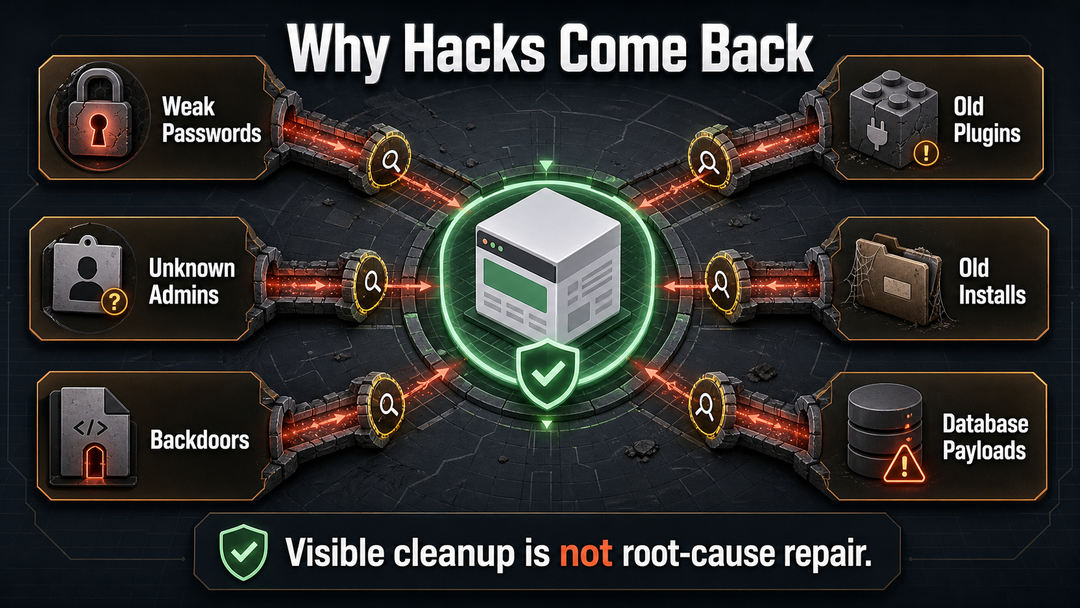
Why Hacked WordPress Sites Get Reinfected
Reinfection usually means the cleanup removed symptoms but not the cause.
Common reasons include:
- An old admin password still works.
- An unknown admin user remains.
- A backdoor file was missed.
- A vulnerable plugin or theme stayed installed.
- A nulled theme or plugin was reinstalled.
- An old WordPress copy in a subfolder is still public.
- File permissions allow unsafe writes.
- A developer’s device or FTP client is compromised.
- Database malware was missed.
- Hosting account credentials were not changed.
This is why the cleanup should end with hardening, not just a clean-looking homepage.
How to Harden WordPress After Cleanup
Once the site is clean, reduce the chance of another compromise.
Post-hack hardening checklist:
- Keep WordPress core, plugins, themes, and PHP updated.
- Remove unused plugins, themes, old installs, and public backup folders.
- Use strong unique passwords and two-factor authentication for admins.
- Limit administrator accounts to people who truly need them.
- Disable dashboard file editing if your workflow allows it.
- Review file permissions with your host.
- Use a web application firewall or host-level security layer.
- Schedule tested backups stored outside the hosting account.
- Monitor file changes, uptime, login attempts, and Search Console.
- Keep a simple incident-response plan for future issues.
For a fuller prevention workflow, use the DomFlags WordPress security checklist after the hacked site is stable. It covers the habits and controls that matter before the next emergency.
When to Hire a WordPress Security Professional
DIY cleanup can work for small, simple sites when you have file access, backups, and enough technical confidence. Hire help when:
- The site handles payments, medical data, student data, memberships, or private customer information.
- Your host suspended the account and you cannot access files.
- The infection keeps returning.
- You see phishing pages, malware downloads, or browser warnings.
- You cannot tell legitimate code from malicious code.
- You need a written incident report for a client, regulator, insurer, or business partner.
- The site is important enough that downtime costs more than expert cleanup.
A good security professional should explain what they found, what they removed, what likely caused the hack, and what you should change next. A cleanup without root-cause notes is not much comfort.
FAQ
Can a hacked WordPress site be fixed?
Yes, a hacked WordPress site can usually be fixed if you still have hosting access, database access, or a usable backup. The repair should include cleanup, password rotation, user review, updates, Search Console checks, and post-cleanup hardening.
Should I delete suspicious files immediately?
No. Back up the infected site first, then investigate. Deleting suspicious files without a backup can break the site or remove evidence your host or security professional needs.
Can a security plugin clean a hacked WordPress site?
A security plugin can help find and remove many infections, especially changed files and known malware patterns. It should not be treated as the whole recovery plan. You still need to review users, passwords, database content, server rules, old installs, backups, and the entry point.
Why does my WordPress hack keep coming back?
A recurring hack usually means a backdoor, vulnerable plugin, stolen credential, unknown admin user, database injection, or old public installation was missed. Cleanups fail when they remove visible malware but leave the attacker’s way back in.
How long does it take Google to remove hacked-site warnings?
There is no guaranteed timeline. After you clean the site and request a review in Google Search Console, Google must recrawl and confirm that the security issue is gone. The important part is to submit the review only after every affected pattern has been fixed.
Is restoring a backup safer than manual cleanup?
It can be safer if the backup is clean and you know it predates the hack. It is risky if you do not know when the infection started or if the backup still contains the vulnerable plugin, weak credentials, or malicious files that caused the problem.
Final Takeaway
The safest way to fix a hacked WordPress site is to treat it like an incident, not a quick plugin chore. Protect visitors, preserve a backup, regain access, clean files and database content, remove suspicious users, close the entry point, and verify the site with your host and Google Search Console. Once the site is stable, harden it so this repair does not become a recurring routine.