

The “Error establishing a database connection” WordPress message means WordPress can load its PHP files, but it cannot connect to the database where your posts, pages, users, settings, theme options, plugin data, and orders live. The most common causes are incorrect database details in wp-config.php, a database server problem, missing database-user privileges, corrupted tables, a failed migration, or a hosting resource issue.
If your site is showing this error right now, start calmly. Do not delete WordPress files or edit database tables at random. In most cases, the content is still there. WordPress cannot reach it.
Quick Answer: What to Check First
Use this order if you need the site back online as safely as possible:
- Confirm whether your host is having a database or server outage.
- Back up the site if your hosting panel still lets you create a backup.
- Open
wp-config.phpand compareDB_NAME,DB_USER,DB_PASSWORD, andDB_HOSTwith your hosting control panel. - Confirm the database exists and the database user has permission to access it.
- If WordPress says the database may need repair, use the WordPress repair tool carefully and remove the repair setting afterward.
- If the error appeared after a migration, restore, staging push, or domain move, check for mismatched database names, hosts, table prefixes, and old credentials.
- If the error comes and goes, ask your host to check MySQL or MariaDB load, connection limits, disk space, and server logs.
- Restore a clean backup or contact hosting support if the issue is server-level or you cannot access the database safely.
| What Happened Before the Error? | Most Likely Area to Check | Best First Move |
|---|---|---|
| You migrated the site | Wrong database name, user, password, host, or table prefix | Compare wp-config.php with the new host’s database panel |
| Your host changed a password or server | Database credentials or DB_HOST changed | Ask the host for the current database connection details |
| The error appears for all pages and wp-admin | Database connection failure | Check credentials and database server status |
| The error appears only sometimes | Overloaded database server or connection limit | Ask the host to check MySQL/MariaDB logs and connection limits |
| WordPress says tables may need repair | Corrupted database tables | Use the built-in repair tool after backing up |
| The site broke after a restore or staging push | Wrong database, old URL, or incomplete restore | Check database mapping before editing tables |
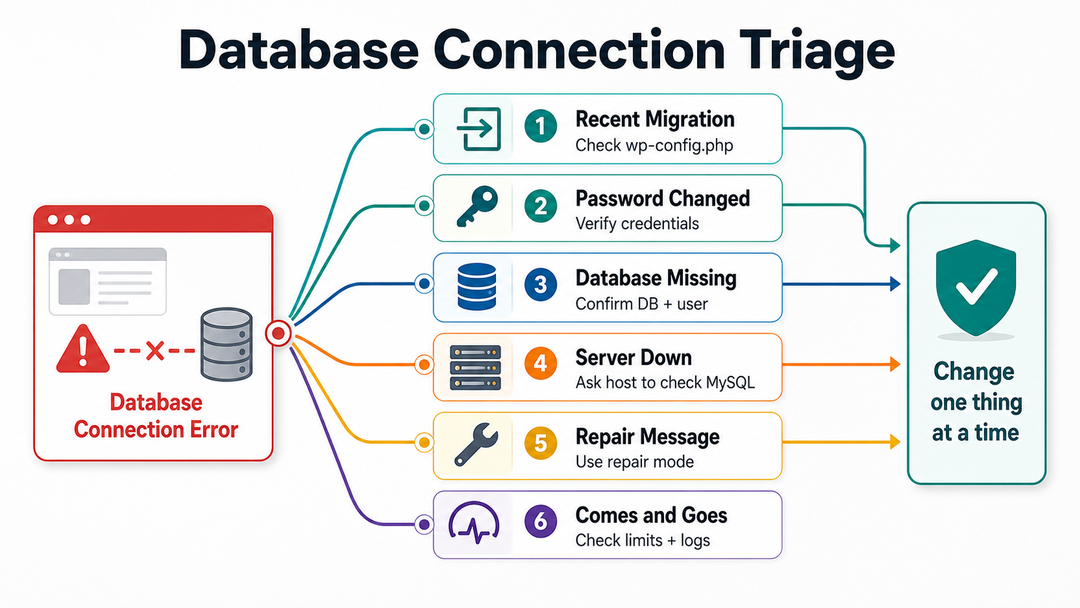
What This Error Means
WordPress is built from two main parts: files and a database. The files contain WordPress core, themes, plugins, uploads, and configuration. The database stores dynamic content and settings: posts, pages, users, comments, menus, plugin settings, WooCommerce order data, and much more.
When someone visits your site, WordPress has to connect to that database before it can build the page. If the connection fails, WordPress stops and shows the database connection error instead of your normal site.
WordPress.org lists “Error Establishing Database Connection” as one of the common WordPress errors and points to incorrect wp-config.php information, hosting problems, and compromised websites as possible causes in its common errors documentation.
In plain English, the error usually means one of these things:
- WordPress is using the wrong database name, username, password, or host.
- The database exists, but the database user cannot access it.
- MySQL or MariaDB is down, overloaded, or unreachable.
- The database tables are damaged or unavailable.
- A migration, restore, or staging push connected WordPress to the wrong database.
- Hosting limits, disk space, or connection limits are blocking normal database access.
If you are still learning how WordPress fits together, our guide to what WordPress is explains the relationship between the software, files, database, themes, plugins, and hosting.
Before You Change Anything
When a site is down, it is tempting to start trying fixes quickly. That is understandable, but database troubleshooting rewards patience. A small typo in the wrong place can turn a connection problem into a longer recovery job.
Before editing files or touching the database:
- Check hosting status. If your host has a public status page or support notice, look for database maintenance or outages.
- Back up what you can. Use your hosting panel’s backup tool if the site dashboard is unavailable.
- Write down recent changes. Migration, restore, plugin update, PHP change, password reset, staging push, control-panel change, or billing/account issue.
- Use the right access method. You may need SFTP, FTP, SSH, WP-CLI, cPanel, phpMyAdmin, your host’s file manager, or managed-host support.
- Protect credentials. Do not paste your database password, salts, or full
wp-config.phpfile into public forums, screenshots, chat tools, or unsecured tickets.
If the site handles ecommerce orders, bookings, form submissions, memberships, or user accounts, be extra careful with backup restores. Restoring an old database may bring the site back, but it can also remove recent orders or submissions.
Diagnose the Likely Cause
The fastest fix depends on what changed right before the error started.
| Symptom | Likely Cause | What to Check |
|---|---|---|
| Error appeared after moving hosts | Old database credentials | New host’s database panel and wp-config.php |
| Error appeared after changing database password | Outdated password in wp-config.php | DB_PASSWORD |
| Error appeared after creating a new database user | Missing user privileges | Database user permissions |
| Error affects multiple sites on the same hosting account | Server-level database problem | Hosting support, MySQL/MariaDB status |
| Error appears during traffic spikes | Connection limit or overloaded database | MySQL logs, max_connections, resource limits |
| Error appears after a failed restore | Incomplete files or database mismatch | Backup restore logs and database mapping |
| wp-admin shows a repair message | Corrupted database tables | WordPress repair tool or host support |
This is why random plugin disabling is not the best first move for this specific error. Plugins and themes can contribute to server load or damaged states, but the message itself points first to the connection between WordPress and the database. If your issue is a blank site or fatal PHP error instead, see our guide to the WordPress white screen of death for the safer plugin/theme isolation path.
Step 1: Check Your WordPress Database Settings in wp-config.php
The wp-config.php file sits in the root folder of a self-hosted WordPress installation. It contains the database connection details WordPress uses before it loads your site.
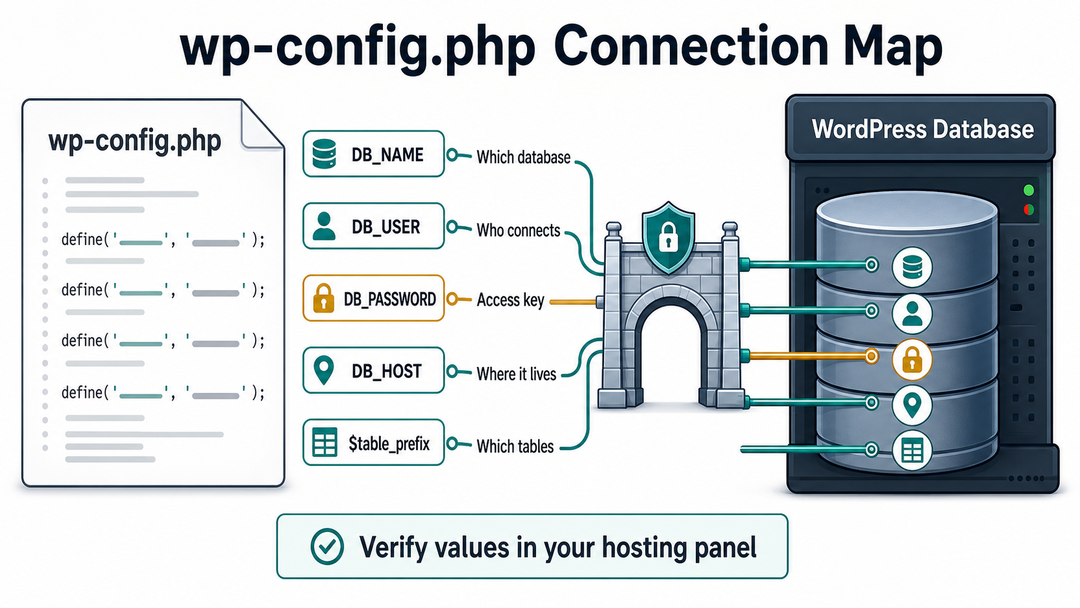
The official WordPress wp-config.php documentation identifies the main database settings as:
define( 'DB_NAME', 'database_name_here' );
define( 'DB_USER', 'username_here' );
define( 'DB_PASSWORD', 'password_here' );
define( 'DB_HOST', 'localhost' );
Open the file with your hosting file manager, SFTP client, or SSH editor. Then compare each value with the database details shown in your hosting control panel.
What Each Database Setting Means
| Setting | What It Controls | Common Problem |
|---|---|---|
DB_NAME | The exact database WordPress should use | Old database name after migration |
DB_USER | The MySQL or MariaDB user WordPress logs in as | Wrong user or deleted user |
DB_PASSWORD | The password for that database user | Password changed but wp-config.php not updated |
DB_HOST | The database server address | Host requires something other than localhost |
$table_prefix | The prefix before WordPress table names | Site points to tables with a different prefix |
Be precise. Database names, usernames, and passwords can be case-sensitive depending on the server. A single extra space, the wrong quote mark, a copied old password, or a missing special character can break the connection.
Common DB_HOST Traps
Many WordPress installs use:
define( 'DB_HOST', 'localhost' );But not every host does. WordPress.org notes that a database host may need a hostname, port number, or Unix socket path. Examples include:
define( 'DB_HOST', '127.0.0.1:3307' );
define( 'DB_HOST', 'mysql.example.com:3307' );
define( 'DB_HOST', 'localhost:/var/run/mysqld/mysqld.sock' );
Do not guess this value from another tutorial. Use the database host shown in your hosting control panel or ask your host directly.
Step 2: Confirm the Database and User Still Exist
Sometimes the settings in wp-config.php look correct, but the hosting account no longer has the matching database or user.
In your hosting control panel, check:
- Does the database named in
DB_NAMEstill exist? - Does the user named in
DB_USERstill exist? - Is that user assigned to the database?
- Does the user have the permissions required to read and write WordPress tables?
- Was the database renamed during a migration, restore, or hosting-panel cleanup?
On cPanel-style hosting, this is often handled in MySQL Databases or a similar database management screen. On managed WordPress hosting, the database details may be hidden or managed by support, so you may need to ask the host to verify them.
If the database user exists but has no privileges on the WordPress database, WordPress may fail even though the username and password are correct. Reassign the user to the database with the host’s recommended permissions, or ask support to do it.
Step 3: Check Whether MySQL or MariaDB Is Down
If wp-config.php is correct and the database user has access, the database server itself may be unavailable.
This is especially likely when:
- Several WordPress sites on the same hosting account show the same error.
- The error appeared without any site changes.
- Your host is doing maintenance.
- The error appears intermittently.
- The hosting panel is slow or cannot open database tools.
- Server logs mention MySQL, MariaDB, sockets, refused connections, or connection timeouts.
Shared hosting users usually cannot restart MySQL or MariaDB themselves. In that case, contact hosting support and ask them to check the database service, server load, disk space, and error logs.
If you manage your own VPS or server, check the database service through your server tools. The exact commands depend on your operating system and stack, so do not paste random restart commands into production unless you know your server environment.
This is also where hosting quality matters. Reliable backups, database support, resource visibility, staging, PHP controls, and responsive support are part of choosing the best hosting for WordPress, especially for business-critical sites.
Step 4: Repair Corrupted WordPress Database Tables
If WordPress can connect to the database but some tables are damaged, you may see a different message in wp-admin telling you the database may need repair. In that case, WordPress includes a built-in repair tool.
First, back up the database if possible. Then open wp-config.php and add this line above the comment that says /* That's all, stop editing! Happy publishing. */:
define( 'WP_ALLOW_REPAIR', true );Then visit:
https://yourdomain.com/wp-admin/maint/repair.phpYou may see options to repair the database, or repair and optimize the database. Use the least aggressive option that solves the issue.
When you finish, remove this line from wp-config.php:
define( 'WP_ALLOW_REPAIR', true );That cleanup matters because the repair page is intentionally accessible without logging in when the constant is enabled. Do not leave it available after troubleshooting.
If you see repeated table corruption, ask your host to check disk health, database engine status, forced shutdowns, backup jobs, and malware or unexpected file changes.
Step 5: Check Recent Migrations, Restores, and Staging Pushes
Database connection errors often appear right after a site move. That does not always mean the migration failed. It may mean WordPress is pointing at the wrong database.
Check these migration details:
- Was
wp-config.phpcopied from the old host without updating credentials? - Did the new host create a different database name?
- Did the database username change?
- Does the new host use a remote
DB_HOSTinstead oflocalhost? - Was the password regenerated during the move?
- Does
$table_prefixmatch the actual tables in the database? - Did a staging push overwrite production
wp-config.phpvalues? - Did a restore bring back old database credentials?
- Did only files restore while the database stayed on the newer version, or vice versa?
If you are still setting up the site and need the normal installation context, our guide on how to install WordPress explains where the installation, database, and configuration pieces fit.
For local testing, the same principle applies. A local WordPress site still needs the correct database name, user, password, host, and table prefix. If you use XAMPP, Local, MAMP, Docker, or another local stack, see our guide to install WordPress on localhost for the setup foundation.
Step 6: Fix Intermittent Database Connection Errors
An error that appears once and stays there often points to credentials or server availability. An error that appears and disappears is different.
Intermittent database connection errors can come from:
- Traffic spikes
- Too many database connections
- Slow database queries
- Backup or security scans
- WooCommerce or membership activity
- Heavy page builders or poorly optimized plugins
- Object-cache problems
- Low disk space
- Shared-hosting resource limits
- Database server restarts
The MySQL manual explains that a “Too many connections” error happens when all available client connections are in use, and that the permitted number is controlled by the max_connections system variable in MySQL’s too many connections documentation.
If you are on shared or managed hosting, you may not be able to change that setting yourself. Ask your host:
- Did MySQL or MariaDB hit a connection limit?
- Are slow queries visible in the logs?
- Is one plugin, cron job, backup, import, or bot causing excessive database load?
- Is disk space full or nearly full?
- Did the database server restart?
- Are other sites on the same server affected?
Do not solve an intermittent error by unthinkingly raising limits if the underlying cause is runaway traffic, a broken plugin, a stuck import, or a slow query. Higher limits can hide the symptom while the site keeps wasting resources.
Step 7: Check Debug Logs and Hosting Logs
WordPress debugging is useful, but it is not always the first tool for this error because WordPress may fail before it can write normal logs. Still, logs can help when the problem is mixed with plugin failures, migrations, PHP warnings, or intermittent issues.
WordPress.org’s debugging documentation recommends taking a backup or using staging before modifying the site. It also explains WP_DEBUG, WP_DEBUG_LOG, and WP_DEBUG_DISPLAY.
For a live site, use logging without showing errors publicly:
define( 'WP_DEBUG', true );
define( 'WP_DEBUG_LOG', true );
define( 'WP_DEBUG_DISPLAY', false );
Then check:
wp-content/debug.logAfter troubleshooting, turn debugging off again:
define( 'WP_DEBUG', false );Also ask your host for server-side logs, because database connection failures may show more clearly in:
- MySQL or MariaDB logs
- Web server error logs
- PHP error logs
- Resource-usage reports
- Backup or restore logs
- Security or malware scan logs
If you send logs to support, redact private information. Do not expose database passwords, salts, secret keys, customer data, full server paths that reveal sensitive account structure, or database dumps.
Step 8: Restore a Backup or Contact Hosting Support
A backup restore is sometimes the fastest fix, but it is not always the safest first fix.
Restore a backup when:
- The site broke immediately after a known change.
- You have a clean backup from just before the problem.
- You understand whether the restore includes files, database, or both.
- You can accept losing changes made after the backup.
- The site is down and time matters more than diagnosing the original cause immediately.
Pause before restoring if the site has recent:
- Orders
- Form submissions
- Bookings
- Membership changes
- User registrations
- Course progress
- Comments or forum posts
In those cases, ask the host whether they can restore to staging, restore files only, restore the database only, or preserve recent database activity.
Contact hosting support when:
- You cannot access
wp-config.php, phpMyAdmin, database users, or backups. - Your database details look correct, but the error remains.
- Multiple sites on the same account are affected.
- The error is intermittent.
- Logs mention MySQL, MariaDB, connection limits, disk space, or server restarts.
- The issue started after host maintenance.
- You suspect malware or account compromise.
Here is a useful support message you can adapt:
My WordPress site is showing "Error establishing a database connection."
The affected URL is: https://example.com
The issue started around: [date/time/timezone]
Recent changes: [migration/password change/update/restore/none known]
I checked wp-config.php against the hosting database panel: [yes/no]
Please verify the database server status, database user privileges, MySQL/MariaDB logs, connection limits, disk space, and whether the database host value has changed.
Good support messages save time. They also reduce the chance that support gives you a generic answer while your site remains down.
What Not to Do
Avoid these risky moves:
- Do not delete
wp-config.php. - Do not overwrite
wp-config.phpwith a sample file unless you know every value that belongs in it. - Do not delete database tables because they look unfamiliar.
- Do not run SQL commands copied from random tutorials.
- Do not leave database test scripts online.
- Do not post database credentials in forums or screenshots.
- Do not restore an old database without checking recent orders, leads, or user activity.
- Do not assume the issue is a plugin conflict before checking database credentials and server health.
If you need to understand themes and plugins while troubleshooting other WordPress problems, our guide to how WordPress themes and plugins work gives the background without turning this database article into a plugin debugging guide.
How to Prevent the Error
You cannot prevent every database outage, but you can make recovery much easier.
Use this checklist:
- Keep automatic backups enabled and test that restores work.
- Store hosting, SFTP, database, and registrar access securely.
- Record database names and hosts during migrations.
- Use staging for major changes when possible.
- Avoid editing
wp-config.phpwithout first making a backup copy. - Do not share database credentials in unsecured channels.
- Monitor uptime so you notice downtime quickly.
- Keep hosting contact details available.
- Review disk space and resource limits on small hosting plans.
- Remove abandoned plugins and themes that can create load or security risk.
- Keep WordPress core, PHP, themes, and plugins reasonably current.
- Document migration and restore steps.
Database reliability sits inside the broader maintenance side of WordPress development. The site is easier to fix when hosting, backups, configuration, updates, staging, and monitoring are treated as one connected system.
For a new site, prevention starts earlier than troubleshooting. A careful launch path, sensible hosting choice, and clean setup process reduce the chance of configuration errors later. Our guide to setting up a WordPress website walks through that foundation.
FAQ About Error Establishing a Database Connection WordPress
What causes an error establishing a database connection in WordPress?
The error is usually caused by incorrect database settings in wp-config.php, a database server outage, missing database-user privileges, corrupted database tables, a failed migration, or hosting resource limits. WordPress cannot build the page because it cannot connect to the database that stores site content and settings.
Is my WordPress content lost?
Usually, no. The error means WordPress cannot reach the database; it does not automatically mean the database content has been deleted. Your posts, pages, users, and settings may still be present, but you should avoid risky database edits until you confirm the cause.
Can I access wp-admin during this error?
Often, no. If the database connection fails, both the public site and /wp-admin may be unavailable because the dashboard also needs the database. If wp-admin shows a database repair message, follow the repair path carefully after backing up.
Where is the WordPress database password stored?
For a standard self-hosted WordPress install, the database password is stored in wp-config.php as the DB_PASSWORD value. Treat this file as sensitive. Do not share screenshots or copies of it unless passwords, salts, and secret keys are redacted.
Should DB_HOST always be localhost?
No. Many hosts use localhost, but some require a remote hostname, IP address, port, or socket path. Use the value provided by your host or hosting control panel, especially after a migration or server change.
Is the WordPress database repair tool safe?
The built-in repair tool can help when tables are damaged, but back up first when possible and remove define( 'WP_ALLOW_REPAIR', true ); from wp-config.php after you finish. Do not leave the repair page enabled.
Can a plugin cause a database connection error?
A plugin can contribute indirectly by creating heavy queries, exhausting resources, or causing server load. Still, the database connection error usually points first to credentials, database availability, user privileges, corrupted tables, or hosting limits. Check those before doing broad plugin isolation.
Why does the error only happen sometimes?
Intermittent errors often point to hosting resource limits, database connection limits, traffic spikes, slow queries, backup jobs, or a database server that is restarting or overloaded. Ask your host to check MySQL or MariaDB logs and connection limits.
Should I use phpMyAdmin to fix this?
Use phpMyAdmin only when you know what you are checking, such as confirming the database exists or inspecting table names. Do not delete, empty, or edit tables while guessing. If the database contains business data, ask your host or developer before making direct changes.
When should I contact hosting support?
Contact support when your credentials look correct, the database user has privileges, multiple sites are affected, the error is intermittent, logs mention database limits, or you cannot safely access backups and database settings. Hosting support can see server-level logs that WordPress may not be able to show.
Final Takeaway
The “Error establishing a database connection” WordPress message is scary because it takes the whole site offline, but it is usually a connection problem, not instant content loss.
Start with the safest clues: hosting status, backups, wp-config.php, database existence, user permissions, server health, repair messages, migration history, and logs. Change one thing at a time. When the problem lives on the database server, bring your host into the loop early instead of trying risky database edits under pressure.