
You can customize WordPress theme without coding by using the WordPress Site Editor for block themes, the Customizer for classic themes, theme patterns, global Styles, page builder plugins, and built-in theme settings. The safest path is to identify your theme type first, make visual changes inside WordPress, preview them on mobile, and avoid editing theme files unless you know exactly what you are changing.
For most beginners, the goal is not to “build a theme.” It is simpler than that. You want your site to look like your brand, show the right logo and menu, use readable fonts, display pages in the right layout, and feel less like a default demo.
You can do that without touching PHP, CSS, JavaScript, or theme files. You just need to choose the right editing tool for the theme you already have.
Start by Identifying Your Theme Type
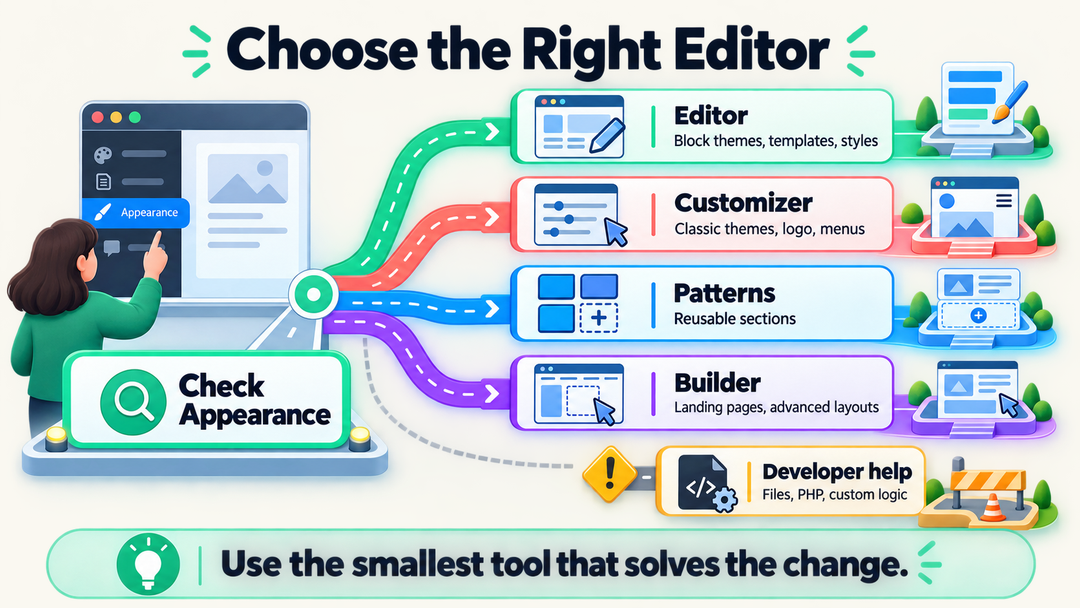
Before you change anything, check whether your active theme is a block theme or a classic theme. This one detail decides which no-code editor you should use first.
Log in to your WordPress dashboard and open Appearance in the left menu.
- If you see Editor, your site is using a block theme. Start with the Site Editor.
- If you see Customize, your site is probably using a classic theme. Start with the Customizer.
- If you use a visual builder such as Elementor, Divi, Beaver Builder, Bricks, or SeedProd, some design controls may live inside that builder instead.
WordPress.org explains that the Site Editor lets block theme users edit navigation, styles, pages, templates, and patterns. WordPress.org also notes that the Customizer is mainly used by themes that support the older Customizer interface.
This is where many beginners get stuck. They search for a button someone mentioned in a tutorial, but their dashboard doesn’t show it. Usually, nothing is broken. They are just using a different theme type.
If the theme itself still feels like a mystery, it helps to understand how WordPress themes and plugins work before you start changing layouts. Themes control presentation. Plugins usually add features. Mixing those jobs is one of the easiest ways to make a site harder to maintain later.
Choose the Right No-Code Customization Method
The best method depends on what you want to change. Use the smallest tool that solves the problem.
| What You Want to Change | Best No-Code Tool | Best For | Main Caution |
|---|---|---|---|
| Site-wide colors, fonts, spacing | Site Editor Styles or theme settings | Brand look and readability | Changes may affect the whole site |
| Header, footer, templates | Site Editor | Block themes and full-site layout changes | Saving a template part can affect many pages |
| Logo, menus, widgets, homepage settings | Customizer | Classic themes | Available options depend heavily on the theme |
| One landing page or sales page | Page builder plugin | Custom page layouts | Builder lock-in can make future redesigns harder |
| Reusable sections | Patterns or reusable builder sections | Repeated calls to action, layouts, banners | Keep names clear so editors know what they are changing |
| Small visual polish | Built-in block settings | Buttons, columns, images, spacing | Too many one-off tweaks can make pages inconsistent |
The cleanest workflow is usually this: use your theme’s built-in editor for global design, use page-level blocks for content layout, and use plugins only when WordPress or your theme cannot do the job well.
If you remember only one rule, make it this: customize WordPress theme without coding by choosing the editing layer first, not by chasing random settings across the dashboard.
Customize a Block Theme With the Site Editor
If your site uses a block theme, the Site Editor is your main no-code control room. It lets you edit the site structure using blocks: header, footer, navigation, templates, archive layouts, single post layouts, and reusable patterns.
To open it, go to Appearance > Editor.
Inside the Site Editor, WordPress currently organizes the experience around areas such as Navigation, Styles, Pages, Templates, and Patterns. That means you can change both the design system and the layout pieces that appear across your site.
Use the Site Editor when you want to:
- Change your header layout.
- Edit your footer.
- Adjust your navigation menu.
- Change global typography and colors.
- Modify the blog post template.
- Edit archive, search, or 404 layouts.
- Use or create patterns for repeated sections.
The key is understanding scope. Editing one paragraph on a normal page affects that page. Editing a template can affect every post or page that uses that template. Editing a header template part can affect the whole site.
That power is helpful, but it deserves a careful hand.
A Safe Site Editor Workflow
Use this sequence when you want to customize WordPress theme without coding in a block theme:
- Go to Appearance > Editor.
- Open Styles first and choose the closest style variation.
- Adjust typography, colors, and layout spacing before editing individual blocks.
- Open Templates only when you need to change the structure of posts, pages, archives, or special screens.
- Use Patterns for sections you may repeat, such as call-to-action blocks, feature grids, or newsletter sections.
- Use List View before deleting or moving large groups of blocks.
- Preview important pages on desktop and mobile.
- Save only the specific items you meant to change.
The Site Editor can ask you which changed items to save. Read that screen carefully. If you changed a header, template, and navigation menu during one session, WordPress may list all of them. Save the parts you intended, not everything blindly.
Customize a Classic Theme With the Customizer
Classic themes usually rely on the WordPress Customizer. Open it from Appearance > Customize.
The Customizer gives you a live preview panel and a menu of theme-supported options. The exact controls depend on the theme, but common areas include:
- Site identity.
- Logo.
- Site icon.
- Menus.
- Widgets.
- Homepage settings.
- Colors.
- Background image.
- Header image.
- Excerpt settings.
- Additional CSS.
WordPress.com’s Customizer support guide explains that modern block themes may still show some Customizer options, but will often direct users toward the Site Editor for fuller design control. That is another reason to start by checking your theme type.
The Customizer is beginner-friendly because it previews changes before publication. It is especially good for brand basics: logo, title, tagline, menus, homepage behavior, and theme-provided color settings.
Its limitation is simple: you can only change what the theme exposes. If your classic theme doesn’t offer a layout option, the Customizer cannot magically create one.
Use Global Styles Before Tweaking Individual Blocks
If you are using a block theme, make global design decisions before you style individual blocks one by one.
Global Styles are where you set broad design rules such as typography, colors, layout width, background, and block-level defaults. Learn WordPress describes Styles as a way to modify a block theme’s appearance without editing code, especially for colors, fonts, typography, and layout.
Start here:
- Set your main body font.
- Set heading font and scale.
- Choose a readable color palette.
- Define button colors.
- Check link colors.
- Adjust layout spacing.
- Review block-specific styles for buttons, headings, navigation, and images.
This keeps the site consistent. If you manually change the color of every button on every page, your design will eventually drift. One button will be blue, another slightly darker blue, and another still using the demo style. Global settings reduce that mess.
For a small business site, a calm design system usually beats constant decoration. Choose one primary brand color, one accent color, a readable body font, and a heading style you can live with for a year.
Use Patterns for Reusable No-Code Layouts
Patterns are pre-built groups of blocks. They are one of the easiest ways to create polished sections without designing every row from scratch.
WordPress.org’s Site Editor Patterns documentation explains that block themes can include theme patterns, and users can create or manage their own patterns from the Site Editor. Theme patterns are often locked as originals, but you can duplicate them to make your own editable version.
Use patterns for:
- Hero sections.
- Testimonials.
- Pricing rows.
- Feature lists.
- Call-to-action sections.
- FAQ layouts.
- Service summaries.
- Newsletter blocks.
Patterns help keep structure consistent. Instead of rebuilding the same service section on five pages, you can start from the same pattern and adapt the content.
One caution: do not install a new plugin for every layout idea. First check your theme’s patterns, then the block inserter, then your current builder if you use one. Extra plugins can increase maintenance, add interface clutter, and create future compatibility issues.
Customize Pages Without Changing the Whole Theme
Sometimes you do not need to customize the theme at all. You only need to improve one page.
For example, a homepage may need a stronger hero section, clearer service cards, and a better contact call to action. A blog post template does not need to change for that. You can edit the page content with blocks or your page builder.
Use page-level editing when:
- You are changing one homepage.
- You are building a landing page.
- You are improving an About page.
- You are creating a services page.
- You want a unique layout for one campaign.
Use theme-level editing when:
- The header needs to change everywhere.
- The footer needs to change everywhere.
- Blog posts need a new template.
- Archive pages need a new layout.
- The global color or typography system is wrong.
This distinction protects you from accidental site-wide changes. It also makes the work less intimidating. Not every design issue is a theme issue.
When a Page Builder Makes Sense
Page builders can be helpful when your theme’s native controls are too limited or when you need highly customized landing pages without code. Common examples include Elementor, Divi, Beaver Builder, Bricks, and SeedProd.
A builder may make sense if you need:
- Drag-and-drop landing pages.
- More advanced columns and responsive controls.
- Custom headers or footers with a visual interface.
- Marketing sections such as opt-in forms, pricing blocks, popups, or sales pages.
- A design workflow your team already knows.
But builders are not automatically better than WordPress itself. They add another layer to your site. Before choosing one, ask:
- Will the builder work well with my theme?
- Can I remove it later without rebuilding every page?
- Does it slow down important pages?
- Does it support responsive editing?
- Is the plugin actively maintained?
- Will another editor understand the layout after me?
For a beginner site, the best builder is often the one you can use consistently without overcomplicating the site. If the native Site Editor already handles your header, footer, templates, and styles, you may not need a builder at all.
If you are still selecting your foundation, read how to choose a WordPress theme before installing extra design tools. A well-chosen theme can prevent a lot of plugin sprawl.
This is also why the best way to customize WordPress theme without coding is rarely “install the most powerful builder.” It is “use the lightest visual tool that gives you the control you actually need.”
What You Can Safely Change Without Code
Most visual customization belongs safely inside WordPress settings, the Site Editor, the Customizer, blocks, patterns, or a builder.
You can usually change these without code:
- Logo.
- Site title.
- Tagline.
- Site icon.
- Menus.
- Header layout.
- Footer content.
- Homepage layout.
- Typography.
- Colors.
- Buttons.
- Backgrounds.
- Content width.
- Image placement.
- Blog post template.
- Archive layout.
- Widgets or widget blocks.
- Reusable sections.
You should be more careful with:
- Custom CSS.
- Theme file edits.
- PHP snippets.
- Header scripts.
- Tracking code.
- Checkout templates.
- Membership templates.
- Plugin template overrides.
These may still be manageable, but they are no longer purely no-code. If a tutorial asks you to paste code into functions.php, edit style.css, or open a theme file editor, pause. That is a different kind of customization.
WordPress.com’s guide to editing theme files directly treats the Theme File Editor as a tool for users with programming knowledge and lists safer alternatives for people who are new to coding. That caution is right for beginners.
Do You Need a Child Theme?
You usually do not need a child theme for changes made in the Site Editor, Customizer, block editor, theme settings, or a page builder. Those changes are typically stored in the database or WordPress configuration, not as edits inside the parent theme’s files.
You may need a child theme when you plan to change theme files directly, such as:
- Template files.
functions.php.- Theme CSS files.
- PHP output.
- WooCommerce template overrides.
A child theme helps preserve file-level customizations when the parent theme updates. It does not replace backups, staging, or careful testing.
For a fuller explanation, read what a WordPress child theme is before you edit files. Many no-code users can avoid child themes entirely, but it is still worth understanding the boundary.
Back Up Before Big Design Changes
Even no-code changes can create surprises. A header edit might affect every page. A template change might alter every blog post. A builder setting might make a mobile layout look cramped.
Before a major theme customization session, back up your site. If you already have a live site with traffic, use a staging site when possible.
At minimum, protect yourself before you:
- Switch themes.
- Redesign the homepage.
- Edit templates.
- Change header or footer structure.
- Replace a page builder.
- Reset global styles.
- Import a starter site.
- Delete patterns, navigation menus, or template parts.
If you are not sure what a proper backup includes, use the checklist in how to backup a WordPress website before making broad changes. Those few minutes can save hours of cleanup.
A Practical No-Code Theme Customization Checklist
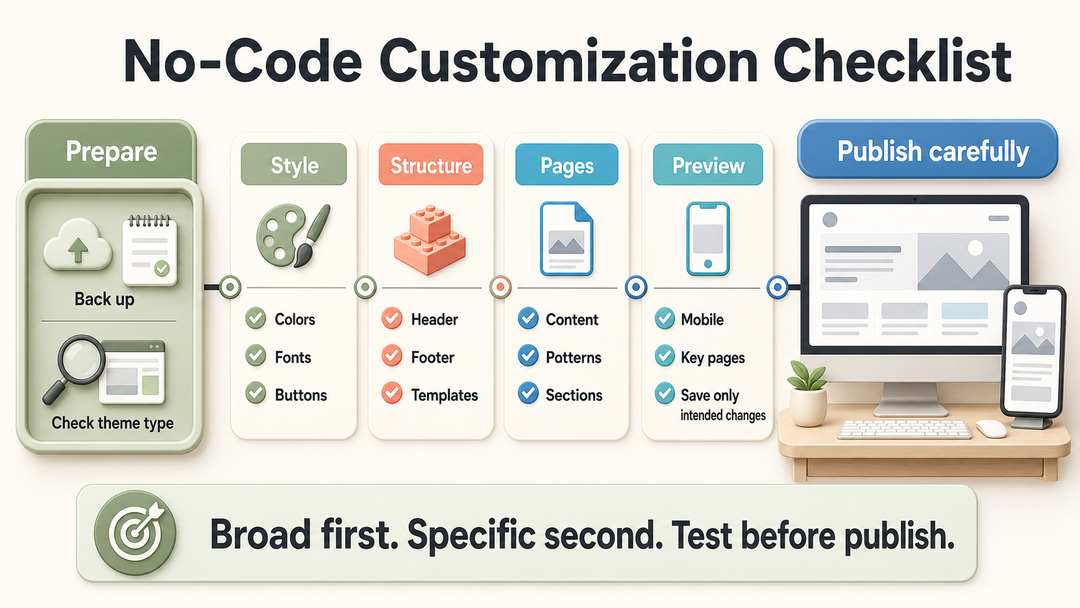
Use this checklist when you want to customize WordPress theme without coding and keep the result clean.
- Clarify the goal. Write down what should change: logo, menu, colors, fonts, homepage, header, footer, post layout, or specific pages.
- Check the theme type. Use Site Editor for block themes and Customizer for classic themes.
- Back up first. For a live business site, use staging for larger changes.
- Set global styles. Decide fonts, colors, button styles, spacing, and layout width before editing individual pages.
- Edit structure carefully. Change headers, footers, templates, and navigation only when you understand their site-wide effect.
- Use patterns for repeated sections. Duplicate locked theme patterns when needed instead of rebuilding layouts from scratch.
- Customize page content separately. Do not edit a global template when one page layout is the real problem.
- Preview mobile early. Check menu behavior, button wrapping, image cropping, spacing, and readable font sizes.
- Test key pages. Review homepage, About, Contact, blog archive, single post, search, and 404 pages.
- Save intentionally. If WordPress lists multiple changed items, save only the items you meant to update.
Common Beginner Mistakes to Avoid
The most common mistakes are not dramatic. They are small choices that pile up.
Editing the Wrong Layer
If you want to change one page, edit that page. If you want to change every post layout, edit the post template. If you want to change all buttons, use global styles.
Beginners often edit a template when they only meant to edit one page. That can make the whole site look different.
Styling Every Block Individually
Manual styling feels fast at first. Then you end up with inconsistent spacing, colors, buttons, and headings.
Use global styles for repeated design decisions. Use individual block styling only when a specific section needs a deliberate exception.
Installing Too Many Design Plugins
A plugin for sliders, another for buttons, another for headings, another for columns, another for icons: this gets messy quickly.
Start with WordPress core, your theme, and one main builder if you truly need it. Add plugins when they solve a real limitation.
Ignoring Mobile Layouts
A design can look excellent on a wide desktop screen and awkward on a phone. Always check mobile before you publish. Pay special attention to navigation, columns, button text, image cropping, and large headings.
Editing Theme Files on a Live Site
Theme file edits are not beginner-safe. A small PHP mistake can break a site. Even if the code works, parent theme updates can overwrite direct edits.
If you reach the point where file edits are necessary, move slowly: back up, use staging, use a child theme, and get qualified help if the site matters to your business.
How This Fits Into WordPress Development
No-code customization is still part of WordPress development, just at the visual and configuration end of the spectrum. You are shaping templates, content structure, reusable design patterns, and user experience without writing code.
As your site grows, you may eventually need custom development for performance, special layouts, integrations, plugin behavior, or theme file changes. But starting with no-code tools is sensible. It helps you learn what your site actually needs before you pay for custom work or open a code editor.
When No-Code Customization Is Not Enough
No-code tools are powerful, but they cannot solve everything.
You may need a developer when:
- The theme cannot produce the layout you need.
- You need a custom post type or custom fields.
- You need complex WooCommerce changes.
- You need advanced filtering, booking, membership, or account logic.
- You need performance cleanup after heavy builder use.
- You need accessibility fixes beyond basic visual settings.
- You need custom PHP, JavaScript, API integrations, or template logic.
This is not a failure of no-code WordPress. It’s the line between design control and custom functionality.
If you are unsure, make a simple list: what must change, where it appears, and whether WordPress already offers a visual control for it. If the answer is no after checking the Site Editor, Customizer, theme documentation, and plugin settings, it may be development work.
Frequently Asked Questions
Can I customize a WordPress theme without coding?
Yes. You can customize a WordPress theme without coding by using the Site Editor, Customizer, global Styles, patterns, block settings, theme options, and page builder plugins. You only need code when you want changes that the theme, editor, or plugins don’t support visually.
Why do I see Editor instead of Customize in WordPress?
You usually see Editor instead of Customize because your site uses a block theme. Block themes rely on the Site Editor for templates, patterns, navigation, and styles. Classic themes usually rely more on the Customizer.
Will customizing my theme be lost after an update?
Changes made through the Site Editor, Customizer, block settings, theme options, or a builder are usually not direct edits to parent theme files. Direct changes to parent theme files can be lost during updates, so use safer workflows like child themes and backups for file-level changes.
Should I use a page builder or the WordPress Site Editor?
Use the Site Editor first if your block theme already gives you enough control over templates, headers, footers, patterns, and global styles. Use a page builder when you need a more specialized visual design workflow, advanced landing pages, or builder-specific features your theme does not provide.
Do I need custom CSS to customize my theme?
Not always. You can handle many color, font, spacing, button, layout, and template changes visually. Custom CSS is useful for small design refinements, but it is still code. If you want to avoid code completely, exhaust the Site Editor, Customizer, theme settings, block options, and patterns first.
Final Takeaway
The safest way to customize WordPress theme without coding is to work from broad to specific: identify your theme type, set global styles, adjust header and footer carefully, use patterns for reusable sections, improve individual pages only where needed, and test the site on mobile before publishing.
You do not need to become a developer to make a WordPress site feel like yours. You just need to know which layer you are editing.