

To reduce TTFB on LiteSpeed WordPress, first find out whether slow responses come from a cache miss, PHP and database work, or distance between the visitor and your origin. LiteSpeed can serve cached HTML without starting WordPress, but that advantage depends on the page being cacheable and the server actually returning a cache hit.
For a broader plan that covers front-end and server bottlenecks together, see our guide to comprehensive WordPress performance optimization.
Understanding Time to First Byte and the LiteSpeed Architecture
To reduce TTFB on LiteSpeed WordPress, verify page caching with the x-litespeed-cache: hit header, warm pages after purges, tune PHP and OPcache for dynamic requests, use Redis where profiling supports it, audit autoloaded options, and consider full-page edge caching for distant visitors. Measure each change on your site.
TTFB, or Time to First Byte, measures the time from a browser request until it receives the first byte of the response. It includes redirects, connection setup, and server response time. It is not the same as total page-load time: optimizing images may help Largest Contentful Paint (LCP), but it will not make a slow server begin sending HTML sooner.
Google’s TTFB guidance uses under 0.8 seconds as a good reference and over 1.8 seconds as poor. Treat those as diagnostic thresholds, not guarantees or a ranking score. A practical target for a nearby visitor requesting a cached page is often below 200 ms, while uncached and authenticated requests need their own baseline. TTFB is not itself a Core Web Vitals metric, but a long wait can leave less time for LCP and other rendering work. See Google’s TTFB guidance.
What Happens in the Milliseconds Before the First Byte
A browser resolves the hostname, establishes a connection, negotiates TLS when using HTTPS, sends an HTTP request, and waits for the server. DNS and network conditions vary by resolver, protocol, region, and connection reuse, so fixed timings such as “DNS always takes 20–50 ms” are not reliable planning assumptions. The server may then return cached HTML or boot PHP, load WordPress, run plugins, query MySQL, and construct a response.
Use a waterfall to separate connection setup from waiting on the server. If connection and TLS setup dominate, check DNS, TLS termination, and visitor-to-origin distance. If the request waits after it reaches the server, investigate caching, PHP workers, database queries, and external calls. Test the same URL from more than one location before changing infrastructure.
How LiteSpeed Native C Caching Bypasses the PHP Worker Bottleneck
With a valid LiteSpeed Cache page-cache entry, LiteSpeed can return the stored response at the web-server layer without running the WordPress request through PHP and MySQL. That is why verifying the cache response matters more than installing another optimization plugin. A cache miss or excluded URL takes a different path and can still be slow.
LiteSpeed Web Server and OpenLiteSpeed support LSCache, but server configuration and cache behavior depend on the host. A plugin setting alone cannot guarantee that the server cache is active. Confirm the response headers, then compare the first request after a purge with the next request. For broad context, see our complete Core Web Vitals guide.
The Standard CDN and Redis Misconceptions: Why Your TTFB Is Still High
A CDN and Redis solve different problems. A conventional CDN can bring static files such as CSS, JavaScript, and WebP images closer to visitors. Unless HTML caching is configured, the document request can still travel to the origin. Redis is a persistent object cache for WordPress data; it helps when PHP requests need repeated database results, but a LiteSpeed page-cache hit generally bypasses PHP and does not need Redis to build that response.
| Setup | What it can improve | What it does not automatically fix |
|---|---|---|
| Static-asset CDN | Delivery of cached images, CSS, and JavaScript | Origin-generated HTML TTFB |
| Full-page edge cache | HTML response time for eligible cacheable pages near a visitor | Personalized, private, or uncached requests |
| Redis object cache | Repeated database reads during dynamic WordPress requests | A LiteSpeed page-cache hit that bypasses PHP |
The Standard CDN Fallacy: Why Static Asset CDNs Leave HTML TTFB Unchanged
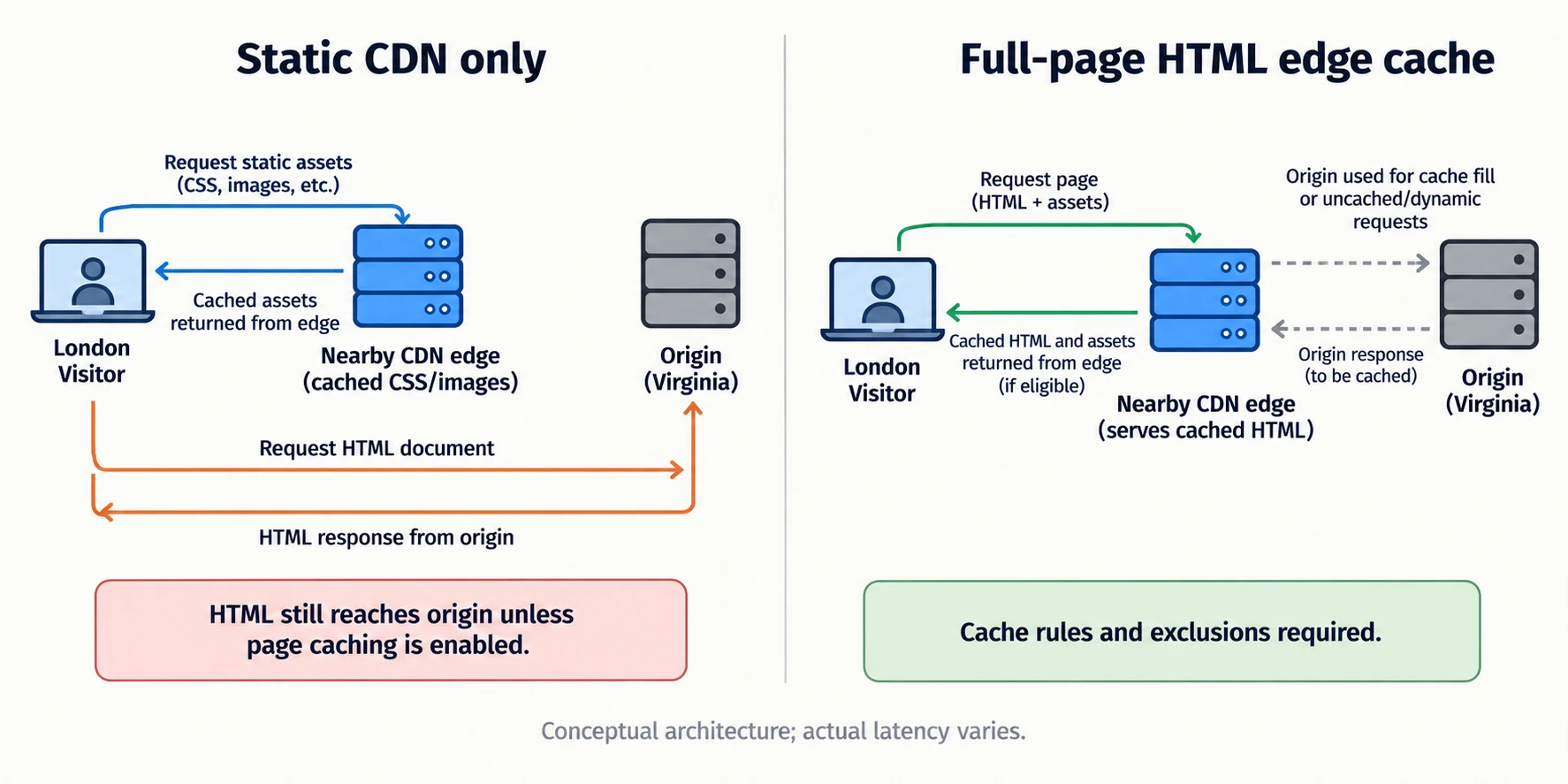
Suppose your origin is in Virginia and a visitor is in London. A standard CDN may serve the page’s CSS and images from a nearby point of presence while forwarding the uncached HTML request to Virginia. The browser still waits for the origin response. The exact delay depends on routing, connection reuse, and server work; a fixed “850 ms” or “sub-100 ms” result should not be promised without measurement.
Full-page edge caching changes the path by storing eligible HTML at an edge location. QUIC.cloud offers integration with LiteSpeed Cache; Cloudflare APO is another product that can cache WordPress HTML. Each requires configuration and cache rules, and dynamic or personalized content needs careful exclusions. Verify cache status and logged-in/cart behavior before routing production traffic through an edge cache. A standard CDN still helps with static assets; it simply is not the same as edge HTML caching.
The Redis Misapplication: Why Object Caching Has Zero Impact on Cached Hits
When LiteSpeed serves an existing page-cache entry, the request may never reach PHP. Redis has no query to accelerate on that path. For a cache miss, WordPress admin request, search, logged-in session, or WooCommerce operation, a persistent object cache may reduce repeated database work. The benefit depends on the site’s query pattern and cache hit rate, so benchmark it rather than assuming a fixed improvement.
Redis also uses memory and needs a compatible object-cache drop-in and server service. If memory is constrained, adding Redis solely to speed up already cached public posts can consume resources without improving those hits. Keep cart, checkout, and account pages correctly excluded from public page caching; see the planned guide to proper WooCommerce cache exclusion rules.
Diagnosing LiteSpeed TTFB: Inspecting Response Headers and CLI Benchmarks
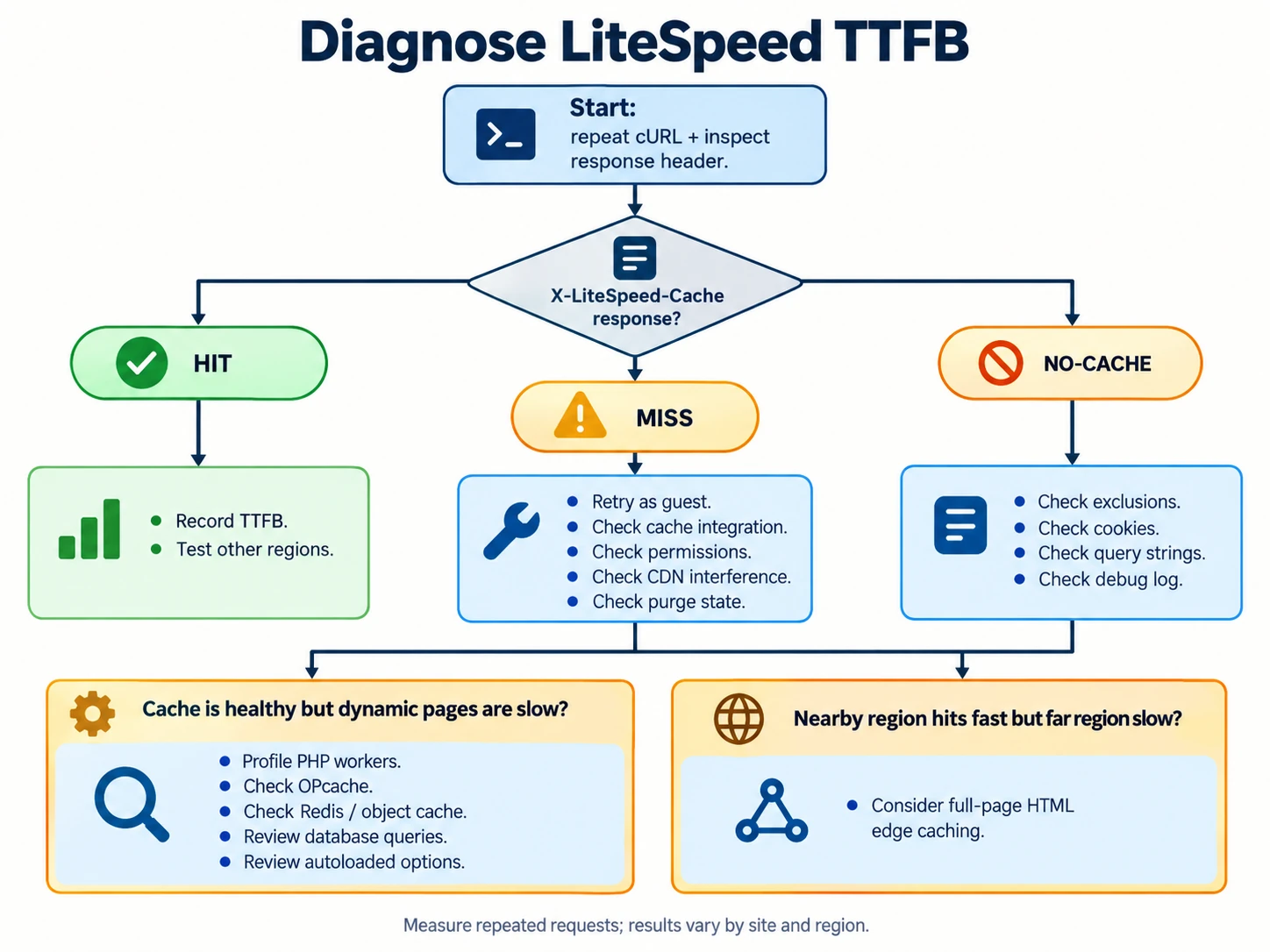
Start with a public URL in a private browser window. In Chrome DevTools, open Network, select the document request, and inspect Response Headers. LiteSpeed’s official troubleshooting guide recommends checking whether the first request is a miss and a later request becomes a hit. A logged-in session or excluded URL may correctly avoid public cache. See LiteSpeed’s troubleshooting documentation.
| Response signal | What it suggests | Next check |
|---|---|---|
x-litespeed-cache: hit | The response was served from LiteSpeed cache | Record TTFB and test from another region |
x-litespeed-cache: miss | This request was not served from an existing cached response | Request again as a guest; check cache directory, CDN interference, and purge behavior |
x-litespeed-cache-control: no-cache or equivalent control header | The response is marked not to be cached | Review Cache Excludes, cookies, query strings, and the debug log |
| Header absent | The request may bypass LiteSpeed cache or another layer may alter headers | Confirm server/plugin integration and test the origin directly if your host supports it |
Header spelling and visibility can vary by configuration. Do not infer that every miss is a fault: a first request may populate the cache, and private pages should not be shared. If a page repeatedly returns no-cache, LiteSpeed advises checking exclusions and its debug log. If it repeatedly misses, check permissions, CDN behavior, and server integration.
Reading x-litespeed-cache Response Headers to Identify Cache Misses
Test a normal public page, not a cart, checkout, account, or admin URL. Purge that page, request it once, then request it again. Record the status code, cache header, and response time for both requests. In DevTools, disable browser cache only to avoid confusing browser storage with the server response; it does not disable a CDN or LiteSpeed cache.
If a CDN sits in front of the site, compare the public hostname with the origin hostname only when your host provides a safe test method. Do not expose private origin addresses or change DNS just to run a benchmark. The Vary header can indicate that responses differ by request characteristics; check the cache configuration before treating a variation as an error.
Running Terminal cURL Commands to Measure Raw Origin Latency
Run several requests and compare their timing fields. The time_starttransfer value is TTFB from cURL’s perspective and includes network setup; time_connect and time_appconnect help explain that setup. Use the public URL first. A shell loop reduces one-off noise:
URL='https://example.com/sample-page/'
for n in 1 2 3 4 5; do
  curl -sS -o /dev/null -w 'status=%{http_code} connect=%{time_connect}s tls=%{time_appconnect}s ttfb=%{time_starttransfer}s total=%{time_total}s\n' "$URL"
done
Then inspect the response headers:
curl -sSI 'https://example.com/sample-page/' | grep -iE '^(HTTP/|x-litespeed-cache|x-litespeed-cache-control|vary|server):'Use a real URL in place of the example. Compare medians, not the single fastest result, and keep the region and cache state consistent. To isolate PHP performance, use a host-approved origin test and document exactly what that test bypasses. cURL does not remove network latency or guarantee an origin-only measurement.
Eliminating Cold-Cache Spikes with the LiteSpeed Cache Crawler
After a purge, the next visitor can trigger the work needed to create a cache entry. That request may execute PHP and query the database, so it can be much slower than a later hit. The crawler can visit eligible URLs ahead of human traffic and populate cache, but it consumes server resources and cannot warm pages excluded from caching. It is a workload-management option, not a guarantee that every visitor sees a hit.
The Architecture of Cold-Cache Penalties on Dynamic WordPress Sites
Cache entries expire, content updates can purge them, and different language, device, cookie, or query-string variants may create separate entries. A site with frequent edits can therefore see intermittent misses. Look at a series of requests and correlate slow responses with miss headers, purge events, or page variations before increasing crawler activity.
Do not cache pages that expose personal or transactional information. Logged-in pages, shopping carts, checkout, and account content often need private or uncached handling. Test these flows after any cache-rule change. If a plugin changes content without purging relevant pages, configure its LiteSpeed integration or purge hook so stale cache does not remain visible.
Configuring the LiteSpeed Crawler with XML Sitemaps and Server Cron
First confirm that the server and hosting plan permit the crawler. In LiteSpeed Cache > Crawler, review the crawler settings, sitemap URL, interval, and server-load controls. Add a valid XML sitemap containing canonical public URLs; remove redirecting, noindex, and intentionally uncached paths where appropriate. Follow the host’s current instructions for enabling the crawler and its cron job, because shared hosting may disable or limit it.
Begin with conservative concurrency and crawl pacing. Watch CPU, PHP worker use, and database load during a warm-up, then adjust gradually. A hard-coded load cutoff such as 4.0 or sleep interval does not fit every host. If resource use rises sharply, slow or pause the crawler and ask the provider about account limits. Verify warmed pages by requesting them twice and checking for a cache hit.
Accelerating Dynamic Requests with In-Memory Redis Object Caching
Add Redis when profiling shows repeated database work on dynamic requests. Install or enable the server service through your host, then enable a WordPress object-cache integration supported by that environment. Confirm that the object cache reports connected and that keys persist between requests. The LiteSpeed Cache page cache and Redis object cache are separate layers and can coexist.
Connecting Redis via Unix Domain Sockets to Bypass TCP Overhead
A Unix domain socket can reduce local transport overhead in some environments, but the improvement depends on the workload and deployment. It is not safe to claim a universal 25–40% speedup. Redis’s official documentation covers connection options; ask the host for the correct socket path and permissions. A wrong path or user/group permission can make the object cache unavailable.
| Connection type | Address example | Practical considerations |
|---|---|---|
| Unix domain socket | /run/redis/redis.sock | Local-only endpoint; requires correct path and filesystem permissions |
| TCP loopback | 127.0.0.1:6379 | Common setup; confirm Redis is bound locally and protected |
| Remote Redis | Hostname and port supplied by provider | Network latency and TLS/authentication requirements may apply |
Use the endpoint your provider documents. Do not paste an assumed socket path into wp-config.php. Configure authentication and protected binding as directed by the host. Benchmark representative dynamic pages before and after; compare query counts, PHP time, and repeated-request TTFB. See Redis documentation.
Protecting WooCommerce Cart Fragments and Checkout Performance
Keep per-user or transactional data out of shared full-page cache. WooCommerce carts, checkout, and account pages commonly vary by session and should follow the plugin’s recommended exclusions. Redis may help repeated object lookups used by these requests, but it does not replace correct page-cache rules or payment-provider testing.
Test add-to-cart, cart quantity changes, checkout validation, login, and order confirmation after changing caching. Check logged-in behavior in a fresh session and verify that one user’s cart never appears for another. If a page is slow, profile its queries and external calls before blaming Redis or LiteSpeed.
Tuning the PHP 8.2 Runtime and LSAPI OPcache Buffers
For requests that execute WordPress, PHP version, worker capacity, and OPcache can affect response time. Upgrade to a PHP release supported by the site’s theme and plugins, then check logs and staging behavior before changing production. Keep the database and PHP versions within your host’s supported combinations.
Configuring LiteSpeed SAPI Process Limits for High-Concurrency Traffic
LSAPI process-manager settings control how PHP workers start and how many requests can run concurrently. Too few workers can queue requests under load; too many can exhaust RAM and cause swapping or termination. There is no universal max children value: memory per PHP process, traffic shape, and other services determine a safe limit.
Ask your host which PHP handler and process manager are active. On a managed panel, use its supported PHP settings rather than editing server files directly. Monitor resident memory, queue time, CPU, and error logs during a representative traffic period. If the server is memory-bound, adding workers may make TTFB worse. For broader infrastructure decisions, compare high-speed enterprise cloud hosting options and our guide to choosing a high-performance WordPress host.
Allocating Bytecode Memory in php.ini to Prevent OPcache Starvation
OPcache stores compiled PHP bytecode in shared memory so PHP does not recompile every script on each request. Check OPcache status for a full cache, wasted memory, or a high number of restarts before changing values. PHP documents opcache.memory_consumption and opcache.max_accelerated_files; the right values depend on the codebase and available memory. A 256 MB allocation is a possible starting point on a suitably sized server, not a universal requirement.
Example settings to discuss with the host:
opcache.enable=1
opcache.memory_consumption=256
opcache.max_accelerated_files=20000
These are examples, not copy-and-paste guarantees. Confirm the active PHP configuration with the hosting panel or a secure diagnostic, restart PHP through the supported mechanism, then check that the new values took effect. See the PHP OPcache configuration manual.
Eliminating Database Bottlenecks and wp_options Autoload Bloat
WordPress loads autoloaded options into the alloptions cache for use during requests. A large set of unused autoloaded values can add memory and database work, especially on dynamic requests or cold object-cache paths. WordPress core documentation describes this behavior; the right remediation is to identify the responsible plugin or option before changing it. A threshold such as 800 KB is a useful investigation trigger from some performance guides, not an official universal limit.
Auditing Autoloaded Options Volume Using phpMyAdmin SQL Queries
Take a database backup and use a read-only query to inspect approximate volume before editing anything. Table prefixes vary, so replace wp_ with the actual prefix. WordPress versions store autoload state using values beyond the legacy yes and no; use the values recognized by your installation and confirm the query against the current schema.
SELECT autoload, COUNT(*) AS option_count,
       ROUND(SUM(LENGTH(option_value)) / 1024, 1) AS size_kb
FROM wp_options
GROUP BY autoload
ORDER BY size_kb DESC;
To find large candidates:
SELECT option_name, autoload,
       ROUND(LENGTH(option_value) / 1024, 1) AS size_kb
FROM wp_options
WHERE autoload IN ('yes', 'on', 'auto-on', 'auto')
ORDER BY LENGTH(option_value) DESC
LIMIT 30;
Do not mass-update rows based on size alone. Determine which plugin owns each option, whether it is still needed, and whether the plugin offers a cleanup tool. Change autoload behavior through WordPress APIs or the plugin’s supported controls when possible. A mistaken edit can break settings or remove data.
Purging Orphaned Transients and Optimizing Database Table Overhead
Expired transients are temporary cached values; WordPress can clean expired ones, while deleting active values can trigger expensive recomputation. Use a reputable maintenance tool or WP-CLI command that targets expired transients, and take a backup first. Avoid deleting every transient or optimizing tables repeatedly without evidence.
Use Query Monitor on a staging copy or an administrator-only session to identify slow queries, duplicate queries, and slow HTTP API calls. Also check database health and indexes with the host. After a cleanup, compare the same dynamic request and cache state. For image-related LCP improvements alongside server work, see our guide to optimizing and converting images to WebP, while remembering that image delivery does not itself fix server TTFB.
Slashing Global TTFB with QUIC.cloud Full-Page Edge HTML Caching
If nearby cached requests are fast but visitors far away still wait, network distance may be the remaining issue. Full-page edge caching can serve eligible HTML from a location closer to the visitor. Standard static CDN caching and edge HTML caching are different configurations. Compare providers based on geographic coverage, cache rules, pricing, purge behavior, and whether your site’s dynamic pages can be safely excluded.
How Anycast Edge Routing Delivers Sub-100ms HTML TTFB Worldwide
An edge network can route a visitor to a nearby point of presence and answer a cacheable HTML request there, avoiding a round trip to the origin for that response. Actual latency varies with routing, cache status, browser connection, and edge location. Treat sub-100 ms as a possible measured result in some circumstances, not a global service-level guarantee.
HTTP/3 and QUIC may improve connection behavior in supported networks, but protocol support alone does not move HTML to the edge. Full-page caching and correct cache keys do that. Test from locations that represent your audience and confirm the response is an edge hit; compare a cold edge request with a warm one.
Configuring QUIC.cloud DNS and Smart Tier Routing
Start with LiteSpeed’s current documentation and QUIC.cloud account guidance, since menu labels and plan details can change. Common setup steps are:
- In LiteSpeed Cache > General, request a Domain Key and wait for it to connect.
- Open LiteSpeed Cache > CDN and enable the QUIC.cloud integration where available.
- Link the domain in the QUIC.cloud dashboard and select a DNS or CNAME method supported by your current DNS provider.
- Enable the desired CDN services, including HTML caching only after reviewing cacheability and exclusions.
- Purge both origin and edge caches, then test anonymous, logged-in, and WooCommerce flows.
Pricing, included credits, and regional rates can change. Confirm current costs in the QUIC.cloud dashboard and documentation. Do not rely on figures copied from an older guide. Monitor cache status, origin requests, and billing after launch.
Six LiteSpeed TTFB tweaks at a glance
| Tweak | Expected effect to measure | Difficulty | Risk |
|---|---|---|---|
| Verify page-cache hits | Avoids PHP and database work for eligible cached HTML | Low | Low |
| Warm cache after purges | Reduces first-visitor cache-miss exposure | Medium | Medium: crawler load |
| Add Redis for dynamic requests | May reduce repeated database reads | Medium | Medium: memory and configuration |
| Tune LSAPI and OPcache | May reduce queues and PHP compilation overhead | High | Medium to high: memory use |
| Audit autoloaded options and queries | Reduces avoidable work on dynamic/cold paths | Medium | High if options are edited carelessly |
| Enable HTML edge caching | Can reduce origin distance for eligible pages | High | High: cache/privacy rules |
There is no defensible fixed millisecond reduction for each tweak across all WordPress sites. Record before-and-after median TTFB for the same URL, location, cache state, and load conditions. Keep a rollback path for server and cache changes.
Frequently Asked Questions About LiteSpeed WordPress TTFB
What is considered a good TTFB for a WordPress site on LiteSpeed?
For a public page served from cache, under 200 ms is a useful optimization target for a nearby visitor; for dynamic requests, aim to reduce avoidable waits and compare against your own baseline. Google’s reference categorizes TTFB below 800 ms as good and above 1.8 seconds as poor. Measure multiple runs and regions. A lower TTFB can give the browser more time to render LCP content, but it does not guarantee a good LCP by itself.
Why does LiteSpeed Cache return a no-cache response header?
An excluded URI, cookie, query string, logged-in session, or plugin rule can make a response intentionally uncacheable. Check LiteSpeed Cache > Cache > Excludes, inspect the page’s control headers, and enable the LiteSpeed debug log briefly if needed. The official troubleshooting guide shows how the log can identify an exclusion. Do not try to force-cache private or transactional content.
Does enabling the LiteSpeed crawler increase server CPU load?
Yes. The crawler requests pages so the server can build cache entries, which uses PHP, database, and network resources for uncached pages. Start slowly, watch resource usage, and use the crawler’s load and pacing controls where your server supports them. Shared hosts may impose limits or disable crawler access, so confirm the policy before scheduling it.
Should I choose LiteSpeed Web Server Enterprise or OpenLiteSpeed?
Choose based on your hosting control panel, support needs, and configuration workflow. OpenLiteSpeed is commonly used with CyberPanel, while LiteSpeed Enterprise is offered in managed and commercial hosting environments. Compatibility and restart behavior depend on the exact setup; verify current requirements with the host before moving servers. The server choice alone cannot compensate for uncached pages, oversized database work, or distant visitors.
A practical order of operations
For a WooCommerce store, first verify cache hits on public product pages and confirm cart and checkout exclusions; then profile dynamic requests and consider Redis. For a high-traffic publisher, automate safe warming and monitor cache hit rates after publishing. For a VPS administrator, check PHP worker queues, OPcache status, memory headroom, and database queries before raising concurrency. If the origin is fast nearby but slow internationally, evaluate full-page edge caching. This is a focused path to reduce TTFB on LiteSpeed WordPress servers; validate every change with headers and repeatable measurements.