
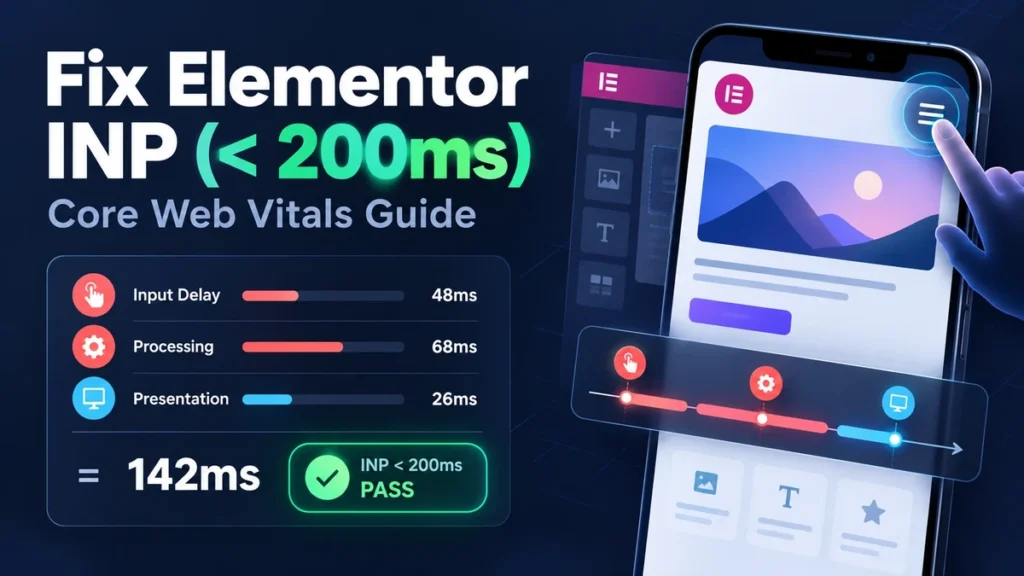
Seeing a red Core Web Vitals warning in Search Console while desktop PageSpeed Insights looks excellent is frustrating. To fix INP in WordPress Elementor, find the slow interaction first, then reduce the phase causing it: input delay, JavaScript processing, or presentation delay. This guide maps each phase to a safe Elementor change. If the Elementor editor instead opens to a blank preview, see our guide to fixing “The Preview Could Not Be Loaded”.
Understanding Interaction to Next Paint in the Elementor Ecosystem
INP measures how quickly a page responds after a visitor clicks, taps, or presses a key. Google evaluates discrete interactions throughout the visit and reports the 75th percentile of the worst interaction in field data. A score below 200 ms is good, 200–500 ms needs improvement, and above 500 ms is poor. Unlike First Input Delay (FID), which measured only the first interaction’s waiting time before its callback started, INP includes the full path from input to the next painted frame.
Elementor is not automatically the cause of a poor Google INP score. The usual combination is a page builder output with many nested wrappers, widget listeners, addon scripts, animation effects, and third-party code competing for the main thread. A menu click can therefore wait behind a long analytics task, run a large widget callback, and then trigger style recalculation across a deep DOM tree. That is an Elementor-specific troubleshooting problem, not a reason to blame the builder blindly.
Quick verdict: A good Elementor INP is below 200ms. Profile the slow interaction, flatten legacy sections with Flexbox Containers, exclude critical Elementor and form scripts from blanket JavaScript delay, and yield non-urgent widget work so the browser can paint feedback before continuing.
| Phase | What the browser is doing | Typical Elementor cause |
|---|---|---|
| Input Delay | Waiting for earlier main-thread work to finish | Delayed bundles, analytics, addon initialization |
| Processing Duration | Running the event handler | Menu, popup, form, carousel, or addon callback |
| Presentation Delay | Recalculating, laying out, and painting the result | Deep wrappers, layout thrashing, large animated regions |
The practical target is not a perfect laboratory number. Use Chrome User Experience Report (CrUX) field data for the real 75th-percentile result, and use lab profiling to locate the interaction that needs repair. Scrolling and hovering are not INP interactions; clicks, taps, and keyboard input are the useful reproduction targets. For broader context, use this complete Core Web Vitals guide. The Google web.dev INP guidance and DebugBear metric reference provide the browser-level definitions; this article translates them into Elementor decisions.
The Anatomy of an Interaction: The Three Sub-Phases
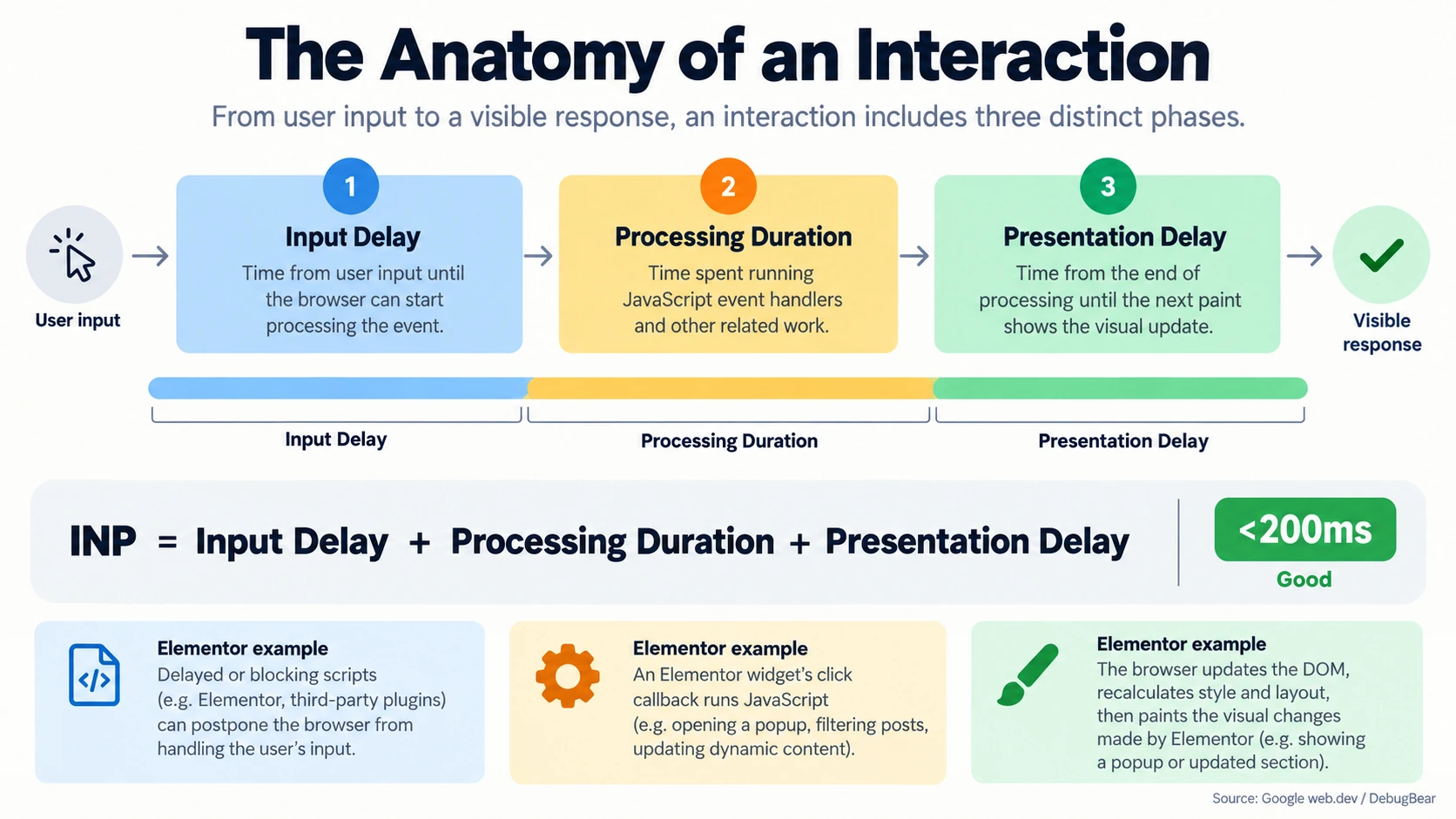
The useful model is INP = Input Delay + Processing Duration + Presentation Delay. Input Delay is the time between the user action and the event callback starting. If the browser is parsing a large deferred bundle or running a long task, the click waits in the queue. Processing Duration is the callback itself: opening a menu, filtering products, validating a form, or initializing a popup. Presentation Delay begins when the callback ends and covers style recalculation, layout, paint, and compositing before the visual response appears.
The phase matters because each fix is different. Excluding a critical menu script from execution delay can remove Input Delay, but it will not make a 180 ms carousel callback efficient. Replacing nested sections with containers can reduce Presentation Delay, but it will not stop a third-party chat script from blocking the first tap. Read the phase breakdown before changing settings.
Why Mobile Devices Suffer Disproportionately from High INP
A modern desktop can execute a widget callback in 30 ms while a mid-range mobile processor takes three to five times longer. Mobile also has less thermal headroom, a smaller viewport that triggers responsive style changes, and more visitors arriving before every non-critical script has settled. That is why a clean desktop test can coexist with a failing mobile Elementor INP score. The W3C Web Performance Working Group documents the event-timing model behind interaction latency, while Elementor’s performance guidance supplies builder-specific context.
Test with a 4x CPU slowdown and a mobile viewport, but treat that test as a diagnostic approximation. The final result comes from real users and the rolling field-data window. Compare the same interaction on desktop and mobile, record the slowest phase, and avoid “fixing” a desktop score by making a global change that harms mobile forms or navigation.
The Blind Delay JavaScript Trap: Why Quick Fixes Break Mobile INP
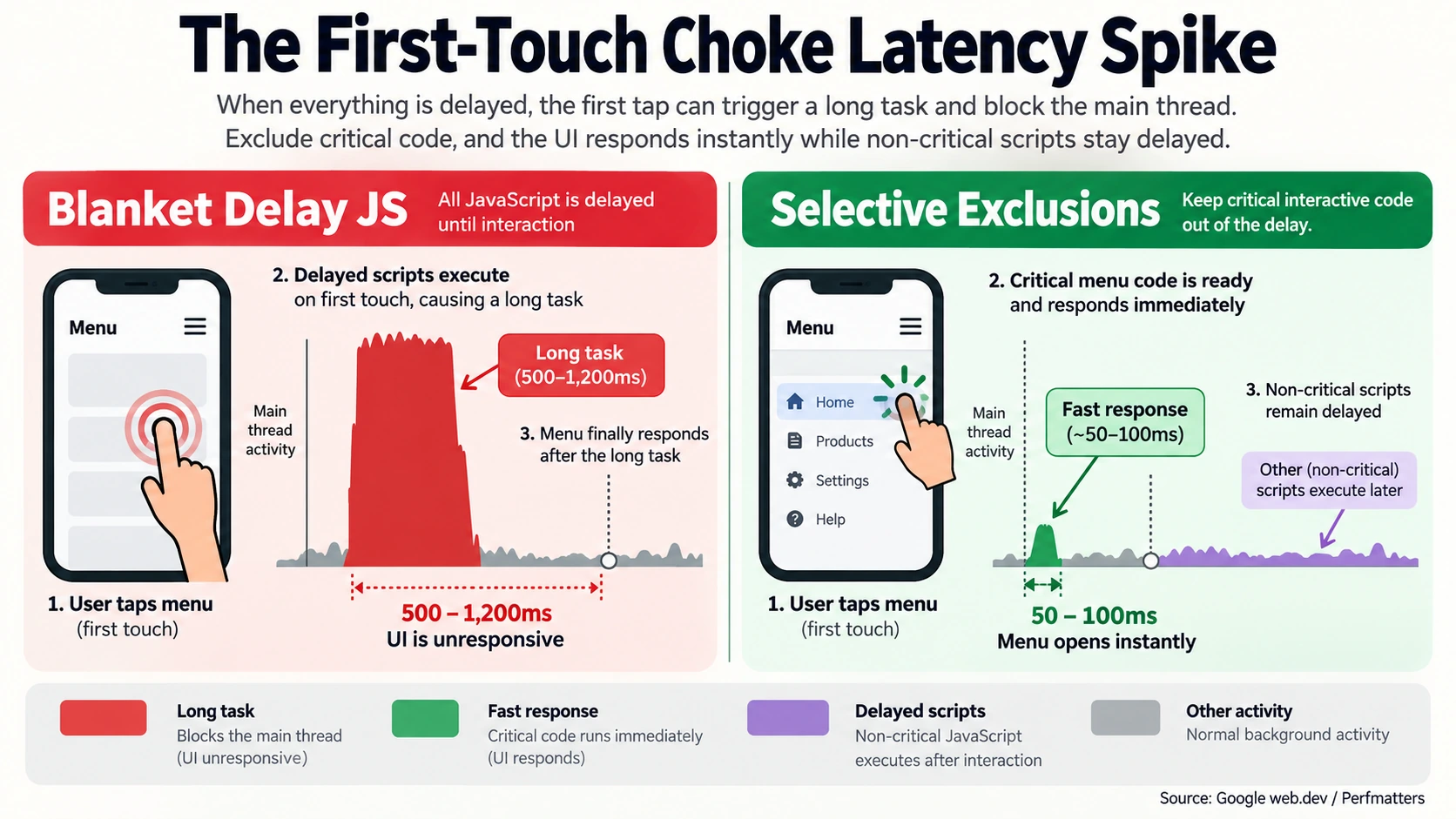
Turning on Delay JavaScript Execution can improve an initial synthetic score while making the first real tap slower. The setting postpones selected scripts until page activity, but an unconfigured setup often releases a large queue when the visitor taps the hamburger menu, filter, or form. The browser then downloads, parses, compiles, and executes several bundles at the exact moment it should respond.
| Myth | What actually happens | Safer decision |
|---|---|---|
| “Delay every script to solve INP.” | A first touch can trigger a long task and freeze the main thread. | Delay passive marketing code; keep interaction code ready. |
| “A 95 mobile lab score proves INP is fixed.” | Lab load metrics do not measure every field interaction. | Profile interactions and review CrUX. |
| “Elementor frontend can be delayed without exclusions.” | Menus, forms, popups, and layout handlers may not be ready. | Exclude critical handles and test each breakpoint. |
The correct distinction is between asynchronous deferral and interaction-based delay. A critical Elementor script can be loaded with defer, allowing download during page loading while avoiding parser blocking. A passive analytics, heat-map, or chat script can often wait until idle time or consent. The goal is not to disable performance optimization. It is to schedule each script according to whether a user may need it immediately.
How Blanket Script Delay Causes the “First-Touch Choke”
Imagine a mobile visitor taps the menu. The browser receives the input, but the required event listener is missing or a delayed-loader hook first has to wake up. That hook discovers the deferred queue, starts script evaluation, and competes with style and layout work. The menu callback eventually runs, but the input has already waited 500–1,200 ms. The result is a long task greater than 50 ms, a visible frozen menu, and a poor INP sample.
This is a scheduling failure, not proof that Delay JS is always harmful. Reproduce it in DevTools: load a cold page, tap the menu as soon as it is available, and inspect the task immediately before the interaction. If the trace shows a delayed bundle being evaluated before the handler, exclude only that dependency and retest. Do not add every site script to a global exclusion list. For repeat DOM inspections, the DomFlags Chrome extension can bookmark elements you need to revisit.
The Golden Rule of Script Deferral: Defer vs. Delay
Use defer for code that must be available when the user interacts: Elementor frontend behavior, navigation, form validation, popup state, and the dependencies those features require. Use delay for code that can safely wait: advertising pixels, optional analytics, social embeds, chat, heat maps, and other passive observers. Confirm consent requirements before postponing tracking, and confirm functionality before postponing forms. For implementation details, compare the browser’s MDN scheduler.yield() documentation with the optimization guidance above.
If a performance plugin offers “load after user interaction,” treat it as a per-script decision. Keep a rollback point, clear all page and CDN caches after changing exclusions, then test menus, keyboard navigation, accordions, popups, cart actions, and form submission on a real phone.
Diagnosing Slow Elementor Interactions with Chrome DevTools
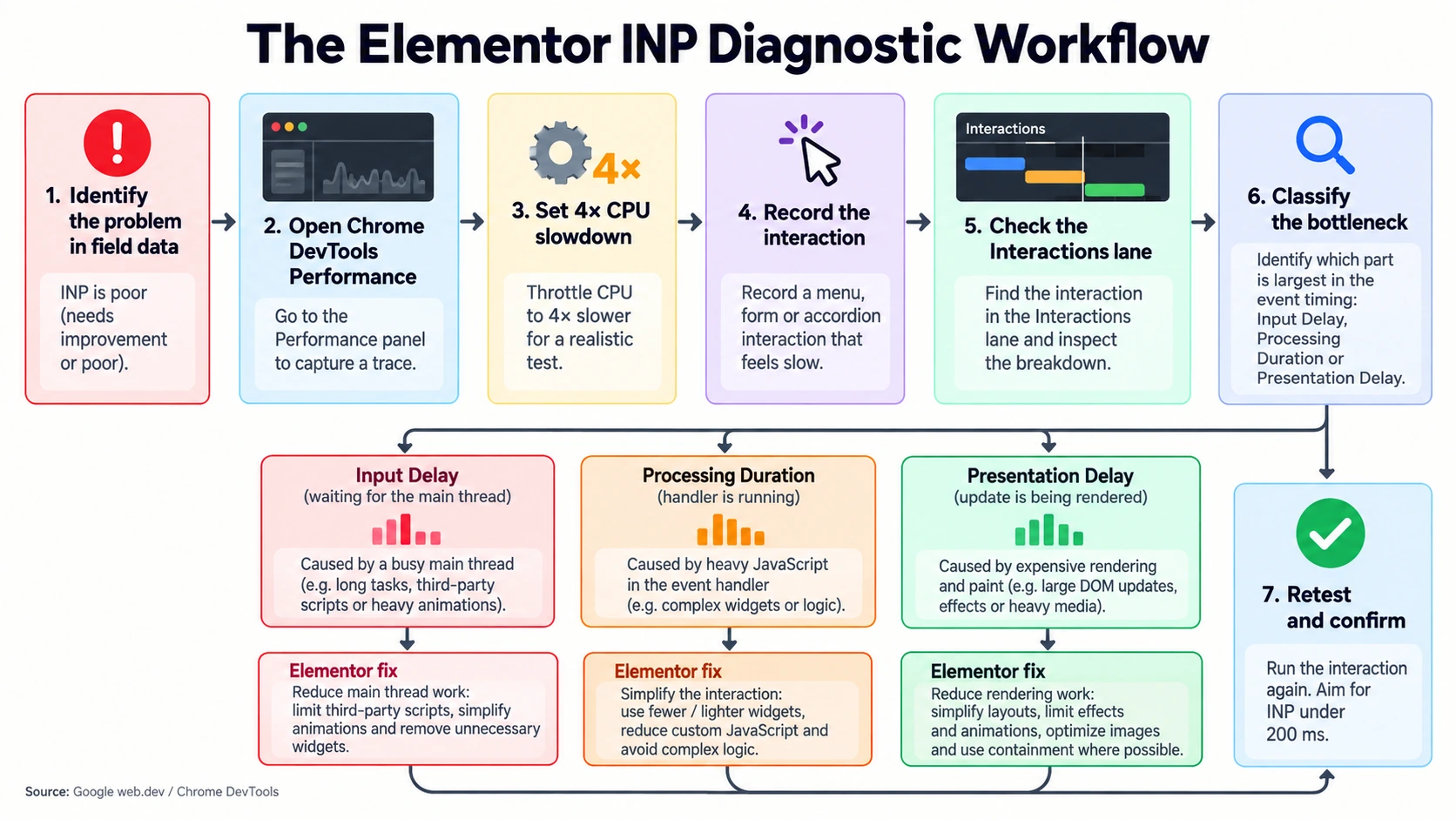
Start with evidence. Search Console and PageSpeed Insights field data tell you that users experience a problem, but the Performance panel tells you which interaction and phase are responsible. Use a staging copy when possible and never begin by changing five optimization plugins at once.
- Open the page in an Incognito window with extensions disabled. Keep the browser cache enabled so the test resembles a returning visitor, and record the URL, device viewport, and plugin configuration.
- Open DevTools, select Performance, choose a mobile-sized viewport, and set CPU throttling to 4x slowdown. Network throttling is useful for load debugging, but INP diagnosis is primarily about main-thread work after input.
- Click Record, perform one interaction at a time, and stop. Test the hamburger menu, an accordion, a popup trigger, a form field or submit button, and a carousel swipe. Repeat the slowest action three times rather than mixing every action into one recording.
- In the trace, open the Interactions track. Select the interaction bar and inspect the Summary breakdown for Input Delay, Processing Duration, and Presentation Delay. Red or long tasks above 50 ms are candidates for investigation, not automatic proof of the root cause.
- Expand the call stack and event details. Look for
div.elementor-element-xxxx,elementor-frontend.min.js, an addon script, a Swiper bundle, a popup callback, or a third-party URL. Change one variable, record again, and compare the phase that moved.
How to Isolate Culprit Widgets in the Interactions Lane
Clicking an interaction reveals the event timing and the call stack. If the selected element is a button inside an Elementor widget, use the element picker to confirm its elementor-element-xxxx identifier. Then map the callback to the widget: a nav menu, popup, accordion, form, carousel, or addon element. A trace that names only elementor-frontend.min.js is not enough; expand the stack and inspect the initiating DOM node and any addon file above it.
Separate the phases. A long wait before the callback suggests script delay or another task. A long callback suggests inefficient widget or plugin code. A long presentation segment suggests DOM depth, forced layout, or a large animated subtree. This separation prevents the common mistake of optimizing CSS when the actual problem is an analytics task or a delayed JavaScript queue.
Leveraging the Long Animation Frames (LoAF) API for Script Attribution
On supported modern Chrome versions, the Long Animation Frames API can expose script attribution for frames that exceed 50 ms. A small diagnostic snippet can observe long frames in a staging environment:
if (PerformanceObserver.supportedEntryTypes.includes('long-animation-frame')) {
  new PerformanceObserver((list) => {
    for (const frame of list.getEntries()) {
      console.table(frame.scripts?.map((script) => ({
        url: script.sourceURL,
        function: script.functionName,
        start: script.startTime,
        duration: script.duration
      })));
    }
  }).observe({ type: 'long-animation-frame', buffered: true });
}
Treat LoAF as diagnostic evidence, not a production dependency. Its attribution can identify a source URL, function name, and position responsible for a sluggish frame. Use that evidence to decide whether to remove a widget, narrow a script manager rule, or refactor custom code.
Eliminating Presentation Delay: Migrating to Elementor Flexbox Containers
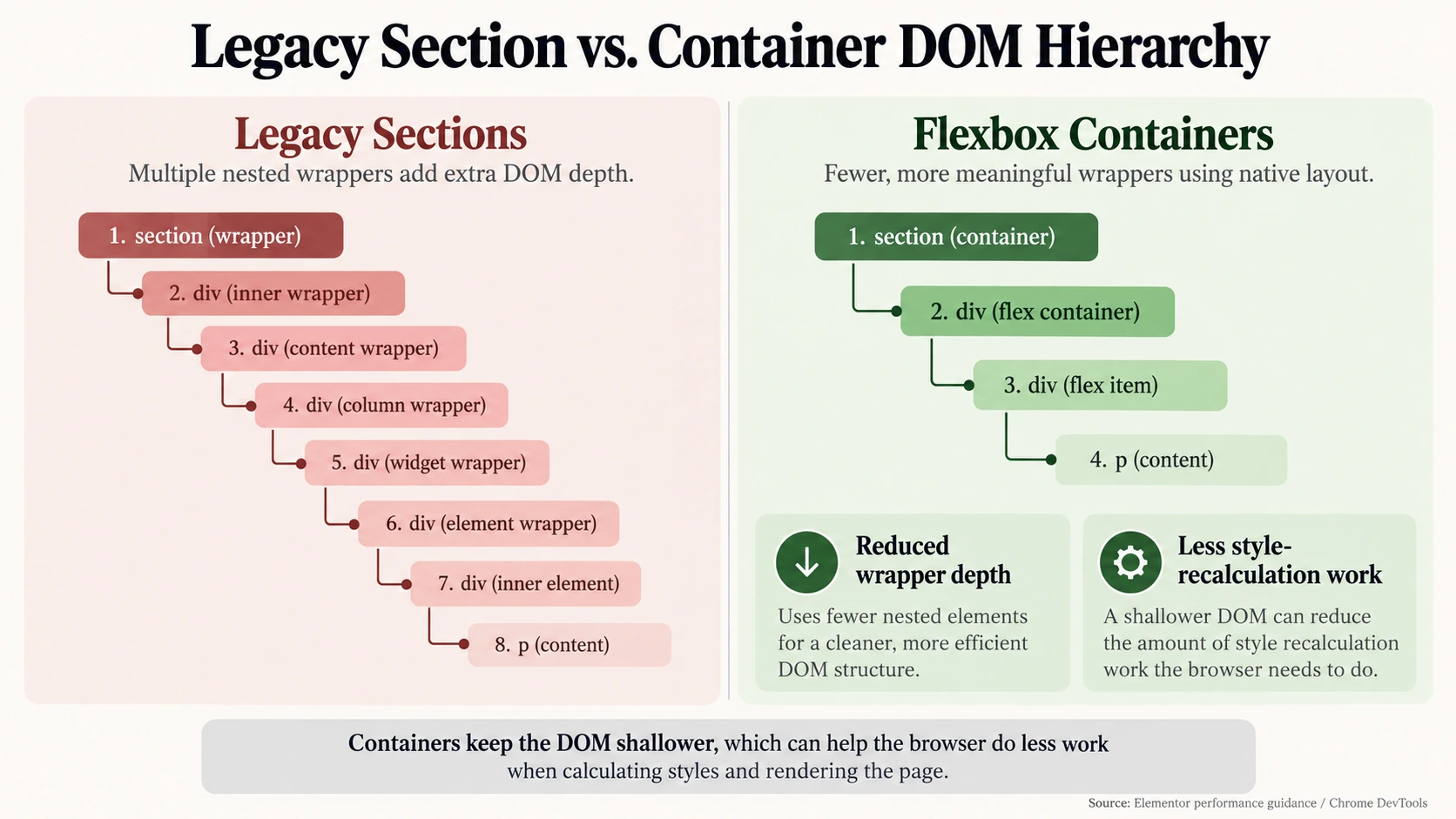
Presentation Delay is the browser’s final work after JavaScript returns. Legacy Elementor layouts often produce a section, container, column, column wrapper, widget wrapper, and additional inner sections for a visually simple row. When a class changes to open a menu or accordion, Blink must recalculate inherited styles and layout relationships across that tree.
| Layout pattern | Typical hierarchy | Diagnostic implication | Safer direction |
|---|---|---|---|
| Legacy sections | 8+ wrapper levels in complex rows | More style and layout traversal | Convert in a staging copy |
| Flexbox Container | About 3–4 meaningful levels | Fewer nodes to recalculate | Use containers for new sections |
| Heavy widget region | DOM plus continuous JS listeners | Processing and presentation compete | Replace, simplify, or isolate |
The exact savings depend on the page. Do not promise a fixed percentage or millisecond result without measuring your site. The engineering principle is stable: reducing unnecessary nodes and depth gives the browser less work when interactive state changes. If DOM complexity is the dominant issue, continue with the guide to minimizing heavy DOM trees.
Why Legacy Sections and Inner Sections Multiply Browser Recalculation Time
When a menu receives an .is-active class, the browser resolves selectors, parent-child inheritance, dimensions, and paint invalidation. A deep tree does not make every interaction linearly slower, but it increases the amount of state the rendering engine must consider. Alternating geometry reads and style writes in custom code can make the problem worse by forcing repeated synchronous layout.
Check the trace for Recalculate Style, Layout, and Paint following the callback. If those records dominate the interaction, inspect wrappers, responsive visibility rules, box shadows, transitions, and animated height changes. A leaner DOM usually helps more than adding another cache toggle.
Step-by-Step Container Migration and “Optimized DOM Output” Activation
Back up the site and test the change on staging. In WordPress, open Elementor > Settings > Features; older versions may label the screen Experiments. Activate Flexbox Container, Optimized DOM Output, and Improved Asset Loading when the installed Elementor version exposes them. Review Elementor’s current compatibility notes before enabling an experiment on a production site.
Convert one template or section at a time. Inspect desktop, tablet, and mobile breakpoints; compare margins, padding, widths, sticky positioning, z-index, and background overlays. Regenerate CSS and data if the Elementor tools request it, purge page/CDN caches, and rerun the same DevTools interaction. Keep the old revision until the converted layout passes visual and functional checks.
Eliminating Input Delay: Safe JavaScript Delay & Critical Script Exclusions
Selective script management fixes the blind-delay problem by keeping critical interaction code available while postponing passive work. Exact handles vary by Elementor, Elementor Pro, the theme, forms plugin, and optimization plugin version, so treat the following as starting points to confirm in the page source and network panel.
| Script or string to protect | Why it matters | Where to verify |
|---|---|---|
elementorFrontend | Elementor widget initialization and handlers | Inline handle or frontend bootstrap |
elementor-frontend / elementor-frontend/assets/js/ | Core frontend behavior | Script URL and enqueue handle |
webpack.runtime | Runtime dependency for bundled modules | Script URL |
frontend-modules | Elementor module initialization | Script URL or plugin handle |
swiper / swiper.min.js | Carousel and slider interaction | Only if that page uses Swiper |
| Form plugin frontend bundle | Validation and submit listeners | Form plugin documentation/source |
Add only the strings required by the interaction. In WP Rocket, put verified handles or file paths in the Delay JavaScript exclusion field. In Perfmatters, use Script Manager and its delay exclusions; in LiteSpeed Cache or FlyingPress, use their corresponding delay-exclusion controls. The UI and syntax can change, so confirm against the installed version’s documentation and test after saving. This is part of delaying non-critical JS execution, not a universal whitelist.
The Elementor Core & Pro Script Exclusion Whitelist
Start with elementorFrontend, elementor-frontend, webpack.runtime, frontend-modules, and the path fragment elementor-frontend/assets/js/. Add swiper only on pages that contain sliders, and add the frontend handle for the form, membership, or ecommerce feature that must respond immediately. Do not exclude every addon package globally: that can erase the performance benefit of delay and may increase initial work.
After changing one exclusion group, clear caches and test a logged-out session. Verify keyboard focus, menu open/close, popup close, accordion state, form validation, successful submission, cart updates, and back/forward navigation. If a form breaks, identify the missing dependency in the console and add the narrowest matching handle. If the first tap freezes, inspect whether a different delayed bundle is being released by the interaction.
For broader tool selection, compare caching plugins with built-in script execution delay only after you understand the trace. Plugin branding does not replace per-page script attribution.
Using a Script Manager to Disable Heavy Widgets on Pages Where They Aren’t Used
A script manager can prevent a slider, audio player, pricing table, social feed, or addon pack from loading on pages that do not use it. In Perfmatters Script Manager or Asset CleanUp, open the target URL, locate the unused asset, and disable it only where you have confirmed the widget is absent. Never disable a shared Elementor dependency sitewide without testing templates, headers, footers, and popups.
Record the URL rule and its reason. Then test the page in a clean session, inspect the console for errors, and run the same interaction trace. Asset unloading usually reduces both initial main-thread work and later contention, but it cannot fix a slow callback that remains on the page.
Eliminating Processing Duration: Breaking Up Long Tasks & Event Handlers
Processing Duration is the work performed after an event callback begins. Reduce it by removing unused widgets, avoiding repeated DOM queries, narrowing selectors, simplifying animation state, and moving non-urgent work after the first visual response. If the code is custom, measure before and after rather than assuming a smaller file is a faster interaction.
Avoiding Layout Thrashing in Custom Elementor Code & Popups
Layout thrashing happens when code alternates a geometry read with a style write. The browser may be forced to calculate layout repeatedly:
// Avoid: read, write, read, write in one hot interaction.
panel.style.height = panel.scrollHeight + 'px';
const width = panel.offsetWidth;
panel.style.transform = `translateX(${width}px)`;
Batch reads before writes, and prefer a class that lets CSS perform the transition:
// Better: collect measurements, then apply state once.
const height = panel.scrollHeight;
const width = panel.offsetWidth;
requestAnimationFrame(() => {
  panel.style.setProperty('--panel-height', `${height}px`);
  panel.classList.add('is-open');
  panel.style.setProperty('--panel-width', `${width}px`);
});
Avoid animating layout-heavy properties when a transform or opacity change communicates the same state. For popups, keep hidden content out of expensive measurement loops and avoid recalculating the whole page when only a small panel changed.
Implementing scheduler.yield() for Seamless UI State Updates
Yield after immediate feedback so the browser can paint, then continue non-urgent work. Use feature detection and a fallback:
async function finishWidgetUpdate(work) {
  const yieldToBrowser = globalThis.scheduler?.yield
    ? () => scheduler.yield()
    : () => new Promise((resolve) => setTimeout(resolve, 0));

  work.showImmediateState();
  await yieldToBrowser();
  work.completeNonUrgentWork();
}
Do not yield between steps that must be atomic, and do not use this pattern to hide an unbounded loop. Break a long filter, sort, or DOM-render job into small chunks, yield between chunks, and preserve focus and form state. This approach follows the browser guidance for yielding to the main thread while keeping the first visual acknowledgment responsive.
High-Risk Elementor Widgets and How to Optimize Them
| Widget or feature | Risk tier | Why it can hurt INP | Practical fix |
|---|---|---|---|
| Nav Menu, mega-menu, popup | High | Early tap plus large DOM and listeners | Simplify markup; keep critical handlers ready |
| Form with addon validation | High | Synchronous validation and third-party hooks | Reduce rules; exclude required frontend scripts |
| Image Carousel / Swiper | Medium–High | Touch listeners, layout, autoplay | Limit slides; use CSS Scroll Snap where suitable |
| Tabs, accordions, animated sections | Medium | State changes can recalculate large regions | Animate small properties and reduce wrappers |
| Static text, icon, simple button | Low | Small callback when no addon is attached | Keep selectors and effects simple |
Optimizing the Mobile Navigation Menu (The #1 INP Bottleneck)
Mobile menus are often the first interaction and therefore expose every scheduling mistake at once. Keep the menu DOM small, remove unnecessary nested widgets, avoid expensive drop shadows and full-page height animations, and ensure its core handler is not behind interaction delay. Use a simple class toggle where possible, then profile open and close separately.
Replacing Heavy JavaScript Sliders with Lightweight CSS Carousels
If a carousel only needs horizontal swiping, a CSS Scroll Snap container may replace a continuously managed JavaScript slider. Remove autoplay and unnecessary touch listeners, reduce the number of off-screen slides, and lazy-load media that is not immediately visible. Keep keyboard controls and accessible labels; a faster but inaccessible carousel is not a complete fix.
Step-by-Step Action Plan: Getting Your Elementor Site Under 200ms
Use this six-step sequence and keep a record of each trace:
- Confirm the field problem. Check Search Console and PageSpeed Insights field data, note mobile versus desktop, and identify the affected template and rolling-window dates.
- Reproduce the interaction. Use Incognito, extensions disabled, a mobile viewport, and 4x CPU slowdown. Record the menu, form, popup, or widget named by the trace.
- Classify the phase. Input Delay points to queued or delayed scripts; Processing Duration points to callback work; Presentation Delay points to layout, paint, or DOM complexity.
- Reduce structure. Convert a tested section to Flexbox Containers, activate supported optimized DOM features, simplify widget trees, and check all breakpoints.
- Schedule scripts precisely. Exclude critical Elementor, form, popup, and page-specific carousel dependencies from blanket delay. Delay passive analytics and chat only when safe.
- Re-test and monitor. Compare identical traces, then wait for field data to accumulate. Search Console uses a rolling 28-day CrUX window, so live validation is slower than a lab retest.
Do not declare victory because a single Lighthouse run is green. A passing lab result means the tested load path looked healthy; it does not prove that every real-user interaction is below 200 ms.
Frequently Asked Questions About Elementor INP
Will switching from Elementor to Gutenberg or Bricks automatically fix my INP?
No. Gutenberg and Bricks may output a cleaner default DOM, but switching builders is rarely necessary solely because INP is poor. An Elementor site can reach a responsive result with Flexbox Containers, selective asset loading, safe script scheduling, and lean widgets. Unmanaged addons and third-party scripts are usually more important suspects than the builder name.
How long does it take for Google Search Console to reflect INP improvements?
PageSpeed Insights may show new field samples within roughly 7–14 days when enough users visit the URL, but Search Console validates a rolling 28-day CrUX window. Plan on 28–30 days for a stable before-and-after comparison. Keep the change log so you can connect the field trend to the deployment. Treat the Chrome UX Report documentation as the field-data reference rather than treating one Lighthouse run as a population measurement.
Does high INP directly hurt my Google rankings?
INP is an official Core Web Vital and part of Google’s page-experience considerations, but relevance and content quality remain central. A failing INP can weaken the experience and become a disadvantage when otherwise similar pages compete. Fix it for users first: responsive menus, forms, and filters also support conversion and accessibility.
Can standard page caching fix INP?
Not by itself. Page caching can improve server response and initial loading metrics such as TTFB and FCP, while INP measures client-side responsiveness during interaction. Caching may help indirectly by reducing early work, but it does not shorten a JavaScript callback, remove layout thrashing, or flatten a deep Elementor DOM. Pair caching with profiling and targeted script and widget changes.