

A solid WordPress security checklist helps you avoid common risks before they turn into costly issues. Begin with backups, updates, strong admin passwords, two-factor authentication, trusted plugins and themes, HTTPS, secure hosting, file protection, and monitoring. While no checklist can make your site completely hack-proof, these steps make it much harder to break into and much easier to fix if something goes wrong.
The key is to take the right steps in the right order. Installing a security plugin helps, but it is only part of the process. If your site has weak admin passwords, outdated plugins, no backups, or poor hosting, it remains vulnerable even with a security plugin.
Treat this guide as a practical WordPress security checklist for your actual site, not just a list of random tips. The most important steps come first. More advanced steps follow, along with warnings if a setting could cause problems.
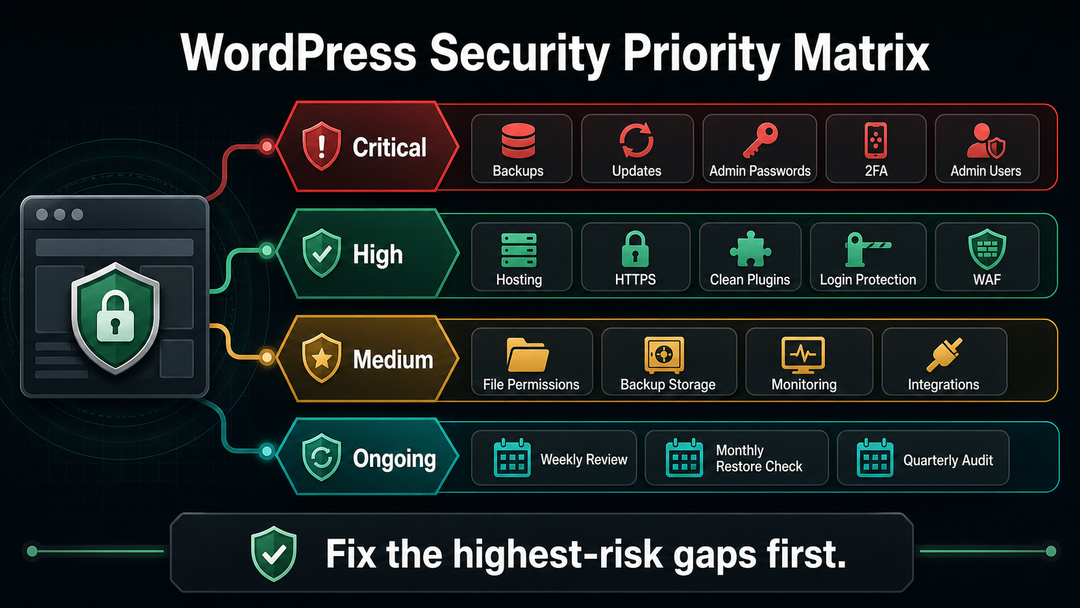
Quick WordPress Security Checklist
If you only have 30 minutes, start here:
| Priority | Security Check | What to Do |
|---|---|---|
| Critical | Backup and restore | Create a full backup and confirm you know how to restore it |
| Critical | Updates | Update WordPress core, plugins, and themes |
| Critical | Admin passwords | Use long, unique passwords stored in a password manager |
| Critical | Two-factor authentication | Enable 2FA for administrator accounts |
| Critical | Admin users | Remove unused admin accounts and lower roles where possible |
| High | Hosting | Use a host that keeps PHP, database software, backups, and server security current |
| High | HTTPS | Force HTTPS across the site and admin area |
| High | Plugins and themes | Delete anything unused, abandoned, nulled, or untrusted |
| High | Login protection | Limit login attempts and protect wp-login.php from automated attacks |
| High | Security layer | Use a reputable security plugin, host firewall, CDN firewall, or WAF |
| High | File editing | Disable the WordPress dashboard file editor |
| Medium | File permissions | Keep file and directory permissions as restrictive as your host allows |
| Medium | Backups storage | Keep backups away from the public web root |
| Medium | Monitoring | Set up malware, uptime, and suspicious-change alerts |
| Medium | Integrations | Review application passwords, API tools, and connected services |
| Ongoing | Review routine | Repeat a light check weekly and a deeper review quarterly |
Before You Change Anything: Make a Backup
Before you install a security plugin, edit wp-config.php, change file permissions, disable XML-RPC, or adjust server rules, make a full backup.
A useful WordPress backup includes:
- Your WordPress database.
- Your uploads folder.
- Your theme and plugin files.
- Your
wp-config.phpfile. - Any custom files your site depends on.
Backups are not just for emergencies. They act as your safety net if a security change breaks a form, blocks a needed integration, removes custom code, or causes a blank screen. CISA’s general backup advice also recommends making backups often and keeping them somewhere safe, away from the same risks as your main files.
For a business site, do not stop at “backups are turned on.” Check the restore process. If you have never restored a backup, you do not fully know whether it works.
1. Keep WordPress Core, Plugins, and Themes Updated
Outdated software is one of the easiest ways for attackers to find weak WordPress sites. WordPress core, themes, plugins, PHP, and database software all need regular updates.
WordPress.org’s Hardening WordPress documentation explains that older WordPress versions become more open to attack after vulnerability details are public. The official WordPress upgrading documentation also explains how automatic background updates work for core, plugins, themes, and translations.
For most site owners:
- Turn on automatic security and maintenance updates.
- Enable auto-updates for low-risk, trusted plugins where practical.
- Review important plugin and theme updates at least weekly.
- Use a staging site before major updates on business-critical websites.
- Remove plugins and themes that are no longer maintained.
For simple sites, automatic updates are usually safer than leaving security holes open for weeks. For more complex sites like WooCommerce, membership, or client sites, combine updates with backups, a staging site, and monitoring.
2. Use Strong Passwords and Two Factor Authentication
Your admin login is one of the most important entry points on your site. Make sure to protect it before anything else.
WordPress.org’s password best practices recommend long, complex passwords and avoiding names, dictionary words, short passwords, and simple numeric or alphabetic patterns. For real-world use, a password manager is the easiest way to use unique passwords without trying to memorize them.
Use strong unique passwords for:
- WordPress administrator accounts.
- Hosting accounts.
- Domain registrar accounts.
- SFTP or SSH accounts.
- Database users.
- Business email accounts connected to password resets.
- Third-party tools that can access the site.
Next, set up two-factor authentication for every administrator account. WordPress does not include 2FA by default for admin logins, so you will usually need a trusted plugin, a managed hosting feature, or an identity provider. CISA’s multifactor authentication guidance recommends using MFA wherever you can, especially for admin access.
If you can use passkeys or security keys with a trusted tool, they offer better protection against phishing than basic SMS codes. If that is not possible, using an authenticator app for 2FA is still much safer than relying on passwords alone.
3. Review Admin Users and Permissions
Every administrator account is a high-risk account. If someone does not need administrator access, do not give it to them.
Review Users in your WordPress dashboard and ask:
- Does this person still work on the site?
- Do they need administrator access, or would Editor, Author, Shop Manager, or another role be enough?
- Are there old developer, agency, test, or temporary accounts?
- Does every admin have a strong password and 2FA?
- Does the right person still control the account email?
The idea of least privilege is straightforward: give people only the access they need for their work. For example, a writer does not need to install plugins. A marketing assistant might need to edit pages, but not themes. Remove or lower access for temporary developer accounts when their work is done.
This also applies outside WordPress. Check your hosting dashboard, CDN, DNS provider, analytics tools, and email platform.
4. Protect the Login Page
WordPress login pages attract automated traffic because bots can quickly test usernames and passwords across many sites. The official WordPress brute force attack guidance recommends strong passwords, 2FA, rate limiting, login protections, XML-RPC controls where relevant, and monitoring for authentication anomalies.
Start with practical login protection:
- Limit repeated login attempts.
- Add 2FA for administrators.
- Avoid using
adminas an administrator username. - Use HTTPS on login and admin pages.
- Add bot protection such as CAPTCHA or a managed challenge where appropriate.
- Temporarily block abusive IPs or rely on host/CDN rate limiting.
- Watch for unusual login attempts.
Do not depend just on hiding the login URL. Changing the login path might cut down on unwanted attempts, but it does not replace strong authentication and rate limiting.
Should You Disable XML-RPC?
XML-RPC can be used by older apps, Jetpack features, pingbacks, and some integrations. It can also be abused for brute-force or amplification traffic when exposed without controls.
If your site does not need XML-RPC, you can disable or block it through your host, security plugin, or server rules. If your site does need it, rate-limit and monitor it instead of blindly blocking it. Test carefully after changing this setting.
5. Use Secure Hosting and HTTPS
Security starts below WordPress. Your host controls the server environment, PHP versions, database software, web server configuration, isolation between sites, backups, firewall rules, and support process.
WordPress.org’s hardening guidance notes that a trusted host should provide recent stable server software and reliable backup and recovery methods. If you are choosing hosting now, use the security checklist in Best Hosting for WordPress before you buy. If the site is already live, ask your host:
- Which PHP and database versions does my site use?
- Are server updates managed for me?
- Are sites isolated from each other on shared hosting?
- Are backups included, and how do restores work?
- Is malware scanning included?
- Is a web application firewall available?
- Can I use staging before major updates?
- Do I have SFTP or SSH instead of plain FTP?
HTTPS is essential for any modern WordPress site. It protects logins, forms, cookies, and helps build visitor trust. Make sure your entire site uses HTTPS, not just the checkout or login pages.
If you are still building the site, work through how to set up a WordPress website with security, backups, and hosting included from the beginning.
6. Delete Unused Themes and Plugins
Every plugin and theme adds code to your site. Some are excellent. Some are abandoned. Some are unnecessary. Some are outright dangerous if downloaded from untrusted sources.
WordPress.org’s hardening guidance recommends getting plugins and themes from trusted sources and deleting unused plugins. That means:
- Delete inactive plugins you do not plan to use.
- Delete unused themes, keeping only your active theme and a default fallback theme if needed.
- Avoid nulled, pirated, or unofficial premium plugins and themes.
- Check update history before installing anything new.
- Remove old test installations from the same hosting account.
- Replace abandoned plugins when safer maintained alternatives exist.
Beginners often add too many plugins here. A new WordPress site does not need a big collection of plugins. If you are not sure what a plugin or theme does, learn about how WordPress themes and plugins work before adding more.
7. Install a Security Plugin or WAF
A security plugin can help with malware scanning, firewall rules, login protection, file-change alerts, 2FA, and suspicious activity monitoring. A WAF, or web application firewall, can filter malicious traffic before it reaches WordPress.
Useful security layers include:
- A reputable WordPress security plugin.
- A host-level firewall.
- A CDN or edge firewall.
- Malware scanning and file integrity checks.
- Login rate limiting.
- Alerts for suspicious changes.
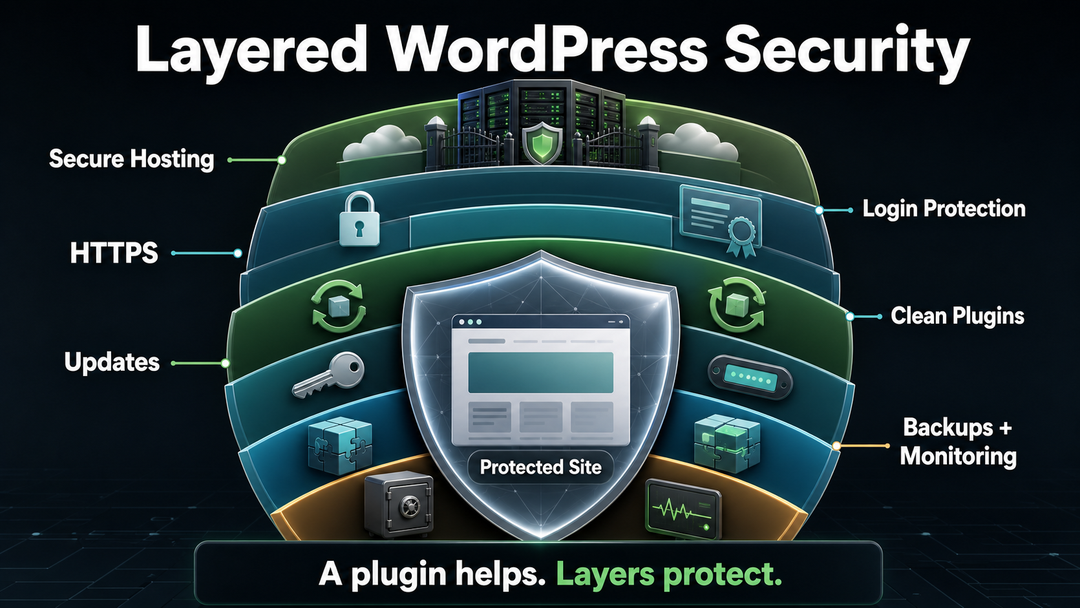
Remember, a security plugin is just one layer of protection, not a complete solution. It cannot fix weak passwords, outdated plugins, poor hosting, broken backups, or careless admin access on its own.
For many small sites, a well-configured security plugin is enough to cover basic monitoring and login protection. For business-critical sites, combine plugin-level protection with hosting security, backups, a WAF, and a maintenance routine.
8. Harden WordPress Files Carefully
Hardening your files can limit the damage if an account is compromised or a plugin has a weakness. However, if you are not careful, it can also cause problems, especially on less common hosting setups. Always make a backup first and use a staging site if you can.
Disable the Dashboard File Editor
If an attacker gets administrator access, the built-in theme and plugin editor can make it easier to run malicious PHP code. WordPress.org’s hardening documentation recommends disabling dashboard file editing by adding this line to wp-config.php:
define( 'DISALLOW_FILE_EDIT', true );This does not stop every possible attack, but it removes one risky tool from the dashboard.
Protect wp-config.php
The wp-config.php file contains sensitive database settings and security keys. WordPress.org notes that it can be moved one directory above the WordPress installation in some setups, and that access should be restricted. Not every host supports every approach, so ask your host before changing file location.
At minimum:
- Do not leave copies such as
wp-config-old.php,wp-config.php.bak, orwp-config.txtin public folders. - Restrict direct web access where your server supports it.
- Keep permissions tight enough that only necessary users/processes can read it.
- Never paste database credentials into support chats, public tickets, or screenshots.
Use Safe File Permissions
WordPress.org gives common examples of directories set to 755 and files set to 644, with more restrictive handling for sensitive files where the server allows it. Some hosts require different ownership or permissions for updates to work, so do not force a command from a random tutorial without understanding your server.
If you are unsure about file permissions, ask your hosting provider or a developer to check them for you.
9. Protect Backups, Logs, and Temporary Files
Security is not only about WordPress files. Old backups, exported databases, logs, staging copies, and temporary files can expose sensitive data.
OWASP’s Web Security Testing Guide warns that old backup and unreferenced files can reveal credentials, source code, admin paths, or other internal details. On WordPress sites, risky files often look harmless:
backup.zipsite-old.tar.gzdatabase.sqlwp-config.php.bakerror_log/old-site//staging//test/
Store backups in a secure off-site location or private backup storage, not in your public web folders. Delete old exports after you finish migrating. Password-protect or limit access to staging sites. If your host makes backups for you, check where they are kept and who can get to them.
10. Monitor for Malware, Uptime, and Strange Changes
Good security includes detection. You want to know quickly if something changes in a way you did not expect.
Set up alerts for:
- Malware scan results.
- File changes in WordPress core, plugins, and themes.
- Failed login spikes.
- New administrator accounts.
- Plugin or theme installations.
- Unexpected traffic spikes.
- Uptime outages.
- Search Console security warnings.
- Suspicious redirects or spam pages.
Occasionally, visit your site using a private browser window. Search for your brand name and key pages. If you use Google Search Console, check it for any warnings. Watch for alerts, odd pages in search results, or sudden drops that could signal security problems.
If you suspect a compromise, do not keep clicking around randomly in the admin area. Put the site in maintenance mode if needed, preserve logs where possible, contact your host, and restore from a clean backup only after the entry point is understood.
For broader troubleshooting habits, keep common WordPress errors close by, especially before changing plugins, themes, PHP versions, or file permissions.
11. Review Application Passwords and Connected Tools
WordPress application passwords let external tools authenticate with the REST API. They are useful for integrations, publishing workflows, mobile apps, management tools, and automation. The official REST API application passwords documentation explains how to create, retrieve, update, and delete application password records.
Review them like real credentials:
- Remove application passwords you no longer use.
- Use clear names so you know what each one does.
- Avoid creating integrations under a full administrator account when a lower-privilege user will work.
- Revoke credentials after changing agencies, developers, or automation tools.
- Watch for unexpected API activity if your security tooling supports it.
It is easy to overlook this because application passwords do not look like regular user passwords. If a connected tool has high-level access, treat its credentials as carefully as you would an admin login.
12. Secure Your Own Computer and Workflow
A clean WordPress setup cannot protect you from a compromised laptop, a stolen browser session, an infected extension, or a reused password.
Use basic workstation security:
- Keep your operating system and browser updated.
- Use a password manager.
- Lock your device.
- Avoid logging in over untrusted public Wi-Fi without protection.
- Install browser extensions carefully.
- Be suspicious of fake plugin update emails, hosting invoices, and urgent login links.
- Do not share admin access through one common team account.
WordPress.org’s hardening advice notes that malware or keyloggers on your own computer can get around server-side security. It may be uncomfortable to think about, but your own workflow is an important part of your site’s security.
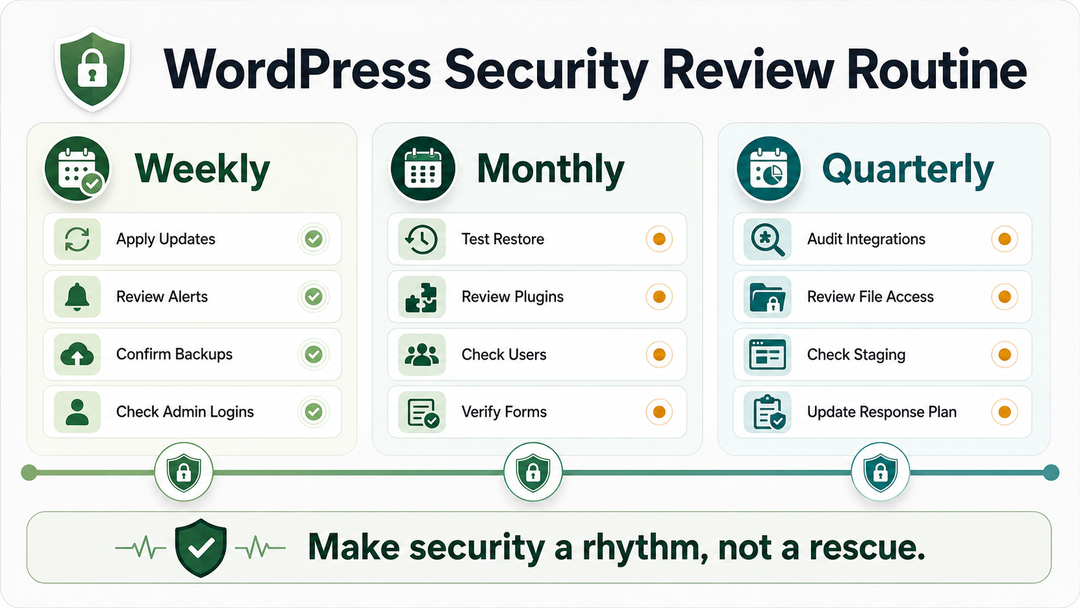
Monthly and Quarterly WordPress Security Routine
Security is easier when it has a rhythm.
Weekly Checks
- Apply available updates after checking backups.
- Review security plugin or host alerts.
- Confirm backups completed.
- Check for unusual admin logins or new users.
Monthly Checks
- Test one restore path or confirm your host’s restore process.
- Review plugins and themes for anything unused.
- Check admin users and permissions.
- Review malware and uptime reports.
- Make sure important forms still work after updates.
Quarterly Checks
- Review hosting, PHP, and database versions.
- Audit application passwords and integrations.
- Review file permissions and sensitive file exposure.
- Check staging/test sites.
- Review your security plugin, WAF, and backup settings.
- Update your incident response contact list.
WordPress Security Mistakes to Avoid
Avoid these common mistakes:
- Assuming a security plugin makes the site secure by itself.
- Updating a business-critical site without a recent backup.
- Keeping old plugins “just in case.”
- Using one shared administrator account for a whole team.
- Leaving staging sites public and unprotected.
- Downloading premium plugins or themes from unofficial sources.
- Ignoring hosting quality because WordPress itself is free.
- Keeping database exports or zip backups in public folders.
- Using SMS 2FA as the only option when stronger MFA is available.
- Editing server rules without knowing how to undo the change.
- Waiting for a hack before learning how restore works.
Good security is not about being paranoid. It is about making smart, practical choices before your site faces any problems.
FAQ
What is the most important WordPress security step?
The most important WordPress security step is keeping a recent, restorable backup before anything goes wrong. After that, update WordPress core, plugins, and themes; protect admin accounts with strong passwords and 2FA; and remove unused or untrusted plugins and themes.
Are WordPress security plugins enough?
No. A WordPress security plugin is helpful, but it is not enough by itself. You still need updates, backups, strong login security, careful user permissions, trusted hosting, HTTPS, and monitoring. Think of a plugin as one security layer, not the whole security plan.
How often should I run this WordPress security checklist?
Run a light WordPress security check weekly and a deeper review every quarter. Updates, backups, and alerts should be monitored continuously. Also repeat the checklist after major plugin changes, theme changes, migrations, new admin users, or suspicious activity.
Should I disable XML-RPC in WordPress?
Disable XML-RPC only if your site does not need it. Some apps and integrations may rely on it. If you need XML-RPC, protect it with rate limiting, monitoring, and firewall rules instead of blindly blocking it.
What should I do if my WordPress site might be hacked?
If your WordPress site might be hacked, contact your host, preserve logs, change passwords from a clean device, remove unknown admin users, scan the site, and restore from a clean backup only after you understand the entry point. Do not simply restore an old backup and ignore the vulnerability that allowed the compromise.
Final Takeaway
WordPress security is risk reduction, not magic. The safest approach is layered: reliable hosting, HTTPS, regular updates, strong admin access, 2FA, clean plugins and themes, careful file protection, secure backups, and monitoring.
If you are building an important site, make security part of your overall WordPress development process, not something you rush through after launch. Begin with the key checks now, and make the rest a regular weekly and quarterly routine.