

The WordPress white screen of death is the blank page you get when WordPress starts loading and then fails before it can show your site, dashboard, or a useful error message. Most of the time, something has triggered a PHP fatal error: a plugin, theme, custom code snippet, memory limit, failed update, or server issue.
The safest way through it is simple but disciplined: back up the site, look for a WordPress Recovery Mode email, then test plugins, themes, logs, cache, and server settings in a careful order.
If your site is completely blank right now, do not start deleting files. Most white screen problems are fixable, but rushed changes can turn a small compatibility issue into a harder recovery job.
Quick Answer: How to Fix the WordPress White Screen of Death
Use the row that corresponds to what you are seeing right now:
| What You See | Best First Step | Why |
|---|---|---|
| “There has been a critical error on this website” | Check the admin email for a Recovery Mode link | WordPress may identify the broken plugin or theme |
| Frontend is blank, but wp-admin works | Disable recently updated plugins or switch themes from the dashboard | You can test safely without file access |
| Frontend and wp-admin are both blank | Use SFTP, FTP, or your host file manager to rename plugin/theme folders | This disables likely causes without logging in |
| Only one page is blank | Check the page builder, short code, template, memory usage, and recent edits | The problem may be local to that page |
| Blank screen appeared after an update | Disable the updated plugin first, then check logs | Update conflicts are a common trigger |
| You are unsure what changed | Enable debug logging and check server error logs | Logs can point to the actual file causing the failure |
If you are not sure where to begin, follow this order:
- Back up the site or confirm a recent backup exists.
- Look for the WordPress Recovery Mode email.
- Clear browser, page, server, and CDN cache.
- Disable plugins.
- Switch to a default theme.
- Enable WordPress debug logging.
- Check PHP memory, PHP version, failed updates, core files, and server logs.
- Restore a known good backup or contact your host if the issue is server level.
What the WordPress White Screen of Death Means
The WordPress white screen of death, often shortened to WSOD, is a blank page that appears instead of your website, dashboard, editor, or a specific page. Older WordPress sites often showed nothing at all. Newer WordPress versions may show a more helpful message such as “There has been a critical error on this website.”
WordPress.org’s common error documentation explains that both PHP errors and database errors can appear as a blank screen with no information. The blank page is the symptom. The real problem is that WordPress could not finish building the page response.
Put another way: WordPress started loading, hit something it could not recover from, and stopped before it could show your theme, admin screen, or an error template.
The cause is often one of these:
- A plugin conflict
- A theme error
- A syntax error in custom code
- A PHP memory limit problem
- A failed or incomplete update
- A corrupted WordPress core file
- A cache serving a broken blank response
- A database or hosting server problem
- A PHP version mismatch after a server or plugin update
If you are still learning the moving parts of WordPress, it helps to understand how the platform, theme, and plugins fit together. Our guide to how WordPress themes and plugins work explains that relationship before you start troubleshooting.
Before You Start: Protect the Site
When a site is down, it is tempting to try every fix you can find. Slow down for a minute. Change one thing at a time so you can tell what actually fixed the problem.
Before editing files, do these three things:
- Confirm you have a backup. If your host takes daily backups, find the most recent backup from before the white screen started.
- Write down what changed recently. Plugin update, theme update, PHP version change, new code snippet, migration, cache change, or hosting migration.
- Choose your access method. Dashboard access is easiest. If wp-admin is blank, use SFTP, FTP, SSH, WP-CLI, or your hosting file manager.
For business sites, be extra careful with backups. If recent orders, form submissions, bookings, or customer data may be at risk, pause before restoring an old backup. A restore can bring the site online quickly, but it may also roll back content or database changes made after the backup.
Step 1: Look for the WordPress Recovery Mode Email
WordPress Recovery Mode is a built-in feature that can help administrators regain access after certain fatal errors. WordPress.org explains that Recovery Mode may pause a faulty plugin or theme for your admin session so you can log in and fix it.
Check the inbox for the site’s administrator email address. Look for a note concerning a technical issue or critical error. If it is there:
- Open the Recovery Mode link.
- Log in to WordPress.
- Read the dashboard notice showing the plugin or theme that failed.
- Deactivate the faulty plugin or switch away from the faulty theme.
- Update, replace, repair, or remove the broken component.
- Exit Recovery Mode.
- Test the frontend and wp-admin in a private browser window.
Recovery Mode was introduced with WordPress 5.2, alongside PHP error protection. It is useful, but it is not magic. You may never see the email if the site cannot send mail, the fatal error happens too early, the problem is server level, or the issue is outside what Recovery Mode can catch.
No Recovery Mode email? Keep going. You can still fix the WordPress white screen of death manually.
Step 2: Work Out What Part of WordPress Is Blank
The location of the blank screen gives you a clue.
| Blank Area | Likely Cause | Next Move |
|---|---|---|
| Entire site and wp-admin | Plugin, theme, PHP, server, or core issue | Use file access to disable plugins |
| Frontend only | Theme, page cache, template, or frontend plugin | Test theme and cache first |
| wp-admin only | Admin plugin, security plugin, memory, or PHP error | Disable plugins and check logs |
| One page or post | Page builder, short code, block, template, memory spike, or custom field | Edit the page if possible, then check logs |
| Site after migration | PHP version, database path, file permissions, missing files, cache, or URL mismatch | Check server logs, PHP version, and migration settings |
| Site after update | Plugin/theme incompatibility or incomplete update | Disable the updated component first |
This is where the troubleshooting path splits. A single blank page should not be treated the same way as a fully unreachable site. If only one page is blank, disabling every plugin may be unnecessary. If the whole site and dashboard are blank, file level troubleshooting is usually faster.
Step 3: Clear Cache Without Hiding the Real Problem
Cache is rarely the root cause of a true PHP fatal error, but it can make troubleshooting confusing. A cache layer may keep serving the old blank response even after you fix the underlying issue.
Clear these caches if you use them:
- Browser cache
- WordPress caching plugin
- Hosting/server cache
- CDN cache, such as Cloudflare
- Object cache, if your host exposes a clear cache control
Test the site in a private window or another browser afterward. If the site comes back after clearing cache, still check what changed before the blank page appeared. Cache may have been preserving the symptom, not causing the first failure.
Step 4: Disable Plugins Safely
Plugin conflicts are one of the most common causes of the WordPress white screen of death. A plugin update can do it. So can an old plugin, abandoned plugin, custom plugin, security plugin, cache plugin, page builder extension, or WooCommerce extension.
If You Can Access wp-admin
Go to Plugins > Installed Plugins.
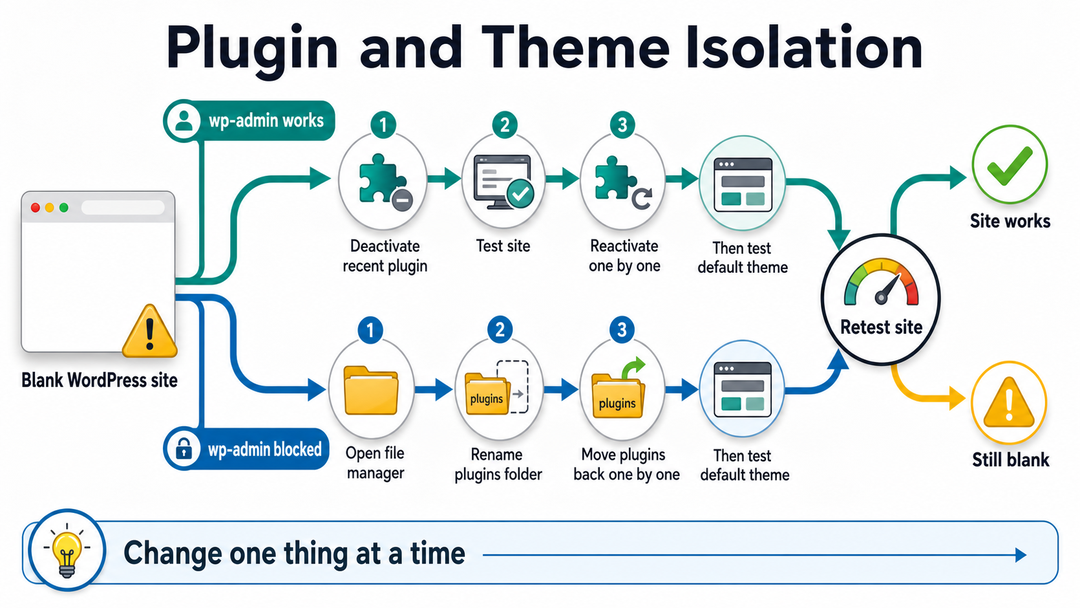
Begin with anything that changed recently. Deactivate one plugin, test the site, then move to the next. If you do not know what changed, deactivate all plugins temporarily and reactivate them one at a time.
When the site breaks again, the plugin you just activated is probably involved. That does not automatically mean the plugin is badly built. It may conflict with your PHP version, theme, another plugin, or a custom snippet.
If You Cannot Access wp-admin
Open SFTP, FTP, SSH, or your hosting file manager.
- Open your WordPress installation folder.
- Go to
wp-content. - Rename the
pluginsfolder to something likeplugins-disabled. - Visit the site again.
Renaming the folder forces WordPress to stop loading active plugins. If the site loads, create a new folder named plugins, then move the plugin folders back one by one until the site breaks again.
You can also rename only one plugin folder if the debug log or recent update history points to a specific plugin.
After you find the problem plugin, choose one of these fixes:
- Update it if a compatible version exists.
- Roll back to a known good version if you can do that safely.
- Replace it with another plugin.
- Contact the plugin developer with the error log.
- Keep it disabled until you can test on staging.
Do not leave the folder named plugins-disabled forever. Once the site is stable, restore a normal plugins folder and keep only the faulty plugin disabled or removed.
Step 5: Switch to a Default Theme
If plugins are not the cause, test the theme. Theme errors often show up after a theme update, a child theme edit, a PHP version change, or a mistake in functions.php.
If You Can Access wp-admin
Go to Appearance > Themes and activate a default WordPress theme that is compatible with your current WordPress version. Then test the site.
If the site loads with a default theme, the active theme or child theme is likely involved. From there, check recent edits, update history, custom code, and the theme’s support documentation.
If You Cannot Access wp-admin
Open SFTP, FTP, SSH, or your hosting file manager.
- Go to
wp-content/themes. - Find the folder for the active theme.
- Rename it, for example, from
mythemetomytheme-disabled. - Reload the site.
WordPress will try to fall back to an available default theme. If no default theme is installed, upload a fresh copy of a current default WordPress theme, then test again.
Be careful with child themes. If your site uses a child theme, the error may be in the child theme, the parent theme, or custom code loaded through either one.
Step 6: Turn On WordPress Debug Logging
If the site is still blank, it is time to stop guessing and look for the error.
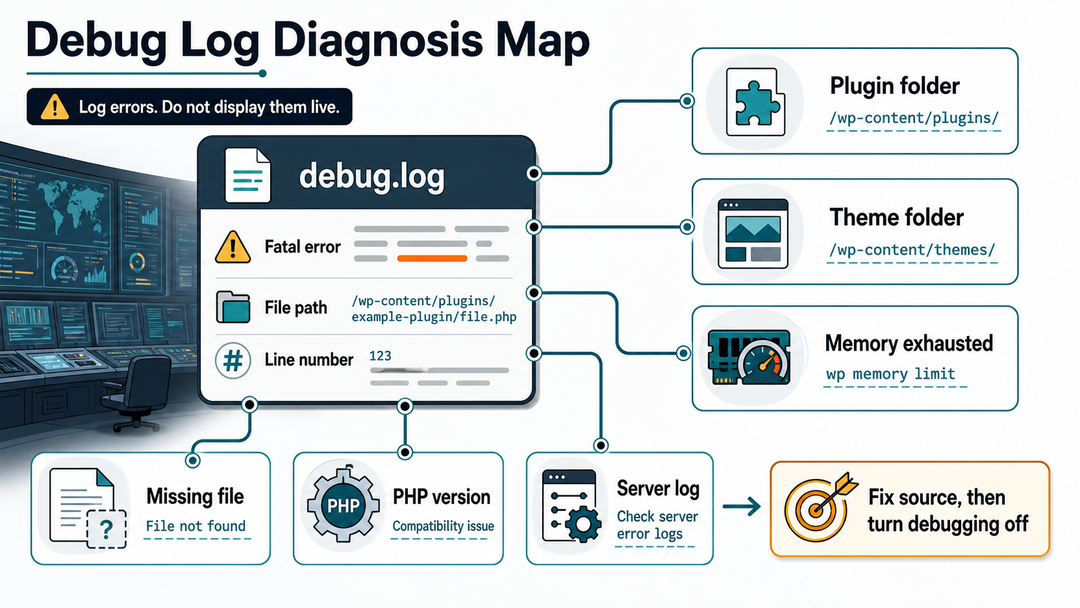
WordPress has built-in debugging tools. The official Debugging in WordPress documentation explains WP_DEBUG, WP_DEBUG_LOG, and WP_DEBUG_DISPLAY. On a live site, the safer approach is to log errors instead of displaying them publicly.
Open wp-config.php and find this line:
define( 'WP_DEBUG', false );Replace it with:
define( 'WP_DEBUG', true );
define( 'WP_DEBUG_LOG', true );
define( 'WP_DEBUG_DISPLAY', false );
Save the file, reload the blank page once, then check:
wp-content/debug.logThe log may show a file path and line number. Look for clues such as:
- A plugin folder name inside
wp-content/plugins - A theme folder name inside
wp-content/themes - A fatal error
- A parse error
- A memory exhausted message
- A missing file or class
- A PHP version compatibility error
Once you finish troubleshooting, turn debugging off again:
define( 'WP_DEBUG', false );Also remove or protect any debug log that contains sensitive file paths or configuration details. The PHP manual warns that displaying errors on production systems can expose confidential information. WordPress security documentation gives the same practical advice in its guide to disabling display errors: use logs for troubleshooting, not public error output.
Step 7: Check PHP Memory, PHP Version, and Server Resources
If the debug log mentions memory, the site may be exhausting the PHP memory available to WordPress. Heavy pages, large imports, overloaded dashboards, page builders, WooCommerce screens, backup jobs, and image processing tasks can all push a site into that state.
You may see an error similar to:
Allowed memory size exhaustedSome tutorials recommend immediately increasing the WordPress memory limit in wp-config.php. That can help in specific cases, but treat it as a diagnosis step, not a cure all. A healthy site should not need unlimited memory to render normal pages.
You can ask your host to check:
- PHP memory limit
- PHP version compatibility
- Recent PHP version changes
- Server error logs
- CPU, RAM, entry process, or I/O limits
- Disk space
- File permissions
- Malware or unexpected file changes
This is also a good opportunity to review hosting quality. A site that repeatedly hits resource limits may need better configuration, cleaner plugins, caching improvements, or stronger hosting. Our guide to the best hosting for WordPress explains which hosting features matter for reliability, backups, PHP support, staging, and support access.
Step 8: Fix Failed Updates and Core File Problems
A white screen can appear after an incomplete WordPress core, plugin, or theme update. The site may have missing files, half updated code, or a leftover maintenance marker.
Look for these issues:
- A
.maintenancefile stuck in the WordPress root folder - A plugin or theme folder that looks incomplete
- A failed automatic update message in hosting logs
- Missing WordPress core files
- Custom edits inside WordPress core files
Damaged WordPress core files can sometimes be repaired by reinstalling a fresh copy of WordPress core. Be careful: the goal is to replace core files, not delete your content. Your posts, pages, media uploads, themes, plugins, and configuration live outside the core files or in the database.
If you are not confident doing this manually, contact your host or developer. Stress makes it very easy to delete the wrong folder.
Still at the setup stage? Our beginner guide on how to install WordPress explains the normal WordPress file and installation structure.
Step 9: Look for Page Builder, Short code, and Single Page Issues
Sometimes the WordPress white screen of death is not site-wide. It may affect one page, one editor, or one template.
For one blank page, check:
- Recently added short codes
- Broken blocks
- Page builder widgets
- Custom fields
- Embedded scripts
- Template assignments
- PHP memory usage on that page
- Plugin modules loaded only on that page
Try duplicating the page, removing the newest section, or switching the template. If the page uses a builder, check the builder’s system info and safe mode tools if available.
When the editor is blank but the frontend works, open the browser developer console too. That may reveal a JavaScript error rather than a PHP fatal error.
Step 10: Restore a Backup When Speed Matters
For sales, leads, memberships, or client work, a backup restore may be faster than manual troubleshooting.
Restore a backup when:
- The site broke immediately after a known update.
- You have a clean backup from shortly before the issue.
- You can afford to lose changes made after that backup.
- You need the public site back online before investigating.
- The host offers one click staging or backup restore.
Do not restore unquestioningly if the site has recent orders, form entries, user registrations, bookings, course progress, or membership activity. In those cases, ask your host whether they can restore files only, restore to staging, or preserve the current database.
When to Contact Hosting Support
Contact your hosting provider if:
- You cannot access files, logs, backups, or the database.
- The error log points to server configuration.
- The site started failing after a PHP or server update.
- The blank screen affects multiple sites on the same account.
- Memory, CPU, I/O, or disk limits are being hit.
- You suspect malware.
- You are not sure which files are safe to change.
Send support the details they can act on:
- The exact URL that is blank
- Whether wp-admin works
- What changed before the issue began
- The time the problem started
- The latest PHP error from
debug.logor server logs - What you already tried
Good support requests save time. “My WordPress site is blank” is a start. “The homepage and wp-admin are blank after updating Plugin X at 10:15, and debug.log shows a fatal error in /wp-content/plugins/plugin-x/” gives support a real trail to follow.
How to Prevent the WordPress White Screen of Death
You cannot prevent every failure, but you can make the next one easier to recover from.
Keep these habits in place:
- Keep automatic or scheduled backups enabled.
- Test major plugin, theme, and WordPress core updates on staging when possible.
- Avoid editing theme files directly on a live site.
- Use a child theme or custom plugin for custom code.
- Remove abandoned plugins and themes.
- Keep PHP on a version supported by your site, host, plugins, and theme.
- Update one major component at a time when the site is business critical.
- Keep admin email delivery working so Recovery Mode messages can arrive.
- Keep SFTP or hosting file manager access available.
- Document important plugins and recent changes.
- Use monitoring so you know when a public page goes blank.
WordPress troubleshooting is part of the larger maintenance side of WordPress development. A site is easier to fix when hosting, backups, updates, themes, plugins, and monitoring are treated as one system instead of separate chores.
For new websites, prevention begins during setup. A clean launch checklist, reliable hosting, and sensible plugin choices reduce the chance of future blank screen emergencies. Our guide to setting up a WordPress website walks through that foundation.
FAQ About the WordPress White Screen of Death
What causes the WordPress white screen of death?
The WordPress white screen of death is usually caused by a PHP fatal error, a plugin conflict, a theme error, a memory limit problem, a failed update, a database issue, a cache problem, or a server configuration issue. WordPress.org notes that PHP and database errors can both appear as a blank white screen.
Is the white screen of death the same as the critical error message?
They are closely related. Older WordPress sites often showed only a blank white screen. Newer versions may show a “critical error” message and send a Recovery Mode email when WordPress can catch the fatal error.
Can I fix the white screen of death without wp-admin?
You can. If wp-admin is blank, use SFTP, FTP, SSH, WP-CLI, or your hosting file manager. The usual manual fix is to rename plugin or theme folders, so WordPress stops loading the broken component.
Should I turn off plugins or switch themes first?
Disable plugins first unless the white screen started immediately after a theme change or the error log points to the theme. Plugins are often the fastest first test because temporarily renaming the plugins folder turns off all plugins at once.
Is increasing the memory limit always the right fix?
Not always. Increasing memory can help when logs show memory exhaustion, but it should not replace diagnosis. A site that repeatedly exhausts memory may have a heavy plugin, an inefficient page, a server limit, or a deeper code problem.
Should I show PHP errors on the live site?
Avoid it on a live site. Log errors instead of displaying them publicly. Use WP_DEBUG_LOG with WP_DEBUG_DISPLAY set to false, then turn debugging off after troubleshooting.
Will reinstalling WordPress delete my content?
Reinstalling WordPress core should not delete posts, pages, uploads, plugins, themes, or the database when done correctly. Still, create or confirm a backup first, because deleting the wrong folder can cause data loss.
When should I restore a backup?
Restore a backup when you need the site online quickly, you know the backup is clean, and you can accept losing changes made after the backup. For ecommerce, membership, booking, or lead generation sites, ask your host regarding preserving recent database activity before restoring.
Final Takeaway
The WordPress white screen of death feels dramatic because it gives you so little information. Treat it like a troubleshooting path, not a disaster.
Back up first. Check Recovery Mode. Isolate plugins and themes. Use debug logs when the easy checks do not work. After that, work through memory, cache, updates, core files, and server level causes.
Most importantly, change one thing at a time. The fix is much easier to trust when you know exactly what brought the site back.