
If Google PageSpeed Insights reports “Eliminate render-blocking resources,” the eliminate render blocking resources astra litespeed fix is usually a careful delivery change, not another combine toggle. With Astra and LiteSpeed Cache, start with CSS Minify on, CSS Combine off, and asynchronous CSS only after QUIC.cloud Critical CSS is ready; then defer JavaScript gradually and test the mobile menu.
Quick verdict: In LiteSpeed Cache, keep CSS Minify on and CSS Combine off as the safe starting point. Enable Load CSS Asynchronously only when QUIC.cloud can generate Critical CSS, or test UCSS separately. For JavaScript, begin with Deferred mode and exclude any script that breaks after testing, including Astra’s menu script where it is actually present. Purge caches and compare the same page before and after.
CSS is needed to style a page, while scripts can alter how it is built. Removing every blocking request is not a sensible goal if it produces an un styled page or broken menu. Identify the flagged files, make one change at a time, validate desktop and mobile, and keep a rollback path.
This guide covers the browser’s critical rendering path, the tradeoffs behind CSS Combine on HTTP/2 and HTTP/3, LiteSpeed’s CSS and JavaScript settings, Astra’s font and file-generation controls, and a staged quality-assurance process. Setting names can shift between plugin releases, so compare these instructions with the controls shown in your installed version. For a broader site-speed checklist, see how to speed up WordPress.
Understanding Render-Blocking Resources and Their Impact on Core Web Vitals
Featured snippet answer: Render-blocking resources are CSS stylesheets and scripts that delay a browser from painting while they download or execute. On Astra sites, use Google PageSpeed Insights and Chrome DevTools to identify the files, then optimize delivery without removing required styles or scripts. After each change, test carefully on mobile.
Use this five-step sequence:
- Record PageSpeed Insights metrics and the flagged URLs.
- Set CSS Minify on and CSS Combine off.
- Enable asynchronous CSS only after QUIC.cloud CCSS is generating.
- Defer JavaScript, then exclude only scripts that fail interaction tests.
- Purge caches and retest styling, fonts, and mobile navigation.
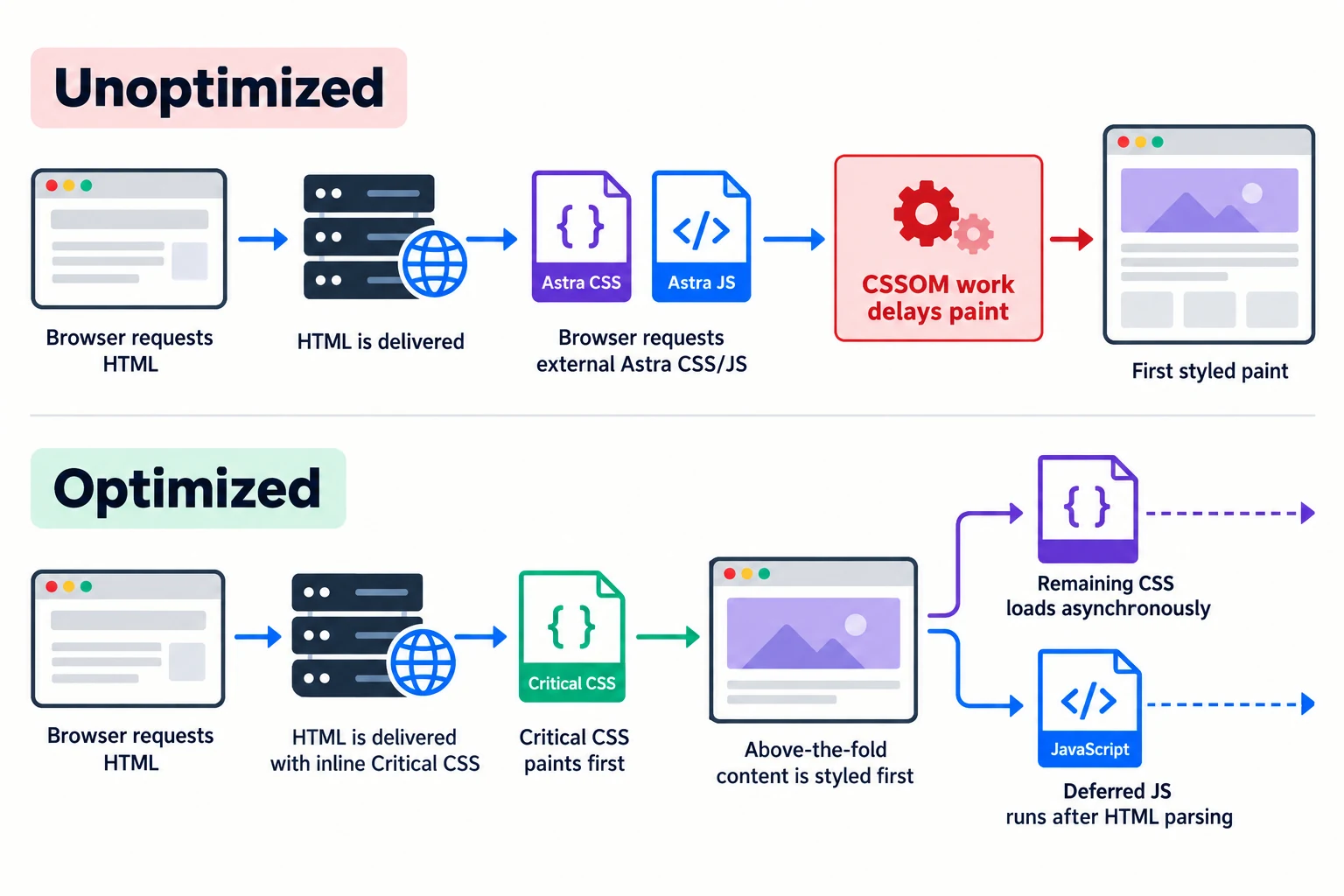
A render-blocking audit is an opportunity, not proof of broken code. Browsers wait for relevant CSS before painting styled content. Deliver above-the-fold styles quickly and postpone work not needed for the first view.
Google uses field data and lab diagnostics for different purposes. A Lighthouse FCP below 1.8 seconds is considered “good” under the published metric thresholds; that is a diagnostic benchmark, not a promise that a particular LiteSpeed setting will produce it. FCP, LCP, and TBT can respond to different bottlenecks, so record each metric separately. For the broader measurement framework, see the complete Core Web Vitals guide.
How Browsers Construct the DOM and Render Tree
The browser turns HTML into a Document Object Model (DOM) and reads stylesheets into the CSS Object Model (CSSOM). It combines them into a render tree, calculates layout, and paints pixels. The main thread coordinates much of this work.
A stylesheet in the document head can delay the first styled paint because the browser needs to know how elements look before drawing them. A classic script without async or defer can pause HTML parsing while it downloads and executes. That script may inspect or modify the DOM, so the browser must preserve execution order. The DOMContentLoaded event fires after parsing and deferred scripts complete; it is not the same as the moment users first see content.
CSS and JavaScript have different jobs and ordering constraints. Keep essential styles available for the first viewport, and defer scripts only when dependencies and interactions still work.
Identifying Render-Blocking CSS and JavaScript in Google PageSpeed Insights
Run PageSpeed Insights on a representative page, not only the homepage. Save the mobile and desktop results, FCP, LCP, Performance score, and the resource URLs listed under “Eliminate render-blocking resources.” Google’s Web Vitals guidance explains metric thresholds and how to interpret user experience measurements.
Inspect each URL’s owner and role. Astra’s stylesheet may appear with a handle or filename such as astra-theme-css; a child theme, page builder, font provider, slider, or form plugin can add other files. Don’t assume every URL containing “astra” is safe to remove. CSS may be required for the header, hero, or layout.
In Chrome DevTools, use Network to inspect request timing, transfer size, initiator, and cache status. Use the Coverage panel to find CSS or JavaScript that was unused during the recorded interaction. Transfer size is not execution time: a small script can consume main-thread time, while a larger cached stylesheet may arrive quickly. Record a baseline before changing settings, then repeat the same test after cache warmup.
The Dangerous “CSS Combine” Fallacy: Why Concatenating Styles Worsens Render Blocking on Astra and LiteSpeed Servers
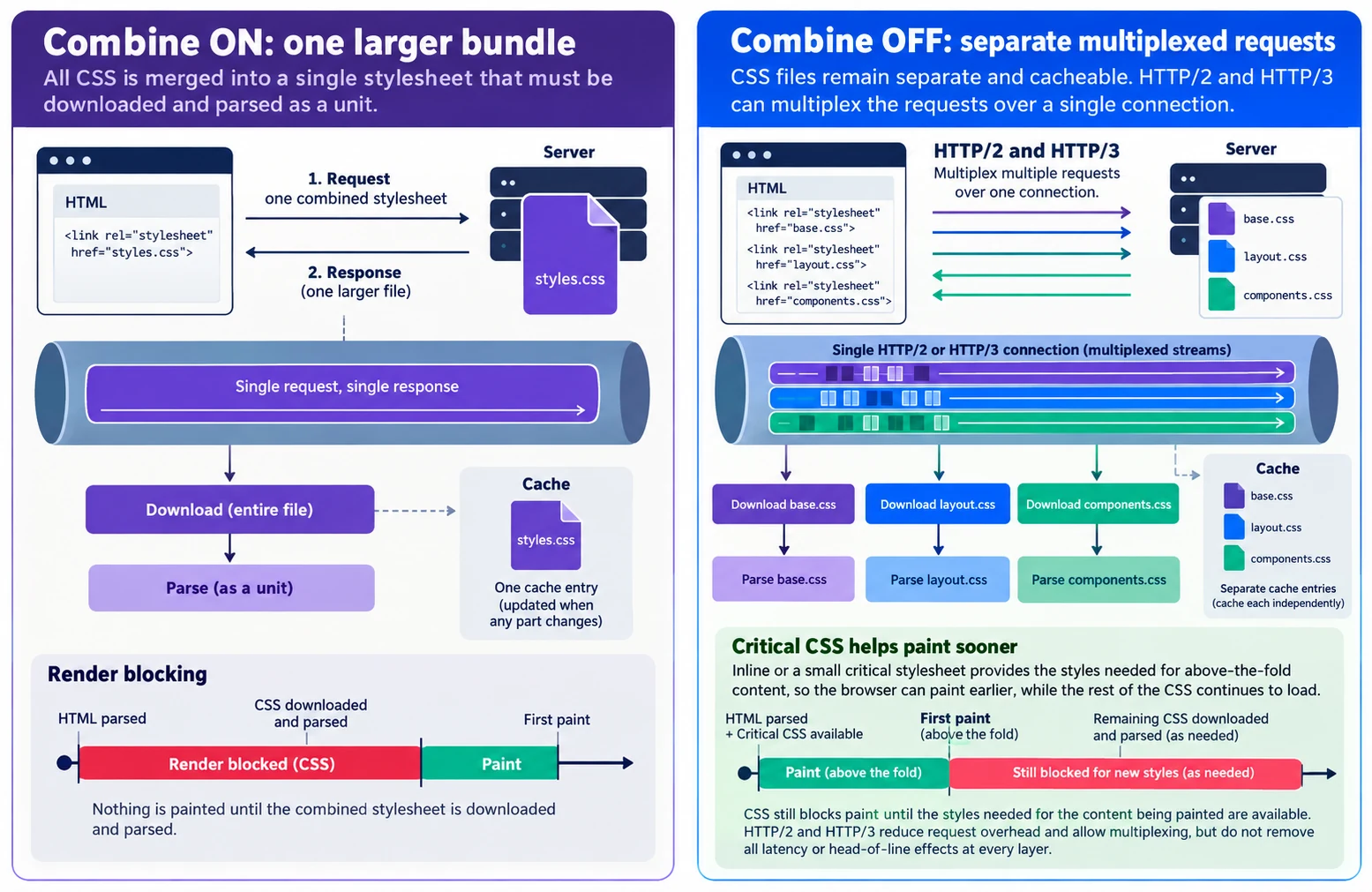
CSS Combine merges local stylesheet files into a combined file. It does not make CSS non-blocking: the browser still needs the combined CSS before it can paint the styled page. On a modern server, turning it on may reduce request count but also create a larger payload, complicate debugging, and force more bytes to be re-fetched when the combined file changes.
For many Astra + LiteSpeed installations, CSS Combine OFF is the sensible baseline, particularly when the server and visitors use HTTP/2 or HTTP/3. Those protocols can multiplex concurrent requests over a connection, reducing the old HTTP/1.1 pressure to concatenate every asset. The best choice still depends on the page, cache behavior, server, and plugin version. Measure both states on staging if you have a concrete reason to combine.
| Performance Dimension | Legacy HTTP/1.1 (Outdated) | Modern HTTP/2 & HTTP/3 (LiteSpeed) | Real-World Impact on Astra Theme |
|---|---|---|---|
| Connection model | Browsers commonly opened a limited number of connections per host | Multiple request streams can share a connection | Fewer requests are not automatically faster when multiplexing is available |
| CSS handling | Combining could reduce repeated connection overhead | Separate files can be multiplexed; one combined file is still blocking CSS | Keep Astra styles modular unless a measured test shows a benefit |
| Browser cache efficiency | A changed bundle could invalidate many styles at once | Independent files may remain cached when only one changes | A combined asset can increase repeat-download cost after updates |
| First Contentful Paint | Waiting for a large stylesheet can delay the first styled paint | Multiplexing helps delivery, but render-critical CSS still matters | Critical CSS or another tested strategy targets above-the-fold styling |
| Visual stability | Deferring a large bundle without critical styles may show unstyled content | Async delivery still needs correct critical styles | Verify FOUC and CLS rather than assuming a protocol prevents them |
HTTP/2 and HTTP/3 Multiplexing vs Monolithic File Bottlenecks
HTTP/1.1 commonly used multiple TCP connections to fetch resources concurrently. HTTP/2 introduced binary framing and stream multiplexing so requests can share a connection. HTTP/3 uses QUIC over UDP and reduces transport-level head-of-line blocking between independent streams when packet loss affects one stream.
That does not mean requests have zero latency or that the browser can paint before it has the CSS needed to style the page. A CSS file remains render-blocking when the page depends on it. Combining five stylesheets into one file can make all five arrive as one larger unit and can reduce the browser’s ability to prioritize or cache them independently. For server response delays before asset delivery, see server-level TTFB enhancements.
LiteSpeed Cache’s Page Optimization documentation lists CSS Combine as off by default and describes UCSS as a QUIC.cloud service. Keep it off unless a repeatable test on your site shows that combining improves the user experience. If you test it, compare the same URL, device profile, cache state, and network conditions. Look at the waterfall as well as the score.
The Flash of Unstyled Content (FOUC) and Cumulative Layout Shift Hazard
Flash of Unstyled Content (FOUC) occurs when a browser briefly displays content before its intended styles arrive. A navigation bar may appear as a vertical list, a hero may lose its spacing, or a grid may stack incorrectly. If the final styles change element positions after the first paint, that movement can contribute to Cumulative Layout Shift (CLS). A header logo that shifts as its sticky state changes is a related layout issue covered by Astra CSS delivery optimization.
Combining CSS alone does not cause FOUC. The risk appears when you defer or asynchronously load styles without delivering the rules needed for the initial viewport. Critical CSS is designed to cover that first view, but automated extraction can miss selectors shown only after interaction, at another breakpoint, or after dynamic content loads.
After enabling asynchronous CSS or UCSS, test multiple templates: post, archive, landing page, and product page if applicable. Check header states, dropdowns, cookie notices, and content that appears after scrolling. If a visual problem appears, use LiteSpeed’s CSS allowlist or exclusions only after identifying the missing rule or file. Don’t stack several optimization plugins to compensate for one bad setting.
How to Eliminate Render Blocking Resources in Astra With LiteSpeed CSS Settings
“Zero render-blocking” is not a realistic universal promise. Some render-critical styles need to arrive before the browser can paint the page correctly. The configuration below aims to reduce unnecessary delay while preserving the first viewport.
In WordPress, open LiteSpeed Cache > Page Optimization > CSS Settings. Start with CSS Minify on and CSS Combine off. Minification removes whitespace and comments; it does not change which styles the page needs. Leave CSS Combine External and Inline off, especially when Combine is off. These defaults avoid expanding the scope of concatenation. For related settings elsewhere in the plugin, see LiteSpeed page optimization options.
Enable Load CSS Asynchronously only if QUIC.cloud services are connected and the Critical CSS queue is working. LiteSpeed documentation says the setting uses QUIC.cloud to generate CCSS and may incur a fee. Keep CSS Per URL on when individual pages have different layouts; a shared post-type cache can save quota but may style unusual pages incorrectly. Inline CSS Async Lib should generally remain on so the loading helper does not add a separate blocking request.
| LiteSpeed CSS control | Starting state | What it does | Check before keeping it |
|---|---|---|---|
| CSS Minify | ON | Removes comments and formatting whitespace | Confirm generated CSS has no syntax errors |
| CSS Combine | OFF | Concatenates local stylesheets | Test only when there is a measured reason |
| CSS Combine External and Inline | OFF | Expands combination to external and inline CSS | Relevant only if combining |
| Load CSS Asynchronously | Conditional ON | Loads CSS alongside HTML and uses CCSS | Confirm QUIC.cloud connection and generated CCSS |
| CSS Per URL | ON for distinct layouts | Creates separate critical CSS per URL | Consider quota and layout consistency |
| Inline CSS Async Lib | ON | Inlines the async CSS helper | Verify output after optimization |
Asynchronous CSS Loading and Critical CSS Generation via QUIC.cloud
When Load CSS Asynchronously is enabled, LiteSpeed sends pages for Critical CSS processing through QUIC.cloud. The service generates rules needed for the initial viewport, and LiteSpeed inserts those rules into the page while loading the remaining stylesheet asynchronously. The first request may not have completed CSS generation yet: background queue processing can take time. See LiteSpeed’s CSS and JavaScript troubleshooting guide for queue and FOUC diagnostics.
Connect QUIC.cloud from the LiteSpeed Cache dashboard, enable the service, and inspect Page Optimization > CSS for queue status. Once CCSS is generated, purge relevant caches and view source or use DevTools to confirm that critical styles are present and the full stylesheet still loads. LiteSpeed documents files under its own wp-content/litespeed/ccss/ cache path; do not assume a different folder mentioned in older tutorials applies to your version.
Do not enable asynchronous CSS without a fallback plan. If QUIC.cloud is disconnected or the queue fails, the page may continue loading normally or behave differently from what you expect. Watch for an unstyled flash, missing above-the-fold elements, or a stale stylesheet. LiteSpeed’s troubleshooting documentation describes queue delays and the LSCWP_CTRL=before_optm diagnostic bypass.
Critical CSS (CCSS) vs Unique Used CSS (UCSS): Choosing the Right Engine for Astra
Critical CSS (CCSS) contains the rules needed for above-the-fold content. The rest of the stylesheet loads afterward. Unique CSS (UCSS) removes unused rules and produces a page-specific optimized stylesheet through QUIC.cloud. LiteSpeed’s current documentation notes that UCSS can be used with CSS Combine to create one streamlined file per page. That means UCSS is not simply a no-combine alternative, and it can increase storage use on sites with many URLs.
| Feature | CCSS | UCSS | Astra decision point |
|---|---|---|---|
| Main purpose | Style above-the-fold content first | Generate page-specific CSS containing used rules | Choose based on whether the problem is initial paint or unused CSS |
| Remaining CSS | Original stylesheet loads asynchronously | Streamlined page CSS replaces or reduces source stylesheets | Verify the generated result on each template |
| Generation | QUIC.cloud queue; can be per URL or shared by post type | QUIC.cloud queue; typically per URL | Review queue limits, quota, and disk capacity |
| Potential benefit | Supports async CSS while preserving initial styling | Can also reduce unused CSS | Neither guarantees a particular Lighthouse score |
| Main caution | Incorrect critical extraction can omit interactive states | Many URLs can create many files and consume storage | Test archives, mobile states, and custom layouts |
For similar pages, CCSS shared by post type may be more economical if layouts match. Distinct templates may need per-URL CCSS. Consider UCSS when unused CSS is a measured issue and you can manage URL-specific output.
Astra Built-In File Generation vs LiteSpeed Inlining Coordination
Astra’s File Generation control and its local Google Fonts controls are under Astra > Settings > Performance in versions that expose those options. File Generation writes Astra’s generated CSS and JavaScript to static files rather than embedding all generated rules inline. Astra’s documentation describes the setting as creating external minified assets; exact behavior and labels can vary by Astra version.
Keep File Generation enabled as a baseline when it produces stable assets. Purge Astra’s generated files and LiteSpeed’s cache after changing it; compare on staging if the page displays stale CSS.
Do not assume a particular Astra upload path without checking your installed version and actual Network requests. Inspect the stylesheet URL, response, and file contents. Astra Customizer CSS, child-theme CSS, and page-builder styles can still be inline or separate assets. Your goal is to make sure the current CSS is available, correctly ordered, and cached—not to force every style through the same path.
JavaScript Optimization: Deferral, Delay, and Protecting Astra Mobile Navigation
JavaScript can block parsing when a classic script appears in the head without defer or async. LiteSpeed’s Load JS Deferred offers two modes in current documentation: Deferred, which runs after HTML parsing, and Delayed, which postpones scripts until user interaction. These modes have different compatibility risks.
Begin with JS Minify on, JS Combine off, and Load JS Deferred: Deferred. Test the page before trying Delayed. If Astra’s mobile menu or another interaction fails, add a narrow exclusion under LiteSpeed Cache > Page Optimization > Tuning > JS Deferred/Delayed Excludes. Script names and handles vary, so confirm the exact file in DevTools before excluding it.
| JavaScript control | Starting state | Reason | Validation |
|---|---|---|---|
| JS Minify | ON, then test | Reduces file formatting overhead | Check console errors and interactive controls |
| JS Combine | OFF | Avoids a large reordered bundle as a default | Test only where a specific issue supports it |
| Load JS Deferred | Deferred | Lets parsing continue while preserving later execution | Test menus, forms, search, and sliders |
| Load JS Deferred | Delayed only as a later test | Waits for interaction before execution | Check first-tap behavior and all key journeys |
Asynchronous Downloading vs Deferred JavaScript Execution
async allows a script to download in parallel with HTML parsing, but it runs as soon as it is ready. That can interrupt parsing and may execute scripts out of dependency order. defer also downloads in parallel, then runs scripts after HTML parsing while preserving document order among deferred scripts.
LiteSpeed’s Deferred mode is generally easier to test because scripts run after the document has been parsed. Delayed mode can improve lab metrics by waiting for a user action, but a menu, consent tool, analytics listener, or form may not respond immediately until the trigger occurs. jQuery-dependent scripts require special care: moving the dependent code ahead of jQuery can cause console errors or silent failures.
Safe Script Delay and Whitelisting Astra Mobile Navigation Scripts
Astra mobile navigation depends on JavaScript to open and close the menu. Some Astra versions or configurations load a frontend file with a name like frontend.min.js, and some registered scripts use the handle astra-theme-js. The handle may not appear in the public URL. Confirm the actual source in the page and your LiteSpeed exclusion matching rules before copying a string.
If the menu fails under Delayed mode, open Page Optimization > Tuning > JS Deferred/Delayed Excludes and add one matching identifier per line. The report recommends testing these candidate strings:
astra-theme-js
/wp-content/themes/astra/assets/js/min/frontend.min.js
jquery.js
Treat these as diagnostic candidates, not a mandatory blanket list. Excluding jQuery can increase blocking work, and a handle string may not match a URL in every release. First check the Network panel and page source. Add only the narrow match that restores correct behavior, then re-test all affected controls on phone and desktop widths.
Test menu opening, closing, submenu expansion, keyboard focus, sticky-header transitions, and navigation after scrolling. If the menu works only after a tap or scroll elsewhere, the theme script may be delayed too aggressively. Return to Deferred mode or exclude the specific script, purge optimized assets, and retest. For related sticky-header and mobile-menu behavior, see optimizing custom Astra headers. Avoid custom code snippets that add defer globally; a plugin-level exclusion is easier to audit and reverse.
Web Font Delivery: Local Google Fonts and Font Display Optimization
Fonts add external requests and can change line breaks when a late font replaces a fallback. Local hosting removes recurring requests to fonts.googleapis.com and fonts.gstatic.com, but does not justify preloading every weight.
Hosting Google Fonts Locally in Astra Theme
In Astra versions with the control, open Astra > Settings > Performance and enable Load Google Fonts Locally. Astra’s performance guide describes downloading font assets to the site and provides a separate Preload Local Fonts option. Enable preload only for the font files used immediately in the first viewport, such as the main body or heading face. Preloading every weight can compete with the LCP image and other important assets.
After enabling local fonts, purge caches and inspect the Network panel for WOFF2 requests from your domain. A plugin may still enqueue Google Fonts independently. Review font licensing and applicable privacy requirements. You can also reduce competition for the first viewport with best image optimization techniques.
Preventing Flash of Invisible Text with LiteSpeed Font Display Swap
Under LiteSpeed Cache > Page Optimization > CSS Settings, set Font Display Optimization to Swap if that option appears in your version. LiteSpeed appends font-display behavior to cached @font-face rules. With swap, fallback text appears while the custom font downloads, reducing the chance of a Flash of Invisible Text (FOIT).
The fallback may have different character widths, causing a Flash of Unstyled Text (FOUT) and some layout movement. Choose a fallback with similar metrics, include only needed weights, and test heading wraps and buttons. A font preload should reference the exact local WOFF2 file and matching type/credentials; incorrect preloads can be ignored by the browser or downloaded twice.
Master Configuration Blueprint and Safe Testing Workflow
Use this blueprint as a starting point, not a one-click preset. LiteSpeed labels can change. Change one setting group at a time, purge caches, and record prior values.
| Optimization area | Setting | Recommended state | Purpose and caveat |
|---|---|---|---|
| Astra performance | File Generation | ON as baseline | Serves generated theme assets as files; verify output and cache refresh |
| Astra fonts | Load Google Fonts Locally | ON if using Google fonts | Removes recurring external font delivery after local files exist |
| Astra fonts | Preload Local Fonts | Selectively ON | Prioritize only first-viewport font files |
| LiteSpeed CSS | CSS Minify | ON, test | Compresses formatting, not style rules |
| LiteSpeed CSS | CSS Combine | OFF baseline | Preserve separate assets unless test data favors combination |
| LiteSpeed CSS | Load CSS Asynchronously | Conditional ON | Requires functioning QUIC.cloud CCSS generation |
| LiteSpeed CSS | CSS Per URL | ON for distinct layouts | More accurate per-page critical styling; uses more quota/storage |
| LiteSpeed CSS | Inline CSS Async Lib | ON | Avoids separate loading of the async helper |
| LiteSpeed CSS | Font Display Optimization | Swap | Displays fallback text while custom fonts load |
| LiteSpeed JS | JS Minify | ON, test | Compresses scripts; inspect console after change |
| LiteSpeed JS | JS Combine | OFF baseline | Avoids unnecessary concatenation and ordering risks |
| LiteSpeed JS | Load JS Deferred | Deferred baseline | Let parsing finish before deferred scripts execute |
| LiteSpeed Tuning | JS Deferred/Delayed Excludes | Add only proven breakages | Preserve essential Astra or plugin interactions |
Step-by-Step Astra and LiteSpeed Settings Checklist
- Save a baseline PageSpeed Insights report and a DevTools waterfall for a representative URL.
- Confirm your server is actually using LiteSpeed Cache and determine the negotiated HTTP protocol from DevTools.
- On staging if available, set CSS Minify on and CSS Combine off. Save, purge all LiteSpeed cache, and retest.
- Connect QUIC.cloud, enable asynchronous CSS, and wait until the relevant CCSS queue entries are processed. Test the homepage and distinct templates.
- Test UCSS separately only if unused CSS remains a measured problem; review storage and page-specific visual states.
- Enable JavaScript Deferred mode, test menu, search, forms, and any commerce interactions, and add a narrow exclusion only when evidence identifies the script.
- Configure local fonts and selective preload, purge caches, and inspect actual font requests.
- Warm the cache, run PageSpeed Insights again under the same conditions, and compare metrics, screenshots, and behavior rather than chasing a score alone.
Instant Rollback and Cache Testing Workflow
If an optimized page looks broken, append ?LSCWP_CTRL=before_optm to the URL (or &LSCWP_CTRL=before_optm if the URL already has a query string) to request LiteSpeed’s pre-optimization output. LiteSpeed documents this as a diagnostic bypass. Use it to see whether the issue comes from Page Optimization; it is not a permanent visitor-facing fix.
If the bypassed page works, turn off the most recent optimization change, purge LiteSpeed Cache > Toolbox > Purge > Purge All, clear any CDN cache, and retest in a private window. If the problem remains with optimization bypassed, investigate Astra Customizer CSS, plugin conflicts, or server output instead. Restore settings one at a time until the failing change is isolated. For issues that persist beyond cache optimization, use the WordPress troubleshooting and bug fix guide.
Use Chrome DevTools device emulation and a real phone to test the menu. Check for 404s, JavaScript errors, stale CSS, and duplicate font loads. Confirm QUIC.cloud queues have finished before judging asynchronous CSS. Record toggle states so rollback is reproducible.
Keep CSS asynchronous only when Critical CSS has generated correctly, and introduce JavaScript delay only after interaction testing. Retest the affected template after each change so performance tuning does not hide a layout or navigation regression.