
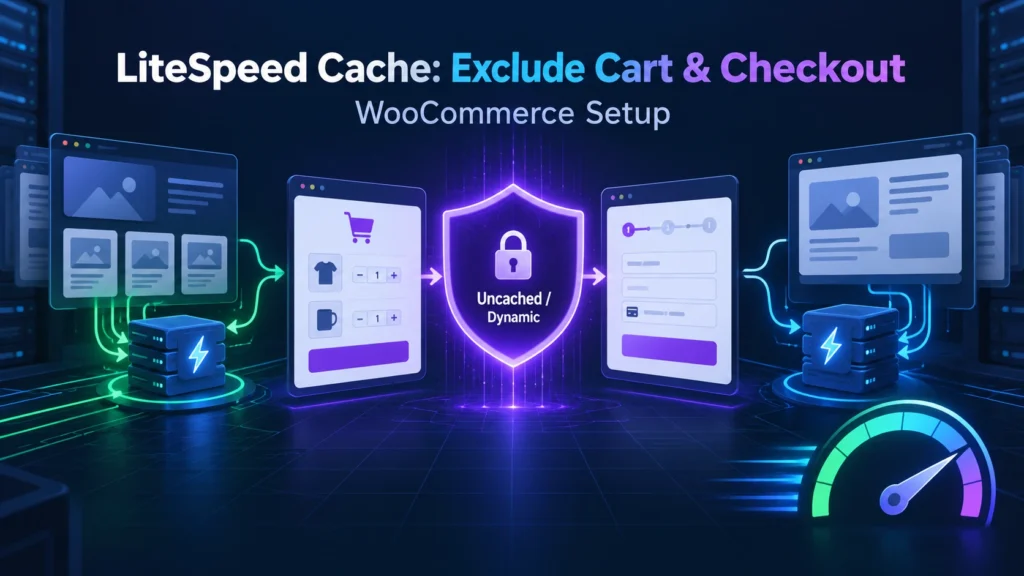
If you searched for litespeed cache exclude cart checkout because a customer sees an empty cart, an old order, or a checkout that will not submit, start with one reassuring fact: standard WooCommerce Cart, Checkout, and My-Account pages are normally excluded from LiteSpeed Cache automatically. The problem is usually a custom funnel URL, a stale mini-cart fragment, a CDN rule, or JavaScript optimization.
This guide shows you how to confirm native protection, add safe manual rules, keep catalog pages cached, and protect payment scripts.
Does LiteSpeed Cache Automatically Exclude WooCommerce Cart and Checkout?
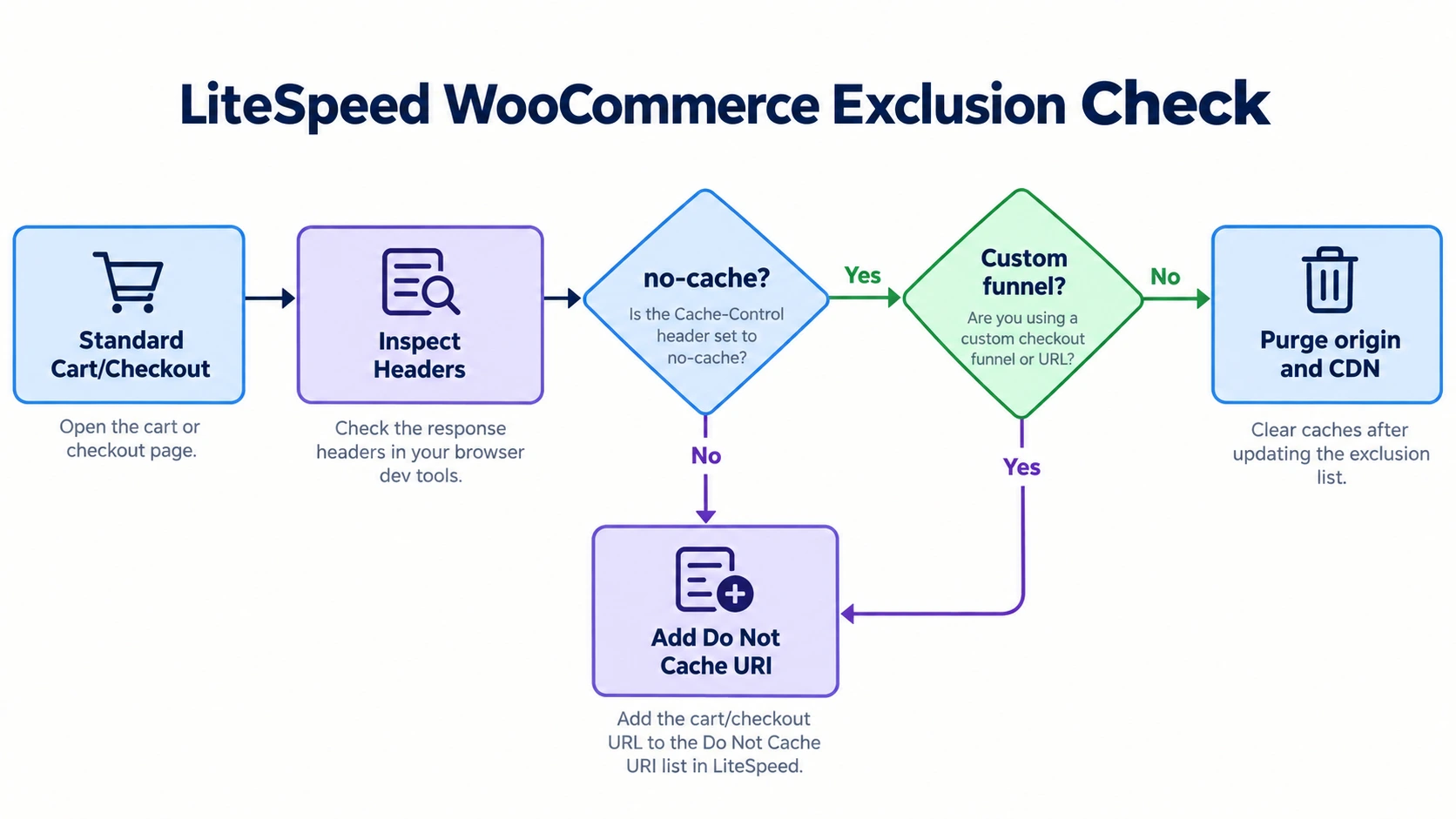
Does LiteSpeed Cache automatically exclude WooCommerce cart and checkout? Yes. By default, LiteSpeed Cache automatically detects WooCommerce and excludes the standard Cart, Checkout, and My-Account pages from public caching. You only need manual exclusion under LiteSpeed Cache > Cache > Excludes > Do Not Cache URIs if you use custom checkout slugs, third-party funnel builders, or edge CDNs.
The integration also varies cached output by WooCommerce cookies such as woocommerce_items_in_cart and woocommerce_cart_hash, separating empty-cart visitors from active shoppers. Do not begin by disabling all caching across the store.
| Setup | Expected LiteSpeed behavior | Manual action |
|---|---|---|
| Default Cart, Checkout, and My-Account pages | Native no-cache handling | Usually none |
| Custom checkout or funnel URL | May not match WooCommerce’s registered page IDs | Add the custom path to Do Not Cache URIs |
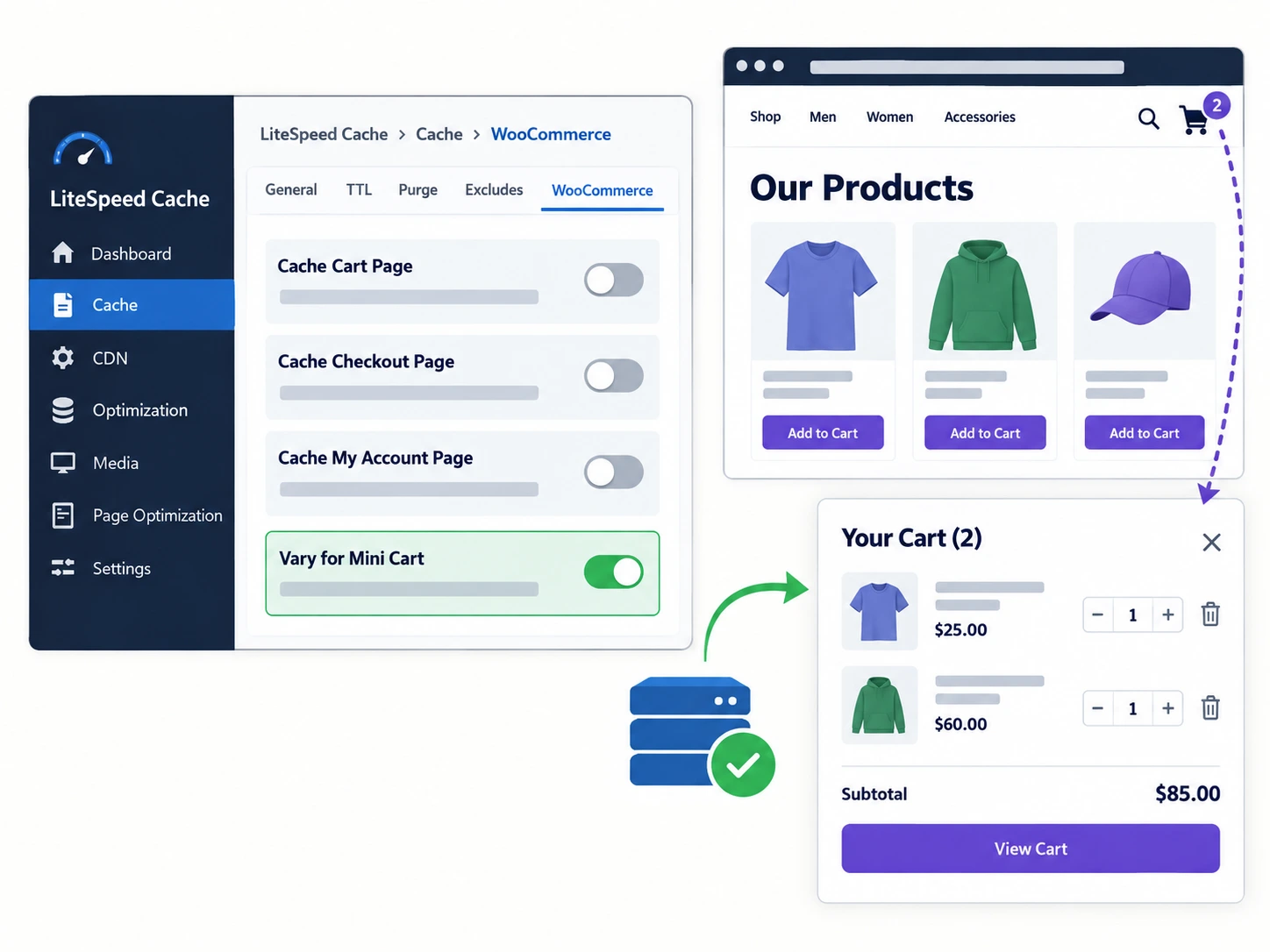
| Product/shop page with an old mini-cart | Public page can be cached while the widget is stale | Enable Vary for Mini Cart or ESI |
| Cloudflare Cache Everything rule | CDN may override origin cache instructions | Add CDN bypass rules |
How LiteSpeed Cache Detects WooCommerce Out-of-the-Box
WooCommerce’s page setup documentation covers the registered page associations. LiteSpeed uses those associations and WooCommerce request state to identify dynamic pages. The standard checkout is therefore a registered endpoint, not just a /checkout/ string.
When a visitor browses a product page, LiteSpeed can serve a public cached response. After an item is added, WooCommerce sets cart cookies and LiteSpeed can vary or bypass the dynamic request. Checkout still runs PHP and creates fresh payment nonces.
That architecture keeps public pages fast without turning a customer’s cart into shared HTML. LiteSpeed’s official cache documentation describes the related controls and headers.
Why Store Owners Still Experience Cart and Checkout Caching Bugs
Native detection does not cover every possible checkout implementation. The most common exceptions are:
- A FunnelKit, CartFlows, AeroCheckout, or Elementor funnel uses a URL that WooCommerce does not know as its checkout page.
- The mini-cart is rendered into a cached product or shop page, so the cart is correct but the header count is old.
- Cloudflare or another upstream proxy applies an aggressive edge rule and ignores the origin’s no-cache headers.
Another cache plugin, host rule, or custom rewrite can also cause a conflict. Verify the URL and headers before adding broad exclusions.
The Core Misconception: Why Native Pages Are Excluded (and When Manual Configuration Is Mandatory)
Many tutorials tell every WooCommerce owner to paste /cart/ and /checkout/ into LiteSpeed’s exclusion box. That advice is not always harmful, but it often hides the important distinction: standard WooCommerce pages are already protected; manual rules are an exception-handling tool.
WooCommerce exposes page IDs through functions such as wc_get_page_id('checkout'), and its conditional functions identify requests such as is_checkout(). If your store uses the registered pages and default slugs, LiteSpeed can follow that integration. If a funnel plugin creates a separate one-page checkout, the request can fall outside that map.
| Question | Native WooCommerce setup | Custom setup |
|---|---|---|
| Is the URL registered in Page setup? | Yes | Often no |
| Is public page caching safe? | Cart/checkout are excluded | Not until verified |
| Does a manual URI rule help? | Optional redundancy | Usually required |
| Main diagnostic | Check response headers | Check URL, headers, CDN, and scripts |
| Main risk | Stale widget, not session sharing | Session bleeding or payment failure |
The reason to take this seriously is session bleeding. If a server or CDN stores HTML containing a cart, customer data, or a nonce, another visitor may receive it. A cached payment nonce can also expire before submission, causing an empty cart or rejected Stripe or PayPal payment.
When Manual Exclusion Is Genuinely Mandatory
Add a manual rule when one or more of these conditions applies:
- A custom checkout builder creates a FunnelKit checkout, CartFlows step, AeroCheckout page, or Elementor checkout template.
- You changed the default page slug and did not update WooCommerce > Settings > Advanced > Page setup.
- Your store uses multi-step upsells, order bumps, custom thank-you pages, or other funnel steps that display shopper-specific data.
- A membership, subscription, wholesale, or account plugin adds dynamic endpoints that LiteSpeed cannot identify automatically.
The Dangers of Session Bleeding and Caching Dynamic Checkouts
How to Verify If Cart and Checkout Are Being Cached Using Browser DevTools
Test as a guest in an Incognito or Private window because administrators are commonly bypassed. The key evidence is in the first document request’s response headers.
Inspecting Server Response Headers in an Incognito Window
- Open an Incognito window with browser extensions disabled if possible.
- Add a test product to the cart as a guest.
- Visit
/cart/or/checkout/. - Press F12 or Cmd+Option+I, then open the Network tab.
- Refresh the page and select the first request with type document.
- Open Response Headers and record the LiteSpeed and cache-control values.
Repeat the test after adding a custom funnel URL and compare the result with the CDN response when one is in use.
| Header evidence | Meaning | Verdict |
|---|---|---|
X-LiteSpeed-Cache-Control: no-cache | LiteSpeed recognized the page as dynamic | Good |
cache-control: no-cache, must-revalidate, max-age=0 | Browser should not store the checkout response | Good |
Past expires date | Response is intentionally stale immediately | Good |
X-LiteSpeed-Cache: hit on checkout | Checkout was served from LiteSpeed cache | Critical: investigate now |
cache-control: max-age=... on checkout | Browser or CDN may store the page | Configuration bug |
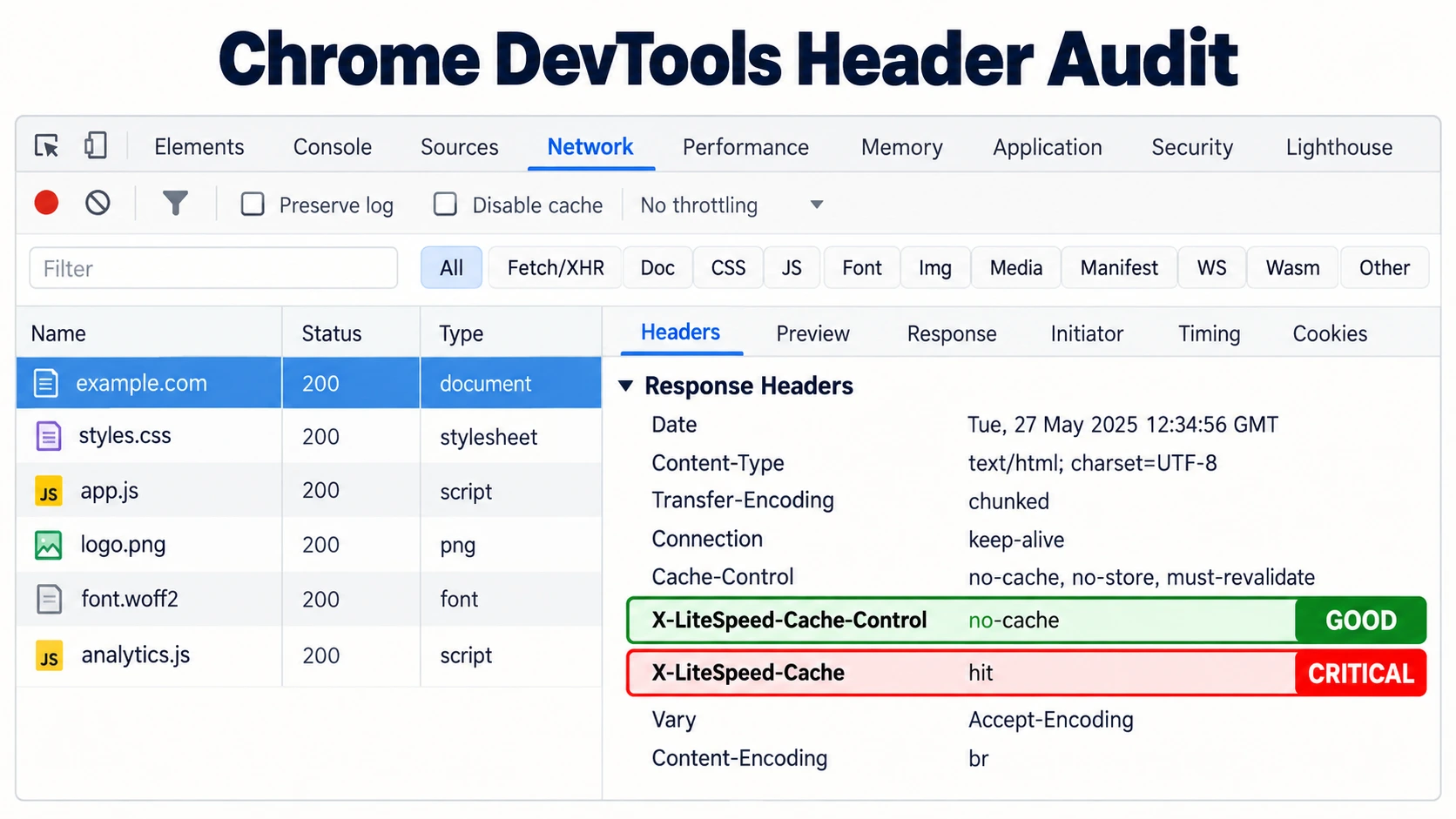
The header audit visual summarizes this test. Check the CDN separately when Cloudflare is in use.
Decoding LiteSpeed Cache Response Headers
X-LiteSpeed-Cache-Control: no-cache is the strongest positive signal from the origin. X-LiteSpeed-Cache: hit is expected on a public product page but is a serious finding on a dynamic checkout. Browser cache-control headers reveal whether the browser itself is being told to store the response.
If the origin is correct but the browser receives a cached response, compare CDN headers and review “Cache Everything” or forced TTL rules.
Step-by-Step Guide: How to Manually Exclude Cart, Checkout, and My-Account in LiteSpeed Cache
Navigating to LiteSpeed Cache Exclude Settings
In WordPress, open Dashboard > LiteSpeed Cache > Cache, then click the Excludes tab. You need an administrator account or a role with permission to change LiteSpeed settings.
Configuring the “Do Not Cache URIs” Textarea
Scroll to Do Not Cache URIs. Put one relative path on each line:
/cart/
/checkout/
/my-account/
Add the real paths for custom pages, such as /order/, /funnel-checkout/, or /checkout-step-2/. Use the URL path, not the full domain, and retain the leading slash. If the funnel has multiple steps, list each dynamic step or use an anchored prefix only when you understand the matching scope.
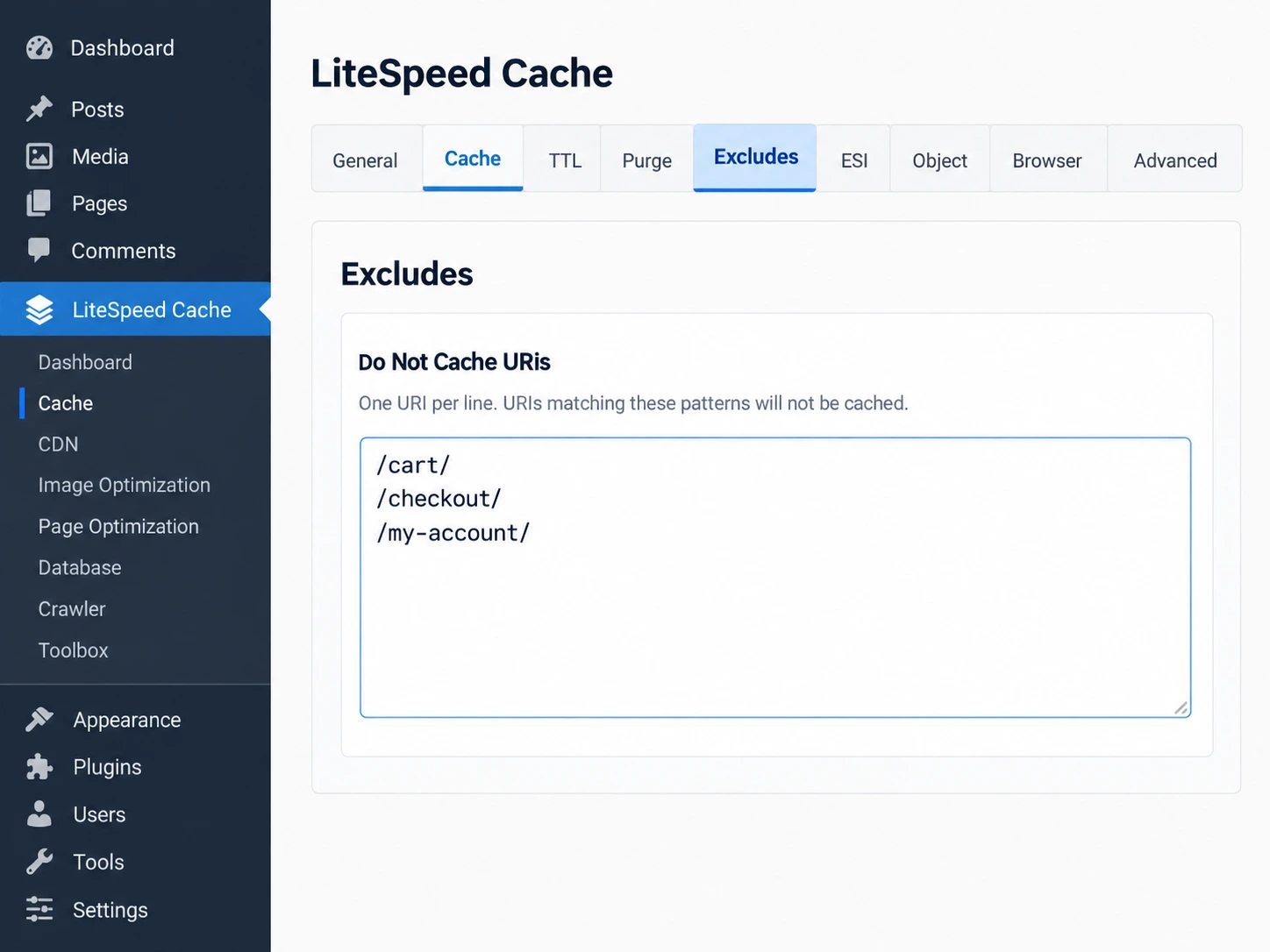
The LiteSpeed Cache exclusion settings visual shows the intended dashboard location and path format.
Saving Settings and Performing a Comprehensive Cache Purge
Click Save Changes. Adding a rule does not remove objects already stored in cache. Hover over the LiteSpeed diamond icon in the WordPress admin bar and select Purge All – LSCache. Then purge the CDN cache if the site uses one, open a fresh Incognito session, and repeat the header audit.
For broader performance work, see the practical WordPress speed guide while keeping safe catalog caching enabled.
Advanced Exclusion Syntax: Path Slugs, Exact Matches ($), and Regex Rules
LiteSpeed compares the values you enter with $_SERVER['REQUEST_URI']. A partial string can match more URLs than you intend. For example, entering cart may match /cart/, /cart-accessories/, /smart-cart-addon/, or even a blog URL containing that word.
| Rule | What it does | Use case |
|---|---|---|
/cart/ | Partial path match | Simple known path; verify scope |
^/cart/$ | Exact beginning and ending match | Only the default cart URL |
^/checkout/$ | Exact default checkout match | Only the checkout landing page |
^/checkout/ | Matches checkout and child paths | Order received and checkout endpoints |
cart* | Broad wildcard-style pattern | Avoid unless the scope is intentional |
Understanding How LiteSpeed Compares URIs Against Server Variables
The REQUEST_URI value includes the requested path and may include query-string context depending on the request. LiteSpeed’s matching behavior means a short, unanchored term can disable caching for valid pages. That can quietly reduce cache hit rates across the site.
Using Exact Match Anchors (^ and $) for Bulletproof Rules
Use ^ to anchor the beginning and $ to anchor the end. ^/cart/$ matches only /cart/; it does not match /cart/anything/. Likewise, ^/checkout/$ matches only the checkout landing page. Use ^/checkout/ when all checkout child paths must remain dynamic, including order-received URLs.
Keep rules narrow, purge all layers, and test again. See the LiteSpeed regex and exclusion documentation for complex rewrites.
Fixing Stale Cart Widgets: Configuring ESI and Cache Vary for WooCommerce Mini-Carts
If a customer adds a product and then sees “0 items” in the header, the cart may be correct. The public product or shop page may simply contain an old copy of the mini-cart HTML. This is the most common reason for a cart not updating litespeed cache complaint.
The Root Cause: Why Header Carts Fail on Cached Catalog Pages
Page caching stores the HTML returned when the page was generated. If a theme renders the mini-cart server-side with PHP, the cached page can preserve an empty cart or a previous customer’s count. The underlying cart session and the visible header then disagree.
Method 1: Enabling “Vary for Mini Cart” in LiteSpeed WooCommerce Settings
Go to LiteSpeed Cache > Cache > WooCommerce and set Vary for Mini Cart to ON. LiteSpeed can maintain separate cached variants for empty and active carts. Purge the cache and test with a guest window.
This keeps most catalog pages public while allowing the cart state to vary.
Method 2: Punching Dynamic Holes with Edge Side Includes (ESI)
For a high-traffic store, open LiteSpeed Cache > Cache > ESI and turn Enable ESI on. Configure the mini-cart widget as an ESI block so LiteSpeed Web Server can cache most of the page publicly while fetching the small dynamic fragment per request.
The W3C ESI standard supports dynamic fragments while most of a page remains cached. Do not cache checkout. Review wc-ajax=get_refreshed_fragments in DevTools; the WooCommerce AJAX cart performance guide covers that issue.
| Symptom | Likely cause | First fix |
|---|---|---|
| Cart page has the right items but header says zero | Cached mini-cart HTML | Enable Vary for Mini Cart |
| Header never refreshes after add-to-cart | Fragment script or theme conflict | Inspect wc-ajax requests |
| Personalized widget appears across visitors | Server-side HTML cached publicly | Use ESI or bypass that widget |
Preventing Edge Caching Collisions: Cloudflare and CDN Rules for WooCommerce
LiteSpeed can return the right origin headers while an upstream CDN still caches the response. A Cloudflare Cache Everything rule is especially dangerous on /cart/ and /checkout/, because an edge node may store the first visitor’s HTML and reuse it for other visitors.
The Threat of Cloudflare “Cache Everything” on Dynamic Stores
If the edge forces a TTL or strips Set-Cookie, it can override the origin and cause session leakage or nonce failures.
Crafting Bulletproof Cloudflare Cache Bypass Rules
In Cloudflare Cache Rules, create a bypass rule for paths and cookies. Cloudflare’s Cache Rules documentation explains the current dashboard fields and expression syntax.
| Condition | Operator/value | Action |
|---|---|---|
| URI Path | starts with /cart | Bypass cache |
| URI Path | starts with /checkout | Bypass cache |
| URI Path | starts with /my-account | Bypass cache |
| Cookie | contains woocommerce_items_in_cart | Bypass cache |
| Cookie | contains woocommerce_cart_hash | Bypass cache |
Put path exceptions above any broad cache rule. Purge edge cache and verify headers at the public hostname. QUIC.cloud should receive the same exclusion intent.
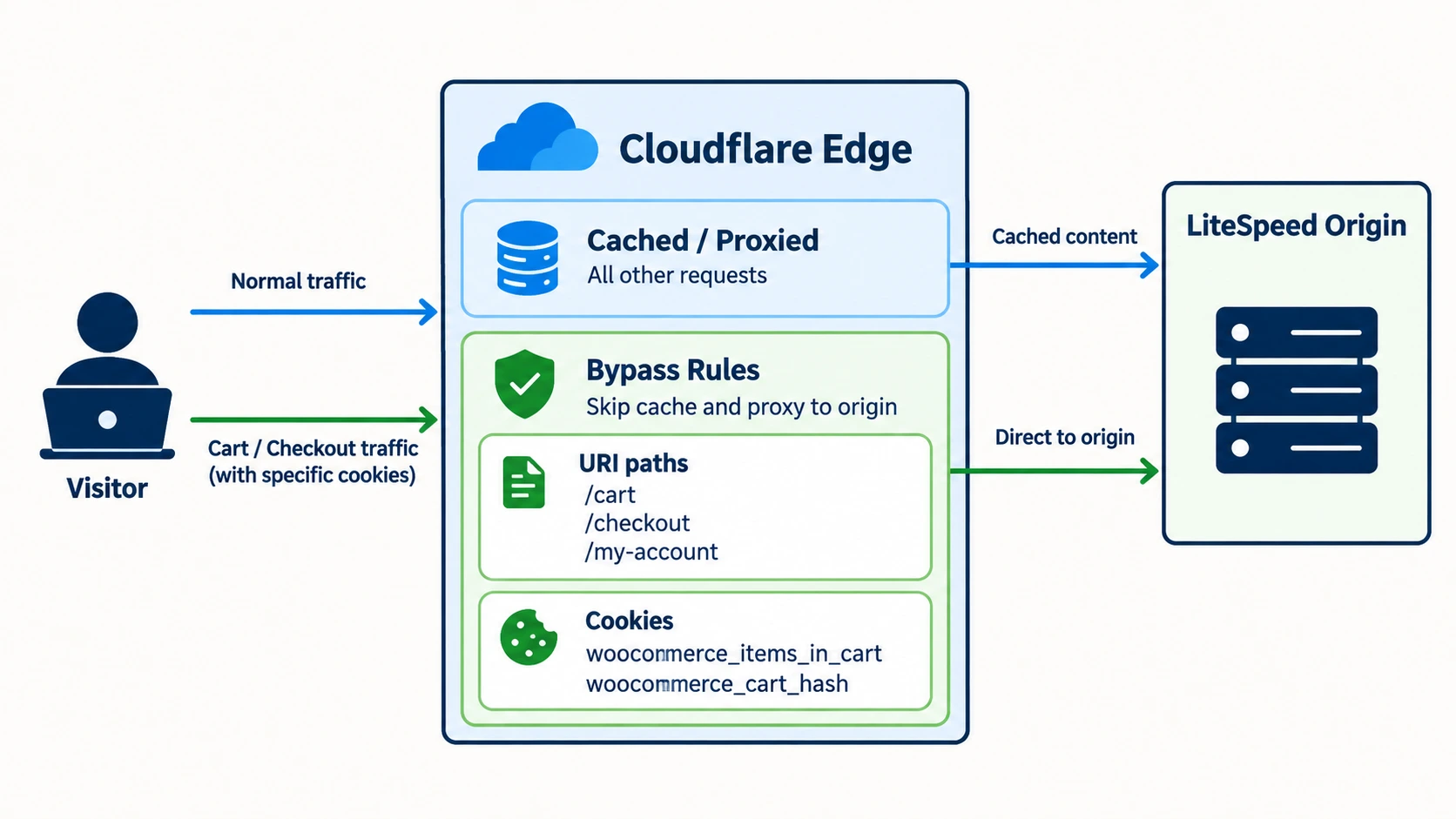
The Cloudflare checkout bypass visual provides a quick reference for the rule logic.
Troubleshooting Common Checkout Bugs: Script Optimization, Nonce Expiration, and Redis Object Caching
A correct page-cache exclusion does not guarantee that checkout JavaScript and database state are correct. If the checkout spins forever, shipping totals fail, or Stripe does not render, inspect optimization and object-cache layers next.
| Symptom | Likely cause | Immediate solution |
|---|---|---|
| Place Order spins forever | Delayed or combined checkout JavaScript | Exclude checkout scripts from JS optimization |
| Stripe Elements is blank | Stripe SDK or event listener delayed | Exclude stripe and gateway scripts |
| “Nonce verification failed” | Cached or expired checkout fragment | Keep checkout uncached and purge all layers |
| Shipping total never updates | AJAX request or object cache conflict | Inspect Network requests and object-cache logs |
| Checkout is uncached but slow | PHP/database work on every request | Use Redis or Memcached object caching |
Fixing Infinite Loading Spinners Caused by JS Minification and Delay
Open LiteSpeed Cache > Page Optimization > JS Settings. If Delay JS or JS Combine is active, add wc-checkout, woocommerce, stripe, and the PayPal SDK identifier to JS Excludes as needed. The exact script names vary by gateway, so confirm them in the Network and Sources panels.
Add the smallest set that restores event listeners, purge optimized assets, and test a real order.
Resolving WooCommerce Nonce Expiration on Dynamic Checkouts
WordPress nonces are time-limited security values. If a checkout document or payment fragment remains cached, order submission can fail with “Session expired” or “Nonce verification failed.” Keeping checkout uncached generates wp_create_nonce() and session data for the current request.
Accelerating Uncached Checkouts with Redis Object Caching
An uncached checkout still has to execute PHP and query the database. Enable Redis or Memcached under LiteSpeed Cache > Cache > Object when your host supports it. Object caching can reduce repeated database work without turning private checkout HTML into a public page.
Use this as a performance layer, not permission to cache checkout output. The WordPress bug-fix triage guide covers safe isolation.
Frequently Asked Questions About LiteSpeed Cache WooCommerce Exclusions
Do I need to exclude the WooCommerce cart and checkout if I use standard pages?
No. If WooCommerce uses its standard registered pages and URLs such as /cart/ and /checkout/, LiteSpeed Cache identifies and excludes them natively. Add manual rules only for changed slugs, custom funnels, or a verified conflict, then confirm the result with response headers.
How do I know if my checkout page is being cached?
Open the checkout as a guest in an Incognito window, open Chrome Developer Tools, choose Network, and refresh. Select the first document request and inspect Response Headers. X-LiteSpeed-Cache-Control: no-cache indicates successful origin exclusion; X-LiteSpeed-Cache: hit indicates that the page was served from LiteSpeed cache and needs investigation.
Does excluding checkout from LiteSpeed Cache hurt my Core Web Vitals or SEO?
No. Cart and checkout pages should not be important indexable landing pages, and their transaction safety matters more than a cache hit. Public product, category, and content pages provide the main performance and search experience. Keep those pages optimized while protecting dynamic checkout requests.
Why does my cart show empty when customers navigate between pages?
The public shop or product page may contain a cached empty mini-cart even though the WooCommerce session has items. Enable Vary for Mini Cart under LiteSpeed Cache > Cache > WooCommerce, or use ESI to fetch the widget dynamically. Inspect wc-ajax=get_refreshed_fragments if the count still fails to update.
Can I exclude specific user roles from LiteSpeed Cache?
Yes. In LiteSpeed Cache > Cache > Excludes, review Do Not Cache Roles and select roles such as Administrator, Editor, or Wholesale Customer when they receive personalized output. Logged-in administrators are often bypassed already, but verify the behavior for custom roles.
Conclusion: A Safe LiteSpeed Cache Exclusion Protocol
For a standard WooCommerce store, LiteSpeed already protects the registered Cart, Checkout, and My-Account pages. Start by checking the URL mapping and DevTools response headers. Add Do Not Cache URIs rules for custom funnels, use exact anchors when scope matters, and purge every cache layer after changing settings.
If the cart count is stale on public pages, fix the mini-cart with Vary for Mini Cart or ESI instead of disabling page cache everywhere. If checkout scripts fail, exclude only the required JavaScript. Finally, bypass dynamic paths and WooCommerce cookies at Cloudflare or another CDN.
That approach preserves fast catalog pages, protects customer sessions, and gives each store type a clear next step: standard-store owners verify native behavior, funnel developers map every dynamic URL, and sysadmins audit origin plus edge headers. For related error patterns, see the guide to common WordPress errors, and for the wider performance context, review the Core Web Vitals guide for WordPress.