
DomFlags is an open-source Chrome extension built for developers who want a faster way to inspect and revisit important DOM elements inside Chrome DevTools. It works like a bookmark system for the DOM: you mark an element once, then use keyboard shortcuts to jump back to it later.
For frontend developers, WordPress developers, QA testers, and UI engineers, this can save time when working with complex HTML structures, deeply nested layouts, or plugin-generated markup.
What Is DomFlags?
DomFlags is a Chrome developer tool that lets you create keyboard shortcuts for DOM elements. The extension adds a domflag attribute to selected elements, making them easier to identify and inspect again.
The project is available as an open-source repository on GitHub: plapier/domflags-extension.
The core idea is simple: instead of manually expanding the same DOM tree over and over in Chrome DevTools, you can flag important elements and return to them quickly.
What Problem Does DomFlags Solve?
Modern websites often have complicated DOM structures. A single button, form field, menu item, WooCommerce product card, or page builder section can be buried inside many layers of containers.
Without DomFlags, a developer may need to:
- Open Chrome DevTools.
- Find the target element.
- Expand multiple nested containers.
- Inspect the element.
- Repeat the process later.
DomFlags makes this faster by letting you mark the element and access it again with a shortcut.
Key Features of DomFlags
- Bookmark deeply nested DOM elements
- Add or remove a
domflagattribute - Use keyboard shortcuts to inspect saved elements
- Improve Chrome DevTools navigation
- Persist flags by adding the
domflagattribute directly in HTML - Speed up frontend debugging
- Help with WordPress theme and plugin inspection
- Learn from an open-source Chrome extension codebase
How DomFlags Works
DomFlags works by marking selected DOM elements with a domflag attribute. Once an element is flagged, the extension can identify it and let you inspect it more quickly.
For example, a flagged element may look conceptually like this:
<div class="product-card" domflag>
  ...
</div>
That attribute acts as a marker. When Chrome DevTools is open, DomFlags can detect flagged elements and help you jump back to them.
DomFlags Keyboard Shortcuts
DomFlags is designed for a keyboard-first workflow.
Common shortcuts include:
| Action | Shortcut |
|---|---|
| Add or remove a DomFlag | Alt/Option + Shift + D |
| Inspect flagged elements | Alt/Option + Shift + 1...9 |
These shortcuts are useful when debugging layouts, comparing components, or repeatedly checking the same page elements.
How to Install DomFlags
DomFlags may not be available through the Chrome Web Store today, so the most practical installation method is usually loading it manually as an unpacked Chrome extension from GitHub.
Step 1: Download the Source Code
Go to the DomFlags GitHub repository:
https://github.com/plapier/domflags-extension
Click Code, then choose Download ZIP. Extract the ZIP file on your computer.
Alternatively, developers can clone the repository with Git:
git clone https://github.com/plapier/domflags-extension.gitStep 2: Open Chrome Extensions
In Google Chrome, go to:
chrome://extensionsStep 3: Enable Developer Mode
Turn on Developer mode in the top-right corner of the extensions page.
Step 4: Load the Extension
Click Load unpacked and select the extracted DomFlags extension folder.
Chrome should then load the extension locally.
Step 5: Open Chrome DevTools
Open a web page, then open Chrome DevTools. You can usually do this with:
F12Ctrl + Shift + Ion Windows/LinuxCommand + Option + Ion macOS
Once DevTools is open, you can begin using DomFlags to flag and revisit DOM elements.
How to Use DomFlags
To use DomFlags in a developer workflow:
- Open the page you want to inspect.
- Open Chrome DevTools.
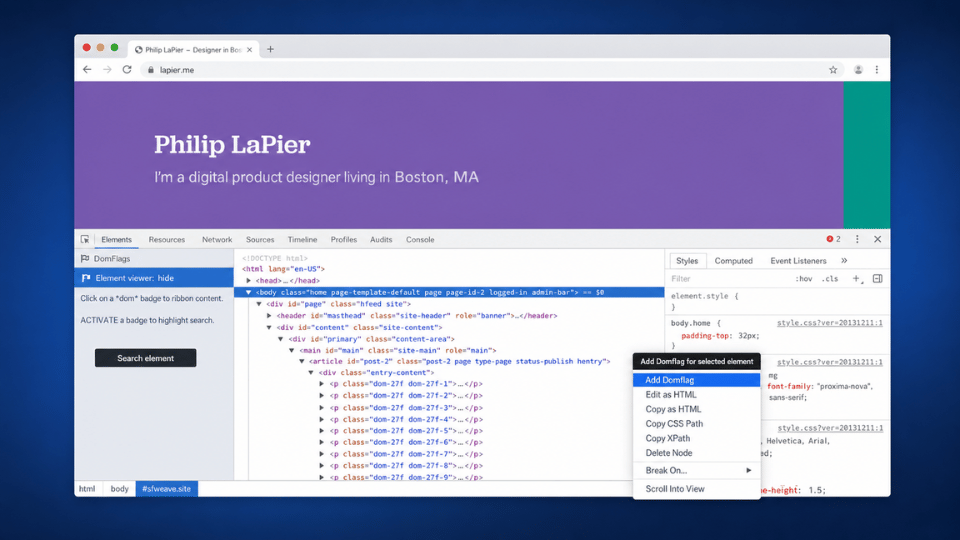
- Select an element in the Elements panel.
- Use the DomFlags shortcut to add a flag.
- Continue inspecting the page.
- Use the number shortcuts to return to flagged elements.
This is especially useful when the element is deeply nested or difficult to find manually.
Example Use Case
Imagine you are debugging a WordPress product page. A WooCommerce product card has a spacing issue, but the card is nested inside theme wrappers, plugin containers, and responsive grid markup.
With DomFlags, you can flag the product card once, then return to it quickly while testing CSS changes, responsive breakpoints, or JavaScript behavior.
This saves time because you do not have to manually locate the same element every time DevTools focus changes.
Benefits of Using DomFlags
DomFlags can improve developer productivity in several ways.
Faster DOM Inspection
The main benefit is speed. Developers can quickly return to important elements without manually searching through the DOM tree.
Better Chrome DevTools Workflow
DomFlags complements Chrome DevTools by adding a bookmark-like workflow for DOM nodes. It does not replace DevTools; it makes repeated inspection easier.
Helpful for Complex Websites
Large websites often include nested layouts, dynamic components, and framework-generated markup. DomFlags helps developers stay oriented inside those structures.
Useful for WordPress Debugging
WordPress sites can produce complex HTML through themes, plugins, Gutenberg blocks, WooCommerce templates, and page builders. DomFlags can help developers inspect recurring or deeply nested elements more efficiently.
Keyboard-Friendly Development
Developers who prefer keyboard shortcuts can move faster with DomFlags because they can flag and revisit elements without relying entirely on mouse navigation.
Open-Source Learning Value
Because DomFlags is open source, developers can study how the extension works, review the code, or adapt the idea for their own browser tooling.
DomFlags for WordPress Developers
DomFlags is useful for WordPress development because WordPress pages often include markup from many different sources.
You can use DomFlags to inspect:
- Theme layout wrappers
- Header and navigation elements
- Gutenberg blocks
- WooCommerce product cards
- Checkout fields
- Contact forms
- Page builder sections
- Popups and modals
- Sticky bars
- Footer widgets
- Plugin-generated HTML
For troubleshooting design issues, testing CSS changes, or reviewing frontend output, DomFlags can make the inspection process smoother.
Technology Behind DomFlags Chrome Extension
The DomFlags repository includes technologies commonly used in older Chrome extension development:
- Chrome Extension APIs
- JavaScript
- CoffeeScript
- Sass
- Coffeebar
- Shadow DOM
- HTML attributes
This makes the project useful not only as a tool, but also as a reference for developers interested in browser extension architecture.
Important Compatibility Note
DomFlags is an older open-source Chrome extension. Before using it in a modern Chrome workflow, developers should review the repository, extension manifest, and browser compatibility.
If it does not load correctly in a current version of Chrome, it may need updates for modern Chrome extension standards.
Who Should Use DomFlags Chrome Extension?
DomFlags is best suited for:
- Frontend developers
- WordPress developers
- Theme developers
- Plugin developers
- QA testers
- UI engineers
- JavaScript developers
- Browser extension developers
- Developers learning Chrome DevTools workflows
It is most useful when you frequently inspect the same DOM elements during debugging.
Final Thoughts
DomFlags is a simple but useful developer tool for bookmarking DOM elements and improving Chrome DevTools workflows. Its main value is helping developers move faster when working with deeply nested or frequently inspected page elements.
For WordPress developers, frontend engineers, and QA teams, DomFlags can reduce repetitive DOM navigation and make debugging more efficient. While the extension may require compatibility checks because it is an older project, the concept remains valuable: important DOM elements should be easy to mark, find, and inspect again.
Frequently Asked Questions
What is DomFlags?
DomFlags is an open-source Chrome extension that lets developers bookmark DOM elements and inspect them faster with keyboard shortcuts.
What is DomFlags Chrome Extension used for?
It is used for faster DOM inspection, frontend debugging, Chrome DevTools navigation, and repeated inspection of deeply nested elements.
How do I install DomFlags?
Download or clone the GitHub repository, open chrome://extensions, enable Developer mode, click Load unpacked, and select the extension folder.
Is DomFlags Chrome Extension useful for WordPress?
Yes. WordPress pages often contain deeply nested markup from themes, plugins, blocks, and page builders. DomFlags can help developers quickly return to important elements.
Does DomFlags replace Chrome DevTools?
No. DomFlags works alongside Chrome DevTools. It adds a shortcut-based bookmarking workflow for DOM elements.
Is DomFlags open source?
Yes. The source code is available on GitHub at plapier/domflags-extension.
What technologies does DomFlags Chrome Extension use?
DomFlags uses Chrome extension technology, JavaScript, CoffeeScript, Sass, Coffeebar, Shadow DOM, and HTML attributes.
Tribute to the Contributors
DomFlags stands as a thoughtful example of developer-focused problem solving, and its value comes from the contributors who shaped it with practical insight and technical care. By creating and sharing an open-source tool that helps developers move faster through complex DOM structures, the project supports a smoother and more efficient debugging workflow for the wider web development community. Their work reflects the spirit of open-source collaboration: identifying a real friction point, building something useful, and making it available for others to learn from, improve, and adapt.
Contributor: Philip LaPier
GitHub: plapier
To learn about website development visit WordPress Development