
WordPress login security best practices help prevent attackers from guessing, reusing, stealing, or automating access to your site. The key protections include strong unique passwords, two-factor authentication, limiting login attempts, using HTTPS, setting user roles carefully, protecting XML-RPC access, and monitoring for suspicious login activity.
The login screen is just one of several security concerns for a WordPress site, but it is one of the most obvious entry points. If someone gains access to an Administrator account, they could install plugins, change theme files, create new users, add spam, or harm the site before you notice. Strong login security lowers this risk without making everyday publishing difficult.
This guide is for self-hosted WordPress sites, also known as WordPress.org sites. WordPress.com uses a different login system with its own protections, but many of these tips still apply.
If you are building or managing a site as part of a larger project, it helps to understand how login security fits into WordPress development: authentication, roles, hosting, updates, and maintenance all work together.
What Makes WordPress Logins Vulnerable?
A WordPress login can be attacked in several ways:
- Brute force attacks, where bots keep trying username and password combinations.
- Credential stuffing, where attackers use leaked passwords from other websites.
- Password spraying, where attackers try one common password against many accounts.
- Phishing, where a fake login page tricks a user into giving away credentials.
- Session theft, where an attacker steals or abuses a logged-in session.
- XML-RPC abuse, where bots target
xmlrpc.phpinstead of the normal login page.
Because WordPress is so popular, attackers often use automated tools to try to break in. This does not mean WordPress is insecure by default. It just means that a public login page needs several layers of protection.
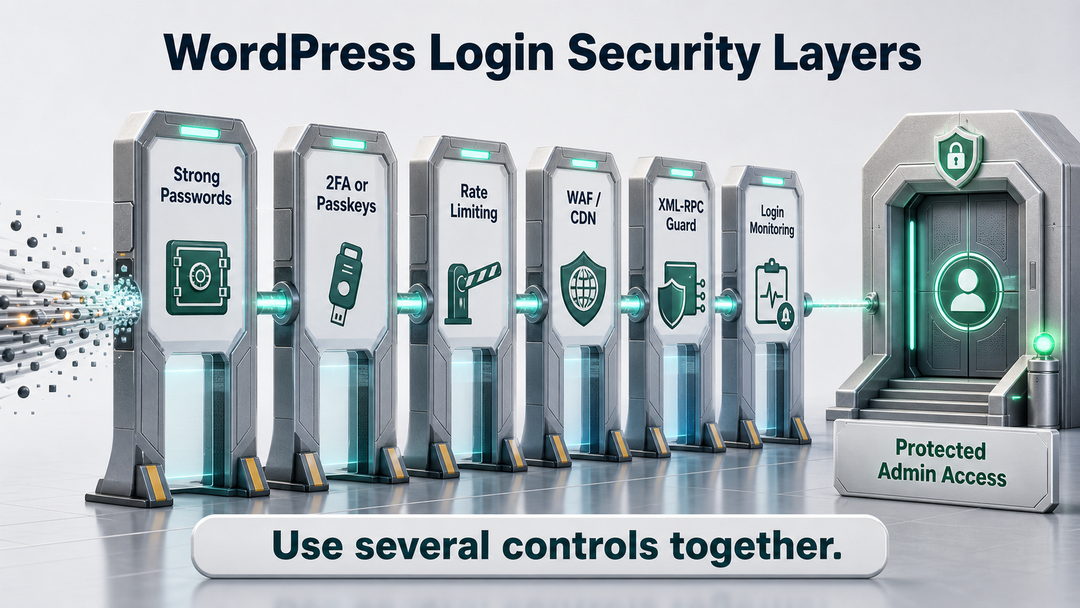
The best approach is to use multiple layers of defense. Do not depend on a single trick, plugin, or hidden URL. Combine several controls to cover different risks.
Start With Strong, Unique Passwords
A strong password is still important, even if you use two-factor authentication. If your password is short, reused, or easy to guess, attackers have a much easier time getting in.
For WordPress accounts, use passwords that are:
- Unique to the site.
- Long enough to resist guessing.
- Stored in a password manager.
- Not based on your name, brand, domain, birthday, pet, or common words.
- Never shared between team members.
WordPress.org’s password guidance recommends long, complex passwords and notes that WordPress can generate strong passwords for new or reset accounts. OWASP authentication guidance and NIST SP 800-63B also emphasize length, password managers, and avoiding known-compromised passwords over awkward composition rules that make users choose predictable patterns.
For most site owners, the simplest and most reliable habit is to create passwords with a password manager and never use them on other sites.
Do Not Keep the Default Admin Username
It is still good advice to avoid using the username admin, but this alone is not enough for security. A unique username makes guessing a bit harder, but it will not protect against weak or stolen passwords, or phishing.
If your site still has a user named admin, create a new Administrator account with a unique username, log in with that account, then delete or demote the old one. Attribute the old user’s content to the new account when WordPress asks.
Enable Two Factor Authentication for Privileged Users
Two-factor authentication, often shortened to 2FA, requires a second proof after the password. That second proof may be a time-based code from an authenticator app, a security key, or a passkey.
WordPress core does not include 2FA for self-hosted sites, so you need a reputable plugin, an identity provider, or a managed hosting feature. The priority is clear:
- Require 2FA for Administrators.
- Require it for Editors, shop managers, membership managers, and anyone who can publish or access private customer data.
- Store backup codes securely.
- Enroll at least two recovery methods for critical accounts.
Try not to use SMS as your only second factor if you have better options. SMS is safer than just a password, but authenticator apps, security keys, and passkeys are stronger choices for important accounts.
Consider Passkeys or Security Keys for Admins
Passkeys and WebAuthn security keys are better at stopping phishing than regular one-time codes because they are tied to the real website. If a fake login page asks for a passkey, your browser or device will not finish the login process for the wrong site.
You do not have to set up passkeys for every low-risk user right away. Start with Administrators and anyone who manages hosting, payments, plugins, customer records, or backups.
Limit Login Attempts and Add Rate Limiting
By default, a public login form allows repeated attempts. Limiting login attempts slows attackers by temporarily blocking or delaying repeated failed logins.
Good rate limiting should cover:
/wp-login.php/wp-admin/redirects to loginxmlrpc.phpif XML-RPC is enabled- WooCommerce or membership login forms if they use separate login flows
The WordPress Developer Resources brute-force guide suggests setting up rate limiting at the edge, server, or WAF level when possible. This is important because plugin-level limits still use your WordPress and PHP resources. If a large bot attack reaches WordPress before being blocked, your site can slow down.
Use this order of preference:
| Protection Layer | Best For | Notes |
|---|---|---|
| CDN or WAF rate limiting | High-volume automated attacks | Blocks bad traffic before it reaches the server. |
| Web server rules | Sites with server access | Powerful but should be tested carefully. |
| WordPress security plugin | Small sites and shared hosting | Easier to set up, but still consumes app resources. |
Avoid setting permanent lockouts that are too strict. If attackers trigger lockouts on real users, it can cause denial-of-service problems. Temporary delays, short lockouts, and alerts are usually safer options.
Protect XML-RPC If You Do Not Need It
xmlrpc.php is a WordPress file used for remote publishing, mobile apps, Jetpack, and some integrations. It can also be abused for password guessing, especially when attackers use XML-RPC methods that let them test credentials without touching the visible login form.
If your site does not use XML-RPC, restrict authenticated XML-RPC access through your security plugin, host, WAF, or server configuration.
If your site does use XML-RPC, do not just block it and hope for the best. Instead, try these steps:
- Rate-limit it.
- Require 2FA where supported.
- Allowlist trusted integration IPs when practical.
- Monitor authentication failures.
- Move newer integrations to REST API application passwords where appropriate.
WordPress application passwords were introduced for authenticated REST API use cases. They can be created per application and revoked without changing the user’s main login password, which is cleaner than giving a normal account password to an external tool.
Use HTTPS Everywhere, Especially for Login
HTTPS keeps your credentials and cookies safe as they travel between your browser and the server. Without HTTPS, login details can be exposed on untrusted networks.
For WordPress login security, confirm that:
- The whole site loads over HTTPS.
http://requests redirect tohttps://.- The WordPress Address and Site Address settings use HTTPS.
- The login page does not show mixed-content warnings.
- Your SSL/TLS certificate renews automatically.
The WordPress HTTPS documentation states that HTTPS is strongly recommended for WordPress logins and visitors. This is not a cosmetic padlock issue. It is basic protection for passwords, authentication cookies, payment forms, contact forms, and admin sessions.
If you are choosing hosting now, security support should be part of the decision. A good WordPress host should make HTTPS, backups, WAF options, and malware response easier to manage. Our guide to best hosting for WordPress explains what to look for before you commit.
Keep Administrator Access Rare
Many login problems get worse when too many people have too much access. WordPress has built-in roles like Administrator, Editor, Author, Contributor, and Subscriber. Each role has its own set of permissions.
Follow the principle of least privilege. Give each person only the lowest role they need to do their job.
| User Type | Safer Role Choice | Avoid Giving Admin When… |
|---|---|---|
| Blog writer | Author or Contributor | They only write their own posts. |
| Content manager | Editor | They do not manage plugins, themes, or settings. |
| SEO contractor | Editor or custom role | They only need posts, pages, and metadata fields. |
| Developer | Temporary Administrator or staging access | They only need access during a specific project. |
| Store staff | Shop Manager or custom role | They do not need full site settings. |
Check your user list every month on active sites. Remove old contractors, lower the access of inactive admins, and make sure each account belongs to a real person. Shared accounts are risky because you cannot track who made changes.
Secure Password Reset and Account Recovery
Attackers sometimes avoid the login form and target account recovery instead. Your password reset process should be just as secure as your login process.
Use these practices:
- Keep user email accounts secure with 2FA.
- Remove unused user accounts so they cannot be recovered later.
- Avoid security questions as a recovery method.
- Watch for unexpected password reset emails.
- Confirm that admin email addresses belong to current team members.
- Store 2FA backup codes somewhere protected, not in the same inbox used for password resets.
OWASP warns that authentication error messages and recovery flows can reveal if an account exists. WordPress site owners may not control every message from every plugin, but you can lower the risk by choosing well-maintained login, membership, and security plugins that handle recovery carefully.
Add CAPTCHA or Turnstile Carefully
CAPTCHA and challenge tools can slow automated login attempts. They are useful as an extra layer, especially when a site receives repeated bot traffic.
They do not replace 2FA or rate limiting.
Use CAPTCHA or a privacy-friendly challenge when:
- Bots are hammering your login page.
- You allow public registration.
- WooCommerce or membership logins are being abused.
- Your WAF can challenge suspicious traffic before WordPress loads.
Watch out for accessibility issues and false positives. If your login form blocks real customers, editors, or clients, it can cause problems. Test it on mobile devices, with common browsers, and with any membership or ecommerce login flows your site uses.
Be Careful With Changing the Login URL
Changing the login URL can cut down on bot traffic to /wp-login.php, but it is not strong security on its own. Automated scanners can still find alternate login URLs through plugins, redirects, sitemaps, theme behavior, or exposed links.
Use a custom login URL only as a convenience layer, not as the main defense.
If you do change it:
- Document the new URL for site owners.
- Make sure password reset still works.
- Test WooCommerce, membership, LMS, and client portal logins.
- Keep 2FA and rate limiting enabled.
- Avoid plugins that break updates or core login behavior.
Hiding your login page can reduce unwanted traffic, but it should not be your main security measure.
Monitor Login Activity and Set Alerts
You cannot fix a problem you do not notice. Monitoring logins helps you catch issues early, like repeated failed logins, attempts on old usernames, suspicious admin logins, or password reset abuse.
At minimum, monitor:
- Failed login attempts.
- Successful Administrator logins.
- New user creation.
- Role changes.
- Plugin and theme installation.
- Password changes.
- Application password creation.
- Logins from unexpected countries or IP ranges.
For business sites, send critical alerts to an email address or monitoring channel that someone actually checks. If your host or security plugin offers audit logs, keep enough history to investigate when something changed.
Keep WordPress, Plugins, and Themes Updated
Login security is about more than just the login form. A weak plugin can create a new login path, bypass permissions, expose user data, or let someone gain extra access.
WordPress.org’s security guidance explains that the WordPress Security Team handles core issues and coordinates with the broader ecosystem. But site owners still need to keep core, themes, and plugins updated.
Use this maintenance rhythm:
- Turn on automatic minor core updates.
- Update plugins and themes regularly.
- Delete unused plugins and themes instead of leaving them disabled.
- Only use plugins that are well-maintained and come from trusted sources.
- Test major updates on staging when the site is important.
- Keep backups before updates.
If you are still early in the setup process, our WordPress setup checklist can help you build security habits into the site from the beginning.
Use a WAF for Higher-Risk Sites
A web application firewall, or WAF, filters traffic before it reaches WordPress. This can help with brute force attempts, suspicious bots, known malicious IPs, and common attack patterns.
A WAF is especially useful when:
- The site earns revenue.
- The site has customer accounts.
- The site uses WooCommerce, memberships, courses, or subscriptions.
- Several people log in from different locations.
- You have already seen repeated login attacks.
A CDN-level or host-level WAF can protect server resources better than a plugin alone because unwanted requests can be challenged or blocked earlier.
Review Application Passwords and Integrations
Application passwords are helpful for REST API integrations, but they still give access to your site. Treat them as limited credentials, not just convenient links.
For every application password:
- Give it a clear name.
- Use one password per application.
- Remove it when the integration is no longer used.
- Avoid creating application passwords for shared admin accounts.
- Review them after a contractor, developer, or agency leaves.
If an integration only needs to publish drafts, do not use a full Administrator account for it. Set up a role and workflow that gives the integration only the access it needs.
Build a WordPress Login Security Checklist
Use this checklist for a quick audit:
- [ ] Every Administrator uses a unique password stored in a password manager.
- [ ] 2FA is required for Administrators and other privileged users.
- [ ] Critical accounts have backup codes and at least two recovery options.
- [ ] The old
adminusername has been removed or demoted. - [ ] The site uses HTTPS everywhere.
- [ ] Login attempts are rate-limited.
- [ ] XML-RPC is disabled, restricted, or rate-limited.
- [ ] Public registration is disabled unless the site truly needs it.
- [ ] New user default role is not Administrator.
- [ ] Old users, contractors, and test accounts have been removed.
- [ ] Application passwords are reviewed and revoked when unused.
- [ ] Login, role, and plugin changes are logged.
- [ ] Backups are current and restore-tested.
- [ ] WordPress core, plugins, and themes are updated.
- [ ] A WAF or host-level protection is active for business-critical sites.
If you are short on time, start with the first five items on the checklist. They address the most common risks for small WordPress sites.
What To Do If You See Suspicious Login Activity
If you notice login attempts on your site, do not panic. Failed attempts are normal on public WordPress sites. Use them as a reminder to review your security layers.
- Confirm that WordPress, plugins, and themes are updated.
- Require password resets for Administrator accounts if you suspect a compromise.
- Enable or enforce 2FA for privileged users.
- Check whether the attempts target
wp-login.php,xmlrpc.php, or another login form. - Add or tighten rate limiting.
- Review user accounts and remove anything unfamiliar.
- Check for new admins, unknown plugins, file changes, or unexpected redirects.
- Only restore from a backup if you are sure the site is compromised, and you know the backup is clean.
If your site shows signs of compromise, like unknown admin accounts, spam redirects, malware warnings, or unfamiliar plugin files, contact a qualified WordPress security expert or your host’s incident response team.
WordPress Login Security Mistakes to Avoid
Some advice sounds helpful but gives a false sense of safety. Avoid these mistakes:
- Relying only on a hidden login URL.
- Installing several overlapping security plugins that fight each other.
- Giving every contractor Administrator access.
- Using shared team accounts.
- Leaving old test users in place.
- Ignoring XML-RPC because it is not the visible login page.
- Using weak CAPTCHA settings instead of real rate limiting.
- Keeping backups in the same hosting account without an offsite copy.
- Forgetting that email account security affects WordPress password recovery.
The rule is simple: if a security measure is easy to bypass, use it as a backup, not your main defense.
FAQ : WordPress Login Security Best Practices
What is the best way to secure a WordPress login?
The best way to secure a WordPress login is to combine strong, unique passwords, two-factor authentication, login rate limiting, HTTPS, least-privilege user roles, XML-RPC protection, and login monitoring. No single setting is enough because attackers use different methods.
Does WordPress have two-factor authentication built in?
Self-hosted WordPress core does not include two-factor authentication by default. You can add 2FA with a trusted security plugin, a single sign-on provider, a managed hosting feature, or a passkey/WebAuthn plugin.
Should I change my WordPress login URL?
Changing the WordPress login URL can reduce automated noise, but it should not be your main security measure. Use it only alongside 2FA, strong passwords, rate limiting, HTTPS, and monitoring.
Should I disable XML-RPC in WordPress?
Disable XML-RPC if your site does not use Jetpack, the WordPress mobile app, remote publishing tools, or integrations that depend on it. If you do need XML-RPC, restrict and rate-limit it instead of blocking it unthinkingly.
How many login attempts should WordPress allow?
There is no perfect number for every site. A common approach is to allow a small number of failed attempts, then add a temporary delay or lockout. Avoid permanent lockouts that attackers can abuse to block real users.
Is a security plugin enough to protect WordPress login?
A security plugin can help, especially on shared hosting, but it should not be the only layer. Strong account practices, 2FA, HTTPS, updates, backups, WAF protection, and monitoring all matter.
Final Takeaway
WordPress login security is most effective when you use several layers of protection, even if it seems routine. Use strong unique passwords, require 2FA, limit repeated attempts, protect XML-RPC, keep access privileges tight, and monitor your logs.
This combination will not remove all risk, but it makes the most common attacks much less likely to succeed. For most site owners, that is the goal: fewer weak spots, fewer surprises, and a safer admin area for those who need it.